Manage your employees' coefficients, positions and levels
In Nicoka HRIS, you set up the coefficients, positions and levels defined by your company's collective agreement(s). Each value can be linked to one or more collective agreements and restricted to some socio-professional categories: when entering a position, the employee is only offered the values that apply to them.
The labels of these fields can be adapted to the wording of your collective agreement: contact Nicoka support.
Where to find these lists
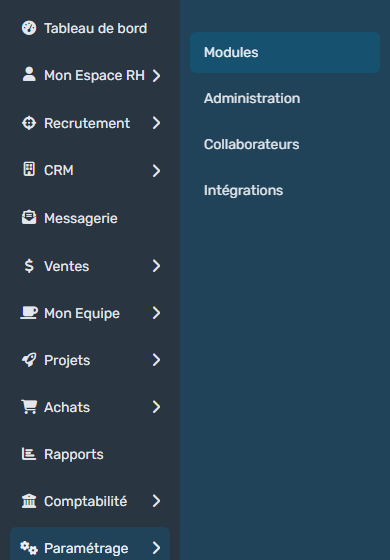
- In the side menu, open Customizing > Store, then click Customize on the Resources card.
- In the Professional Info. section, you will find:
- Collective Agreements: the agreements that apply in your company, with their reference (IDCC code in France);
- Socio Professional Categories;
- Coefficients;
- Position Codes: the positions of the classification grid;
- Levels;
- Professional Qualifications.
Start with the collective agreements and the socio-professional categories: the other lists are linked to them.
Create a coefficient, a position, a level or a qualification
These four lists work the same way. Here is the example of coefficients.
- Click Coefficients.
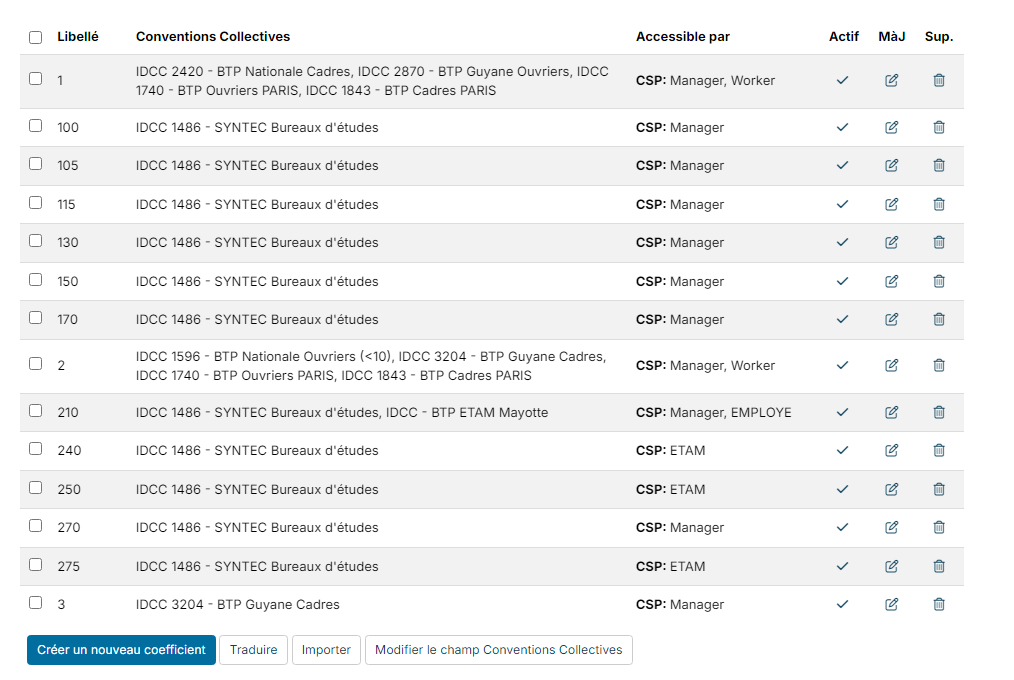
- Click Create a new coefficient (for positions: Create a new position Code), or the pencil icon of an existing value.
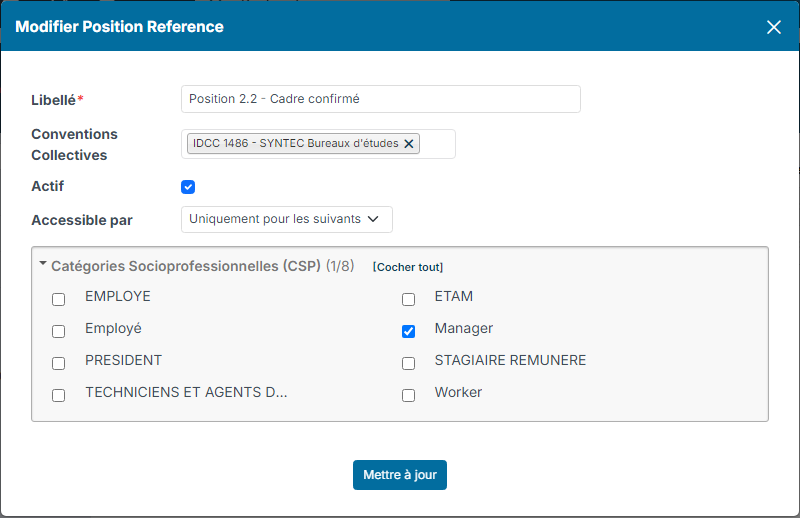
- Fill in:
- Label (required): for example "130" or "Position 2.2 - Cadre confirmé";
- Collective Agreements: the agreement(s) this value belongs to;
- Available for: everybody by default. Restrict the value to some socio-professional categories, for example executives.
- Click Create (or Update).
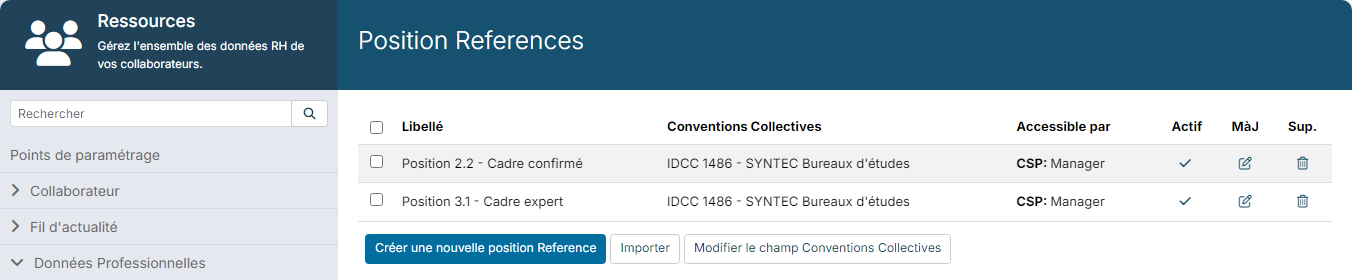
The list shows, for each value, its Collective Agreements and its Available for restriction.
To link several values to a collective agreement at once, tick them and click Bulk update field Collective Agreements. For coefficients, positions and levels, the Upload button lets you load a full grid from a file.
Give a coefficient, a position or a level to an employee
These values are part of the employee's position. They are chosen when creating the employee, then in the Positions block of their sheet (Professional Info. section).
In the position window, first choose the Socio Professional Category and the Collective Agreement: the Position Code, Coefficient, Professional Qualification and Level lists then only offer the values linked to that agreement and available for that category.
If you want to make one of these fields required, contact Nicoka support.
Change an employee's coefficient, position or level
To keep track of the former values, add a new position rather than changing the current one.
- On the employee's sheet, click Professional Info.
- In the Positions block, click Add a new position.

- The Create a new position window takes over the current position. Enter the Effective Date of the change, then choose the new values.
- Click Create.
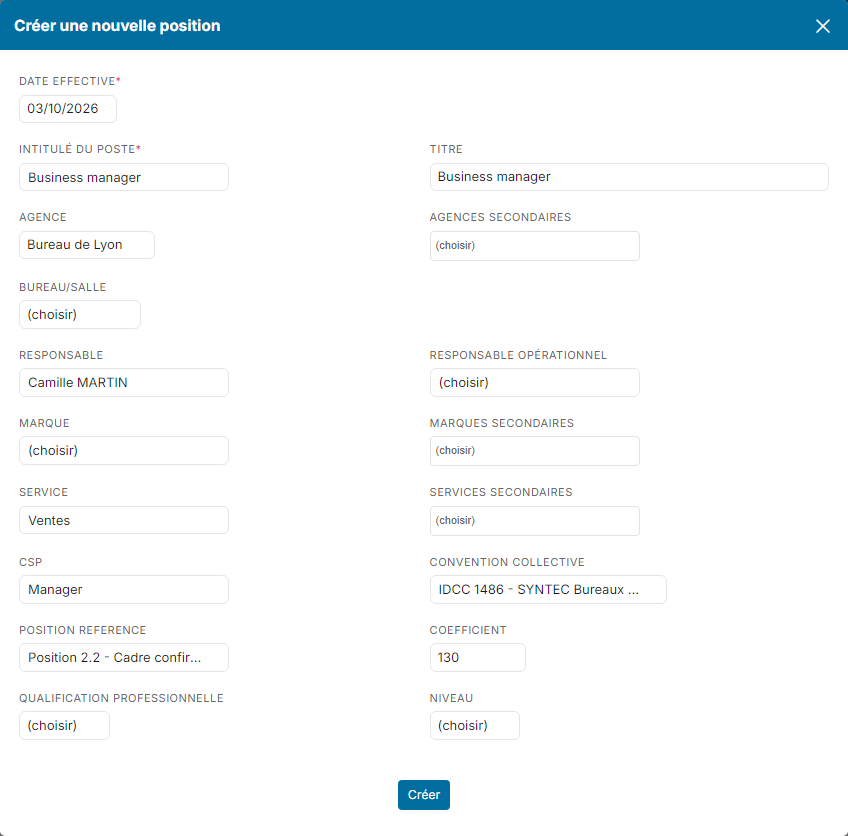
The successive positions remain visible in the Positions block. If a column is not shown, add it with the Edit Columns button.
Getting started with the HRIS
- Manage working hours
- Manage contract types
- Manage internal departments
- Manage your employees' coefficients, positions and levels
- Migrate your HR data into Nicoka HRIS