Creating an invoice template
Nicoka generates your invoices as PDF files from a template. This article explains how to create your own invoice template from the standard one, with the template editor. Invoicing requires the Sales and CRM modules.
Mandatory information
In France, an invoice must include, among other things:
- the invoice date and number, and the date of the sale or service;
- the seller's identity: company name, registered office address, SIREN or SIRET number, legal form and share capital, billing address if different;
- the customer's identity: company name, address, billing address if different;
- the intra-community VAT number;
- the description and breakdown of the products and services, the price excluding tax, the applicable VAT rate, any price increases or reductions;
- the total to pay excluding and including tax, and the payment information.
Check this information in your template, especially in the header and footer.
Copy the standard template
The standard Facture (invoice) template provided by Nicoka cannot be changed: a message tells you so when you open it. Start from a copy.
- In the side menu, open Customizing > Store, then click Customize on the Sales card.
- In the Sales section, click Document Templates, then the Facture template.
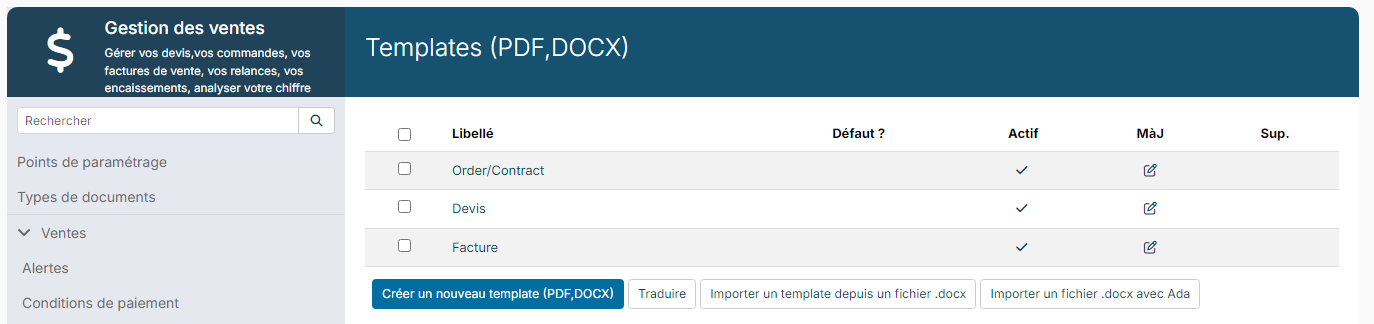
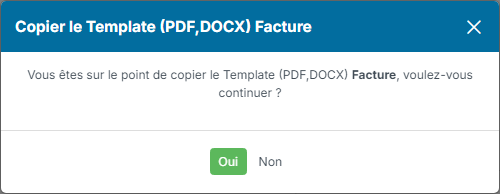
- Click Copy, at the top left, then confirm with Yes. The copy opens: this is the one you customize.
From the list, you can also start from a Word document by importing a .docx file.
Template settings
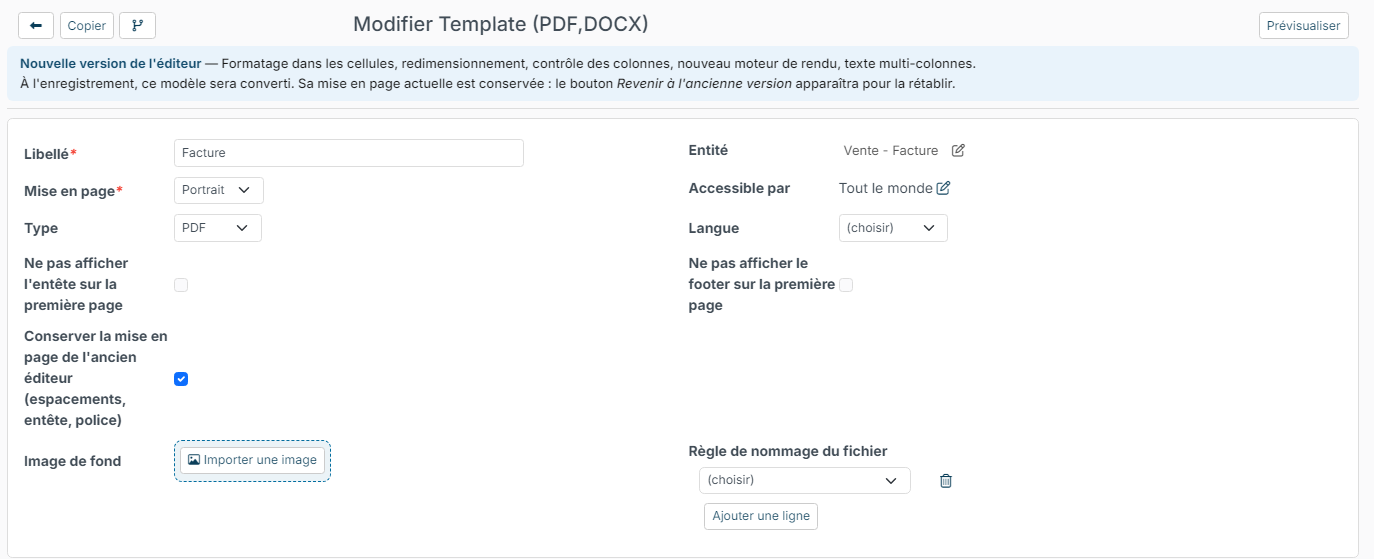
- Label: the name of your template, for example "Recruitment services invoice". This is the name offered in the Export menu of invoices.
- Layout: portrait or landscape.
- Entity: the document type concerned, here the sales invoice. Do not change it.
- Available for: everyone by default. The pencil icon restricts the template to some users.
- Don't display the header on the first page and Don't display the footer on the first page: useful if your first page has a different layout.
- Background image: a letterhead, for example.
- File naming rule: the name given to the generated PDF file.
The New editor version banner appears on templates created with the previous editor. The new editor brings cell formatting, column resizing and multicolumn text. When you save, the template is converted; its layout is kept thanks to the Keep the previous editor's layout (spacing, header, font) box, and the Revert to the previous version button lets you go back.
The three areas of the template
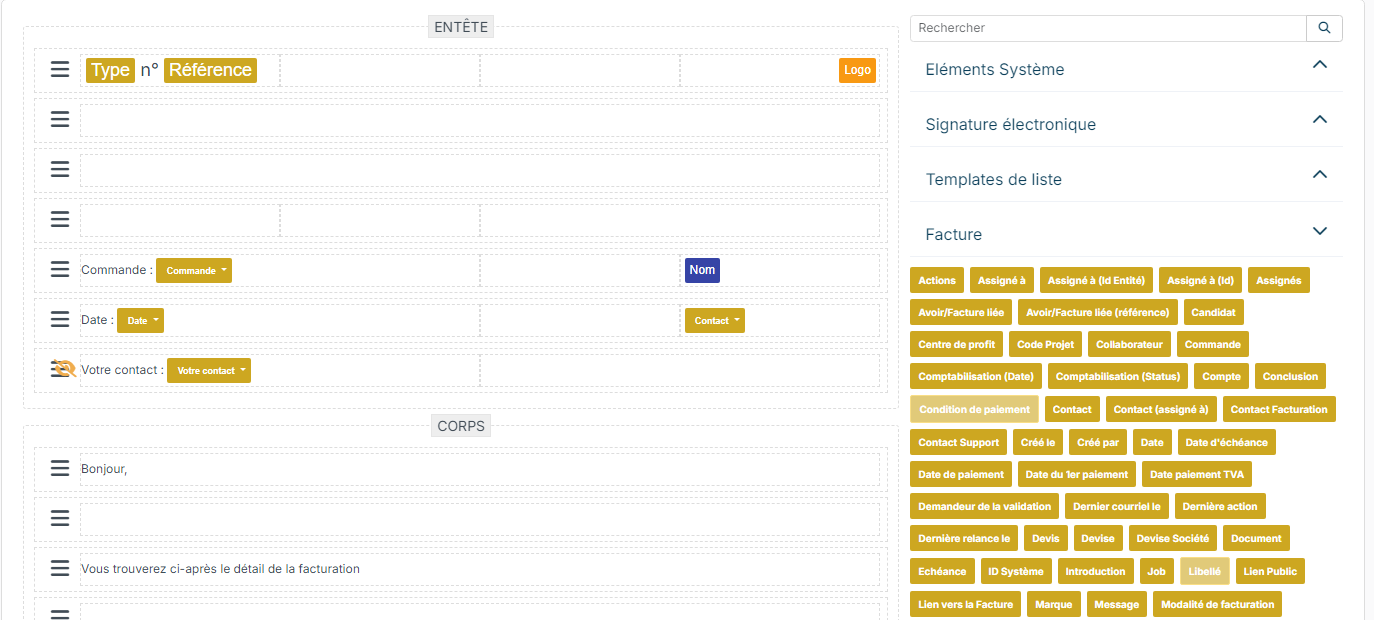
The template is made of three areas, built from rows split into cells:
- Header: the top of each page, for example with your logo, the invoice number and the customer's address;
- Body: the main content, with the table of invoice lines and the totals;
- Footer: the bottom of each page, for example with your legal notices.
Insert data
The right-hand panel lists the available data labels, grouped by theme: invoice, account, contact, company… Click a theme to open it, or look for a label with the search box.
- Drag the label you want into a cell of the template.
- To add fixed text, click in the cell and type it, for example "Date:" in front of the date label.
When the document is generated, each label is replaced by the invoice's value. The small arrow of an inserted label gives access to its options, for example the format of a date.
Add, copy or delete rows
Click the ≡ icon at the start of a row. A toolbar appears:
- the red bin (Remove) deletes the row;
- the crossed-out eye opens the row's Display Rules (see below);
- Copy duplicates the row;
- + offers Add a new row, Copy and, in the body, Add a table and Add a page break.
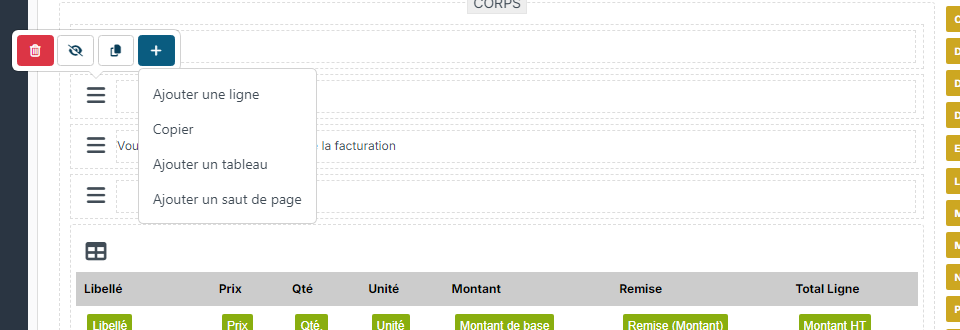
The + button that appears between two rows inserts a new row at that position. Empty rows give the document some air.
Format a cell
Click in a cell: a toolbar appears above it. It sets the alignment, the text size and style (bold, strikethrough, underline, italic), the borders, the text, background and border colours, inserts an image and spreads text over several columns.

Show a row only under a condition
A row can be shown only in some cases, for example the discount row only when the invoice has a discount.
- Click the ≡ icon of the row, then the crossed-out eye.
- In the Display Rules window, choose the field, the condition and the value, for example: if the discount is greater than 0. Add a new row adds another condition.
- Click Save.
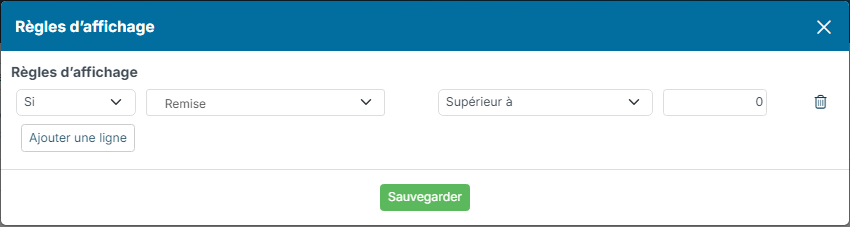
A row subject to a rule shows an orange crossed-out eye instead of the ≡ icon.
Save and check the result
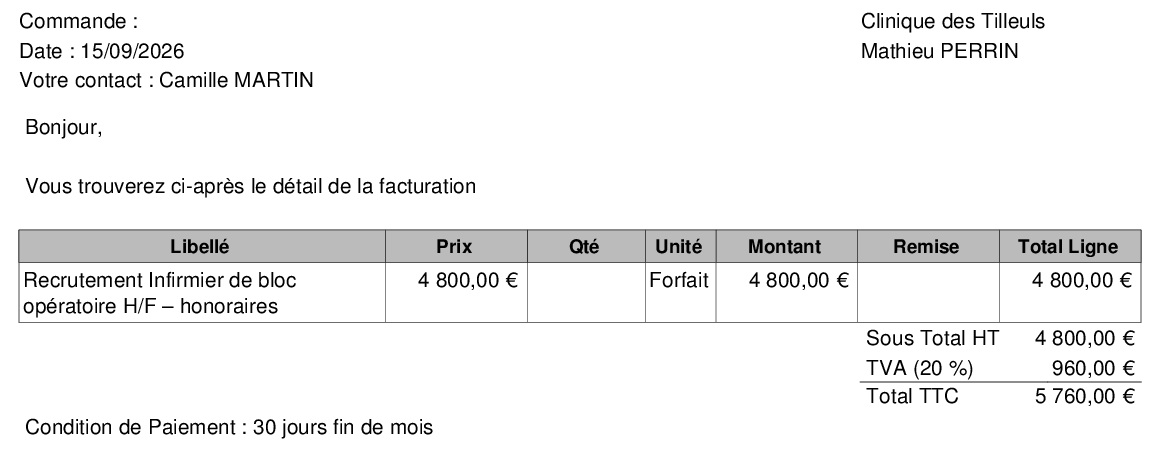
Click Update, at the bottom of the page, regularly to save your template. The preview button, at the top right, opens a PDF preview generated with your most recent invoice.
To check the result on a specific invoice, open it and click Export, then your template: the PDF opens in a new tab.
To create and send your invoices, see Creating and sending an invoice. For other document templates, see Template PDF, DOCX.