Direct debit cycle
If your customers pay you by SEPA direct debit, Nicoka groups the invoices to collect in a direct debit cycle, records the payments, then produces the SEPA file to upload on your bank's website. This article describes the one-off setup, then each cycle.
1. Allow the payment mode in cycles
- In the side menu, open Customizing > Store, then click Customize on the Sales card.
- Expand the Sales section and click Payment Modes.
- Check that your direct debit mode, for example Automatic Debit, is active and ticked in the Allowed in Payment Cycle column. If not, click its pencil icon, tick the box, then click Update.
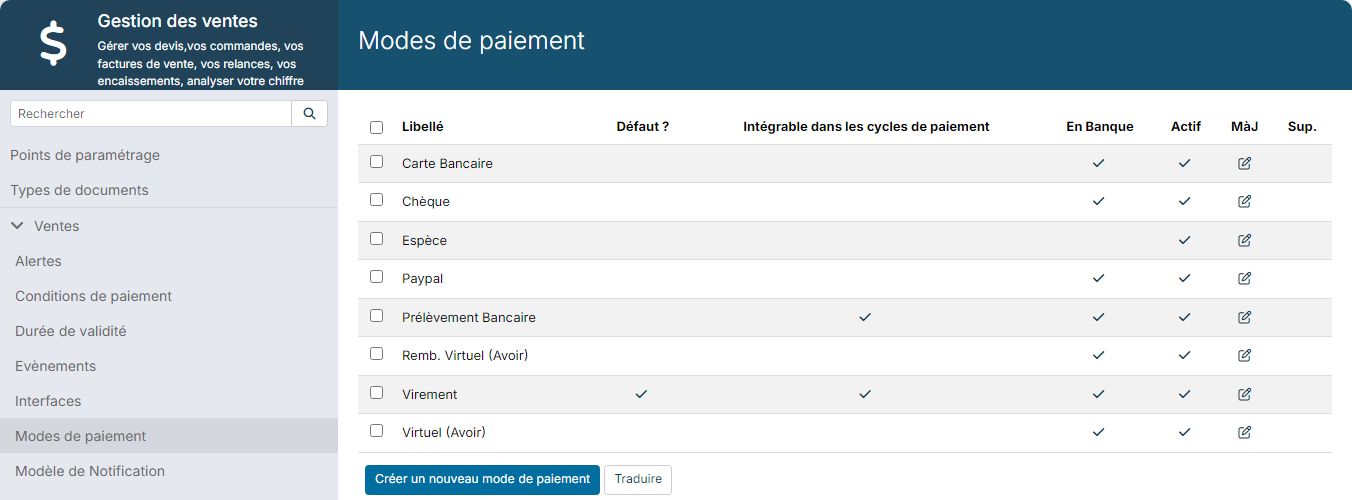
Only invoices whose payment mode is allowed can enter a cycle. This list is shared by sales and purchasing: if you pay your suppliers by bank transfer in cycles, the Bank Transfer mode is allowed too, and your sales invoices paid by transfer may then be suggested in a direct debit cycle. Always check the content of your cycles before generating the payments.
2. Fill in your company's bank details
- In the side menu, open Customizing > Admin, click Companies, then the name of your company.
- Open the Account Information tab.
- Enter the Account Owner, the Bank Name, the Swift code, the IBAN of the account to credit and the Creditor ID (For Direct Debit), then click Save.
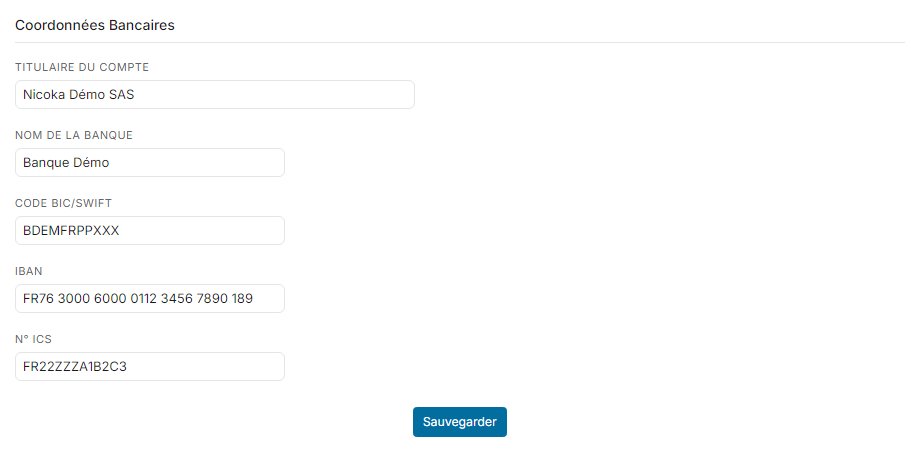
The creditor identifier (ICS in France) is assigned by your bank. It is required to collect direct debits: Nicoka adds it to each direct debit order.
3. Complete your customers' records
- Open the account of the customer to debit, then the Payment Informations tab.
- In Payment Mode, choose your direct debit mode. The Credit Debit Mandat Sign On field appears: enter the signature date of the SEPA mandate your customer returned to you.
- In the Bank Info. block, enter your customer's Bank Name, Account Owner, Swift code and IBAN.
- Click Update.
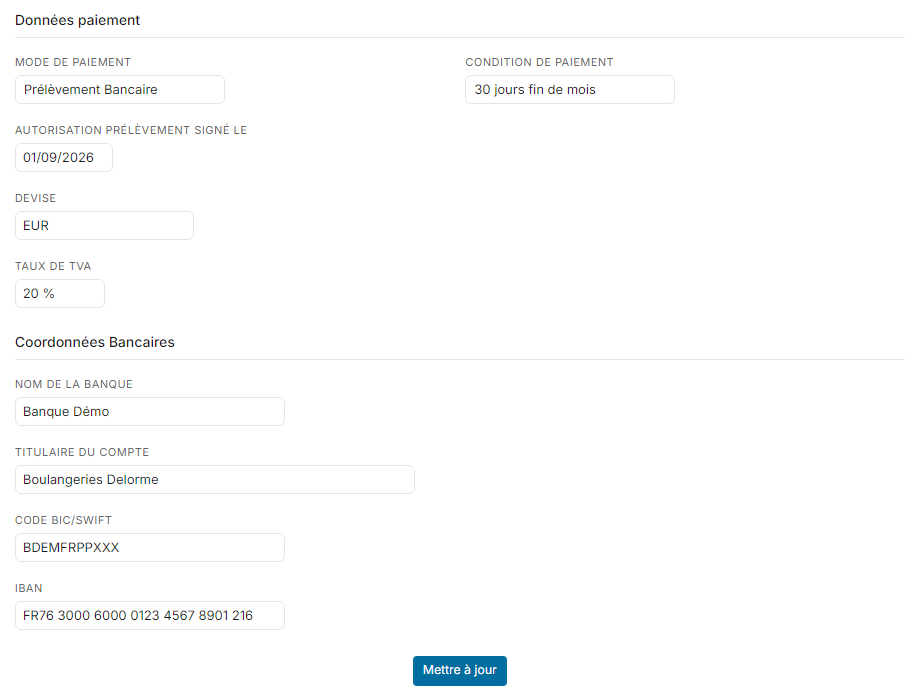
You do not need to enter the unique mandate reference (UMR): Nicoka computes it in the SEPA file from the customer account and the mandate signature date. So do not change that date once direct debits have started, otherwise the reference changes.
New invoices of the customer use their payment mode. An invoice that already exists keeps its own: to change it, open the invoice, click Actions > Change Header Data and change the Payment Mode.
4. Create a direct debit cycle
- In the side menu, click Sales, then Invoices.
- Click Create a new payment Cycle.

- Enter the Date of the cycle and a Label, then click Create.
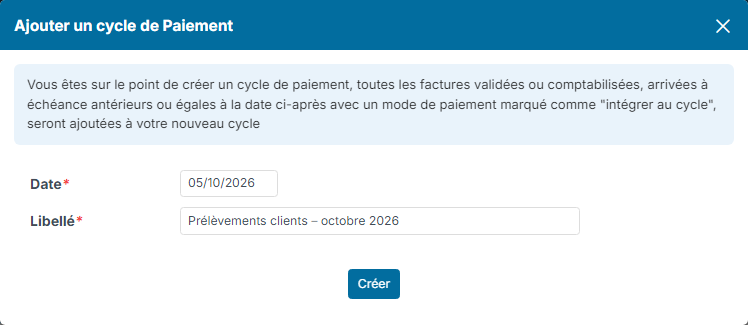
Nicoka adds to the cycle the unpaid invoices whose due date is on or before the cycle date and whose payment mode is allowed in cycles. For a partly paid invoice, only the amount left to pay is included.
- The cycle opens in Draft status. Check the Items: customer, invoice, due date, amount, IBAN and Swift code.
- To add other invoices, click Add Invoices. To remove some, tick them and click Del rows.
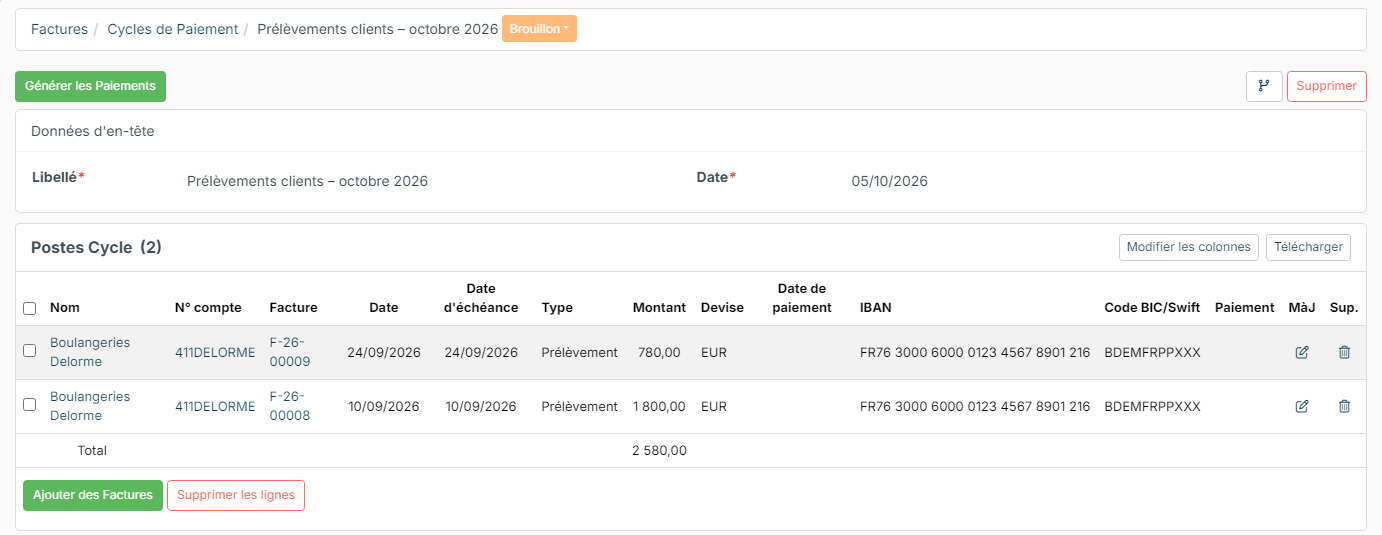
All your cycles are listed in Sales > Payment Cycles.

5. Generate the payments
- On the cycle, click Generate Payments.
- In Payment on, choose the date of the payments: On Cycle Date, On DueDate of each invoice, 3 days before duedate, 8 days before duedate, or Free entry with an Effective Date.
- Click Generate.
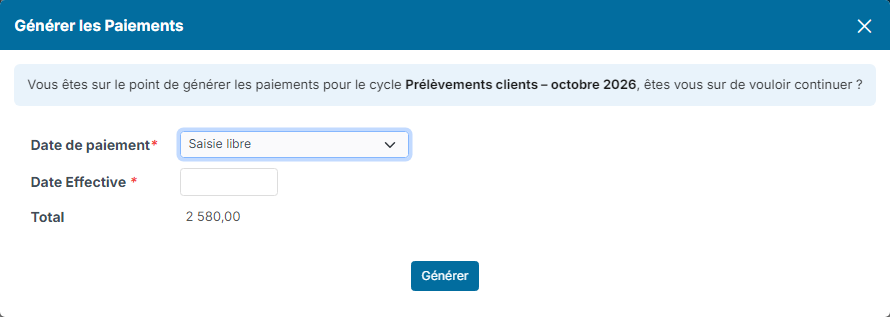
Nicoka records the payments on the invoices of the cycle, which are then marked as paid. If a customer's bank details are missing, the generation is refused and the message names the customer.
6. Generate the SEPA direct debit file
Once the payments are generated, the Generate SEPA Files button replaces Generate Payments on the cycle. Click it: Nicoka downloads a direct debit XML file, to import in your bank's interface to send the direct debit orders. The date of each direct debit is the payment date chosen in the previous step.
The cycle moves to the File Generated status. To produce the file, Nicoka checks the IBAN, the Swift code and the creditor identifier of your company, as well as the bank details and the mandate date of each customer; if any information is missing, the file generation is refused.
To pay your suppliers the same way, see Supplier payment cycle.