Create a billing schedule
A billing schedule splits the invoicing of a quotation or an order into several deadlines: by periods (subscription, monthly contract), by progress stages or line by line. Nicoka then reminds you of the deadlines to invoice, one by one or all at once. We recommend setting the schedule on the order: it reflects the purchase order your customer sent you.
Create the schedule
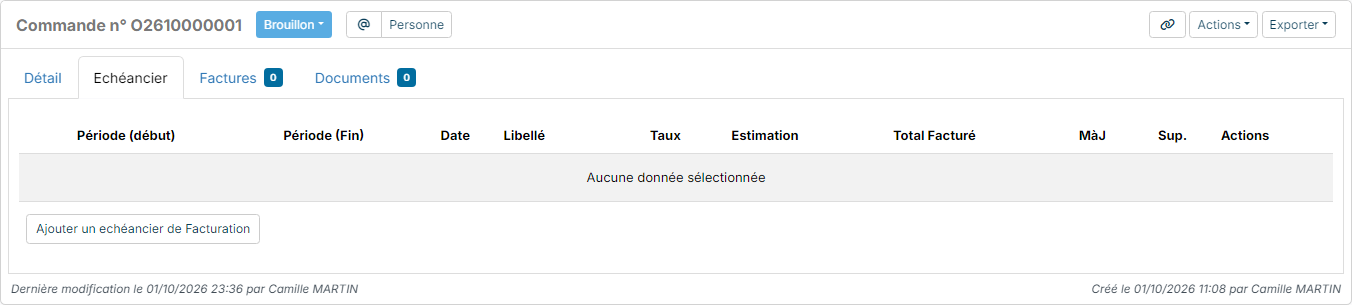
- Open the order, once its lines are entered, then the Billing Schedule tab.
- Click Add a billing Plan. You can also use Actions > Create a billing schedule.
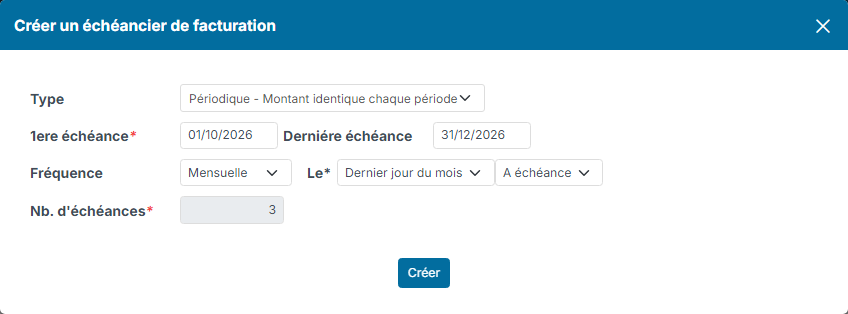
- Choose the Type of schedule (see below).
- Enter the dates of the First DeadLine and the Last DeadLine.
- For a recurring schedule, choose the Frequency (Monthly, Bimonthly, Quaterly, Biannually, Annually…), the billing day in On (a day of the month or Last day of month), then In Advance or Due Date. The Nb. of DeadLines is calculated automatically from the dates and the frequency.
- For the other types, enter the Nb. of DeadLines.
- Click Create.
Schedule types
There are five of them. Their description is shown in the Type list.
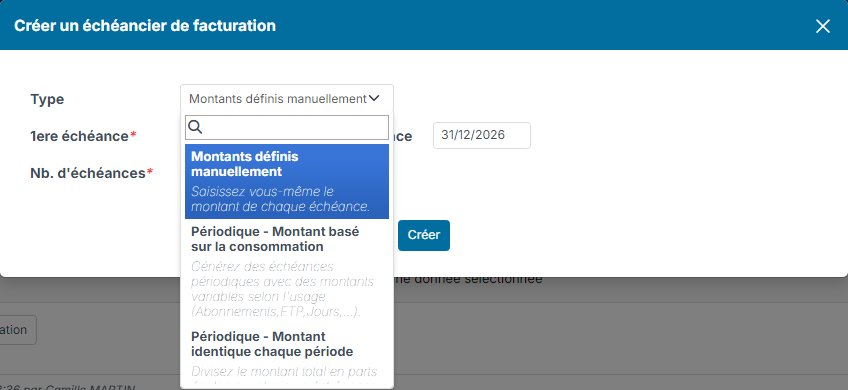
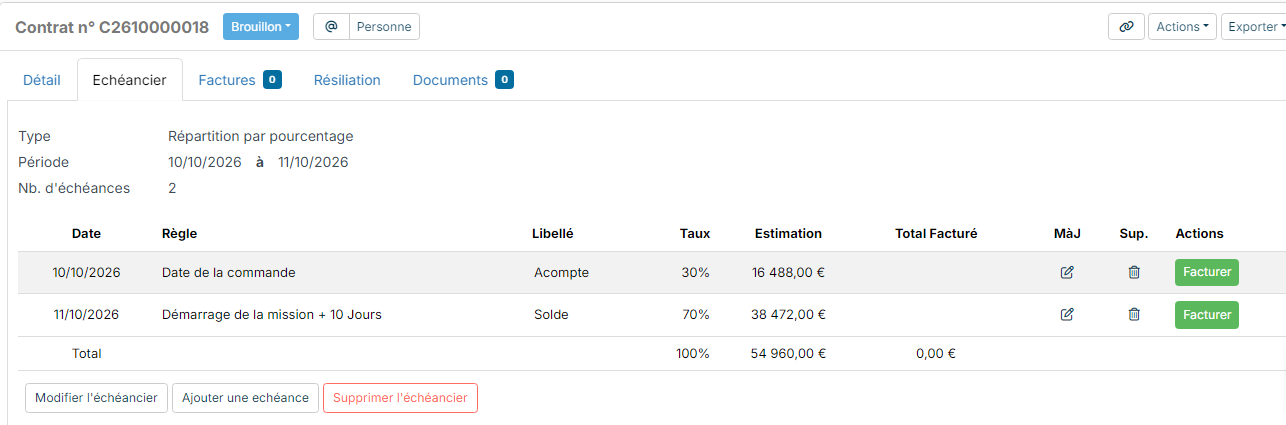
- Percentage-based split: you set the number of deadlines and the percentage of the total amount invoiced at each one. This type suits progress billing, for example by phase of a fixed-price project.
- Manually entered amounts: you enter the amount of each deadline yourself.
- Recurring - Amount based on usage: one deadline per period, whose amount can vary with usage (subscriptions, days invoiced, users…). Lines that are not subscriptions, such as a set-up fee, are added to the first deadline.
- Recurring - Equal amount per period: the total amount is split evenly across all deadlines.
- One installment per order line: Nicoka creates one deadline for each invoiceable line of the quotation or order.
Automatic schedule: the invoicing mode with installments
When your terms are always the same (30% on order, balance when the candidate starts…), set them once on an invoicing mode: every order created with this mode gets its billing schedule without any entry.
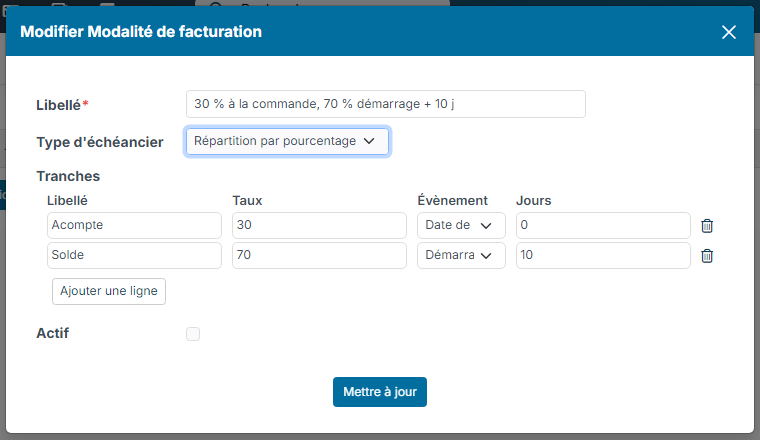
- In Settings > CRM > Invoicing modes, create or edit a mode.
- Choose Billing plan type = Percentage-based split, then fill in the Installments: a label, the Rate (they must add up to 100%), the Event dating the deadline (Order date, Mission start, End of trial period or Mission end) and a delay in Days after that event.
- Assign the mode to the customer account: it is proposed by default when creating its orders, where you can still pick another one.
When the order is created, Nicoka creates one deadline per installment. The last one takes the remainder, so that the total always matches the order, even after a line is added. Deadlines are dated when the event is known: the order date, or, for an order created from a job with its hired candidate, the hire date, the end of the trial period and the contract end validated on the application. Otherwise the deadline stays undated and its rule shows in the Rule column: date it by hand as soon as you know the date.
Good to know: the invoicing mode of an order whose schedule was generated can no longer be changed; an order created from a quotation keeps the quotation's deadlines; a mode without installments stays a plain mention on the order.
Follow and adjust the deadlines
The Billing Schedule tab recalls the type, the period and the frequency, then lists the deadlines with their period, their date, their Forecast and the amount already invoiced.
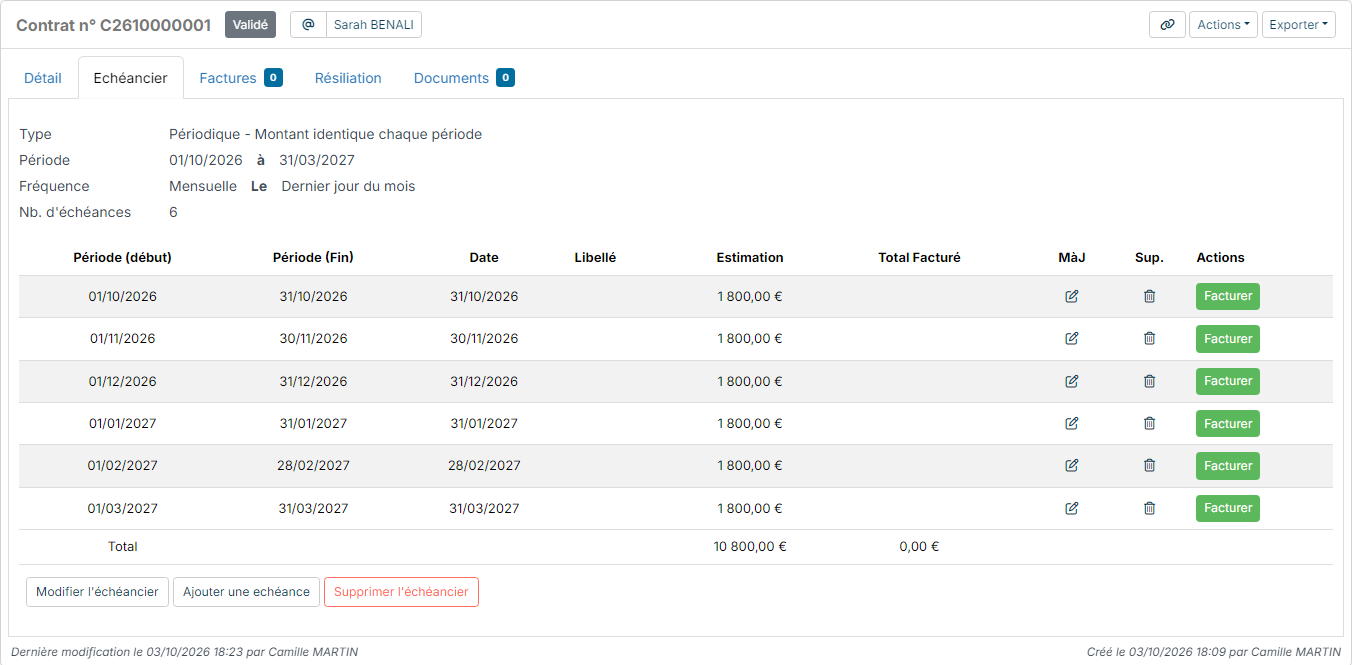
- The icons of each row let you change or delete a deadline; Add a deadline adds one.
- Modify Billing Plan recalculates the deadlines with new settings; Delete billing plan removes it entirely, for example after a mistake.
For a percentage-based split, the amounts of the Forecast column follow the order lines as long as the deadline is not invoiced; for the other types, they are calculated when the schedule is created and no longer change. The invoice itself is always calculated from the order lines at the time you invoice.
Invoice a deadline
- On the row of the deadline, click Bill.
- Check the invoice Type, the Deadline and the VAT Rate. Depending on the schedule type, also choose the Mode: Proportional (multiple lines) keeps the detail of the order lines, Agregate (one line) groups them into a single line.
- Click Generate.
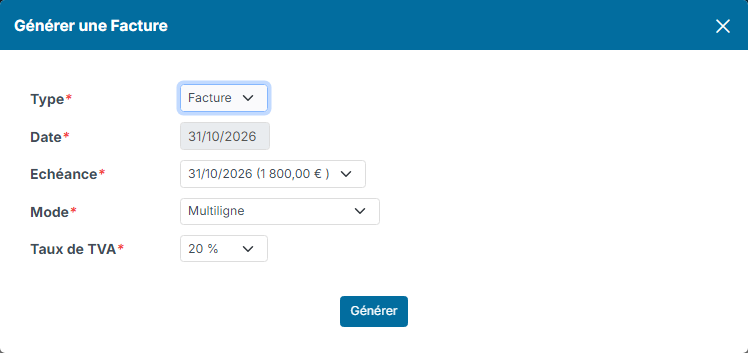
The invoice is created on the date of the deadline and opens. You just have to check it and send it: see Creating and sending an invoice.
Invoice several deadlines at once
- In the side menu, click Sales, then Invoices, and click Billing Schedule.
- Choose a Date and, if needed, the Customers, the Projects or the Invoicing Modes, then click Search. The list shows the deadlines to invoice, up to one month after the chosen date.
- Tick the deadlines to invoice, click Actions, then Generate Invoices.
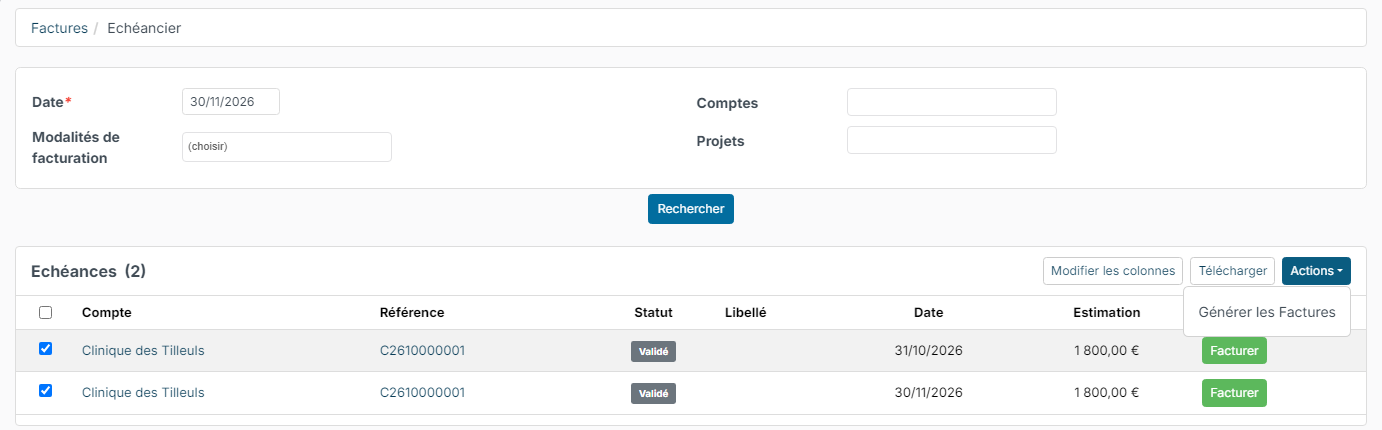
- Choose the invoice Type, then click Generate.
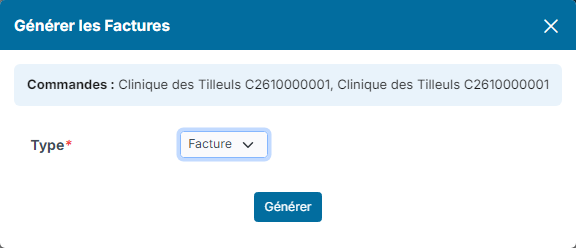
Nicoka creates one invoice per deadline, dated on the deadline. The Bill button of each row invoices a single deadline.
Good to know: if the order is linked to a project whose invoicing mode is Deadline - Multiple-line or Deadline - Aggregated, the billing schedule of the order is what drives the invoicing of the project. See From order to invoice: the Project and Timesheet flow.