From order to invoice: the Project and Timesheet flow
To end up with an invoice, Nicoka chains five steps: the quotation, the order (your contract), the project and its activities, the timesheets, then the invoice. Each step passes its information on to the next one. This is why an invoice generated from a project finds the right price, the right quantity and the right order line to consume on its own. This article describes what each step brings, and what you need to fill in so that the next one works.
Not every step is mandatory: you can start directly with the order, or even with the project. But the earlier you enter the flow, the less information you have to enter again.
1. The quotation
The quotation (Sales > Quotations menu) prices the service. Each of its lines already carries the information that will travel all the way to the invoice:
- the label and the reference of the service;
- the unit (per day, per hour, per unit, flat fee…);
- the unit price and the currency;
- the planned quantity;
- possibly the expected consultant.
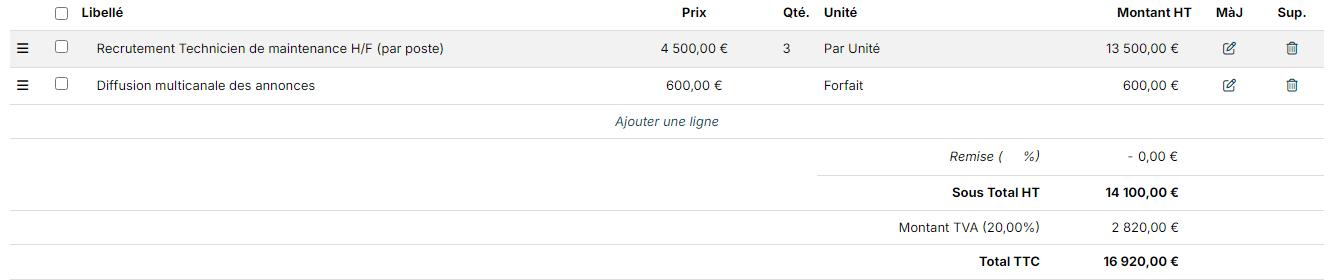
From the quotation's Actions menu, you can in particular Generate Order, Generate Invoice, Create a billing schedule or Create a new Project.
We recommend going through the order: it matches the purchase order your customer sends you, and it serves as the contractual reference throughout the project.
2. The order, your contract
The order records the customer's commitment. It carries the contractual amount, the period and, where relevant, the billing schedule. Each line can be assigned to the person who will deliver the service.

Its role in the rest of the flow is central: invoices consume it. Nicoka tracks what is left to invoice, that is the total amount minus the amount already invoiced. As long as there is an amount left to invoice and the order is not closed, it remains a candidate.
3. The project and its activities
From a quotation or an order, the Create a new Project action creates the project and, above all, one activity per invoiceable line of the document. Each activity automatically takes over:
- the label, the reference and the description of the line;
- the unit, the unit price and the currency;
- whether time can be logged on it;
- the assigned person: they are added to the project partners, and the activity is reserved for them.
You find them on the project, Activities tab.
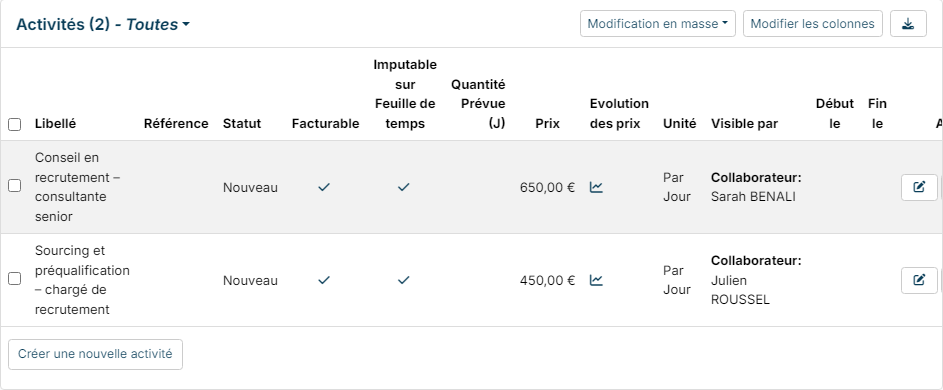
The link between the order line and the project activity is kept. This link makes it possible, when invoicing, to consume the right order line and to take over its reference and accounting allocation.
The project also takes over the account of the document and its contact, which becomes the Main Contact of the project (Information tab, Link to block). This contact is suggested by default when you log an email, a meeting or a note from the project. You can change it at any time.
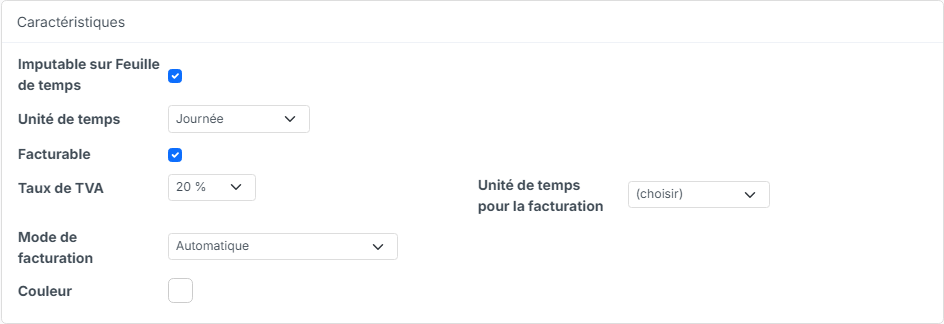
On the project, Information tab, the Characteristics block drives invoicing:
- Invoiceable: a project that is not invoiceable is ignored by the invoicing process.
- Invoicing mode: Auto (consumed items are invoiced at actual cost), Deadline - Multiple-line and Deadline - Aggregated (the order's billing schedule prevails, with or without the detail of the lines), or Manual (the project is left out of the automatic process: you invoice by hand).
- VAT Rate: the rate applied to the invoice lines.
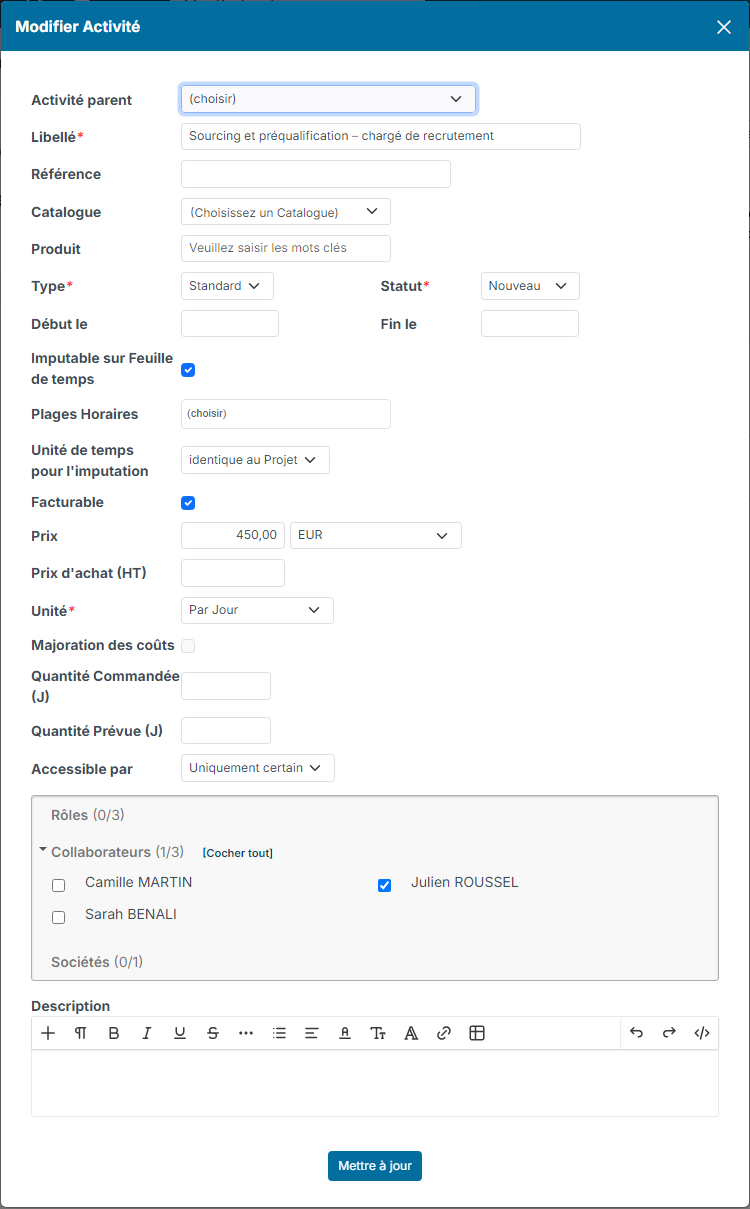
On each activity (edit button in the Activities tab):
- Invoiceable: only invoiceable activities produce invoice lines.
- Unit: it must be based on a quantity (per day, per hour, per unit, per month…). A flat-fee activity cannot be invoiced on time spent: a flat fee is invoiced through a billing schedule set on the order.
- Price: this is the price used on the invoice line. The price history icon in the activities list keeps the dated history of rates; invoicing applies the activity's current price.
- Inputable on TimeSheets, as well as the employees allowed to log time on it (Available for).
4. Timesheets
Team members log their time on the project activities. Two conditions turn a time entry into an invoiceable item:
- the timesheet is validated (or auto-validated) by the approval process;
- the time entry is not marked as not invoiceable. This mark is final: the line will never go back to invoicing.
Surcharges: if the project has opening hours and a surcharge calendar (project Settings tab), time spent on a non-working day or a public holiday is valued at the matching surcharge rate. It then appears on a separate invoice line, showing the rate applied and the dates concerned.
5. Invoicing
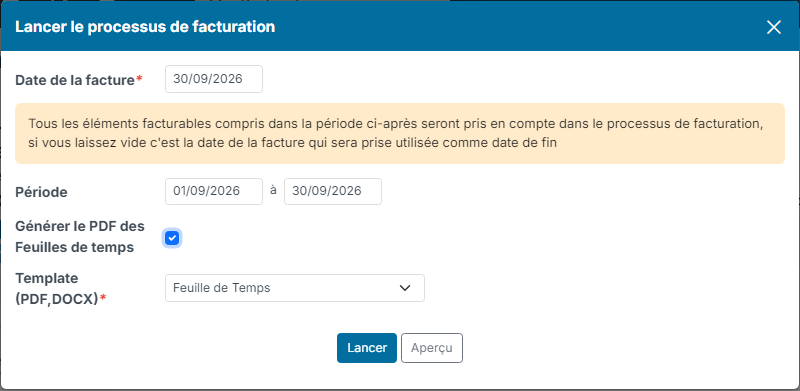
The invoicing process starts from three places: the project's Invoices tab, the customer account's Invoices tab, or the Sales > Invoices menu to process all customers at once. The button is always called Launch invoicing process; the window is described in detail in Billing on TimeSheet.
Here is what Nicoka does:
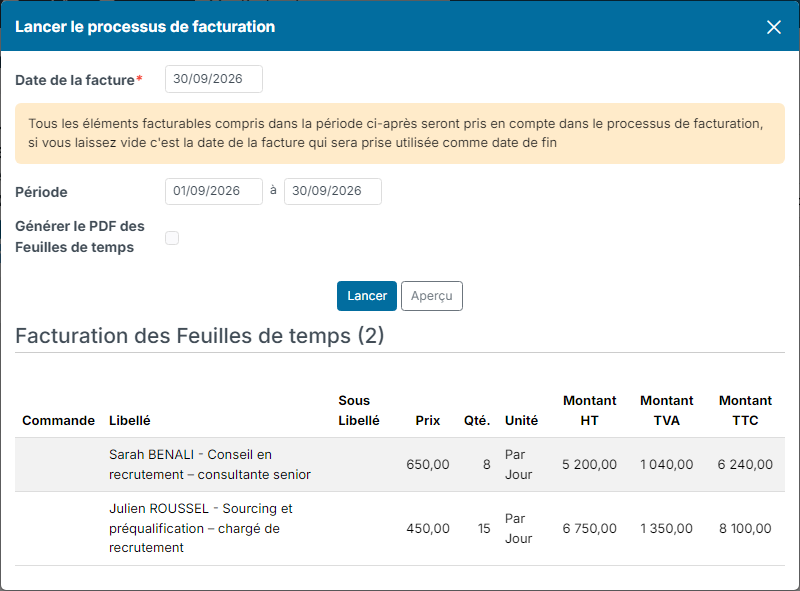
- It collects the validated time entries that are not yet invoiced and not marked as not invoiceable, over the requested period.
- It produces one invoice line per person and per activity, plus one line per surcharge rate. The quantity follows from the activity's unit, the unit price is the activity's price. The Group same-price activity invoice lines option (project Settings tab, Invoicing section) groups into a single line the time of one activity invoiced at the same rate.
- It matches each line with the order line that carries the same activity, on the oldest open order, and takes over its reference and accounting allocation.
- It marks the consumed time entries with the invoice number: they will never be invoiced twice.
From the project or the customer account, two options in the window are useful: the Preview button, which shows what would be invoiced without creating anything, and the Generate TimeSheets PDF box, which attaches a PDF of the invoiced timesheets to each invoice.
Rebillable expenses (expense reports) and, on projects that work with tickets, tickets follow the same path and can be invoiced in the same run.
Why is my invoice not generated?
If Nicoka answers that no invoiceable element was found, go through this list in order:
- Is the project ticked Invoiceable, and is its Invoicing mode other than Manual?
- Did the project end more than one month before the invoice date? Beyond that, it is no longer picked up: change its end date if needed.
- Is the activity ticked Invoiceable?
- Does the activity have a quantity-based unit and a price?
- Are the time entries validated, and do they fall within the requested period?
- Have these time entries not already been invoiced, or marked as not invoiceable?
Learn more
- Billing on TimeSheet: the three ways to launch the invoicing process and the details of its window.
- Create a billing schedule: invoice a flat fee, by progress or by periods.
- 6 essential steps to set up invoicing: the prior configuration.