Billing on TimeSheet
Nicoka generates your invoices from your employees' validated timesheets, as well as from rebillable expenses and tickets. This article describes the three ways to launch this invoicing process and the options of its window. To understand how the quotation, the order, the project and the timesheets lead to the invoice, see From order to invoice: the Project and Timesheet flow.
Three ways to launch invoicing
The button is always called Launch invoicing process. Depending on where you launch it from, Nicoka invoices a single project, a single customer or all your customers.
From the project: open the project, click the Invoices tab, then Launch invoicing process. Only the invoices of this project are generated.
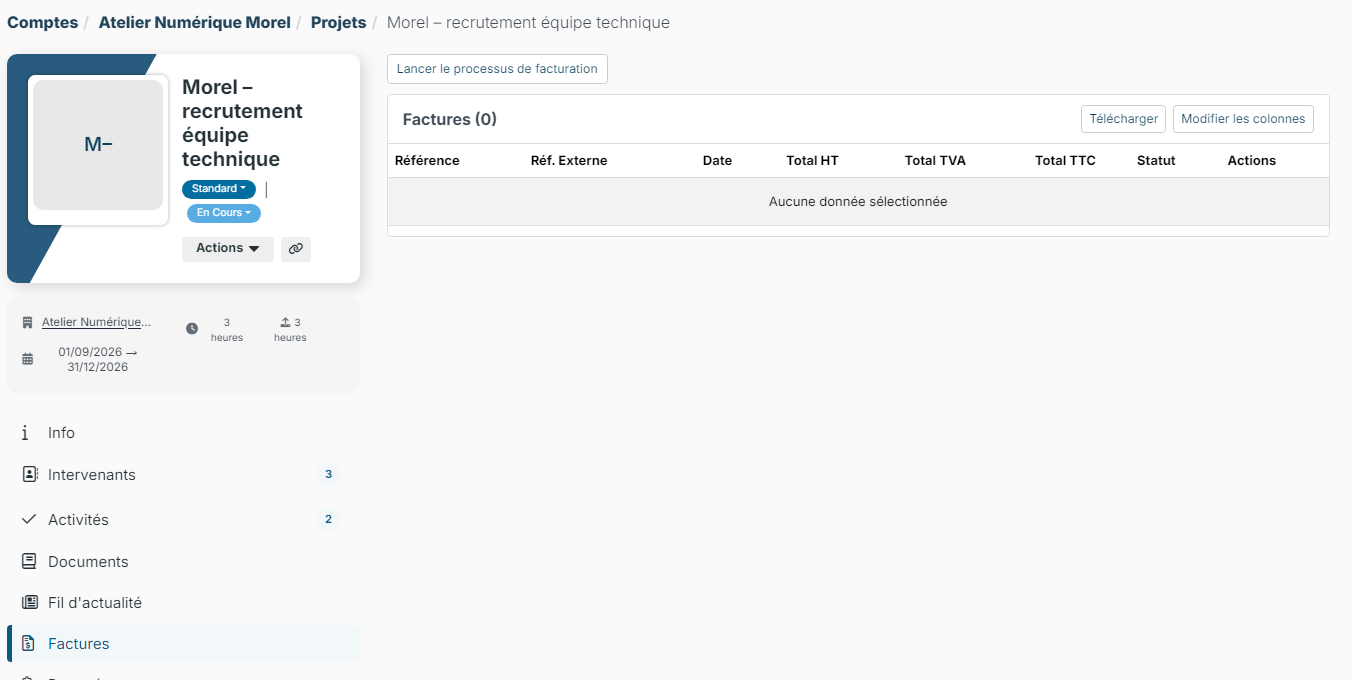
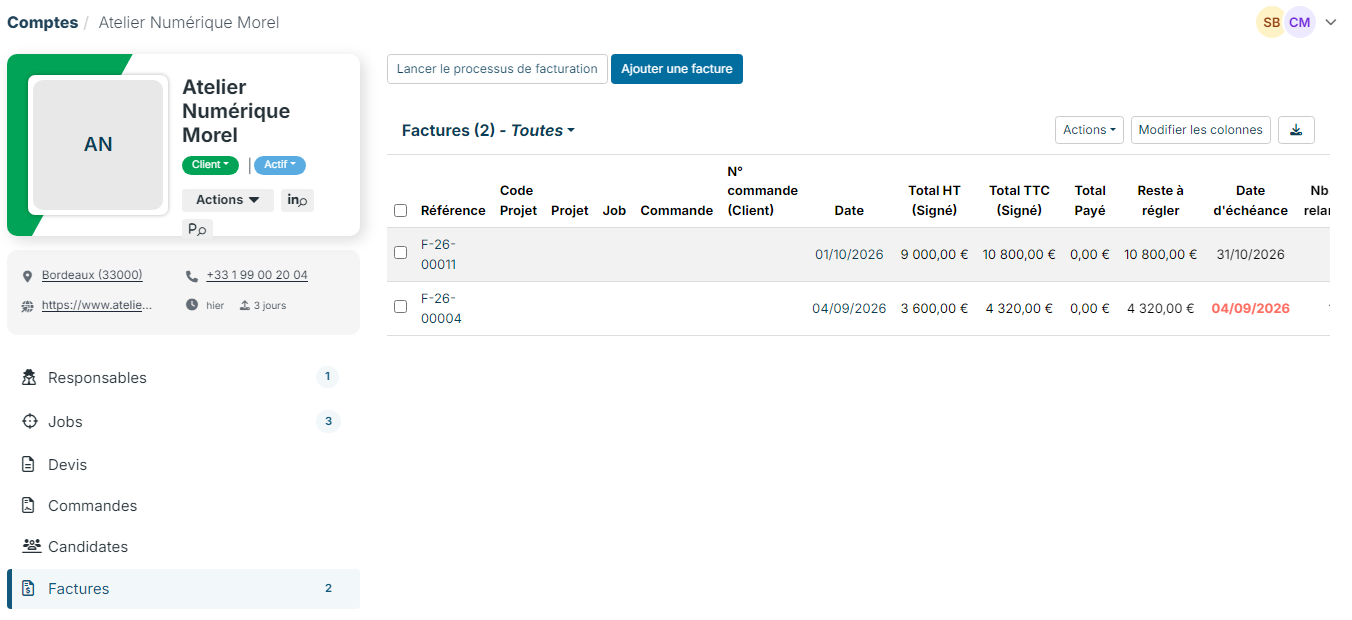
From the customer account: open the account, click the Invoices tab, then Launch invoicing process. Only the invoices of this customer are generated.
For all customers: in the side menu, click Sales, then Invoices, and click Launch invoicing process. Nicoka generates the invoices of all customers.

Invoice a project or a customer
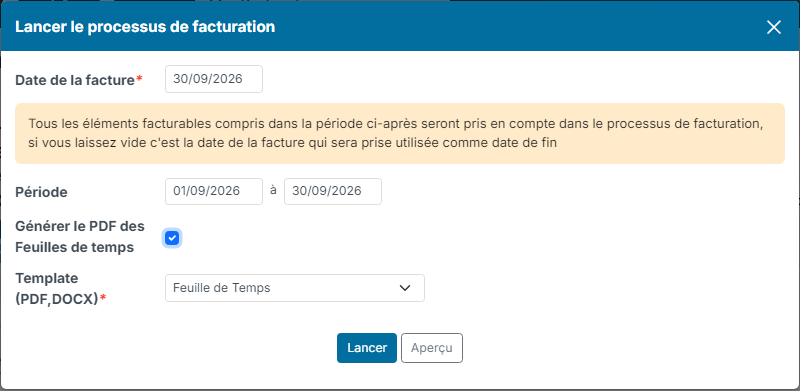
From a project or a customer account, the Launch invoicing process window offers:
- Invoicing Elements: what you want to invoice. On a project, these are the timesheets (or the tickets if the project works with tickets) and the expenses if the project has rebillable expenses; the field only appears when there are several options.
- Invoice date: by default, the last day of the previous month.
- Period: the interval in which Nicoka picks the validated items. If you leave it empty, Nicoka takes all invoiceable items up to the invoice date.
- Generate TimeSheets PDF: tick this box to attach to each created invoice a PDF gathering the invoiced timesheets. Then choose the template in Document Template.
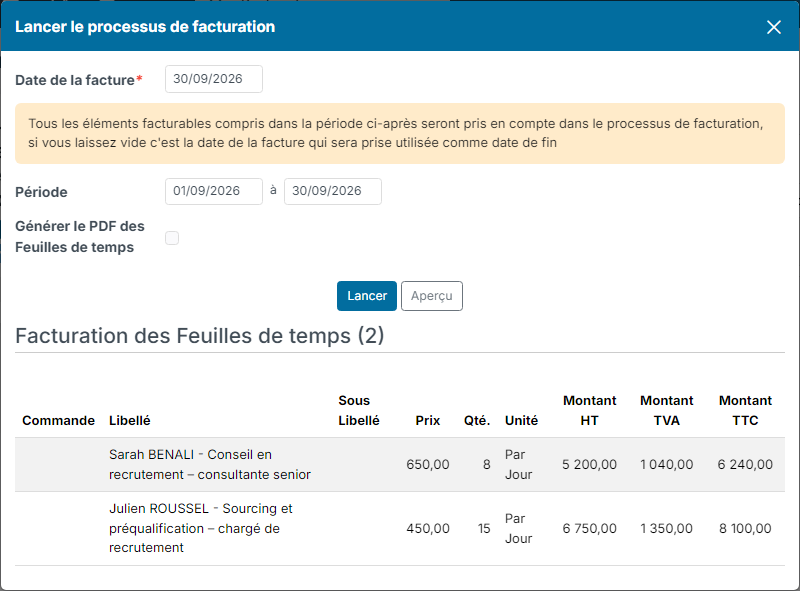
Before generating the invoices, click Preview: Nicoka shows what would be invoiced, without creating anything. Check the lines, then click Launch to generate the invoices.
Invoice all customers
From Sales > Invoices, the window offers:
- Invoicing Elements (required, multiple choice): TimeSheets, Expenses, Tickets.
- Date: the date of the invoices, by default the first day of the current month.
- Period: as above.
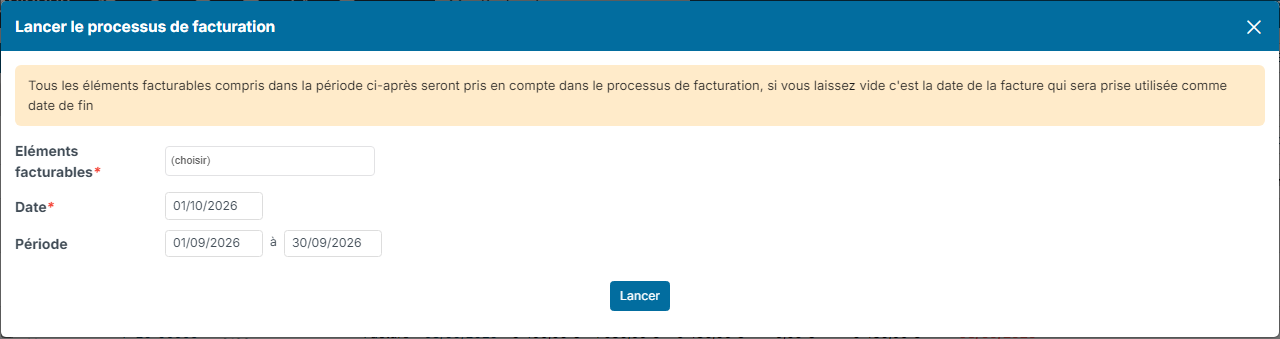
Click Launch. There is no preview in this case: the processing runs in the background and Nicoka sends you an email when it is finished. To check the result before launching all customers, first run a preview from a project or a customer.
What Nicoka invoices
- Timesheets: Nicoka takes the validated (or auto-validated) time entries of the period and creates one invoice line per employee and per activity. The quantity depends on the activity's unit: only quantity-based units (days, hours, units, months…) can be invoiced; a flat-fee activity cannot be invoiced on time spent. The unit price is the activity's price.
- Expenses: Nicoka takes the validated expenses of the period whose type is rebillable on the project.
- Tickets: for projects that work with tickets.
Invoiced items are marked with the invoice number: they will not be invoiced a second time.
Consumption of your orders
When orders are linked to your project, Nicoka first consumes the oldest open order, that is the one with an amount still to invoice. Each invoice line is matched with the order line that carries the same activity.
Frequently asked questions
I get a message saying that no invoiceable element was found. What should I do?
No item matches your criteria. Check that the items to invoice are validated or auto-validated and that they fall within the chosen period. If they are, they may already have been invoiced. The full checklist is in From order to invoice: the Project and Timesheet flow.
I don't want to invoice all the validated time entries of the period. How do I do it?
Narrow the Period in the window, and check the result with Preview. You can also edit the generated invoice as long as it can still be modified, for example in Draft status.