6 essential steps to set up invoicing
Before issuing your first invoice, take the time to set up invoicing in Nicoka. These six steps ensure complete and compliant invoices, and save you from reworking your first invoices one by one. If your customers are concerned by electronic invoicing, an additional step is described at the end of this article.
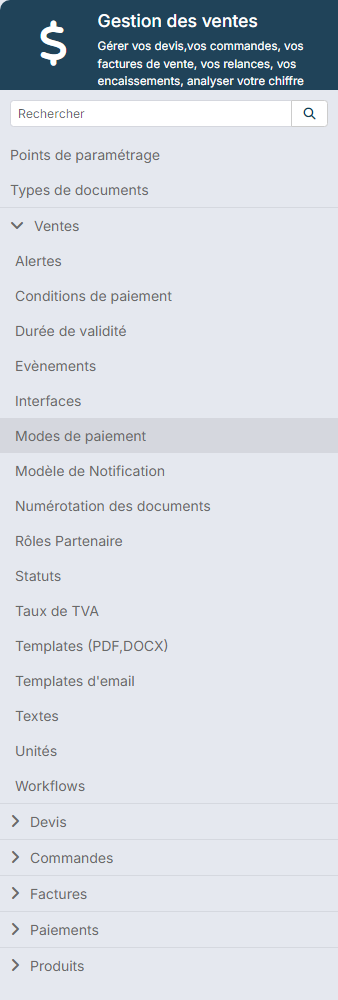
Most settings are in the Sales module customizing: in the side menu, open Customizing > Store, then click Customize on the Sales card. The Sales section gathers the entries mentioned below.
Step 1: complete your company record
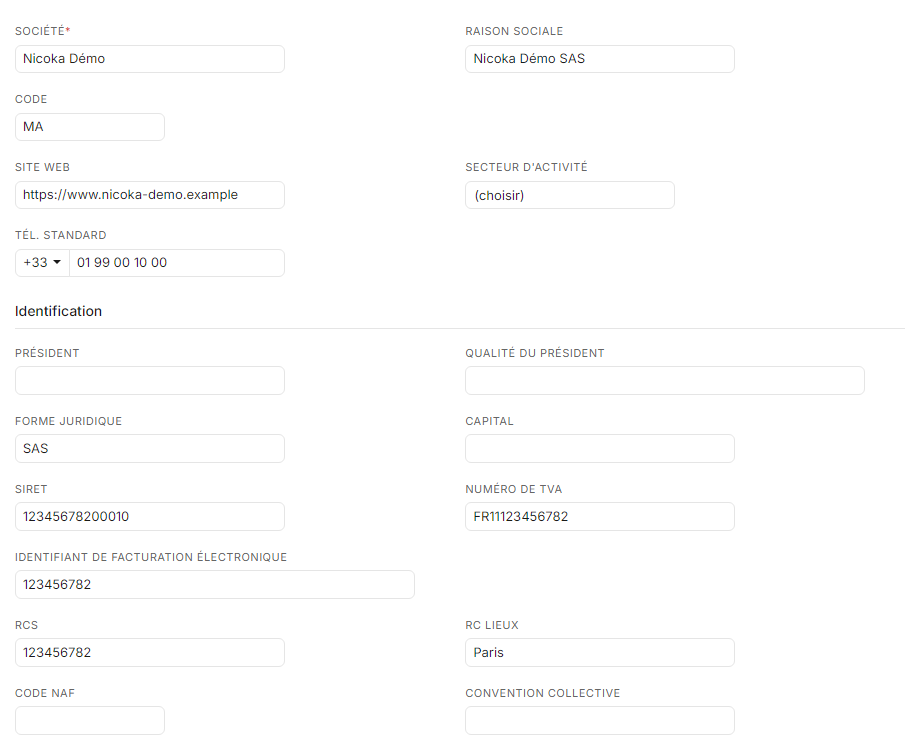
Your company information appears on your invoices and your other sales documents.
- In the side menu, open Customizing > Admin, click Companies, then the name of your company.
- In Info, enter the Business Name, the Identification Number (SIRET in France), the VAT Reg. Number and your company's address.
- In Account Information, enter the Account Owner, the Bank Name, the Swift code and the IBAN.
- Click Save.
Step 2: create your PDF invoice template
Start from the template provided by Nicoka and adapt it to your visual identity: logo, layout, customer, invoice and line information, mandatory legal notices.
Where? Sales module customizing, Sales section > Document Templates. See Creating an invoice template.
Step 3: set up your email templates
A default email is offered to send invoices. Adapt its content to your communication, and create other templates for specific situations, for example to remind a customer of a late payment.
Where? Sales module customizing, Sales section > Email Templates.
Step 4: create your products and services
To harmonise your quotations and invoices, create the list of products and services you sell.
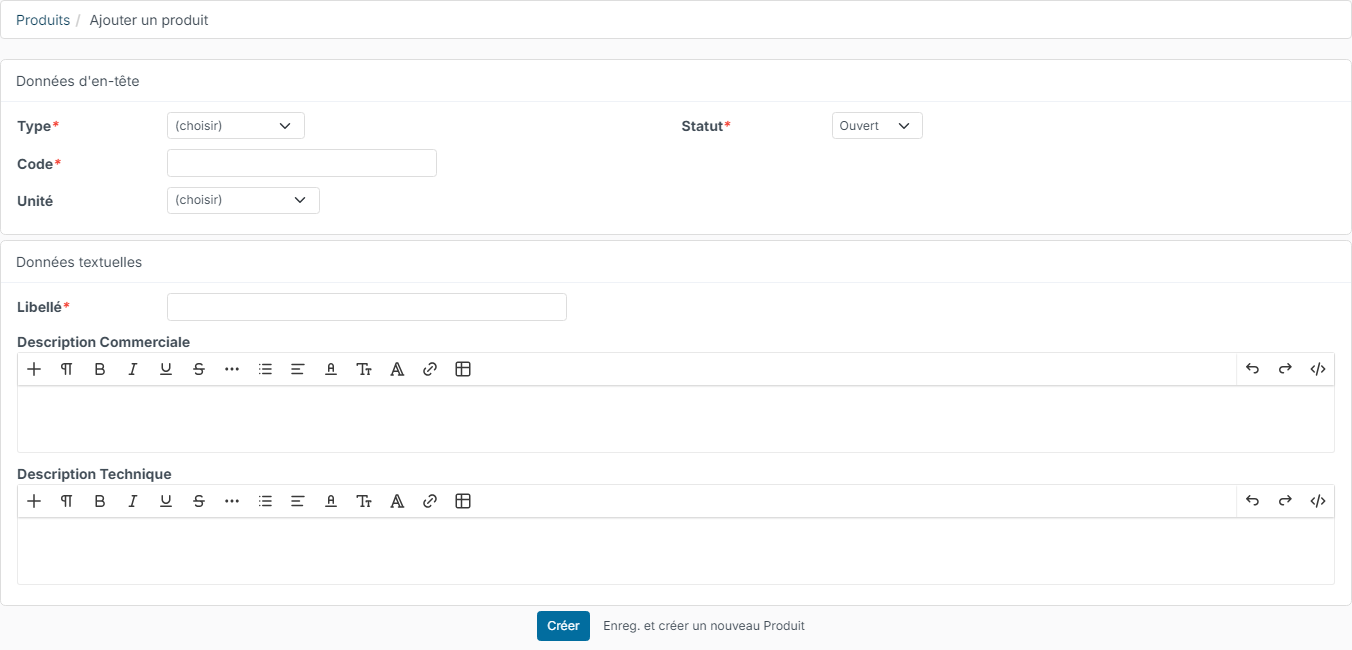
- In the side menu, click Sales, then Services/Products.
- Click Create a new Material.
- Enter at least the Type, a unique Code, the invoicing Unit (flat fee, per day, per hour…) and the Label.
- Click Create.
Step 5: set your invoice numbering
Choose the format of your invoice numbers, for example a fixed value "F-", the year, a "-" separator and an automatic 5-digit number, giving F-2026-00001.
Where? Sales module customizing, Sales section > Numbering. See Invoice numbering.
Step 6: check your invoicing process
The invoicing process defines the steps an invoice goes through: draft, to be sent to the customer, awaiting payment, paid… The standard process suits most cases. You can adapt it to your organisation, for example to add an internal approval before sending.
Where? Sales module customizing, Sales section > Workflows. If in doubt, contact Nicoka support before changing a process that is already in use.
If your customers are concerned by electronic invoicing
An electronic invoice is sent through an approved platform, not by email. Before your first electronic invoice:
- On your company record, check the Business Name, the Identification Number, the VAT Reg. Number, the Electronic invoicing identifier and the full address (street, postcode, city, country).
- On the record of each customer concerned, check the same information: name, identification number, VAT number, electronic invoicing identifier and full address.
- Activate the electronic invoicing service: see Setting up the Hubtimize service.
- Adapt your invoicing process: see Setting up your invoicing workflows for e-invoicing.
For day-to-day use, see E-invoicing: how does it work in Nicoka?
Next: your first invoice
Once these steps are done, create your first invoice from Sales > Invoices > Create a new Invoice. See Creating and sending an invoice.