Bulk sends: follow openings, remind and complete the tasks
Each time you send an email to several contacts at once (bulk email, candidate push), Nicoka records a send. Its page shows who opened your email, lets you remind those who have not answered, then complete the follow-up tasks created when the email was sent.
Good to know before you start
- Openings are indicative: an opening is counted when your recipient's mail client displays the images of the email. Some mail clients block them, others load them on their own.
- One message per recipient: the openings per contact and the two actions described here apply to sends where each recipient gets their own email. A send in Newsletter mode (one single email, all recipients in BCC) shows its openings as a total, with no reminder and no task completion.
- Your rights: if an action is missing from the Actions menu, your profile does not allow it. Ask your administrator.
1. Open the page of a send
- In the side menu, open CRM > Bulk actions.
- Click the label of the send: it is the subject of your email.
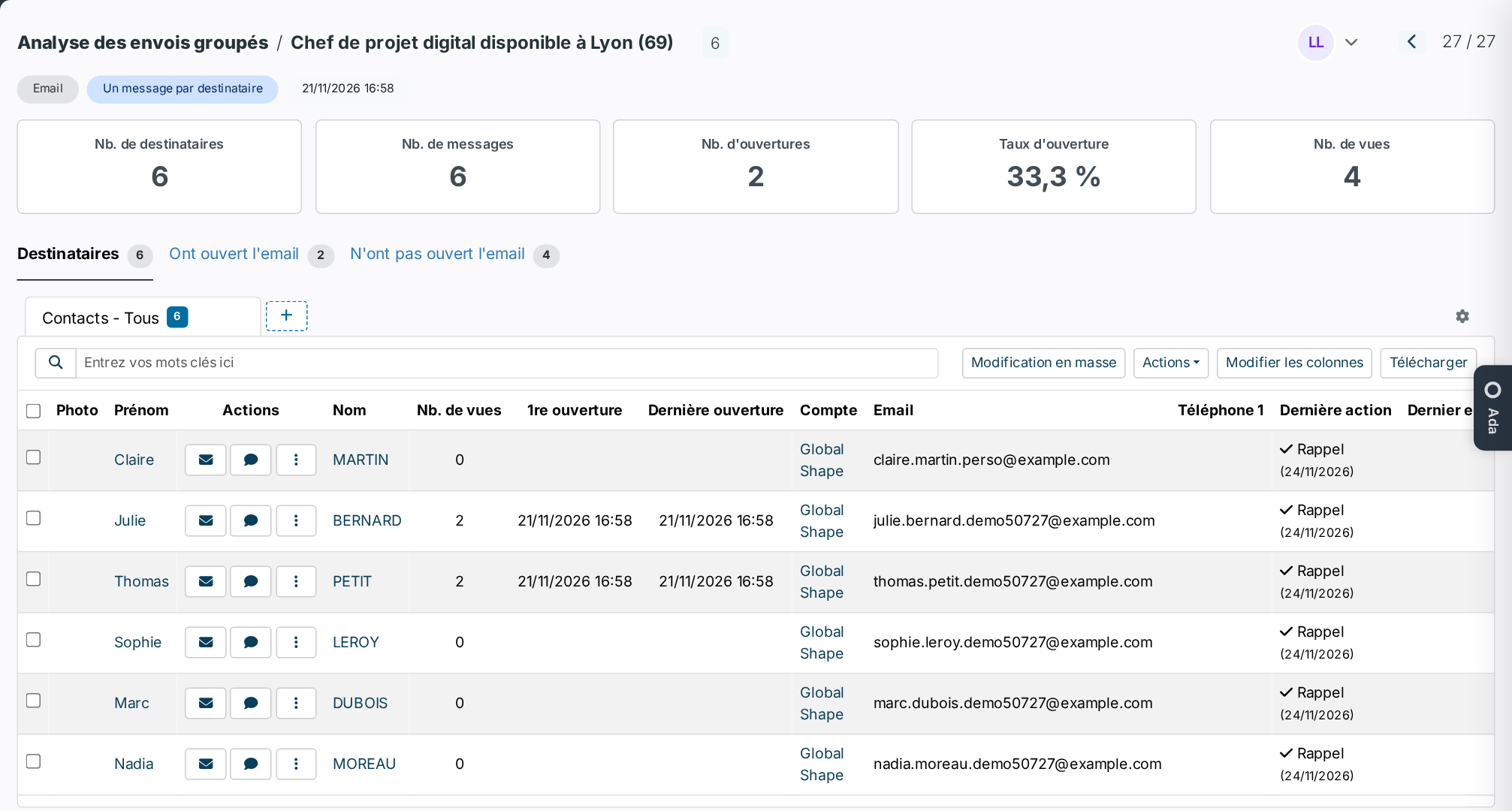
At the top, five figures sum up the send: Nb Of Recipients, Nb Of Messages, the number of openings (recipients who opened the email), Open Rate and Nb Of Views (the same recipient may open the email several times).
Three tabs then filter the list: all the recipients, Opened the email and Did not open the email. For each contact, the columns Nb Of Views, First Opening and Last Opening detail their openings.
This list is your usual contacts list: search, Edit Columns, Bulk Updates, download and the Actions menu work the same way.
2. Remind non-responders
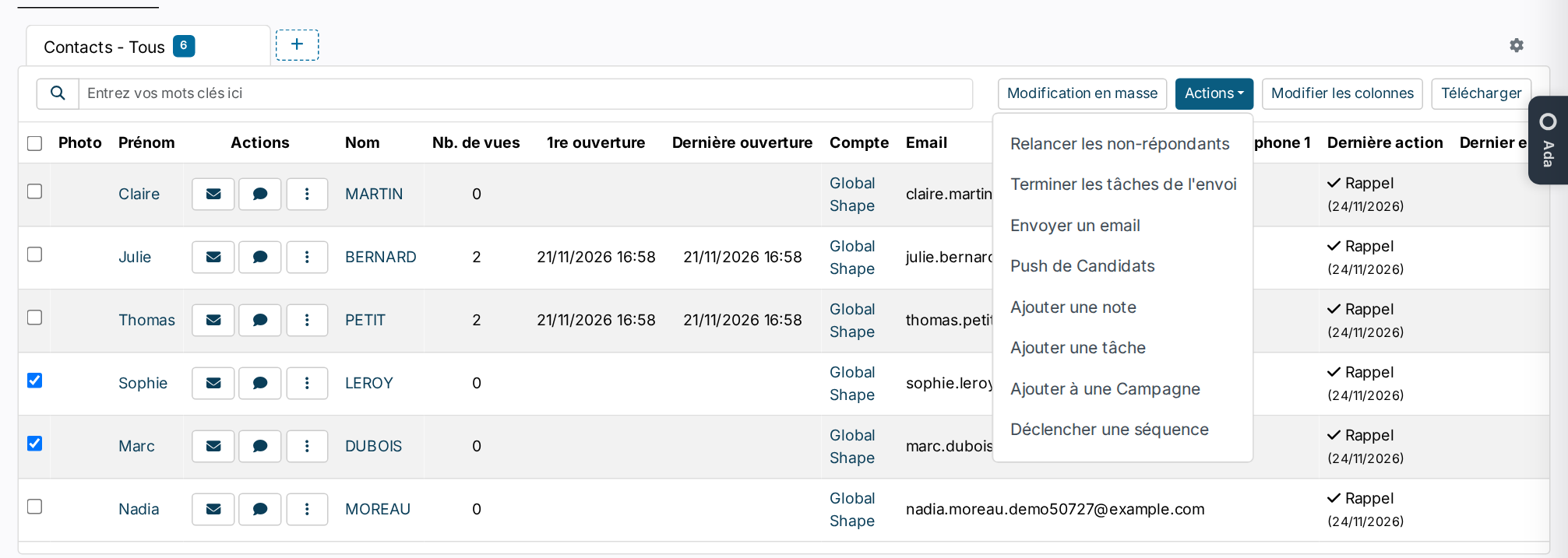
- Check the contacts to remind. With no selection, the reminder goes to every non-responder of the tab displayed: open the Did not open the email tab, for instance, to target only those.
- Click Actions > Remind non-responders.
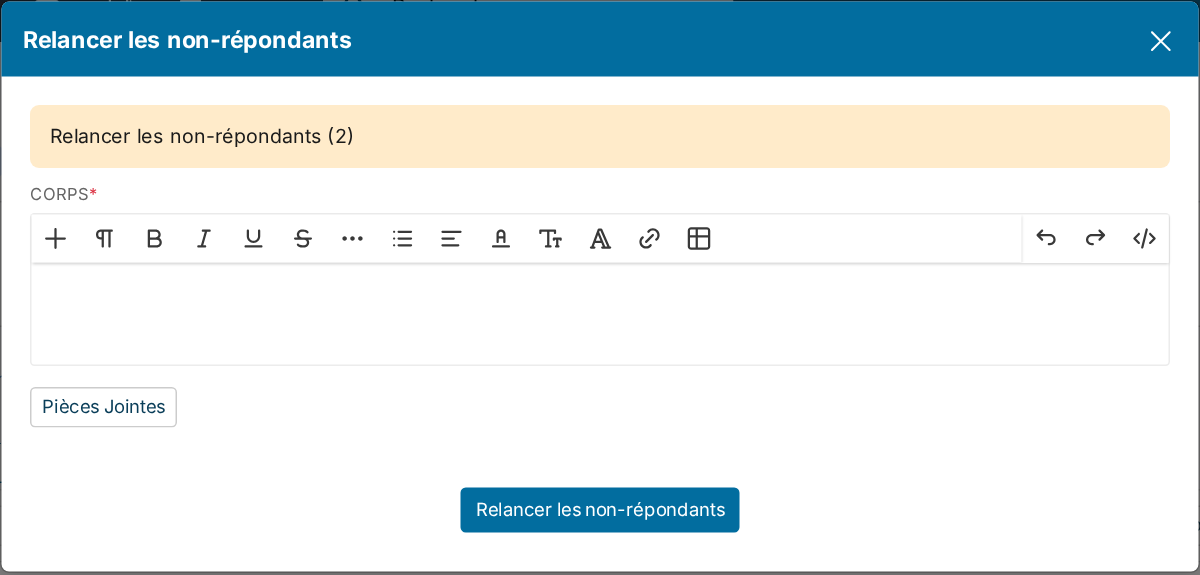
- Write your reminder, add attachments if needed, then click Remind non-responders. The number in brackets tells how many contacts will receive it.
What happens next:
- A reply to your original email: each contact receives the reminder in the same conversation, with your first message quoted below. None of them sees the other recipients.
- Those who answered are left out: a contact who has written to you since the send does not receive the reminder. This requires your received emails to reach Nicoka: see Connect your email account. A contact who answered by phone is not recognised: do not check them.
- The reminder is a send of its own: you find it in CRM > Bulk actions under the original subject preceded by “Re:”, with its own openings. It is also filed on each contact's record.
The reminder leaves from the mailbox used for the original send. You can therefore only remind sends that left from your mailbox, or from a mailbox you are allowed to use.
3. Complete the tasks of the send
If you chose a Next Action when sending (a recall three days later, for instance), Nicoka created one task per recipient. Neither the reminder nor a contact's answer completes these tasks: you close them from the page of the send, without looking for them one by one in the tasks list.
- Open the page of the original send, the one that created the tasks, not the page of its “Re:” reminder.
- Check the contacts whose task is to be completed: those you have just reminded, or those who answered. With no selection, the action applies to every contact of the tab displayed.
- Click Actions > Complete the tasks of the send.
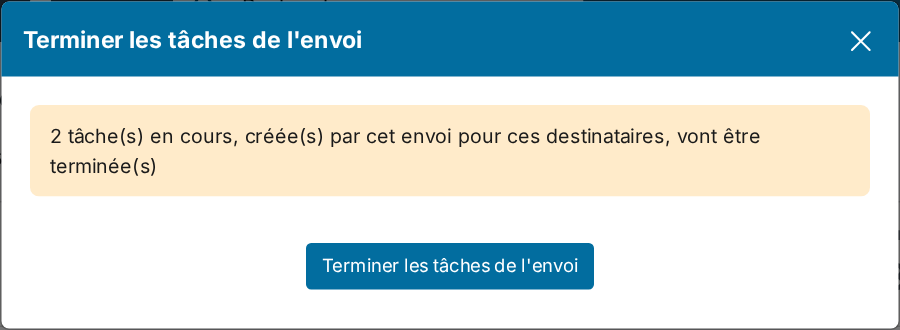
- The window tells how many tasks are concerned. Confirm with Complete the tasks of the send.
Keep in mind:
- Only the tasks of this send are completed: the other tasks of your contacts, those of an older send for instance, are left untouched.
- The tasks within your reach: the action completes the tasks you see in your tasks list, that is the ones you created or that are assigned to you. A task reserved to a colleague stays open.
- Sends to contacts: the action is offered on sends addressed to contacts.
To follow the progress, add the Nb of open tasks column to the recipients list with Edit Columns. It counts every open task of the contact, not only the one of the send displayed.
To plan what comes next, check your contacts then click Actions > Add a task: each checked contact gets a new task, of the type and at the date you choose.
To prepare a candidate push, see Push Candidates and Push Jobs.