Send WhatsApp messages from Nicoka
Goals
- Write from Nicoka: write and send a WhatsApp message without leaving the candidate or contact record.
- Keep everything: sent messages and received replies are saved on the record and grouped in Messaging.
- Save time: your message templates, attachments and calendar link right in the sending window.
- Stay safe: sending safeguards protect your number from WhatsApp restrictions.
Two situations, two behaviors
The WhatsApp action of a record does not do the same thing depending on whether you have connected your WhatsApp account.
- Without a connected account, the Discuss on WhatsApp action (… menu of the record) simply opens WhatsApp Web or the WhatsApp app, with the person's number already filled in. The exchange takes place outside Nicoka and is not saved.
- With your account connected, the Send a WhatsApp message action opens a writing window in Nicoka. The message is sent from your number and the conversation shows up in Messaging.
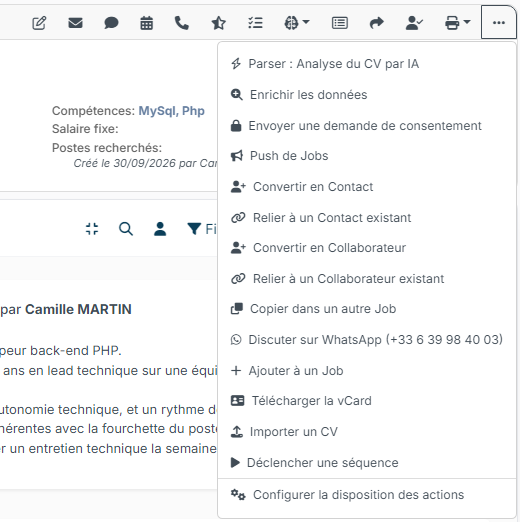
The rest of this article describes the second case.
What you need
- A WhatsApp account on your phone. Nicoka does not provide a number: you write from your own, as on WhatsApp Web.
- A mobile number on the record of the candidate or contact. WhatsApp does not work with a landline number.
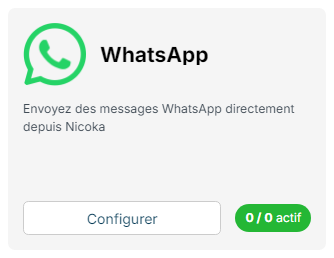
- A WhatsApp account available in your Nicoka subscription: the number of WhatsApp accounts you can connect is shown on the WhatsApp card of Customizing > Integrations, as "connected accounts / planned accounts". If it is reached, contact your administrator.
Connect your WhatsApp account
The connection is personal: each user connects their own number. A colleague's account does not let you write in their name.
- At the top right, click your initials, then Integrations.
- In the Messaging apps panel, click Connect my WhatsApp account.
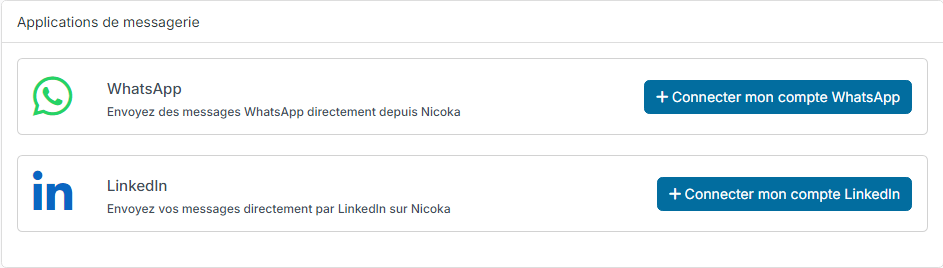
- A connection wizard opens in a new tab and displays a QR code.
- On your phone, open WhatsApp, go to the linked devices and choose to link a device, then scan the QR code.
- Go back to Nicoka: your account appears in your integrations.
Administrators find the connected WhatsApp accounts in Customizing > Integrations, on the WhatsApp card. The first account is added there with the Configure button, the next ones with Add your account.
Once your account is connected, the WhatsApp icon is added to the action bar of the records, the WhatsApp channel is enabled in Messaging and the WhatsApp step can be used in your sequences.
Important: keep your phone on and connected to the internet. It carries the session, exactly as for WhatsApp Web. If you unlink the device from your phone, sending from Nicoka stops.
Send a message from a record
Once the account is connected, click the WhatsApp icon in the action bar of a candidate or contact record. The sending window opens. It contains:
- From: the WhatsApp account used. The counter on the right shows how many messages you can still send today.
- The recipient and their number. The Reachable mention confirms that this number has a WhatsApp account: the check is done before sending.
- Message Template: start from one of your templates, the variables (first name, job, offer…) are filled in automatically. Choose None — free text to write freely.
- The writing area, limited to 1,024 characters, with the counter at the bottom.
- The paperclip to attach a document.
- The "/" key to insert your calendar link or your contact details without typing them again.
When opened from a job, the window also knows the context of the application: a template that quotes the job title or the client is filled in automatically.
Prepare your templates
The templates offered in the WhatsApp window are the same as for SMS and LinkedIn. They are managed in Customizing > Administration > Emails and Notifications > Message Templates (WhatsApp, SMS, LinkedIn). A short, personalized template works much better on WhatsApp than a copied email text.
Where to send a WhatsApp message from
- The candidate record and the contact record, from the action bar.
- The pipeline of a job, on a candidate's line.
- The timeline of a contact, through the add activity menu.
- A CRM campaign target, from the target's actions menu.
- Messaging, to reply in an existing conversation.
- A sequence, as a scheduled step.
Follow the replies
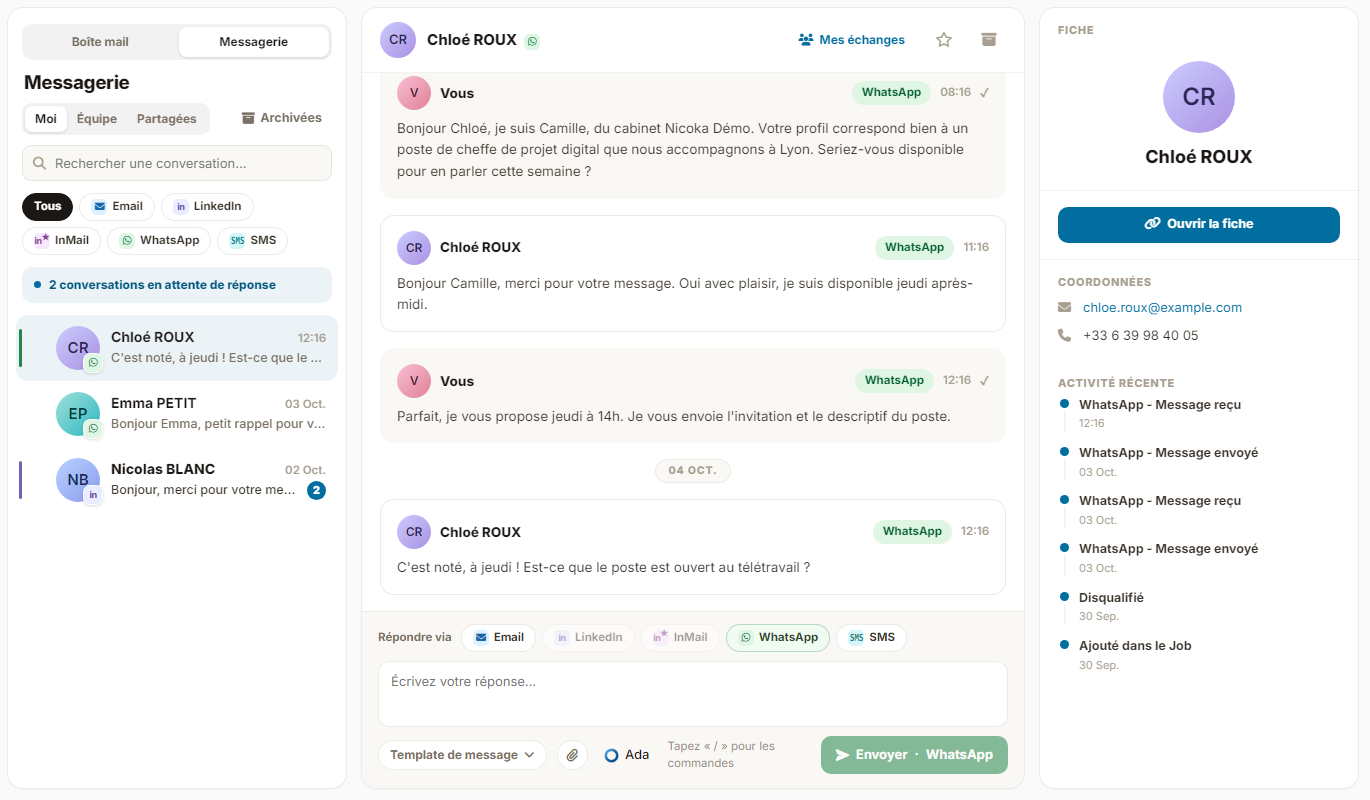
The sent message is added right away to the timeline of the candidate or contact. The reply comes back to the same place, and you receive a notification such as "Chloé ROUX replied to you on WhatsApp".
The conversation is also available in Messaging, next to your emails, SMS and LinkedIn messages: you reply there without going back to the record. On the candidate record, the Messaging tab shows the same thread, in the context of the file.
WhatsApp in sequences
WhatsApp is available as a sequence step, like email, SMS and LinkedIn actions. A few rules:
- The sequence uses the WhatsApp account of the user who runs it. A WhatsApp step is skipped for a user who has not connected their account.
- As with the other channels, the sequence stops for a person as soon as they reply.
- Sends are deliberately spread over time, not sent all at once.
Sending safeguards
WhatsApp is not a mass channel. The platform restricts numbers that open many new conversations left unanswered, and a restriction hits your personal number, not Nicoka. Three protections are therefore in place.
1. Sending limits per account. On the card of your WhatsApp account, the Configure button opens the configuration of sending limits: per day and per week, the number of conversations and the number of unanswered conversations. The second one is what really matters: a reply from the candidate frees one unit right away. A newly connected account deliberately starts low and ramps up over its first three weeks: it is a new account sending a lot on day one that gets reported.
2. Automatic spacing. If you send several first contacts within a few minutes, Nicoka schedules the next ones instead of sending everything at once, and tells you so: "Message scheduled for around 14:35: your sends are spaced out automatically to protect your account." The message leaves on its own, you have nothing to do again. A reply in an already open conversation is never delayed: only first contacts are spaced out.
These spaced sends follow the account's sending hours, set by the administrator in Customizing > Administration > Settings, Sending hours block (by default 7:00 am to 7:30 pm, Monday to Friday, public holidays excluded): a message scheduled outside these hours leaves at the next opening. The hours apply in each user's time zone, the one set in their preferences (user menu > Preferences): a recruiter based in Kuala Lumpur sends from 7:00 am, Kuala Lumpur time.
3. Duplicate refusal. An identical message sent twice to the same person within ten minutes is refused. This avoids a double send on a repeated click.
Troubleshooting
- "This number cannot be reached on WhatsApp": the number on the record has no WhatsApp account, or it is a landline. Check the mobile number on the record.
- "This person has no valid phone number": the number format is wrong. Enter it in international format, with the country code.
- "This exact message was already sent…": duplicate protection. Wait ten minutes or change the text.
- "Limit … reached": the daily or weekly sending cap is reached. Try again later, or ask your administrator to adjust your limits.
- "Your account is no longer connected": the session was closed from your phone. Reconnect the account from your integrations.
A disconnected account is easy to spot in the integrations, and is restored with Reconnect, by scanning a new QR code. Your configuration and limits are kept.
Good to know
- The messages remain regular WhatsApp messages: the person receives them in their usual app and can reply normally.
- Your personal WhatsApp conversations do not show up in Nicoka: only those matching a candidate or contact record are attached.
- Files you receive in a conversation are saved in the Documents tab of the record, and a resume becomes the record's resume. Unless it names another person, with a name and a phone number other than the record's, such as a colleague's resume forwarded by the person you are talking to: it then stays on the message, off the record, in orange (hover it to read why). The … menu of the message then offers Save attachments in Nicoka to add it to the record after all, and Create a new Candidate from "file name", one entry per file, which sends it to Upload Resumes where you validate the new record. These entries disappear as soon as the file awaits its import; a file another candidate already holds shows in blue, with that record's name on hover.
- The connection is personal. To equip a team, each employee connects their own number.
- Removing an account from the integrations does not delete the messages already saved on the records.