Unified messaging: track and reply to all your conversations
Goals
- One thread per person: the emails, LinkedIn messages, InMails, WhatsApp messages and SMS exchanged with a candidate or a contact end up in a single conversation.
- One place to process them: you see what is awaiting a reply, you reply on the channel of your choice and you archive what is done.
- No retyping: every message sent or received stays saved on the person's record.
Where to find Messaging
In the top bar, click the envelope, then the link at the bottom of the panel that shows all messages.
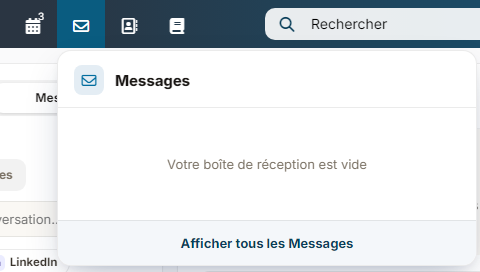
At the top left of the screen, the Mailbox / Messaging switch lets you move from one view to the other: the Mailbox only shows your emails, Messaging gathers all the channels. Nicoka remembers the last view you chose.
Would you prefer direct access? Messaging can be added as an entry of the main menu. This is done in the customizing of your workspace: contact Nicoka support so that we enable it. It is also the solution if you have no mailbox connected to Nicoka, since the screen reached through the envelope then first offers to connect one.
The three-pane screen
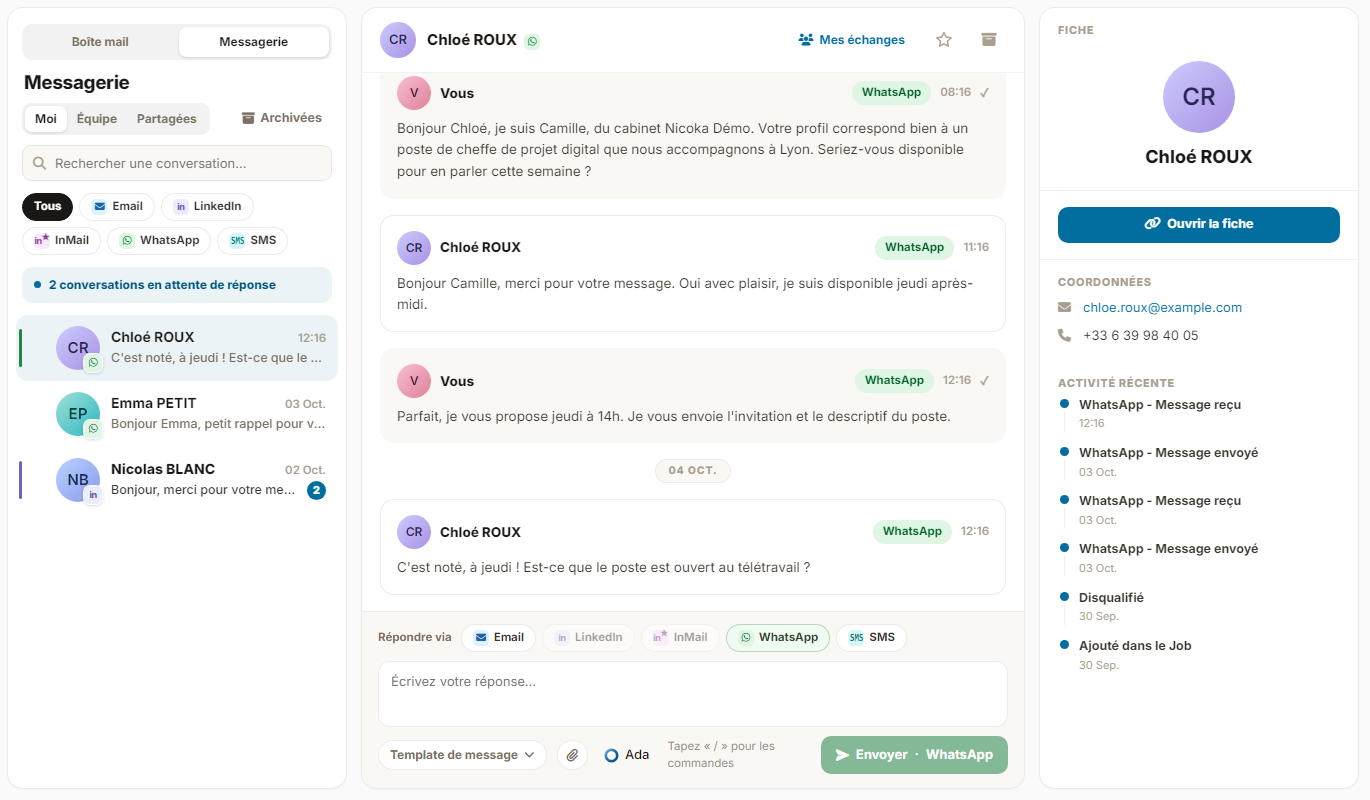
On the left, the list of conversations. You filter it in three ways:
- Me / Team / Shared: your exchanges, those of your team if you manage employees, and the conversations that belong to nobody (shared mailboxes), which anyone can take over.
- The channel chips: All, Email, LinkedIn, InMail, WhatsApp, SMS.
- The search and the Archived button, to find what you have already processed.
A banner shows how many conversations are awaiting a reply.
In the middle, the conversation thread. Each message carries the chip of the channel used. At the top of the thread:
- the My exchanges / All exchanges button: by default, you only see your own messages with the person; click it to add those of your colleagues;
- the star to add the conversation to your favorites;
- the archive box to remove the conversation from the list once it is done. A new incoming message brings it back automatically.
On the right, the person's record: their photo, contact details, latest activities and the Open the sheet button to switch to the full file.
Reply from Messaging
Below the thread, the Reply via line lets you choose the channel of your reply. The channels offered depend on what is connected and on the person's contact details:
- LinkedIn, WhatsApp and SMS: you write directly in the writing area. WhatsApp and SMS need a phone number on the record, LinkedIn a LinkedIn identifier.
- Email: if the conversation contains an email, this channel opens the usual email window, replying to the last email received.
- InMail: InMails can be read in the thread; you reply from the record.
The writing area offers:
- Message Template, to start from one of your templates, variables included;
- the paperclip to attach a document (LinkedIn and WhatsApp);
- the "/" key to insert your calendar link or your contact details without typing them again.
Four ways to exchange with a candidate or a contact
Messaging is only one of the entry points. Depending on the moment, you will rather use one or the other.
1. Messaging, to process what comes in. It is your daily work view: everything that came in, whatever the channel, with the latest exchanges first and your favorite conversations pinned on top. You process, you reply, you archive.
2. Sending directly from a record, to start an exchange. On a candidate or contact record, the action bar offers one icon per channel: email, SMS, WhatsApp, LinkedIn actions (message, InMail, invitation). You start from a template, you adjust, you send. The message joins the person's conversation right away.
3. The Messaging tab of the candidate record, for context. It shows this candidate's conversation, with the same reply area as Messaging. Handy when you work on the file: you get the history of the exchanges without the mix of assessments, notes and timeline steps.
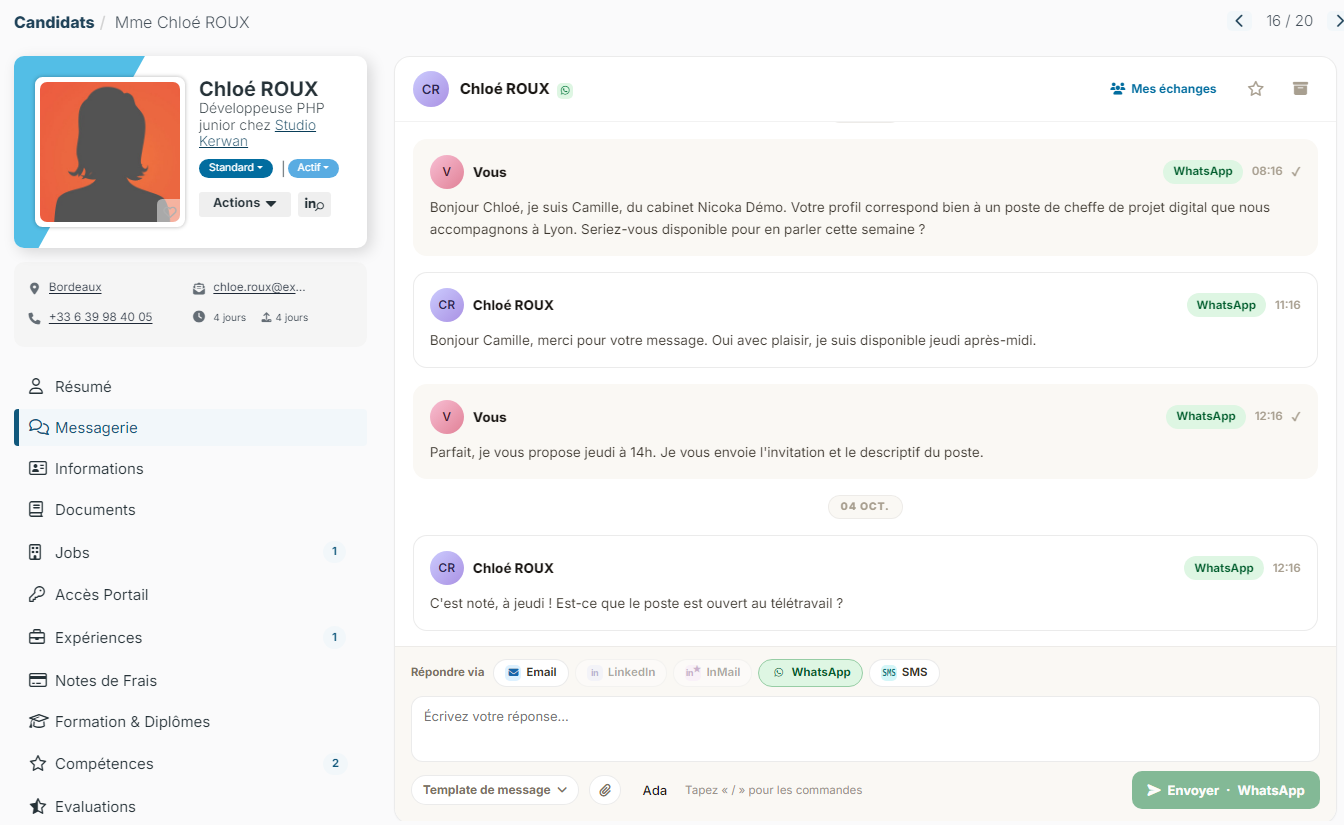
This tab may be hidden depending on the customizing of your workspace. Contact Nicoka support if you want to show it.
4. Sequences, to automate. A sequence chains scheduled contact steps (email, SMS, LinkedIn message, InMail, LinkedIn invitation, WhatsApp message) and stops as soon as the person replies. It is the tool for direct approach and follow-ups: you enroll one or more candidates, the sequence handles the pace. The replies come back to Messaging like any other exchange.
Prerequisites per channel
- Email: a mailbox connected to your Nicoka account.
- SMS: an SMS service set up by your administrator.
- LinkedIn and WhatsApp: your own account connected. At the top right, click your initials, then Integrations, and use Connect my LinkedIn account or Connect my WhatsApp account. The connection is personal: each user writes from their own account.
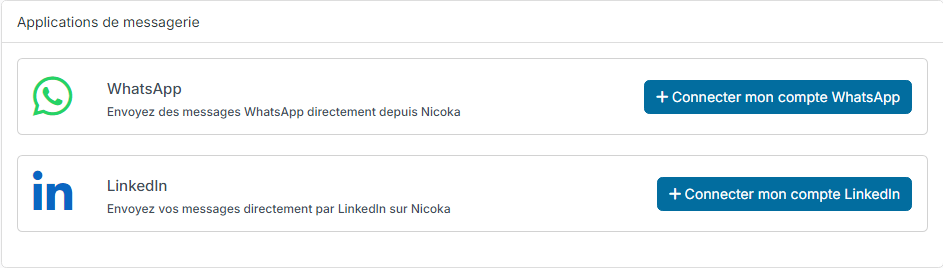
Once your LinkedIn account is connected, your conversations with the candidates and contacts in Nicoka are imported automatically to their records: as soon as they arrive for new messages, and every hour for the rest, including the messages sent directly from LinkedIn. For WhatsApp, see Send WhatsApp messages from Nicoka.
As long as no LinkedIn or WhatsApp account is connected, the matching sending buttons do not show up on the records, and a reply on that channel from Messaging cannot be sent.