Send text messages from Nicoka with SMSFactor
From Nicoka, you can send text messages (SMS) to your candidates and contacts, one at a time or in bulk. Messages go through SMSFactor, Nicoka's partner: you need an SMSFactor account, which your administrator links to Nicoka once.
Step 1 — Open an SMSFactor account and generate a token
- If you do not have an account yet, sign up with SMSFactor through this partner link.
- Log in to your SMSFactor space and generate an API token (tokens page).
- Copy the token.
Step 2 — Create the SMS service in Nicoka
- In the side menu, open Customizing > Administration, then, under SMS, click Sms Services.
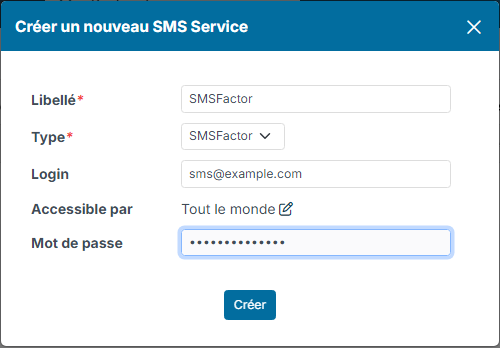
- Click Create a new sms Service.
- Fill in:
- Label: for example "SMSFactor";
- Type: SMSFactor;
- Login: the email address of your SMSFactor account;
- Password: the token copied in step 1.
- Click Create.
Step 3 — Set up and activate the service
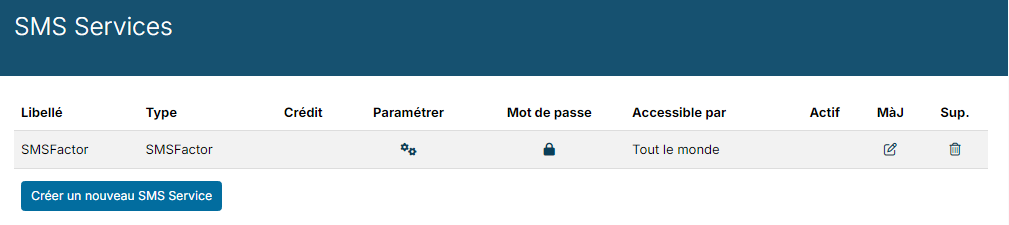
- On the service row, click the gear in the Customize column.
- In the country filter field, choose, if needed, the countries you allow messages to be sent to. Left empty, no country is excluded.
- Click Update. When you save, Nicoka automatically registers with SMSFactor the addresses that let it receive replies, delivery receipts and unsubscribe requests: the WebHook fields fill in by themselves.
- Click in the Active column of the row: the tick appears.
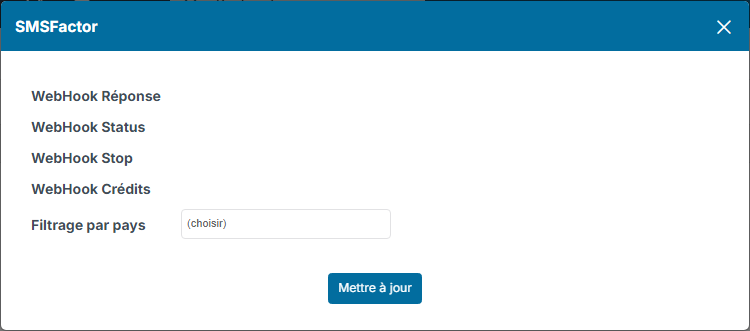
If a WebHook field stays empty after saving, check the login and token you entered (padlock in the Password column), then contact support if the problem persists.
The Credit column of the list shows your SMS balance, updated with each sending. Your credit is managed and topped up in your SMSFactor space.
The length of a text message
Below the input area, Nicoka shows the number of characters, what is left before the next message and the cost, in the form "72 characters · 88 before next SMS · cost: 1 SMS".
- A text message holds up to 160 characters.
- As soon as the message contains a special character, such as an emoji or some accented letters, the limit drops to 70 characters.
- Beyond that, the message is split into several text messages, each one charged: 153 characters per message (67 with special characters).
Your messages are sent from a generic number: always sign your messages, and your templates, so the recipient knows who is writing.
Sending a text message to a candidate or contact
On a candidate or contact record, click the SMS icon in the action bar. Write your message or start from a template, check the recipient's number, then send. The message is only sent to a mobile number.
Sending a text message to several people
- In the candidate or contact list, or in the candidate list of a job step, tick the recipients. To tick them all at once, create a variant that contains only them (see Display and variants).
- Click Actions, then Send a SMS.
- Nicoka shows the list of recipients: write the message or choose a template, then confirm the sending.
Text message templates
Text message templates are shared with WhatsApp and LinkedIn. To manage them, open Customizing > Administration, then, under Emails and Notifications, click Message Templates (WhatsApp, SMS, LinkedIn). Click a template to edit it, or click Create a new message Template. As with email templates, you can insert information from the record, such as the recipient's first name.
Can the recipient reply?
Yes. Replies arrive in Nicoka: a notification flags the reply, which joins the person's conversation in the messaging (see Unified messaging).
Can the recipient stop receiving text messages?
Yes. If they reply STOP, SMSFactor adds them to its unsubscribe list and Nicoka ticks Has opted out of sms on their record. You can also check the unsubscribe list in your SMSFactor space.