Send a questionnaire to a candidate
Nicoka lets you email a questionnaire to a candidate: pre-qualification questions, skills test, survey… The candidate answers online through the link in the email, and both the sending and the answer are tracked on their record.
Before you start
- The questionnaire exists and is active. It must be of the Survey or Test type and relate to the candidate (or to the application, for a sending from a job). To create it, see Create and manage candidate questionnaires.
- The candidate has an email address on their record.
- Recommended: an email template that contains the questionnaire's public link, linked to the questionnaire (see below).
Send a questionnaire
- Open the candidate's record, from the list of candidates or from a job's pipeline.
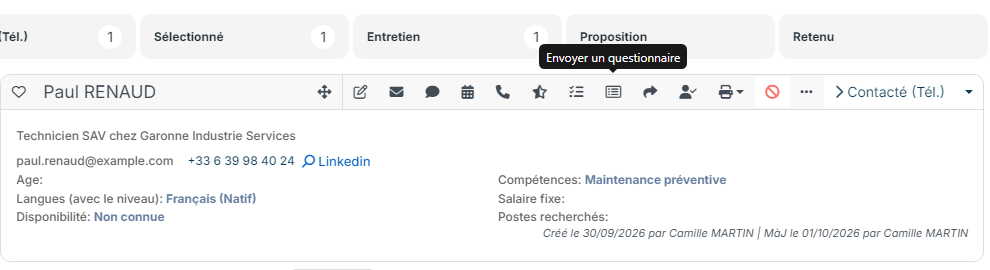
- In the action bar, click the Send a form icon (its name appears on hover). If you do not see it, look in the ⋯ menu: the layout of actions can be customized.
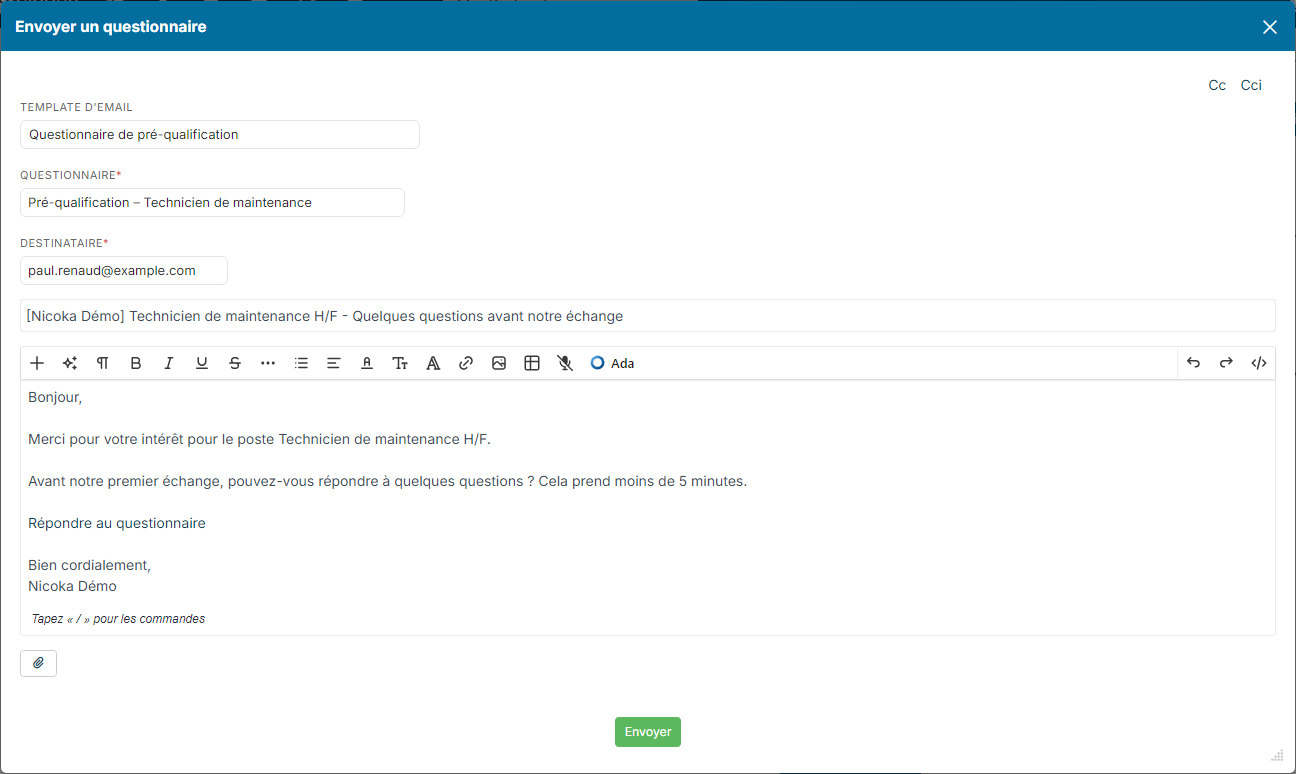
- In the Send a form window, choose the questionnaire (Survey Model). If an email template is linked to this questionnaire, the Email Template, the subject and the message are filled in automatically. You can also choose another template in the list.
- Check the recipient (the candidate's email addresses), the subject and the message, which you can edit. If needed, add recipients in copy (Cc, Bcc) or an attachment.
- Click Send.
To send the same questionnaire to several candidates, tick them in a job's pipeline or in the list of candidates, then choose Send a form in the actions menu.
Follow the sending and the answer
- The sending creates a Form sent activity in the candidate's timeline, with the name of the questionnaire, the sender, the date, the subject and the message.
- When the candidate has answered, a Form response activity appears in the timeline. The answers can be read in the Forms tab of the candidate's record.
- If you send again a questionnaire the candidate has not answered yet, the new link replaces the old one.
Link an email template to a questionnaire
The message sent to the candidate must contain the link to answer the questionnaire. To avoid writing it each time:
- Create an email template containing the questionnaire's Public Link variable (in Customizing > ATS, Candidates section > Email Templates). See Managing email templates.
- Open the questionnaire in Customizing > ATS > Survey Models and choose this template in the Email Template field. Only templates containing the public link are offered.
Without a linked template, Nicoka offers the template chosen in the Email for Candidate Testing customizing point of the ATS module.
Troubleshooting
- The icon does not appear: no active questionnaire of the Survey or Test type relates to the candidate, or you do not have the right to edit the candidate's record (and the application, in a job).
- The message contains no link: the template used does not contain the Public Link variable. Choose another template or complete it.
- The recipient is empty: add an email address on the candidate's record.
Were this information helpful?