Exclude received emails
Mailbox rules tell Nicoka how to handle the emails you receive: ignore newsletters or automatic notifications, or on the contrary guide how they are linked. They only apply to mailboxes that receive their emails in Nicoka (I want to received my email in Nicoka option).
To stop analysing the emails exchanged between colleagues of your company, see Step 7: Exclude your domain name from incoming email analysis instead.
Open the rules of a mailbox
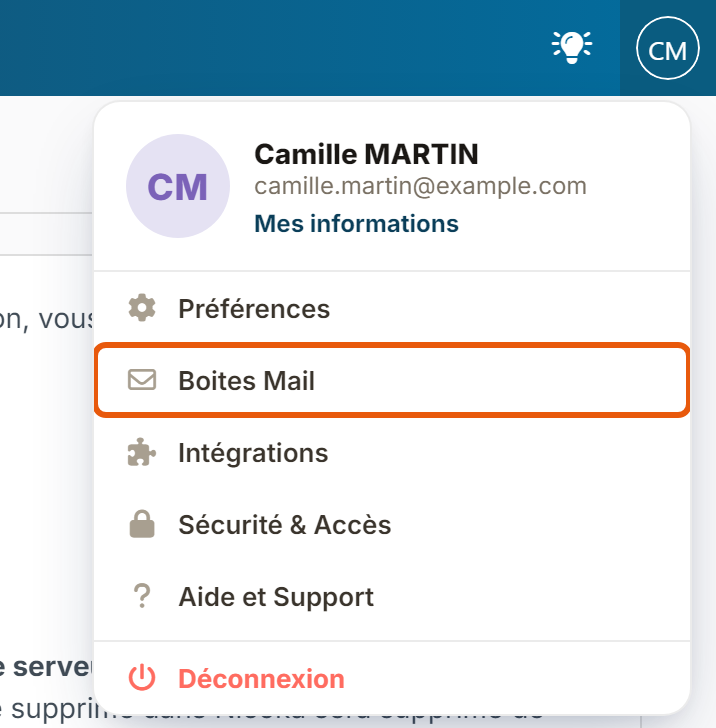
- At the top right, click your initials, then Mail Boxes.
- On the mailbox row, click the funnel in the Rules column. The green badge shows how many rules already exist.
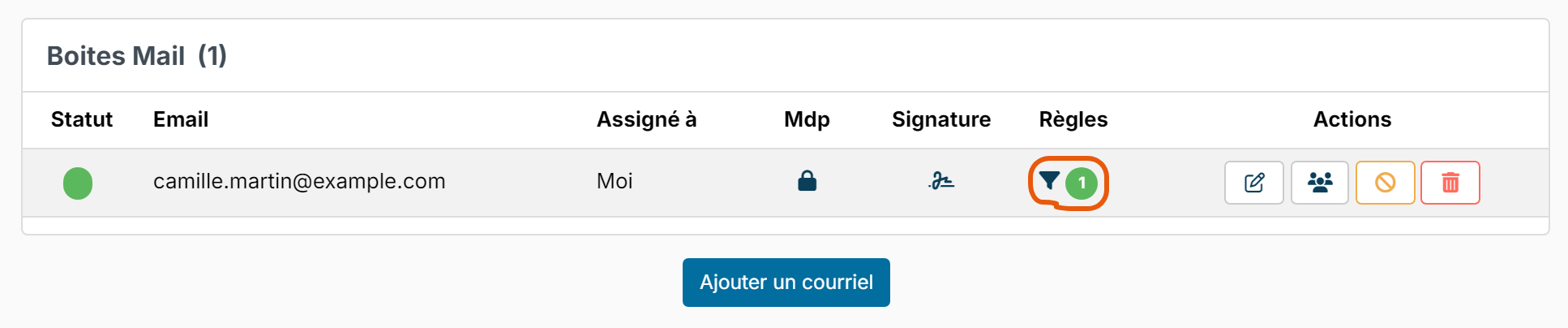
If the Rules column is empty for your mailbox, receiving emails in Nicoka is not enabled for it.
The rules page opens. It lists the mailbox rules in their Execution Order, with their Type and Conditions.

Create an exclusion rule
- Click Add.
- Fill in the window:
- Related To: the type of record concerned, for example Candidate or Contact, depending on the modules of your space;
- Label: a name to find the rule, for example "Exclude newsletters";
- Position: the execution order. Rules are applied from the lowest position to the highest: give a priority rule a lower position;
- Type: Exclude;
- Conditions: choose If, the field to test (From for the sender, Subject, Body…), contains following words or does not contain following word, then the words to look for. Separate several words with a semicolon, a comma or a line break: finding any one of them is enough. Click Add a new row to combine several conditions with And If or Or;
- Automatic Response in case of exclusion (optional): an email template sent automatically to the sender of an excluded email. It is not sent in reply to automatic messages.
- Click Create.
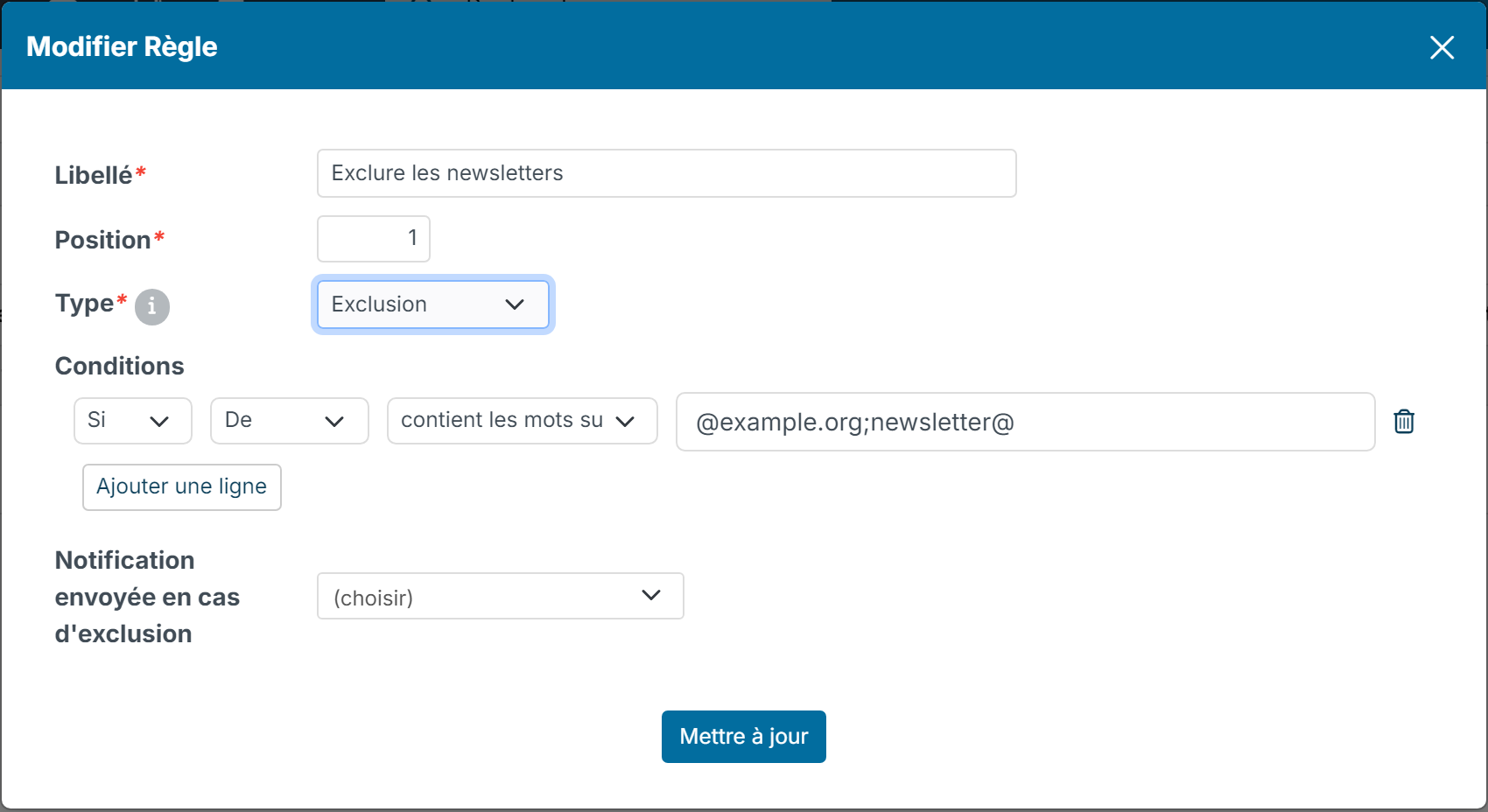
In this example, any email received whose sender contains "@example.org" or "newsletter@" is excluded. To change a rule, click its pencil in the update column.
An excluded email stays in your usual mailbox, but Nicoka does not analyse it or link it to any record. It is marked as excluded, with the name of the rule that was applied.
The other types of rules
- Include: defines how the email is analysed. You can set Default values for the record created from the email, and what happens when the sender does not exist in Nicoka (Unknown contact: create it, integrate the email without creating a record, or ignore the email).
- Strict Inclusion: like an inclusion, but an email that does not meet the rule is excluded.
Hover over the i next to Type to see this reminder in the window.