Managing individual goals
Nicoka HRIS lets you set, share and follow your employees' individual goals. Clear goals, linked to the collective success, help everyone measure their contribution and foster engagement.
To save time when entering goals, you can prepare goal models, sorted by category.
1. Set up goals
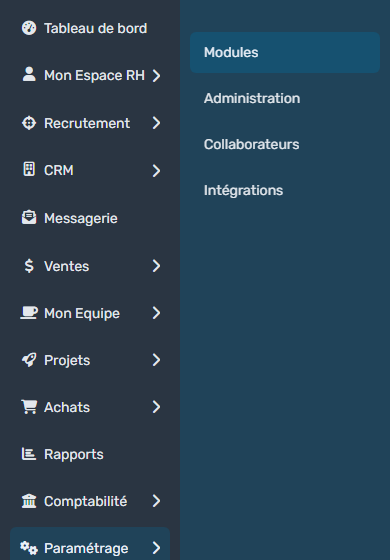
- In the side menu, open Customizing > Store.
- Click Customize on the Evaluation & Performance card.
- In the left menu, expand the Goals group: it contains Categories and Goal Models.
Categories
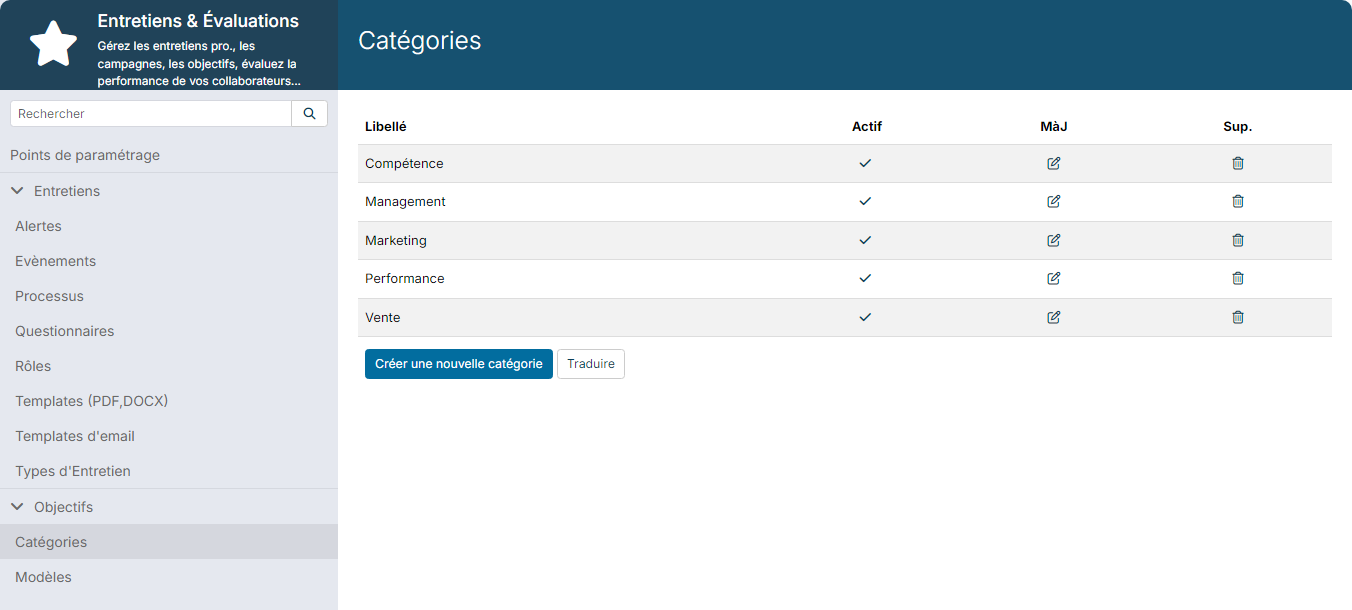
A category groups goals of the same kind, depending on your business: Sales, Management, Skill… Some categories are provided by default: you can deactivate them and create others.
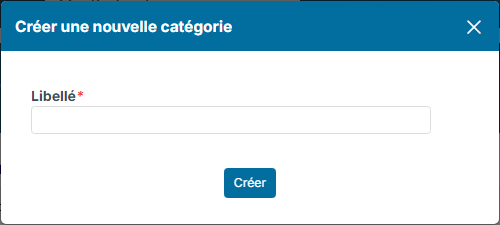
- Click Categories, then Create a new category.
- Type the Label, then click Create.
Goal models
A model lets you give the same goal to several employees without typing everything again.
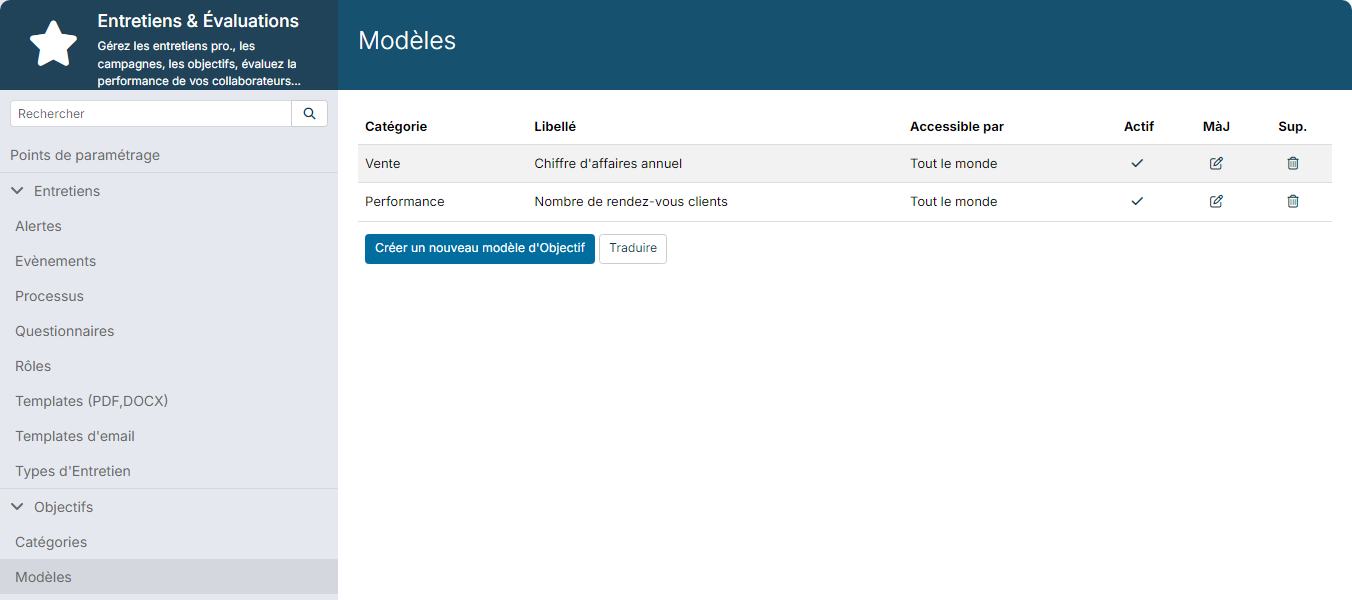
- Click Goal Models, then Create a new goal Model.
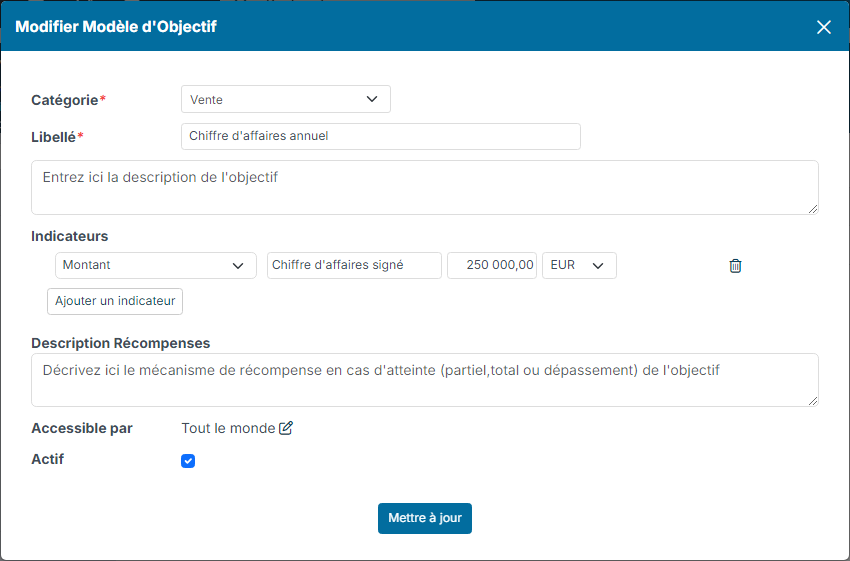
- Fill in:
- Category: the category of the model;
- Label: choose a label understood by everyone, employees and managers alike. It will also help you sort your follow-ups;
- the description of the goal, in the text area below the label;
- Key Results: choose the evaluation mode of each key result (Purcentage, Custom Unit, Quantity, Yes/No, Amount, Smiley or Stars), then its label and target value. Click Add a key Result to add more. A precise, measurable key result helps you set SMART goals (Specific, Measurable, Achievable, Realistic, Time-bound);
- Rewards: the reward mechanism when the goal is partly or fully achieved, or exceeded;
- Available for: Everybody by default. Click the edit icon to restrict the model to some populations (company, department, contract type…).
- Click Create.
2. Give a goal to an employee
A goal can be given in three ways:
- from the employee's sheet (see below);
- during an interview, with a Define Goals question (see Managing evaluations);
- by import, from My Team > Goals, Upload button, for example to take over existing goals.
From the employee's sheet:
- Open the employee's sheet and click Goals in the sheet menu.
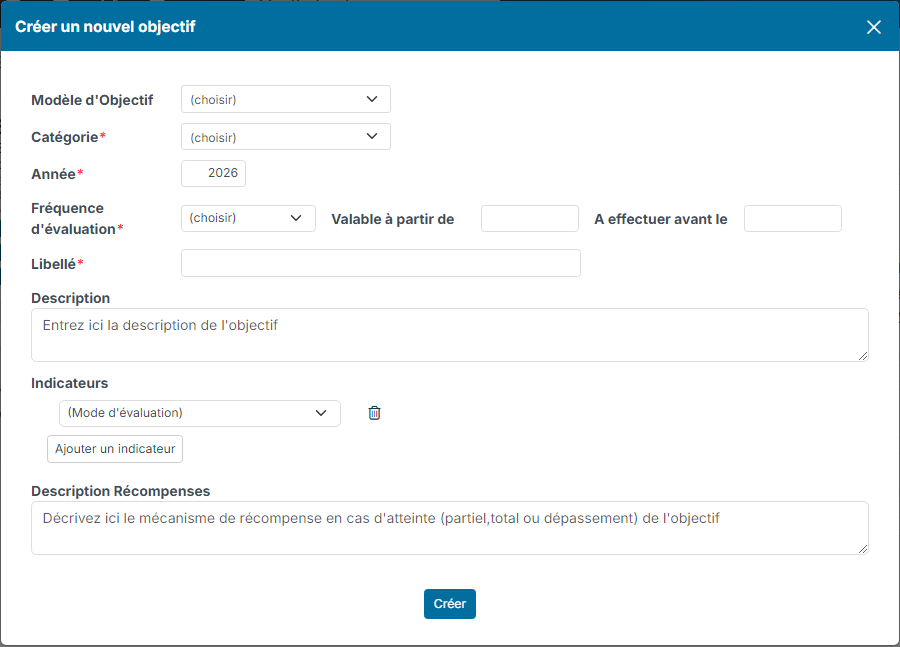
- Click Add a goal.
- To start from a model, choose it in Goal Model: the fields are filled in. Otherwise, fill in the Category, the Label and the Key Results as for a model.
- Also fill in:
- Year;
- Evaluation Frequency (required): annually, biannually, quarterly…;
- if needed, the validity period with Valid from and Step Duedate.
- Click Create.
3. View goals
Goals are visible:
- to the manager, in My Team > Goals;
- to the employee, in My HR Space > My Goals;
- on the employee's sheet, Goals section.
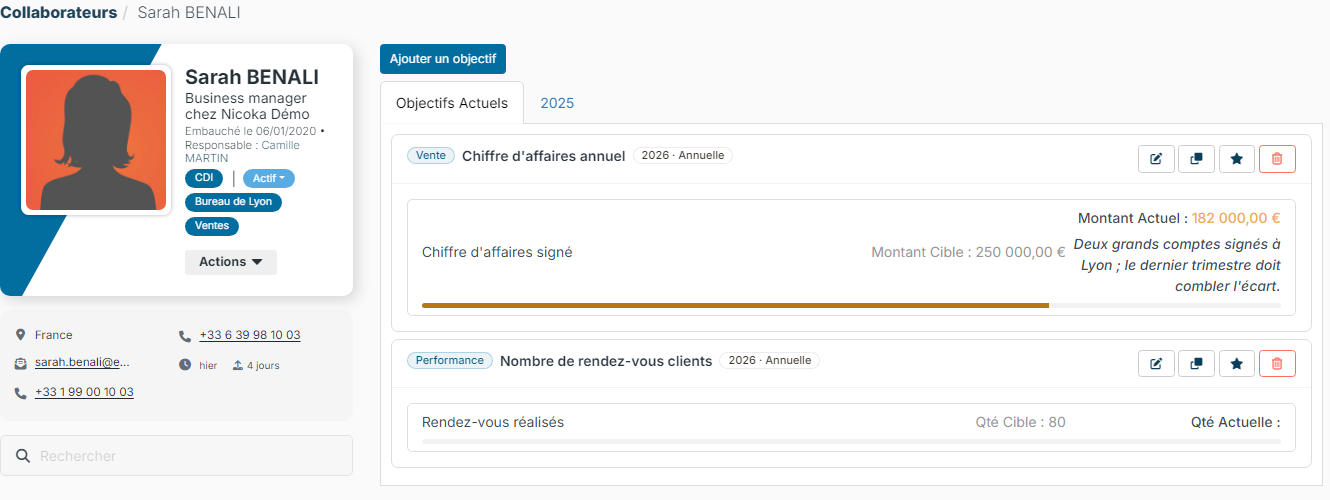
On the sheet, the Current Goals tab shows the goals in progress. Each goal shows its key results, the target value, the current value and a progress bar. The buttons of each goal let you update it, copy it, evaluate it (star) or delete it.
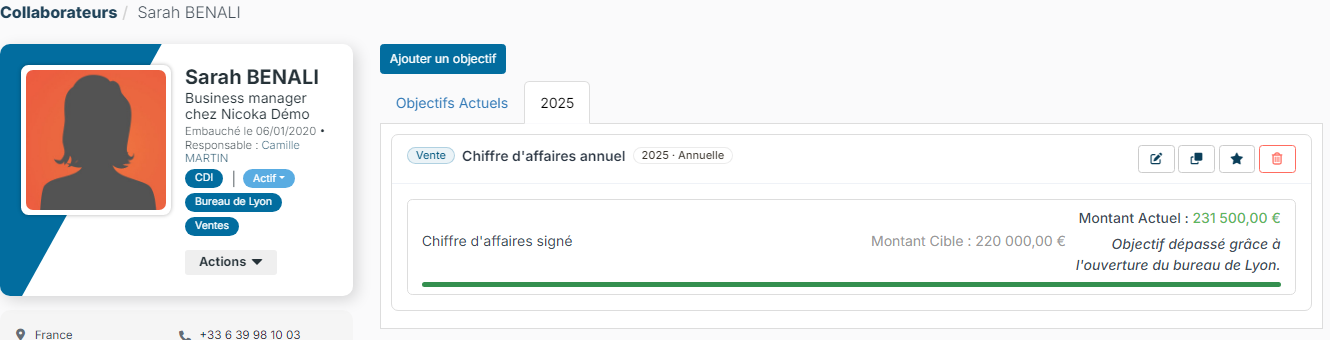
Past goals are stored in one tab per year (for example 2025): a goal moves there when its year is over or its due date has passed. A year's tab only appears if the employee has goals for that year. The copy button lets you renew a goal for a new period.
4. Evaluate goals
Depending on the evaluation frequency chosen, you measure how far goals are achieved:
- from the employee's sheet, as described below;
- during an interview, with an Evaluate Goals question (see Managing evaluations).
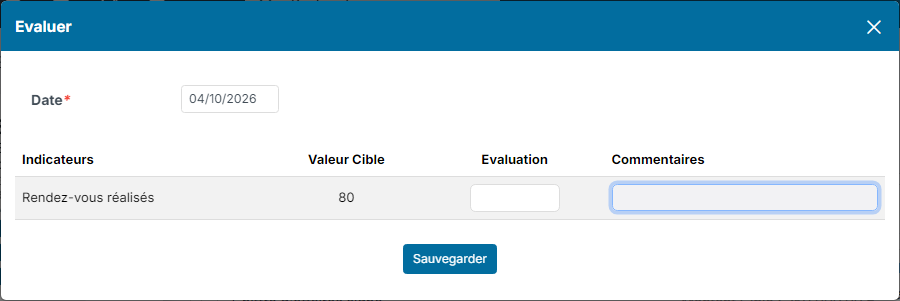
- On the employee's sheet, Goals section, click the star icon of the goal.
- The Evaluate window uses today's date. For each key result, type the Evaluation and, if needed, Comments (an explanation or manager feedback).
- Click Save.
5. Follow your team's goals
In the side menu, open My Team > Goals. The list shows all goals, evaluated or not, with their key results and their last evaluation. Use Filters and Edit Columns to adapt it, and save your views as variants. The Download button exports the list in Excel format.
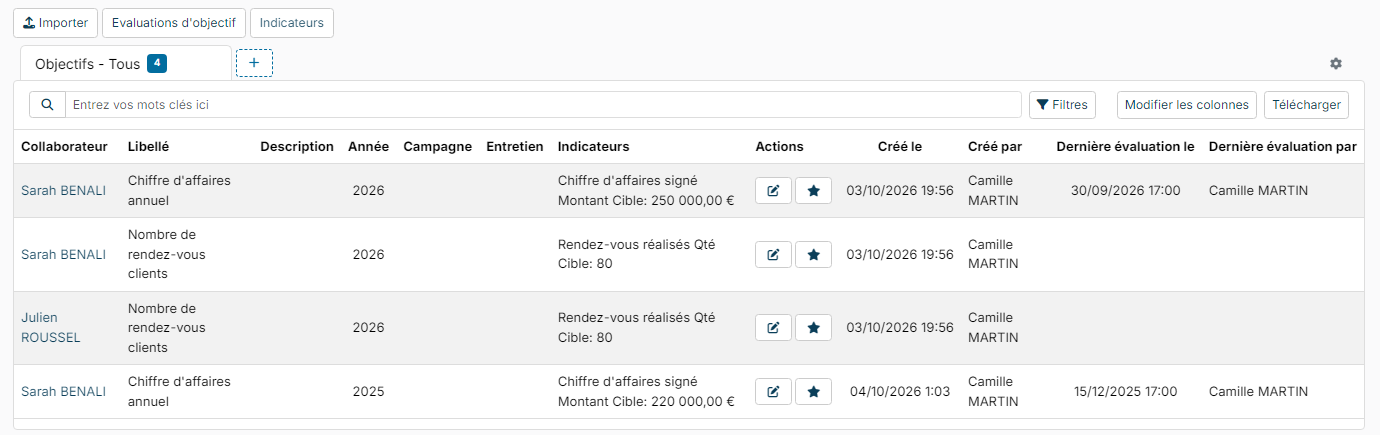
Two other lists are available from the buttons at the top of the screen:
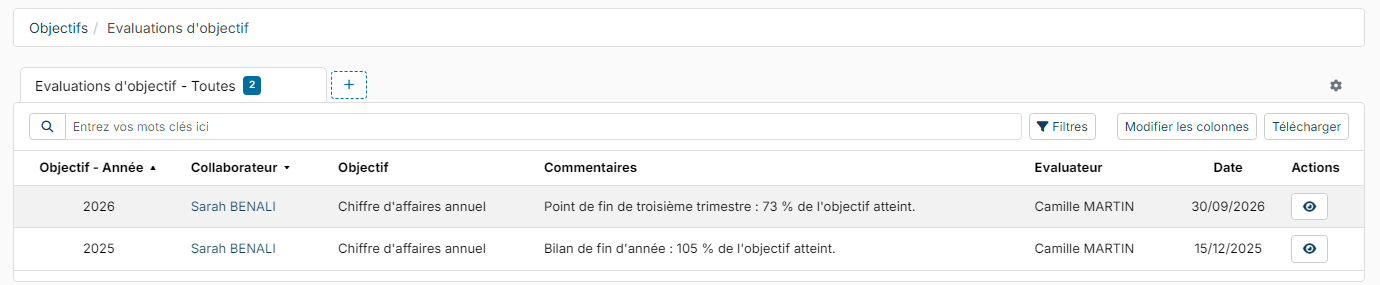
- Goal Evaluations: the evaluations already done, with their date, assessor and comments;
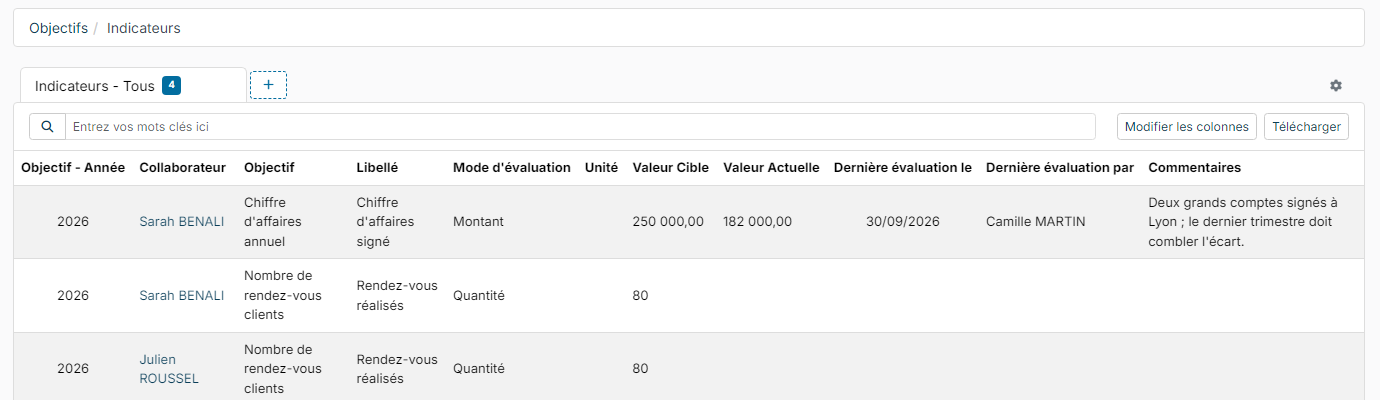
- Key Results: all key results, by employee, with the evaluation mode, target value and current value.