Candidate Sharing
Candidate sharing lets you email one or more profiles to a client contact or to a colleague. The email presents the list of the chosen candidates and can carry their documents as attachments (resume, resume in your company's layout…).
- To give a client online access to a job's candidates rather than an email, see Candidate sharing portal.
- To present candidates to many contacts in a single send, see Push Candidates and Push Jobs.
Opening the share window
From a candidate's record
In the Summary tab, click the Share Candidate arrow icon in the toolbar.

From a job
- Open the job and choose the Columns view.
- Click the stage you want, then tick the candidates to share.
- Open the stage's Actions menu and click Share.
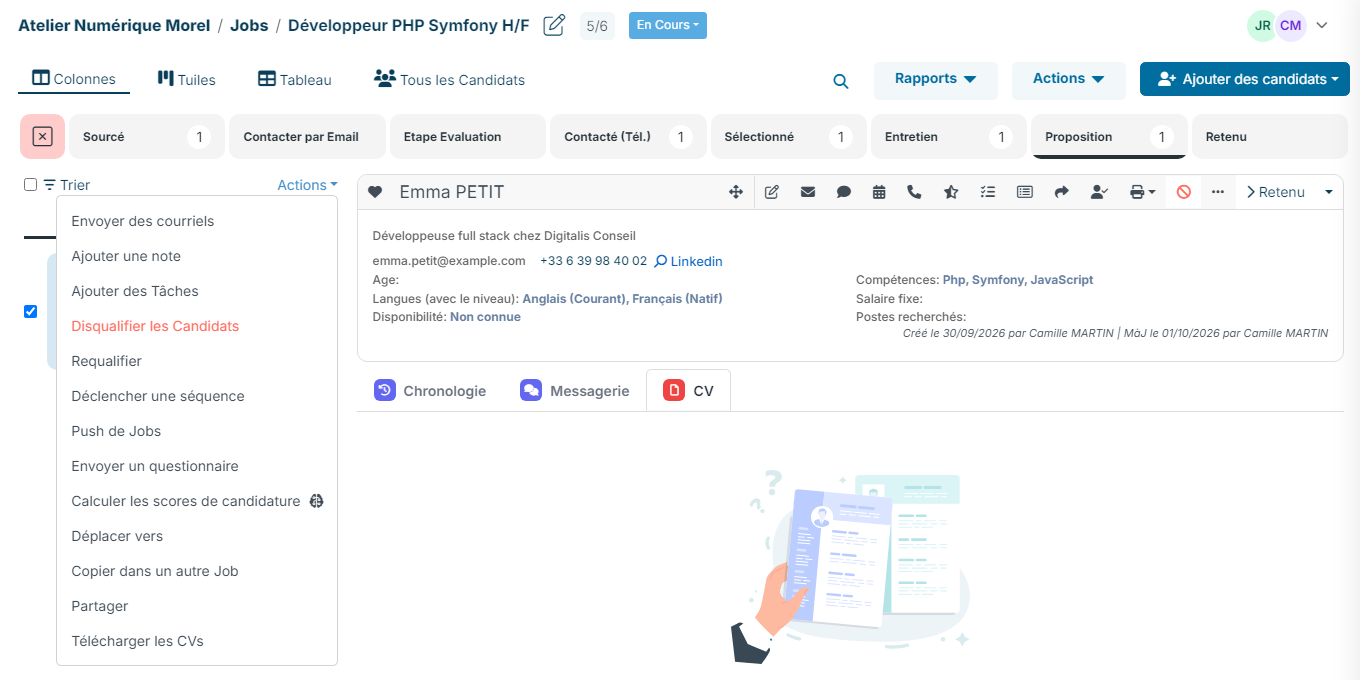
In the tiles view, the same menu appears at the top of each stage as soon as you have ticked candidates.
From the candidate list
In All Candidates, tick the candidates, then click Actions > Share.
Writing the email
The Share Candidate window opens with an email ready to send.
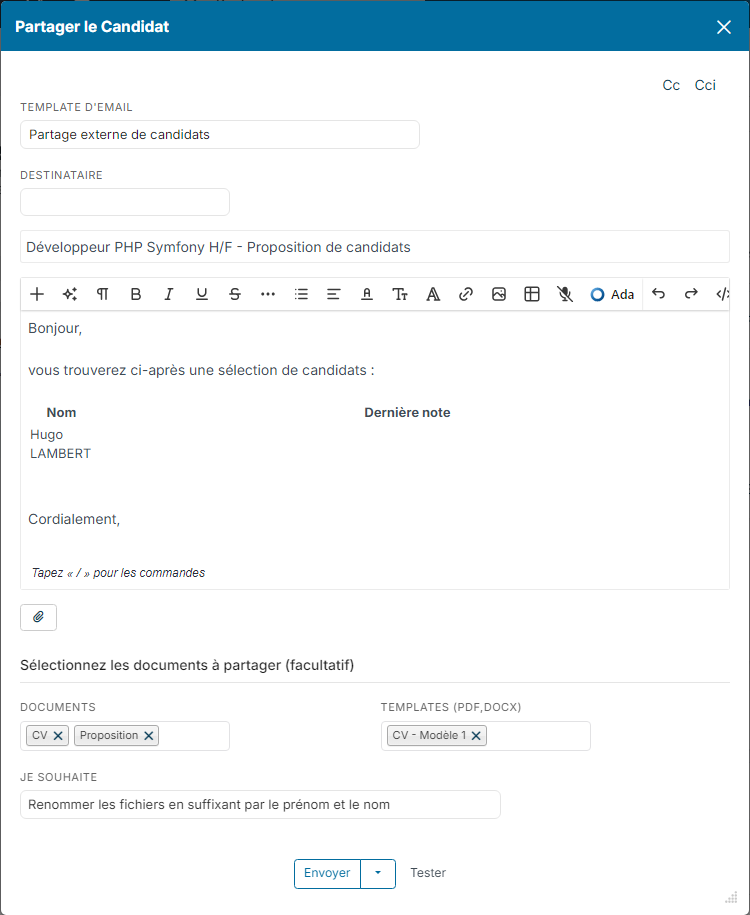
- Email Template: the Share Candidates template is offered by default. You can pick another one from the list, which groups your templates by Candidate and by Job: the subject and body are filled in again.
- To: type the name of a contact or a colleague and pick it from the list. The Cc and Bcc links add people in copy. If you have several sending mailboxes, an additional list lets you choose the one that sends the email.
- Subject and body: the body contains the table of the shared candidates, with their name and last note. You can edit the text freely.
- Attachments: the paperclip button under the body adds your own files.
When you share from a job, the subject includes the job title. If the matching setting is on (see below), the job's main contact is already filled in as recipient and its secondary contacts are put in copy.
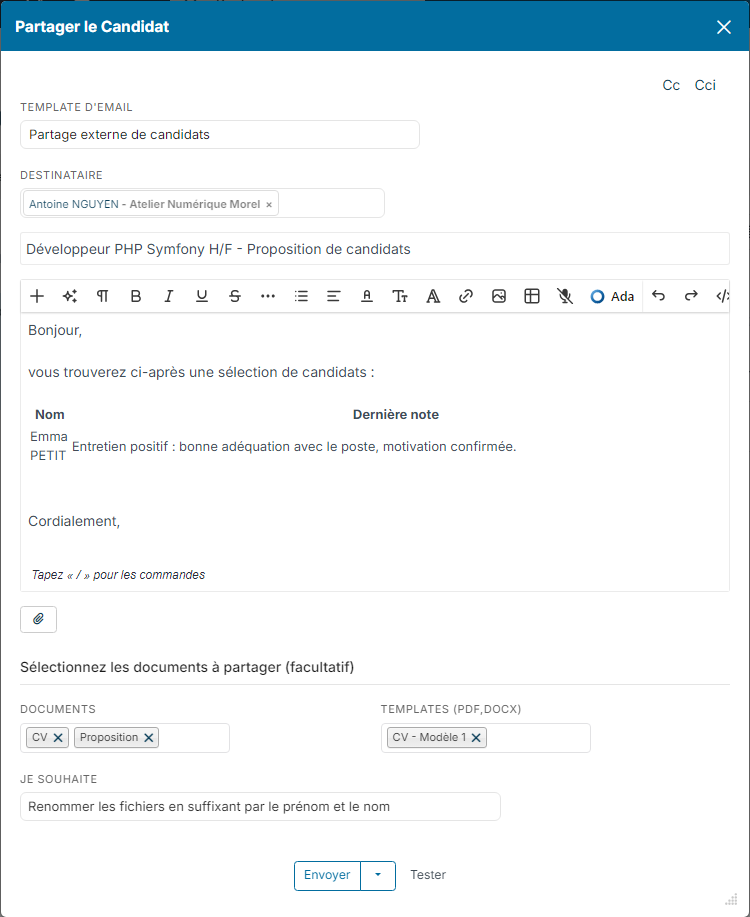
Attaching documents (optional)
The block for selecting shared documents, under the body, adds files to the email for each shared candidate:
- Documents: the document types to attach (for example the resume). For each candidate, Nicoka attaches the most recent document of each chosen type. So remember to set the type of the documents you add to the candidates' records.
- Document Templates: a document generated for each candidate from your templates, for example a resume in your company's layout.
- I want to: the name of the attached files. You can Keep original filename, Rename using first and last name, Rename using first name only or Rename using a Candidate id.
The documents and templates selected when the window opens come from the settings. Nicoka then remembers your last choices for your next shares.
If a candidate has no document of the chosen type, Nicoka tells you when you send ("The following candidates does not have…"). You can then confirm: the email is sent with the documents available.
Sending
- Send Preview: sends the email to your own address, so you can check how it looks before the real send.
- Send: sends the email to the recipients.
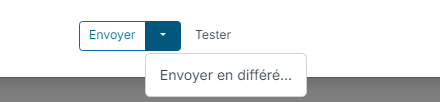
- Send Later: the arrow next to the Send button lets you schedule the send for a chosen date and time.
The share is logged in the timeline of each shared candidate. If the recipient is a contact, the email is also saved in their history and the candidates are added to their proposed candidates.
Sharing settings
The sharing settings are for administrators:
- In the side menu, open Customizing > Store.
- On the ATS card, click Customize, then Customizing Points.
- Expand the Sharing Customizing section.
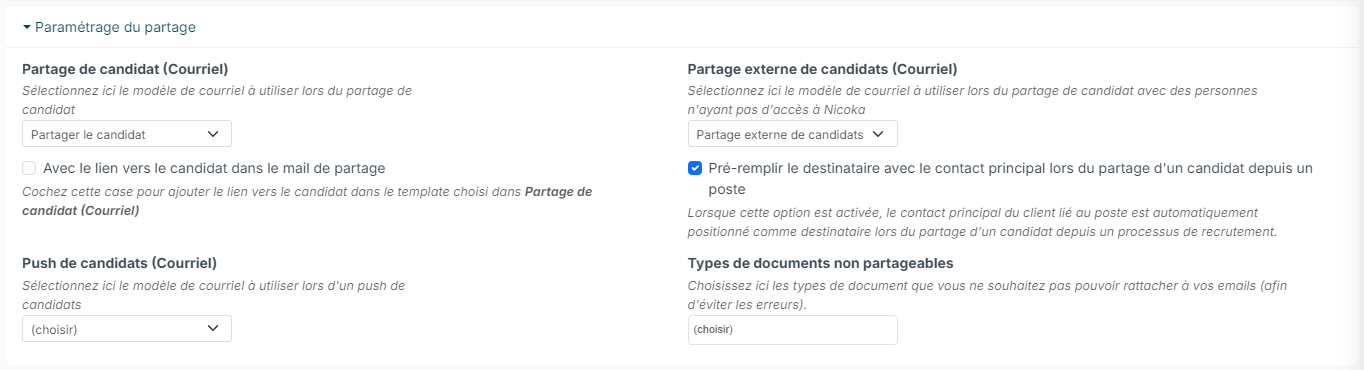
- Sharing to external email template: the email template offered when the Share Candidate window opens.
- Share Default Email: a second sharing email template.
- Add candidate link in sharing email: in the candidate table of the email, each candidate's name becomes a link to their record in Nicoka. Keep it for recipients who have access to Nicoka.
- Prefill recipient with the main contact when sharing a candidate from a job: when you share from a job, its main contact is offered as recipient and its secondary contacts are put in copy.
- Push of candidates (Email): the template used for the candidate push (see Push Candidates and Push Jobs).
- Non shareable document types: the document types that are not offered among the existing documents to attach when you write an email or an invitation from a candidate's record. Useful to avoid sending a confidential document by mistake.
The documents and templates selected by default in the share window are set in the External Sharing Portal section, with Sharing default documents and Sharing default PDF templates.
To adapt the text of the sharing emails, edit the templates concerned: see Manage Email Templates.
Sharing a recruitment stage with a client
For a client or a manager to review a job's candidates online, comment on them, approve or reject them depending on the role you give them, use the sharing portal: see Candidate sharing portal. Its settings (notification email, shared fields and documents, excluded rejection reasons…) are in the External Sharing Portal section of the customizing points.