Manage email templates
An email template is a reusable message: a subject and a body, in which Nicoka automatically inserts the information of the record (candidate name, job title, invoice number…). You use them when you send an email from a record, and Nicoka also uses them for its automatic emails (reminders, events, invitations, follow-ups…).
To send emails from Nicoka, your mailbox must be connected: see Step 3 - Connect your email account. Managing templates requires customizing rights.
Open the email templates
In the side menu, open Customizing > Admin, then the Emails and Notifications section > Email Templates. The list gathers the templates of all modules.
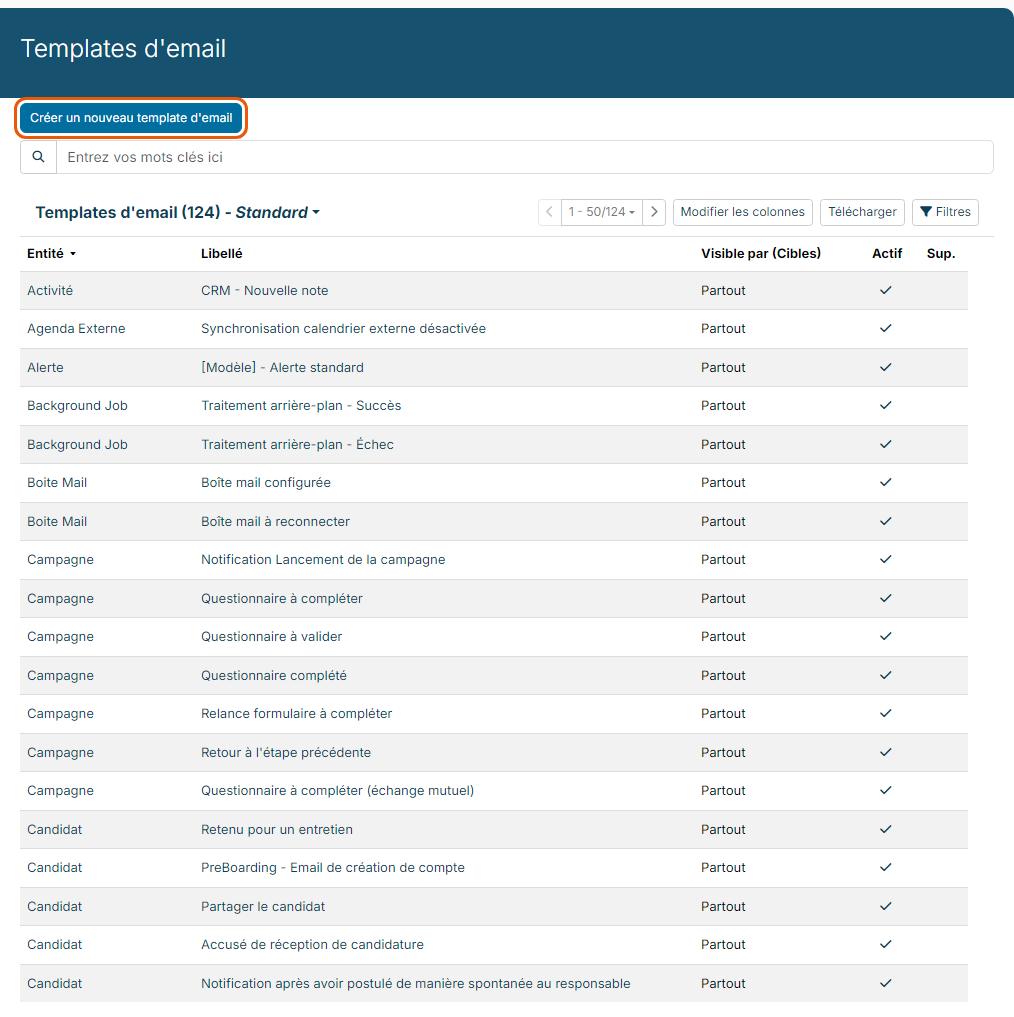
For each template, the list shows the Entity (Candidate, Employee, Contact, Invoice, Reminder…), the Label, the Visible by (Targets) column and the Active box. Use the search field or the Filters button to find a template, for example all the templates of the Candidate entity.
You also find the templates of a single entity in the customizing of its module. For example, for candidates: Customizing > Modules, the customizing of the ATS module, then Candidates > Email Templates.
Create a template
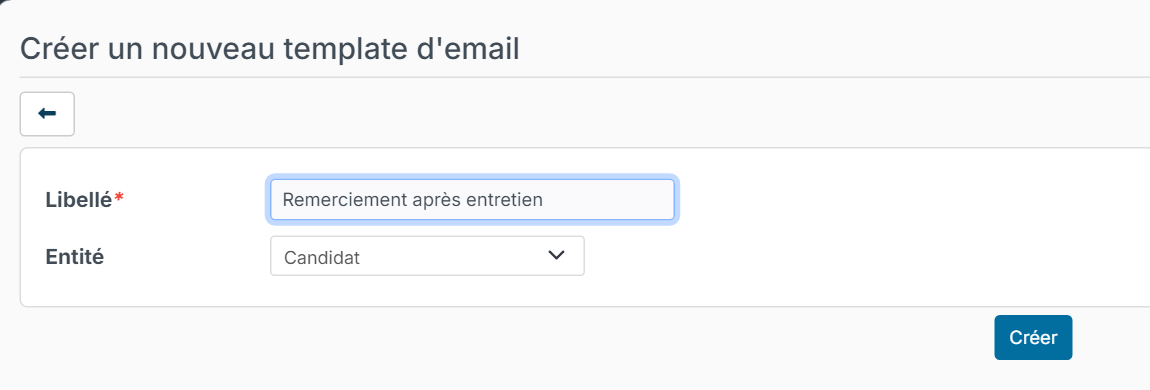
- Click Create a new email template.
- Enter the Label, the name users will see in the list of templates, then choose the Entity: it decides from which records the template is offered and which information you can insert in it.
- Click Create. The template editor opens.
To start from an existing template, open it and click Copy (see below). Copying a standard template is the simplest way to adapt it while keeping the original.
Edit a template
Click the label of a template to open the Update Email Template page.
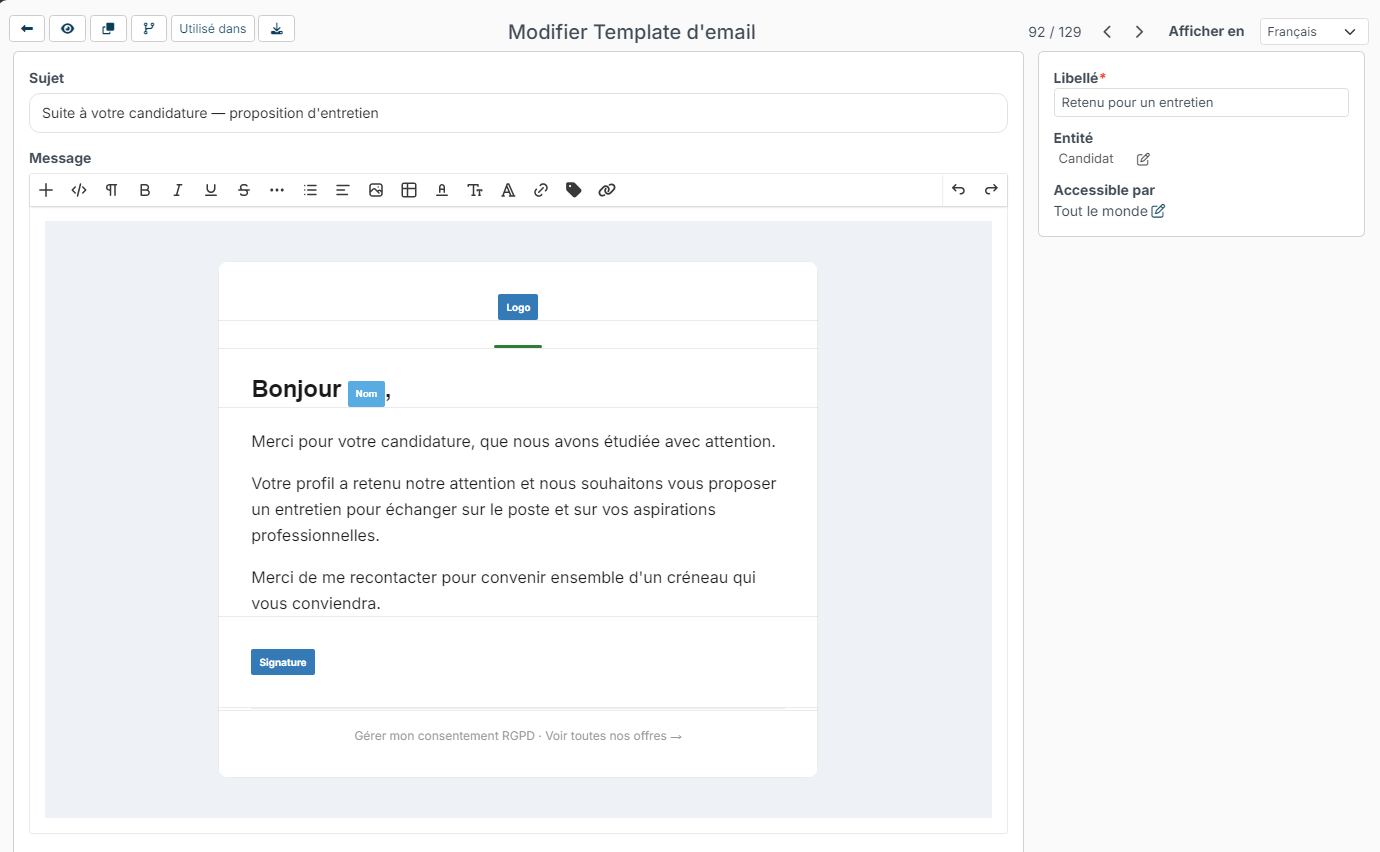
- Subject and Message: the subject line and the body of the email. The editor lets you format the text and add images, tables and links.
- On the right: the Label, the Entity and Available for. Click the pencil next to Available for to restrict the template to some users instead of Everybody.
- At the top left: back to the list, Preview, Copy, Change log and Where used, which lists the reminders, events or other settings that send this template.
- At the top right: the arrows move to the previous or next template of the list.
Click Update, below the message, to save.
Insert information from the record
The blue tags (for example Nom or Signature on the screenshot) are replaced, when the email is sent, by the information of the record or of the sender. To add one:
- click the tag icon in the toolbar, choose the field in FieldName, then click Insert;
- or type / in the message;
- or click one of the variables offered below the message (for example the first name), or Add a variable.
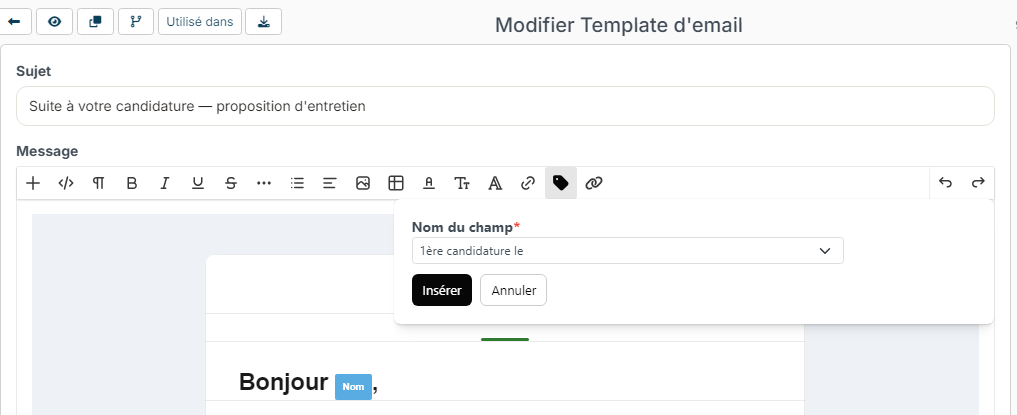
The list of fields depends on the entity of the template: a Candidate template offers the candidate's information, an Employee template the employee's, and so on.
Translate a template
If your recipients speak several languages, choose a language in Show in, at the top right, then enter the subject and the message in that language. Click Update for each language.
Deactivate or delete a template
In the list, click in the Active column to stop offering a template without deleting it. The Del. column lets you delete the templates created by your company; Nicoka's standard templates cannot be deleted. Before deactivating or deleting a template, check with Where used that no reminder or event uses it.