Setting up Accounting
The Accounting module lets you assign accounting accounts to your sales and purchases, then export the accounting entries to your accountant's software. This article describes the settings to make before your first invoices: chart of accounts, VAT accounts, journals, customer accounts and accounts per product type.
Important: make all these settings before creating your first invoices. Otherwise, you will have to go back over each invoice to apply the accounts.
Activate the module
- In the side menu, open Customizing > Store.
- On the Comptability card (Accounting module), click Activate.
The Accounting menu appears in the side menu, with in particular Accounts (the chart of accounts), Documents and Banks.
Create your chart of accounts
In the side menu, click Accounting, then Accounts. Your company's accounts are listed in the chart; if you have several companies, choose the Company then click Preview.
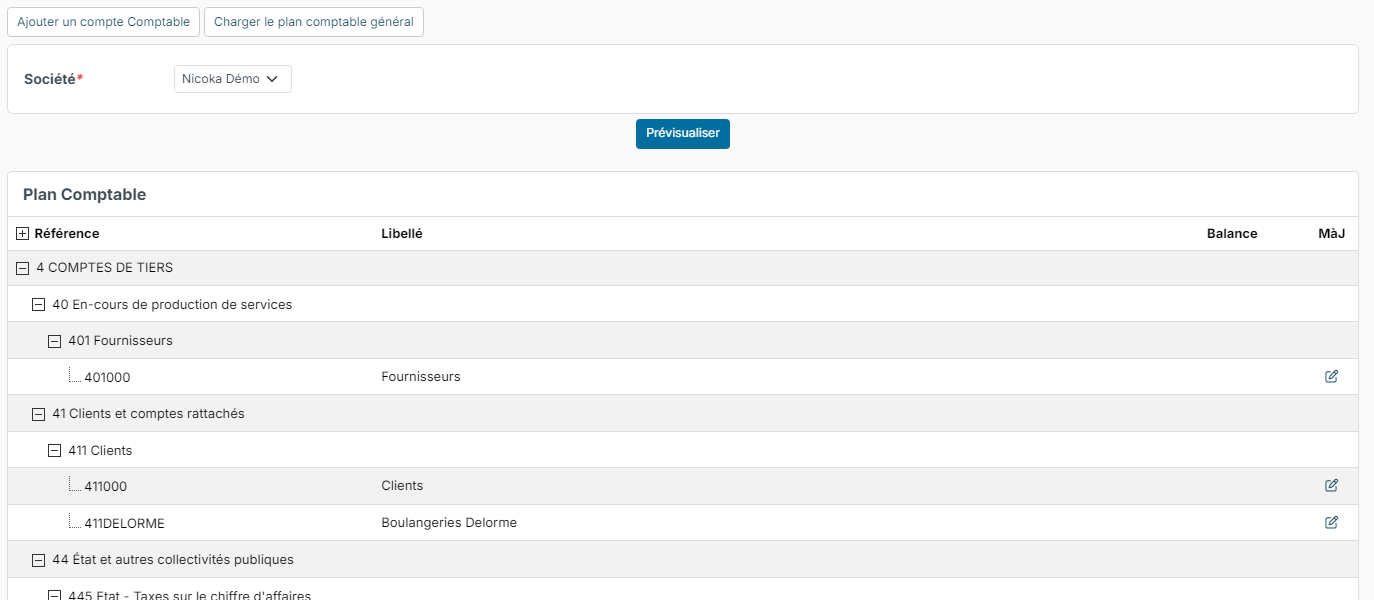
To avoid entering accounts one by one, start from the standard chart of accounts:
- Click Load the standard accounting plan.
- Choose the account classes to load. Tick Load the whole plan, including rarely used accounts to load the entire plan.
- Click Generate.
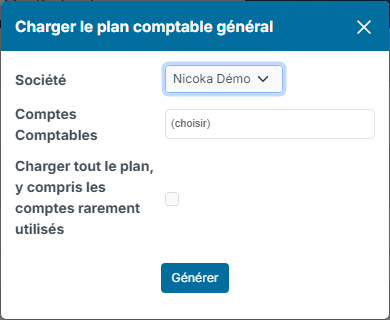
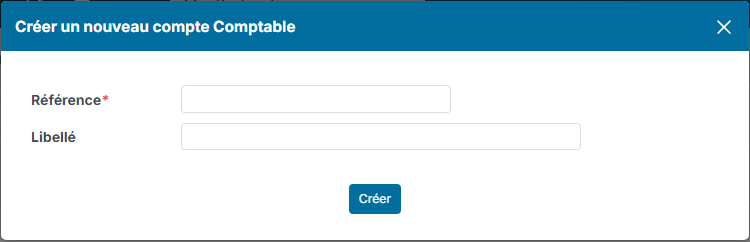
To add a specific account, click Add an Account, enter the account number in Reference and its name in Label, then click Create.
Depending on the modules you use, plan in particular:
- VAT accounts: deductible VAT for purchases (for example 44566), collected VAT for sales (for example 44571);
- revenue accounts, if you use the Sales module: for example 706000 Services;
- expense accounts, if you use the Purchasing module: for example 607000 Purchases of goods or 6064 Office supplies.
These numbers are examples (French chart of accounts): ask your accountant which accounts to use. Customer and supplier accounts are entered on each customer or supplier record (see below).
Set up the VAT accounts
- In the side menu, open Customizing > Store, then click Customize on the Comptability card.
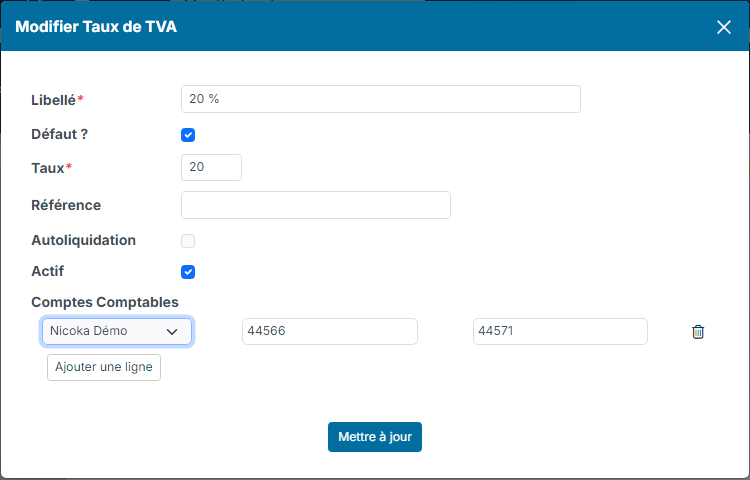
- Click VAT Rates. The accounts column shows the accounts already assigned to each rate.
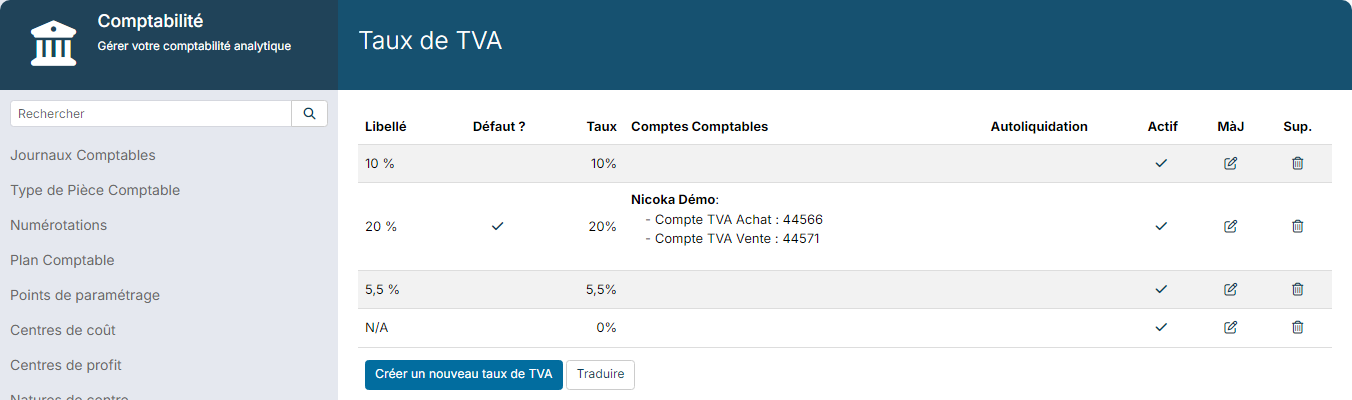
- Click the edit icon of the rate, for example 20%.
- In the accounts section, choose your company, then enter the Vat Account (Purchase) and the Vat Account (Sales). The name of each field is shown while it is empty. With several companies, add a row for each one.
- Click Update.
Check the accounting journals
If you export your accounting entries to your accountant's software, check the codes of your journals. In the Comptability customizing, click Accouting Journals.
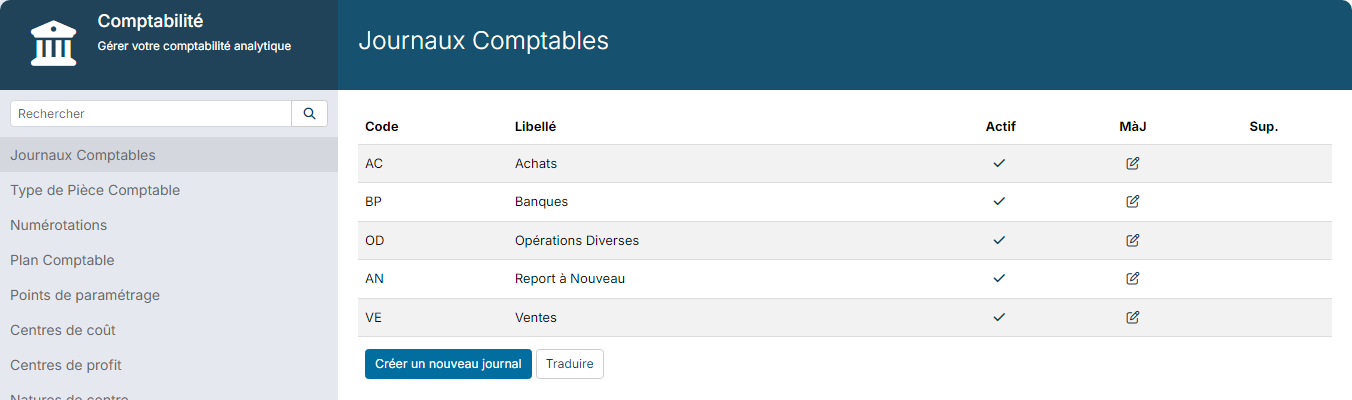
The Code of each journal (sales, purchases, banks…) must match the one used in your accountant's software. Otherwise, click the journal's edit icon and correct the code.
Enter a customer's account
- In the side menu, click Accounts (in the CRM menu, depending on your settings), then open the customer's record.
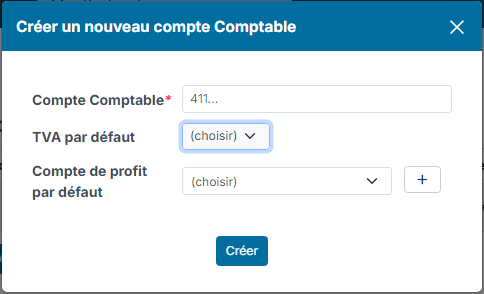
- Click the Accounting tab, then Add a Company.
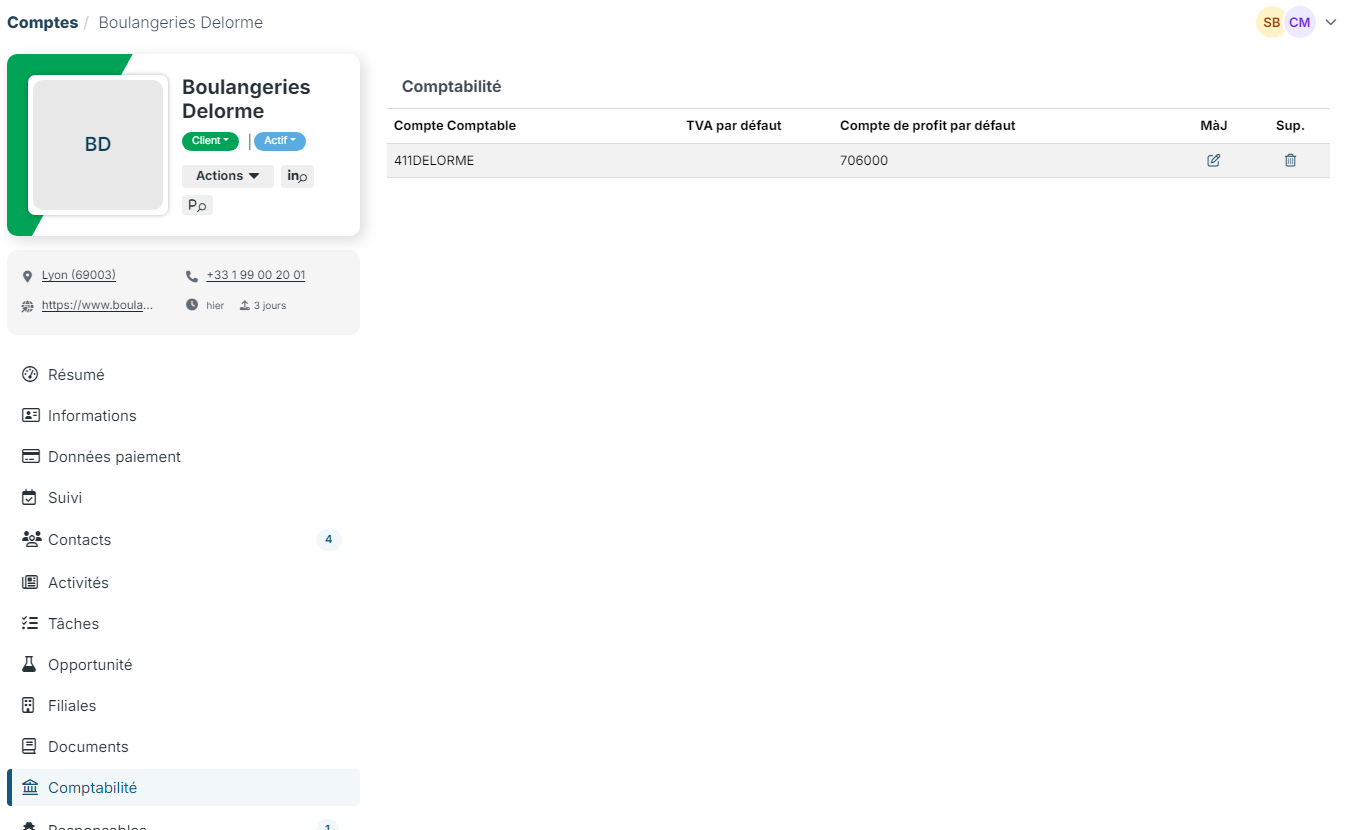
- Enter the customer's Account, for example 411DELORME (check the numbering with your accountant).
- Choose the VAT default Rate applied to this customer.
- Choose the Default profit account: it is used on the lines of this customer's invoices, and can still be changed on each invoice.
- Click Create.
The tab then shows the customer's account for each of your companies.
Link accounts to your product types
You can also link accounts to the types of products and services you sell or buy. When you add a product to an invoice, Nicoka then applies the accounts of its type by default.
- Open the Sales (or Purchasing) module customizing: Customizing > Store, Customize button of the card.
- Expand the Products section and click Types.
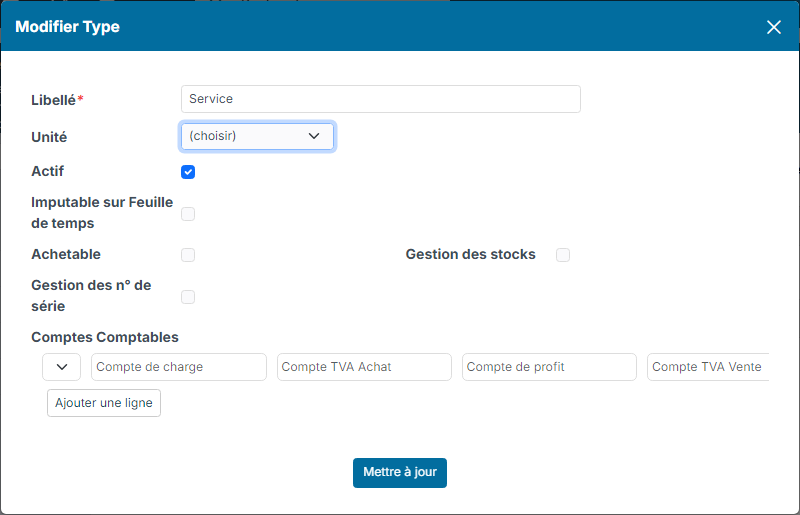
- Click the edit icon of a type, for example Service.
- In the accounts section, choose the company and enter the Cost Account, the purchase VAT account, the Revenu Account and the sales VAT account.
- Click Update.
Once these settings are done, you can export your accounting entries: see Accounting Exports.