Accounting Exports
Once the Accounting module is set up (see Setting up Accounting), you can export your accounting entries: these are the files to send to your accountant. Nicoka exports the entries of your sales, your purchases and your expense reports.
Export sales
- In the side menu, click Sales, then Invoices.
- At the top right, click Export, then Nicoka - Accounting document export (Sales), Nicoka's standard export.

- Choose the Period: the invoices and credit notes dated within this period are exported. For a single invoice, enter its reference in Invoice.
- Choose the Mode (see below), then click Generate.

Three modes are available:
- Preview Only: always start with this mode. It shows the entries that would be generated and reports allocation errors, for example a customer without an accounting account or an account missing from your chart of accounts. Nothing is saved.
- Generate Accouting Documents: once the preview reports no more errors, this mode generates the entries and downloads the file to send to your accountant.
- Show Already Generated Accounting Documents: to export entries that were already generated again.
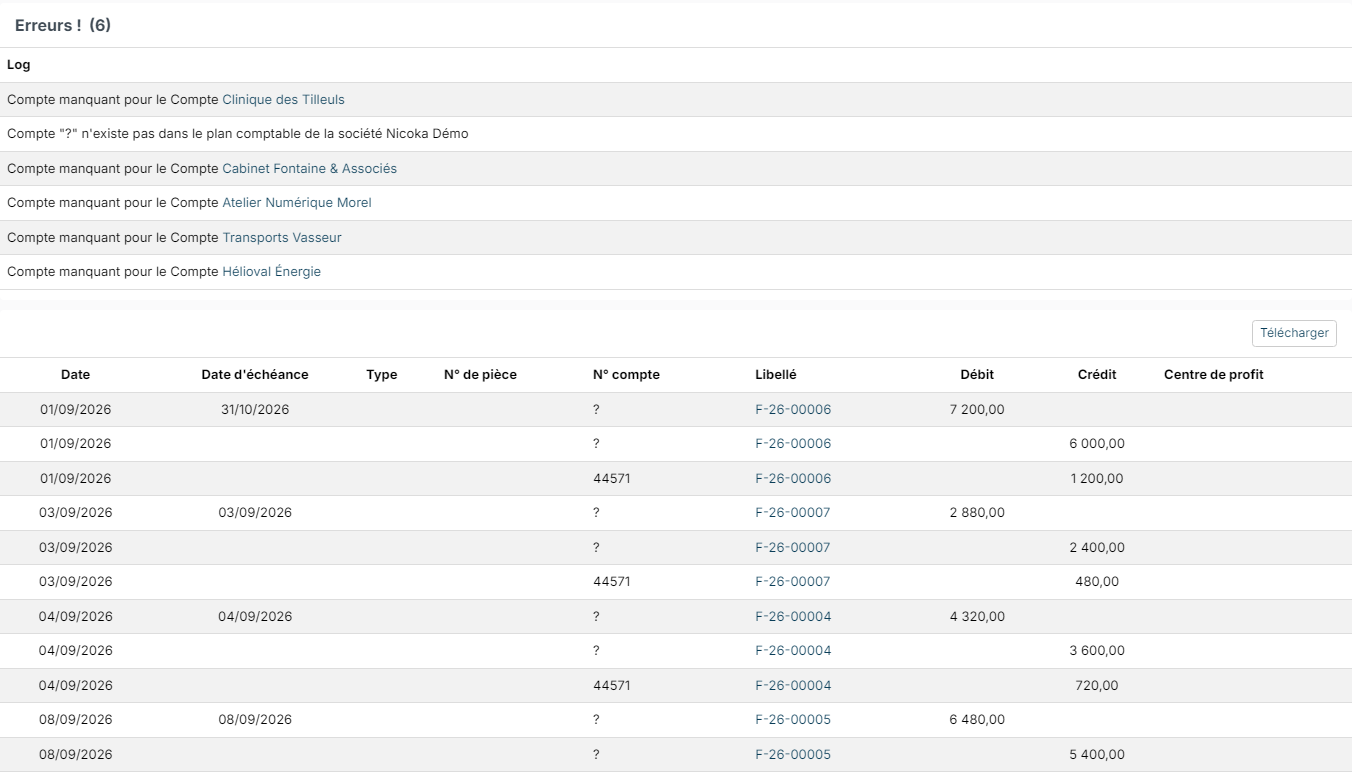
Fix the reported errors (for example by entering the customer's account on its record, Accounting tab), then run the preview again. The preview's Download button lets you get the entries in a spreadsheet.
Warning: once the accounting entries are generated, the related invoices and credit notes can no longer be modified. Always check the preview before generating.
Activate another export format
By default, the accounting export offered is Nicoka's standard export. If your accountant uses another tool, activate the matching format:
- In the side menu, open Customizing > Store, then click Customize on the Sales card.
- Expand the Sales section and click Interfaces: the list shows the available formats (Cegid, Sage, Idylis…).
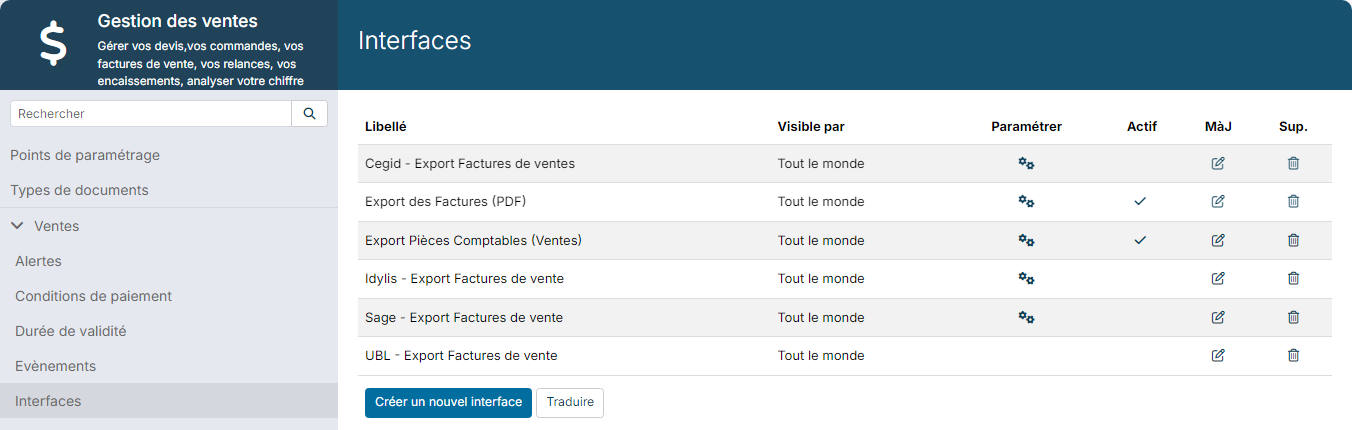
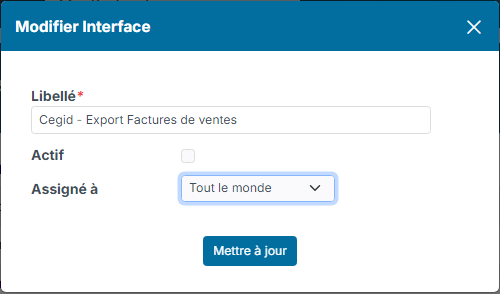
- Click the edit icon of the format you want, tick Active, then click Update.
The format then appears in the invoices' Export menu. The cogs icon lets you set some parameters of the format (fixed values, mapping tables…). For any question about these settings, or if your accountant's tool is not offered, send us a feedback naming the tool.
Export purchases
In the side menu, click Purchase, then Invoices. Click Export, then Nicoka - Accounting document export (Purchase). The screen and the modes are the same as for sales.

Other purchase export formats are activated the same way, in the Purchasing module customizing.
Export expense reports
In the side menu, click My Team, then Expenses. Click Interfaces, then Export Accounting Documents, which works like the sales export.
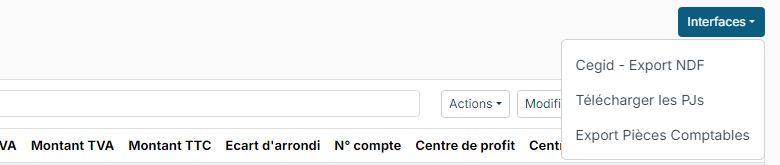
The same menu also offers the other formats active for expense reports and the download of receipts (Download Attachments).
To export to Sage or Cegid, with the Cegid Expert TRA file and the receipts, see Export expenses to Sage or Cegid.