The Work Location module: declare and follow work locations
The Work Location module lets each employee declare, day by day, where they work: at the office, remotely, at a customer's… Managers get an attendance schedule of their team. You can also set remote work rules, manage the capacity of your locations and rooms, and set up a validation workflow for requests.
If you simply want to show your remote work days with calendar events, without advanced setup, see the article Managing remote work in Nicoka - Simplified version instead.
1. What is the module for?
- Declare your work location for a day, a half-day (morning or afternoon) or custom hours.
- See the team's attendance schedule: who is at the office, working remotely, travelling or absent.
- Set an attendance pattern: number of remote days allowed, forbidden days, allowance.
- Manage the capacity of locations and rooms (occupancy gauges).
- Set up, if needed, a validation workflow for requests.
- Show the "Who's working from home ?" widget on the dashboard.
2. Activate the module
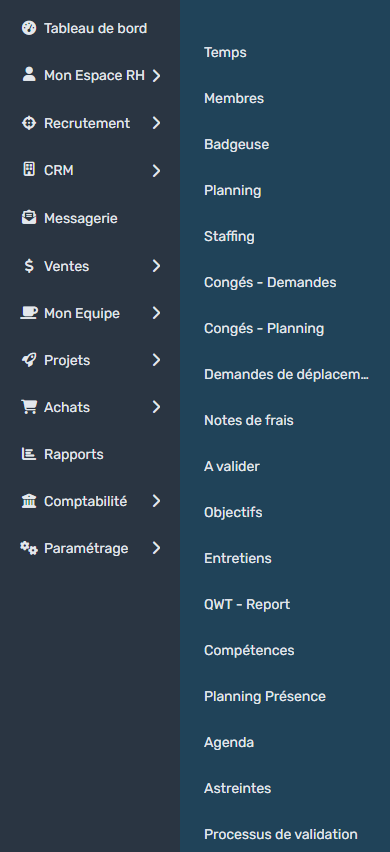
In the side menu, open Customizing > Store, look for the Work Location card and activate it. Once the module is active, the Attendance schedule entry appears in the My Team menu, and each employee declares their work locations from My HR Space > My Planning.
3. Set up the module
In Customizing > Store, click Customize on the Work Location card. The customizing has the following sections: Customizing Points, work location types (Locations), Attendance Models, company locations, Rooms, Workflows and Working Hours.
Work location types
Here you define the locations offered to employees: Office, Remote work, At the customer's… Each location has a Type that sets its behaviour, for example:
- Location: one of the company's locations, possibly with the choice of a room;
- Teleworking: the employee works from home;
- Use Customer address or Use Supplier address: work at a customer's or supplier's premises;
- Site, Company Location or Free Entry.
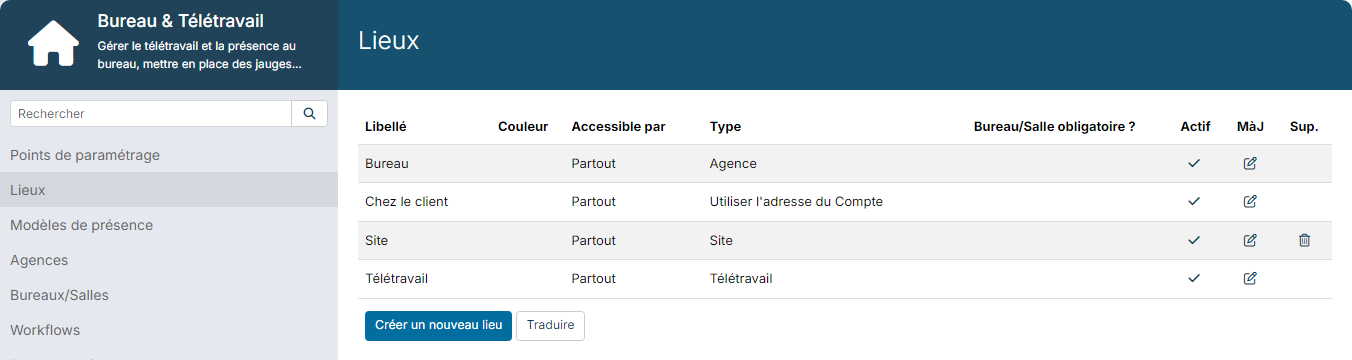
Each location can be restricted to a given population (Available for). For a location of the Location type, tick Room is required ? if a room must be chosen.
Attendance models
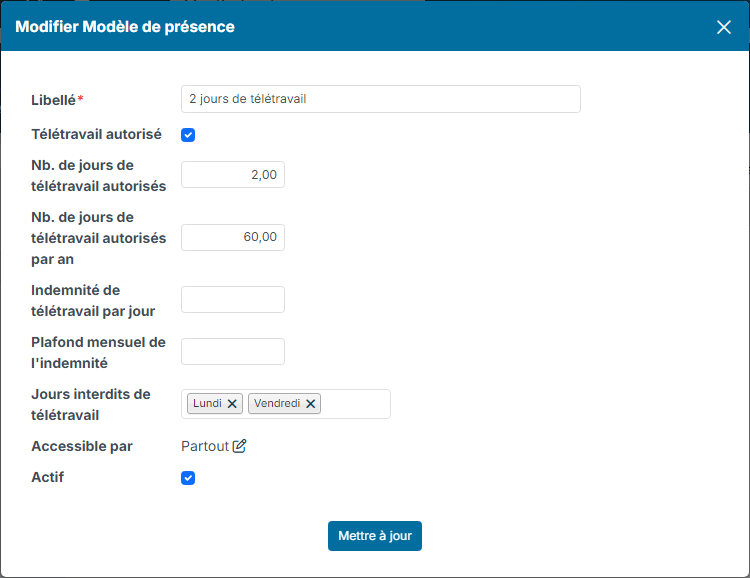
An attendance model describes the theoretical attendance pattern of a group of employees. Create one per pattern, for example "2 remote days". Click Create a new attendance Model and fill in:
- Label and Teleworking allowed?;
- Nb of allowed teleworking days per week, and Nb of allowed teleworking days per year;
- Teleworking allowance per day and Monthly allowance cap, if you pay an allowance;
- Teleworking Forbidden Days, for example Monday and Friday;
- Available for and Active.
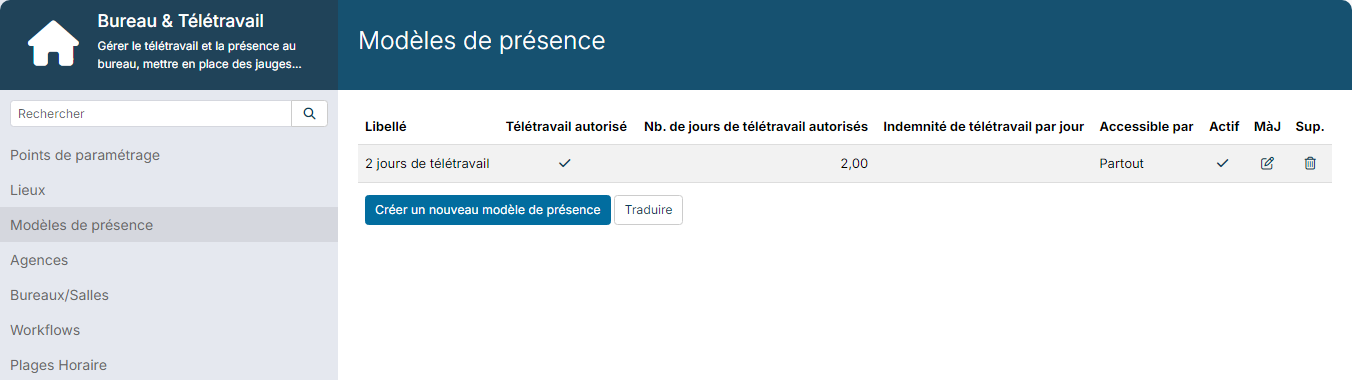
The model then applies in two ways:
- through the working hours: the default attendance model of the working hours applies to all employees whose contract has these working hours (see Manage working hours);
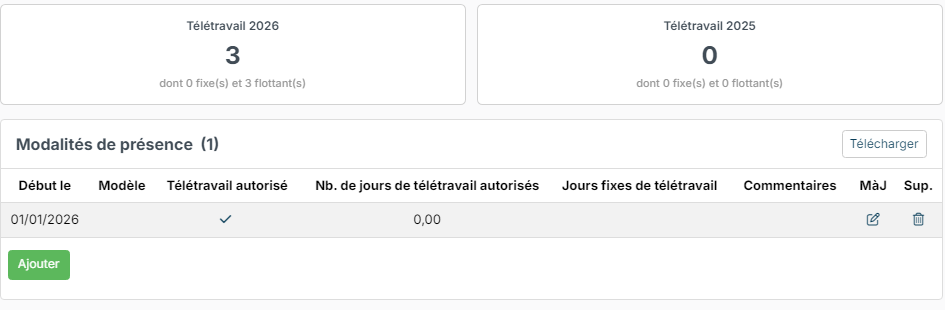
- for a given employee: on their sheet, attendance terms section, click Add and enter the start date, the model and, if needed, their fixed remote days. The employee's own terms take precedence over those of their working hours.
The same section shows, for each year, the employee's number of remote days, of which fixed and floating days.
Locations and rooms
The company's locations and their rooms are managed in their own sections. Enter a capacity (Max nb of attendees field) to show occupancy gauges when declaring: everyone sees how many places are left. If you do not use rooms, deactivate them in the customizing points.
Customizing points
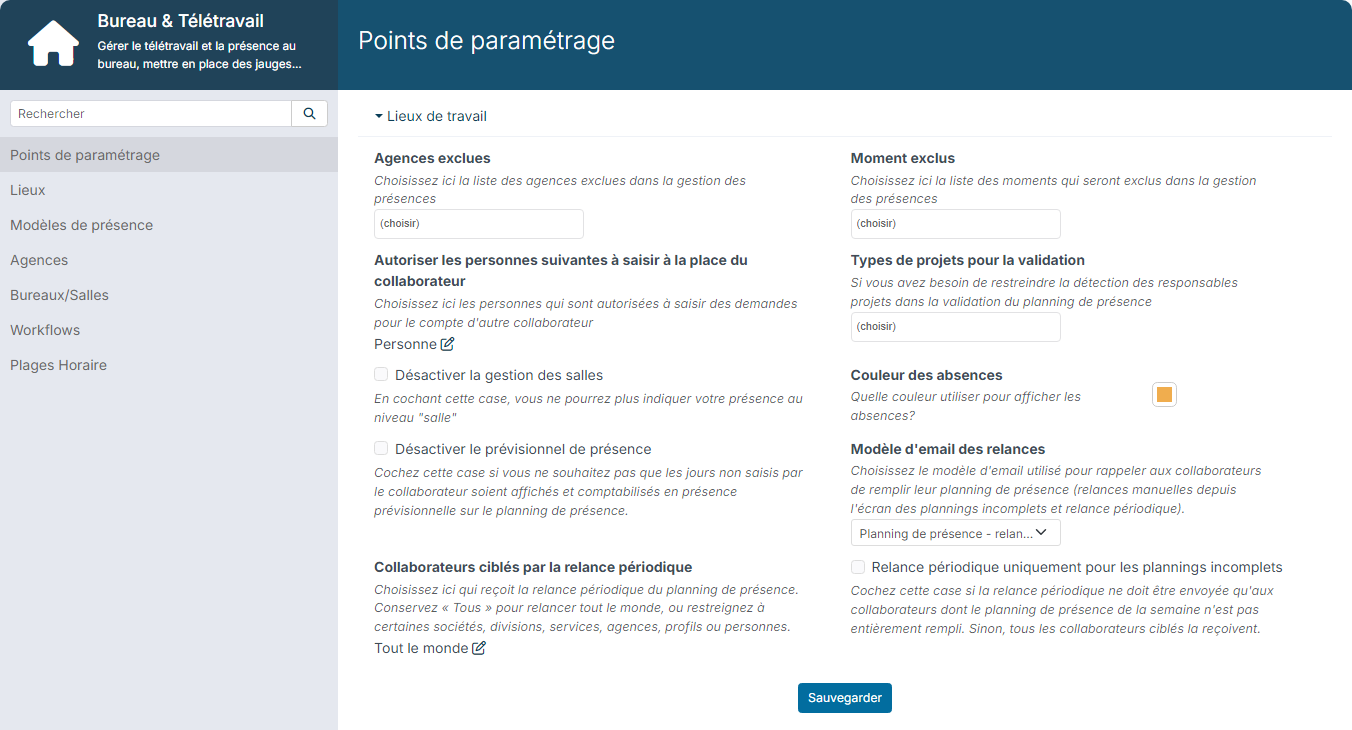
The module's customizing points let you, among other things:
- exclude locations or moments from attendance management;
- allow some people (assistants, managers…) to enter declarations on behalf of an employee;
- deactivate room management;
- choose the display colour of absences in the schedule;
- deactivate the attendance forecast: by default, a day not entered is shown and counted from the employee's theoretical attendance pattern. With this option, it stays empty;
- remind employees who have not filled in their schedule: reminder email template, employees targeted by the periodic reminder, and periodic reminder only for incomplete schedules.
Validation workflow (optional)
Without a validation workflow, each declaration is saved immediately. To submit remote work requests for validation, create a workflow on the "Work Location Request" entity from the Workflows section of the module customizing. The employee then submits their week, which follows the defined workflow (manager, HR…).
4. Declare your work location (employee)
In the side menu, open My HR Space > My Planning. The schedule shows one row per location and, at the top, the count of your remote days for the year.
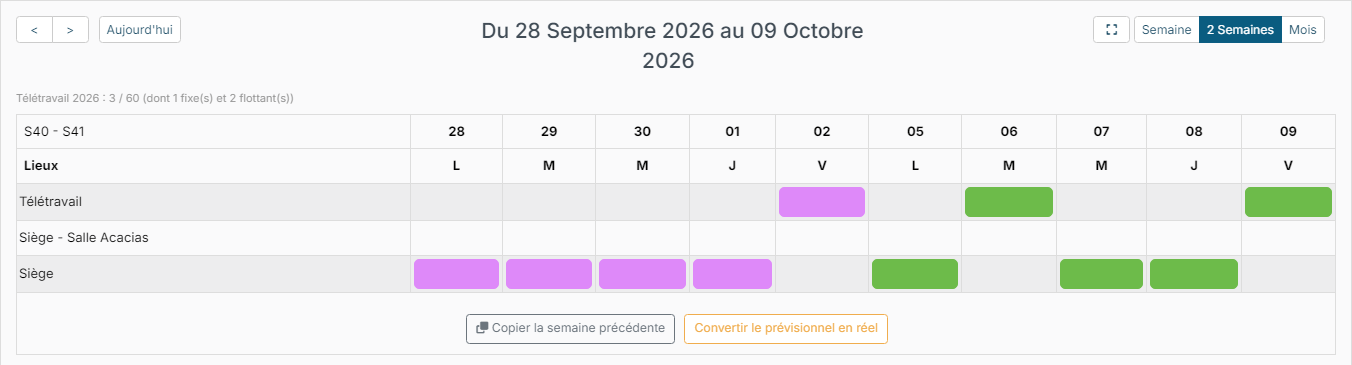
- Click the cell of the day and location you want: the Add a work Location window opens.
- Check the Type of location (Remote work, Office with the location and possibly the room…).
- Choose the Moment: full day, morning, afternoon or custom hours.
- If needed, tick other days in Repeat this location on. For an office, the occupancy of each day is shown.
- Click Add: the declaration appears in the schedule right away.
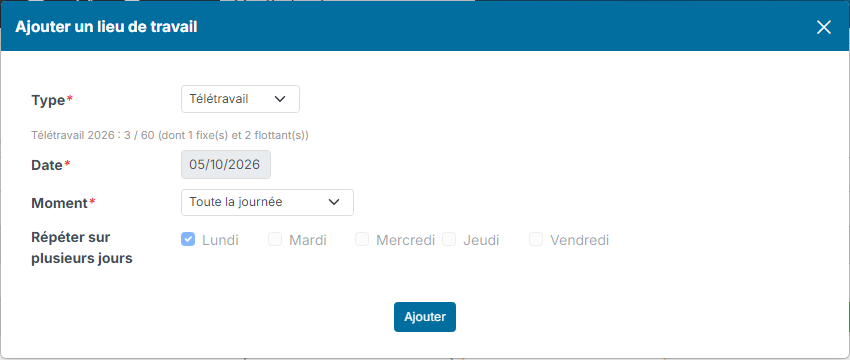
The Copy previous week button takes over your declarations of the previous week, and Save Forecast as Real saves the forecast days as declarations. If a customizing point allows it, a user can also declare a work location on behalf of a colleague.
If a validation workflow is in place, the employee then submits their week from the schedule. As long as a week is not validated, it can still be changed.
5. Follow your team's attendance
In the side menu, open My Team > Attendance schedule. The schedule shows the team by Week, 2 Weeks or Month:
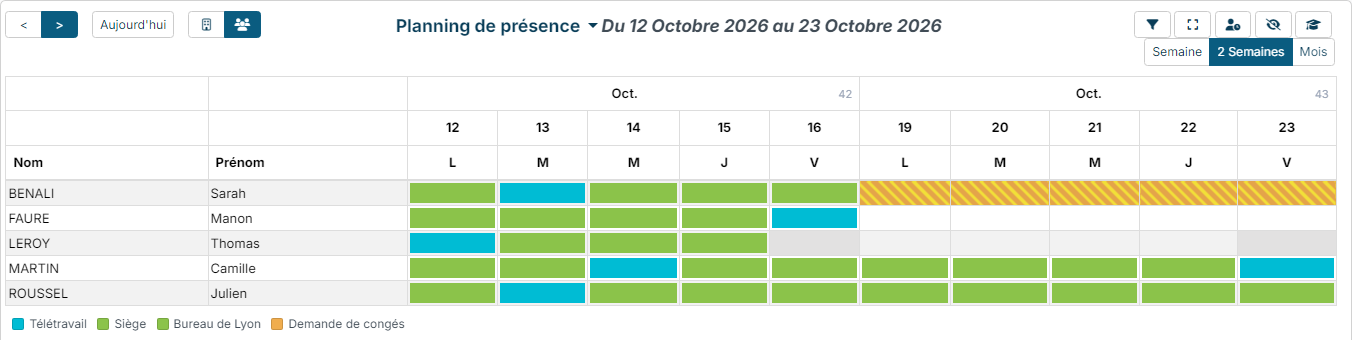
- each employee appears with their work location, one colour per location (legend at the bottom of the schedule);
- forecast days, based on the theoretical attendance pattern, are shown when the employee has not declared anything;
- absences from Time Off are shown automatically in the schedule, with a configurable colour;
- the buttons at the top right let you filter the schedule, show or hide weekends, the locations summary and trainings, and open the Incomplete attendance schedules to remind latecomers.
6. The dashboard widget
The module provides the "Who's working from home ?" widget, which shows on your dashboard the employees working remotely today and tomorrow, with direct access to the attendance schedule. To add it: Add a widget to your Nicoka dashboard.
For any question about setting up the module, contact Nicoka support.