Campaigns module: user guide
The CRM Campaigns module lets you follow a targeted action on a set of contacts or accounts: phone prospecting, emailing, sales follow-up, event invitation… Each target moves through a series of steps you define in advance, for example To contact, Contacted, Meeting set, Proposal sent.
The module keeps each target's history (who contacted them, when, how), gathers the actions (note, call, email, task, event) and feeds the record of the contact or account concerned.
Key notions
- Campaign type: a reusable model that defines the series of steps (the flow). Each new campaign is based on a type.
- Step: one stage of the flow, with its name and colour.
- Target: a contact or an account added to the campaign. A target is on one step at a time and keeps its history.
- Exclusion: the target leaves the follow-up without being deleted; it can still be viewed in the excluded band, with an exclusion reason that is optional or required depending on the Exclusion mode of the campaign type.
- Removal: the target is permanently removed from the campaign. The contact or account record itself remains intact.
Create a campaign
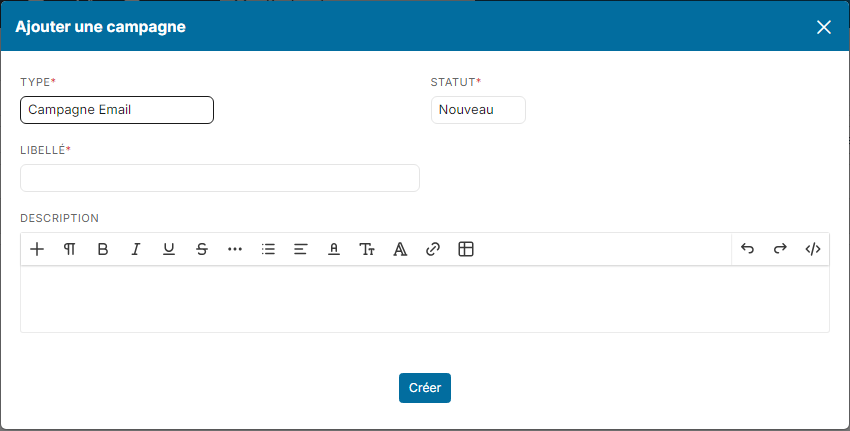
- In the side menu, click CRM, then Campaigns.
- Click Create a new Campaign.

- Choose the campaign Type and its Status (New by default).
- Enter the Label and, if needed, a Description: it is shown as a banner at the top of the campaign.
- Click Create.
My Campaigns lists the campaigns assigned to you or in which you are a partner.
Add targets
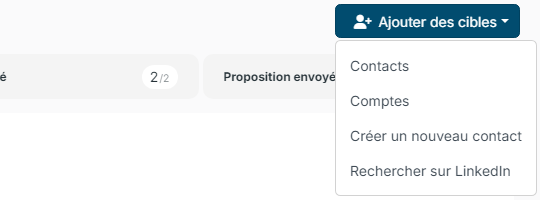
At the top right of the campaign, the Add Targets button offers:
- Contacts: multi-criteria search in your contacts. Contacts already in the campaign cannot be added a second time.
- Customers: to target companies directly.
- Create a new Contact: the contact is created and then added to the campaign.
- Search on LinkedIn: to find new contacts to add.
You can also start from your lists: in Contacts, Accounts or Suppliers, including My Contacts, My Accounts and Leads, tick the rows you want, then click Actions > Add to a Campaign. Choose the campaign and the starting step, then confirm. To find the contacts of an import, add the Bulk Log filter to your view.
For each addition, an activity on the target's record traces the addition, with the name of the person who made it.
The three views
The Columns, Tiles and Table tabs show the same targets in three ways. Nicoka remembers the view chosen by each user.
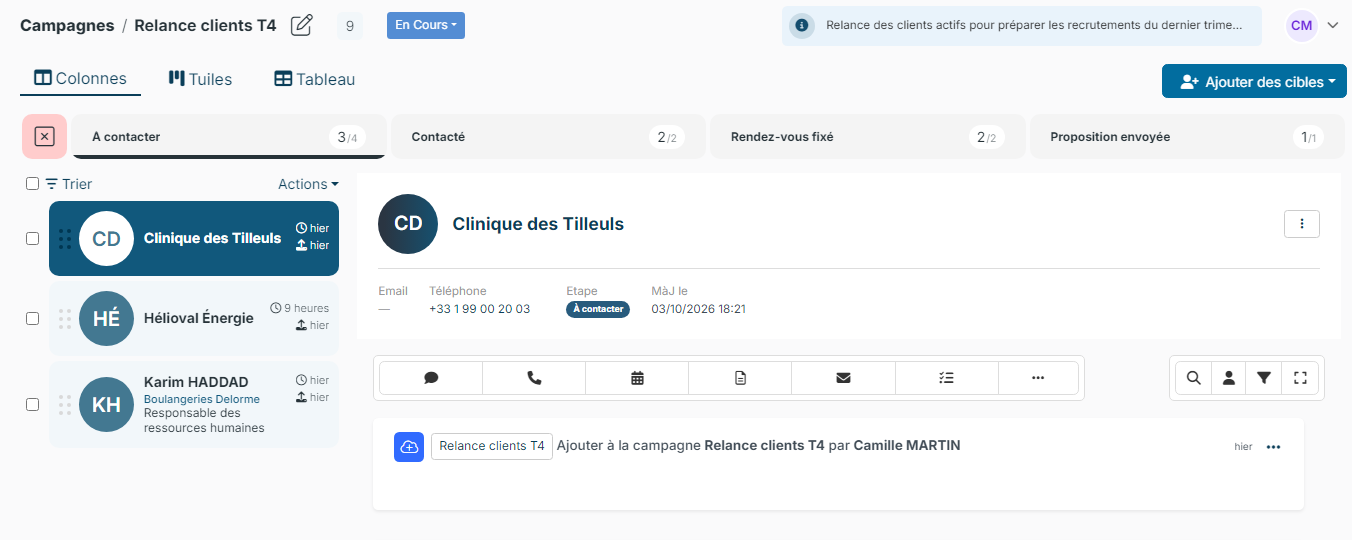
- Columns: the steps at the top, the targets of the selected step on the left, and the preview of the chosen target on the right, with its history. This is the ideal view to work through a step target by target.
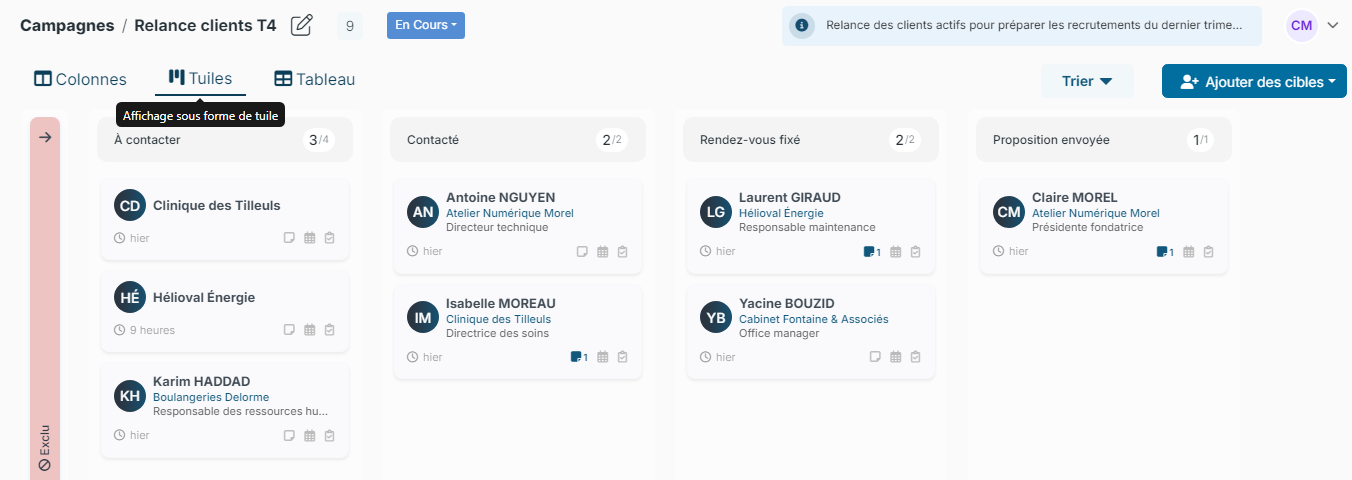
- Tiles: one column per step; you move targets forward by drag and drop. This is the overview of the campaign.
- Table: a grid with sorting, filters, configurable columns and a Download button, handy for exports and bulk actions.
Step counters
Each step shows the number of ongoing targets. If the Show the excluded count in step counters box is ticked on the campaign type, the counter also shows the total including excluded targets: for example 3/4 means 3 ongoing targets and 1 excluded.
Move a target forward
- Drag and drop: in the Tiles view, move the card from one column to another; in the Columns view, drag the target onto the destination step.
- Several targets at once: tick the targets, then choose Actions > Move and the destination step.
Every step change is logged in the activity of the contact or account, like the addition to the campaign: Moved to step Meeting booked of campaign Prospecting 2026 by Mary Martin. Dropping a target back on its own step adds nothing. This log can be turned off per campaign type (see Set up campaigns).
Exclude or remove a target
- Exclude with a reason: tick one or more targets, then choose Actions > Exclude from campaign. The window offers an Exclusion Reason, pre-filled with the default reason in Simple mode, and a comment, required when the chosen reason asks for one.
- Quick exclusion: in the target preview, the ⋮ menu > Exclude from campaign; you can also drag the target onto the excluded band. On an excluded target, the same menu offers Cancel exclusion.
- Remove: ⋮ menu > Remove from campaign. Nicoka asks for confirmation: the removal is final. The contact or account record is not affected.
What happens on exclusion depends on the Exclusion mode of the campaign type:
- Simple (default): a quick exclusion asks nothing and records the reason ticked Default ? in the exclusion reasons list. In the Actions window, the reason stays optional.
- Advanced: every exclusion, drag and drop included, opens the window and the reason is required, with nothing pre-selected: it is chosen every time.
Click the excluded band, to the left of the steps, to display the excluded targets.
Act on a target
In a target's preview, the icon bar and the ⋮ menu give access to the actions: add a note, Add a minute, Plan an event, Add a task, Log a phone call, send an email…
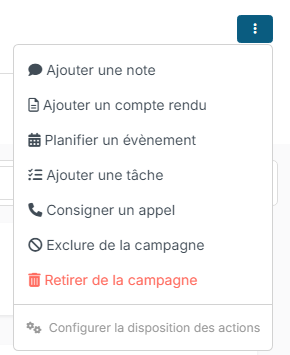
Activities created from the campaign are linked to it and also appear in the history of the contact or account.
Customise the actions menu
At the bottom of the ⋮ menu, click Configure actions layout. Drag the actions between the area shown directly and the ⋮ menu, then click:
- Save for me only: the layout only changes for you;
- Save for everyone: the layout applies to all users (depending on your rights).

Close a campaign
- Click the status badge next to the campaign name, then Closed (or Cancel).
- Choose the Closing Reason, add Comments if needed, then click Close.
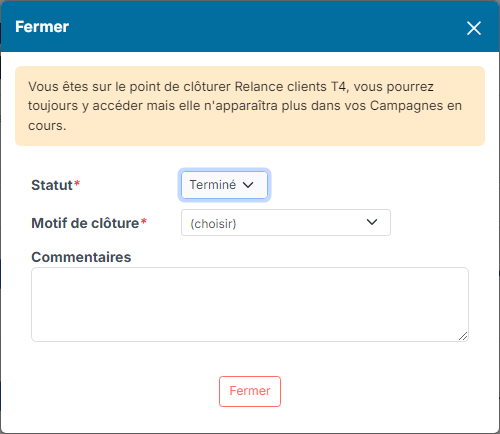
The campaign can still be viewed, but no longer appears among ongoing campaigns. A banner shows who closed it, when, with which reason and comment.

Set up campaigns
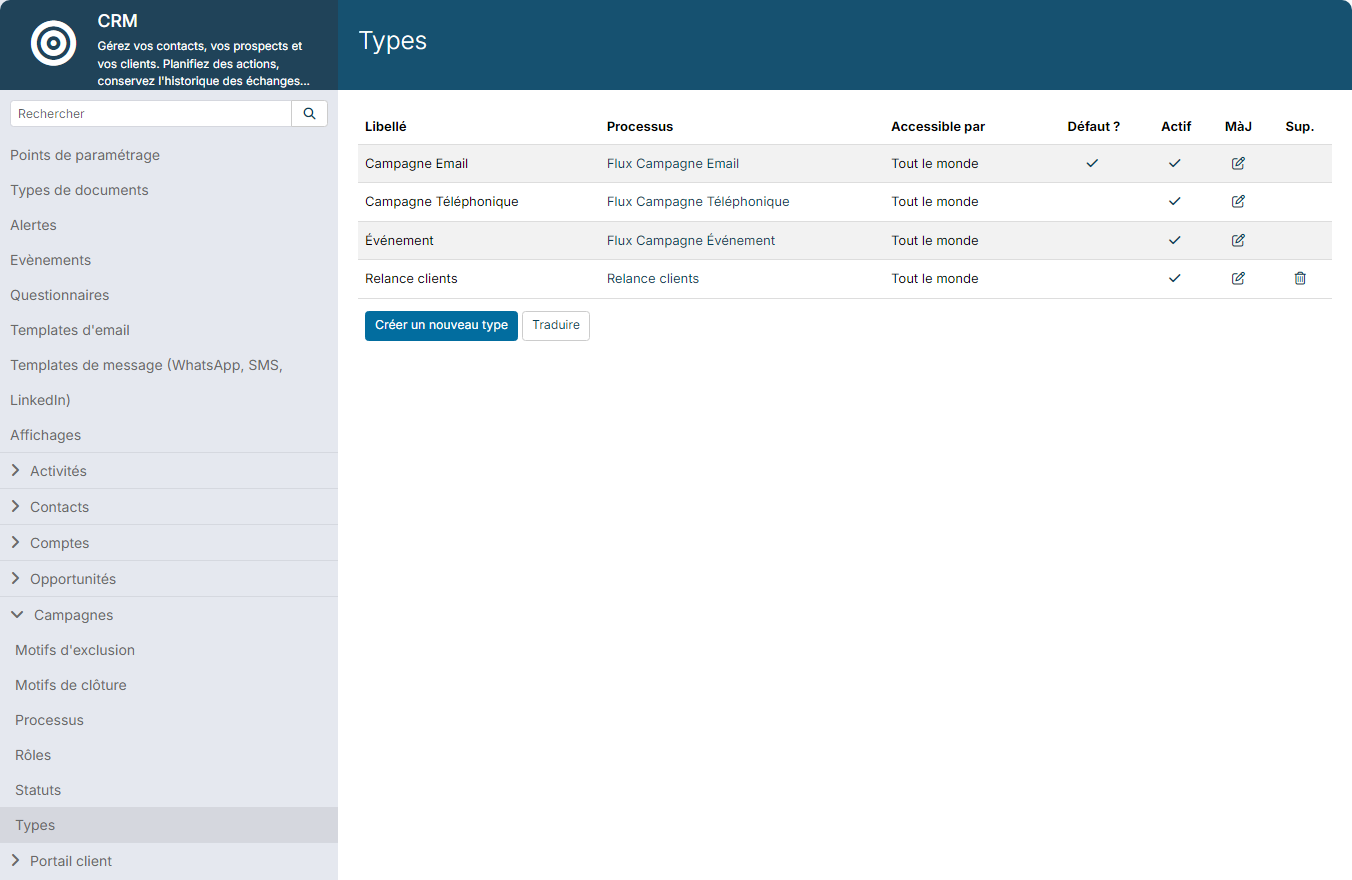
In the side menu, open Customizing > Store, click Customize on the CRM card, then expand the Campaigns section:
- Types: the campaign models, with their flow, their visibility, the step counter display, the Exclusion mode and the Log step changes in the targets' activity box, ticked by default;
- Flows: the series of steps (label, colour, order), reusable by several types;
- Statuses: the list of campaign statuses;
- Roles: the roles offered for campaign partners;
- Exclusion Reasons: the list offered when you exclude targets; the reason ticked Default ? is the one the simple mode records;
- Closing Reasons: the list offered when you close a campaign.
Good practices
- Keep 4 to 7 steps: beyond that, the step bar becomes hard to read. For a very long journey, chain several campaigns.
- Give reasons for exclusions: going through Actions > Exclude from campaign to choose a reason feeds your analyses.
- Exclusion and closing are independent: excluding a target does not close the campaign, and closing the campaign does not exclude the targets.
- A target cannot appear twice in the same campaign. To follow up a contact on a new action, create another campaign: the contact keeps both histories.