The Travel Request module
The Travel Request module lets your employees get a business trip approved before leaving: transport, accommodation, meals and other planned costs. Once the request is approved, it is converted into an expense claim on return, with no retyping.
Where to find the requests
- My HR Space > My Travel Expenses: your own requests, to create and follow.
- My Team > Travel Expenses: your employees' requests, for managers and approvers, with their status.

Access to each entry depends on the rights of your profile.
Create a request
Click the button to create a new travel request. The request is filled in step by step; the steps depend on the type of request chosen.
- Header Data: choose the Type, then enter the Label, the Departure date and the Return date, the Start location and the End location, and if needed a reference (a project for example) and comments. The Attach a file block accepts your attachments. Click Create.
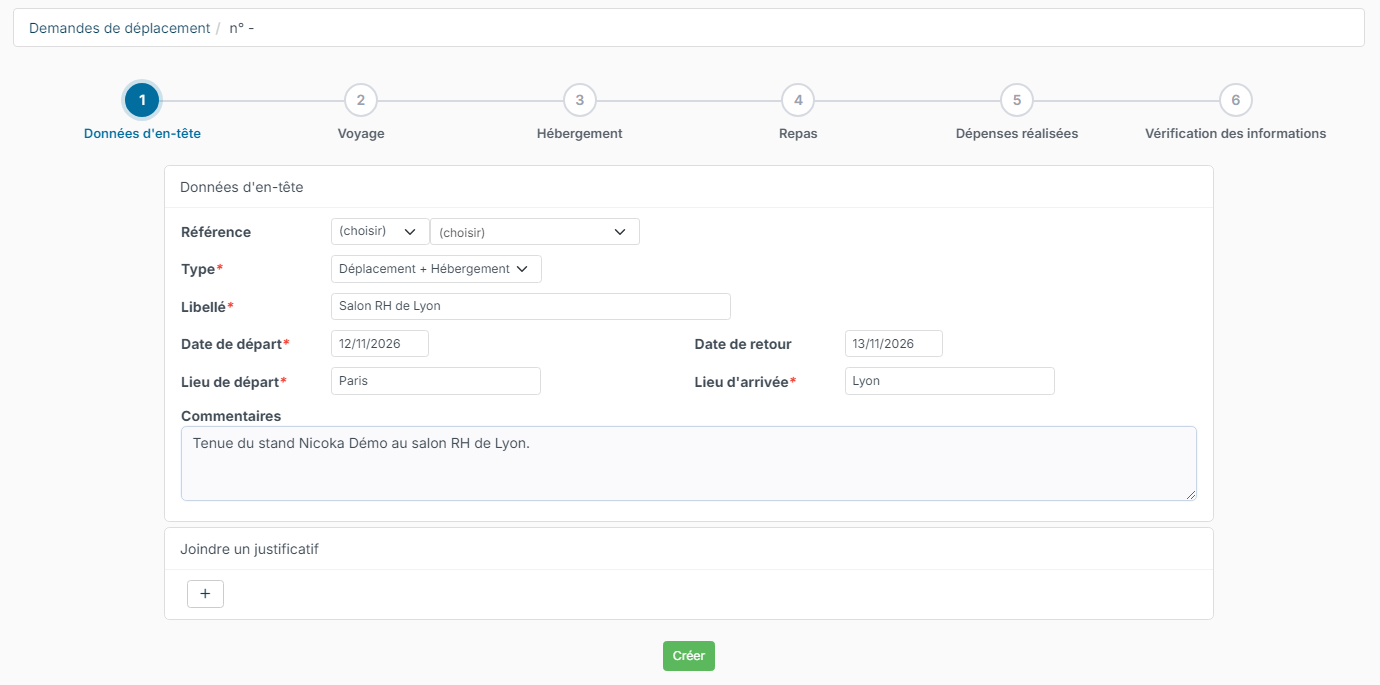
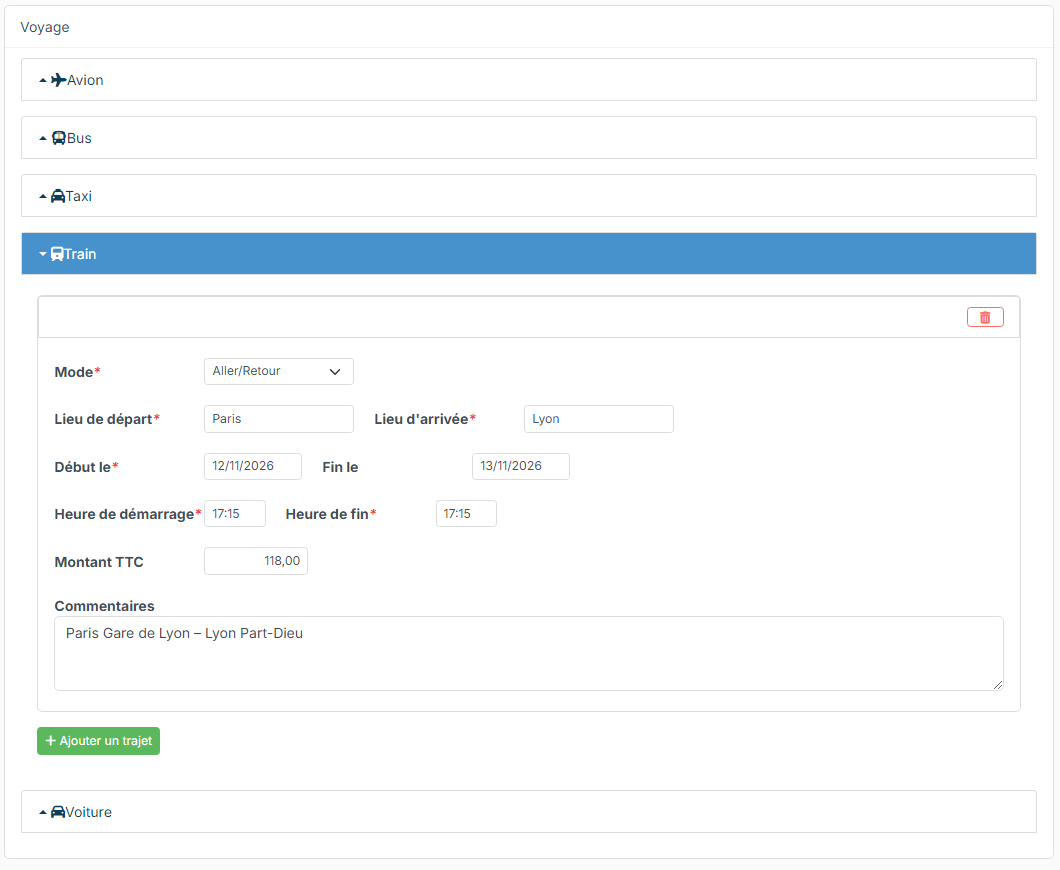
- Travel: open the means of transport (plane, bus, taxi, train, car) and click Add a travel. Fill in the mode (return trip or one way), the locations, the dates and times, the planned amount and a comment.
- Accommodation: the type (hotel), the location, the dates, the Number of nights and the amount.
- Meal and Other expenses: one line per type of expense, with the number and the unit amount; the line total is calculated automatically. Click Add row to add one.
- Review informations: read over the whole request and its total amount.
Move from one step to the next with Next: the request is saved at each step. As long as it has not been sent, you can resume it later from your requests; the list tells you about the requests not sent.
A manager can also create a request for an employee, from My Team > Travel Expenses: the Requester field then lets them choose the employee.
Send the request for approval
At the Review informations step, click Save and Send for validation, then confirm with Send. An empty request cannot be sent.
The request follows the approval workflow that has been set up (by default, an approval by the manager). The approver can edit it, then Approve or Refuse it. A refused request can be corrected and sent again. The status of each request is shown in the lists.
Convert the request into an expense claim
On return, open the approved request and click Convert to claim. The window lists each item of the request: for each one, check the Expense Date, the expense Type, the actual amount, the payment mode, and tick Updatable in claim request if the employee should be able to correct it. Click the convert button.
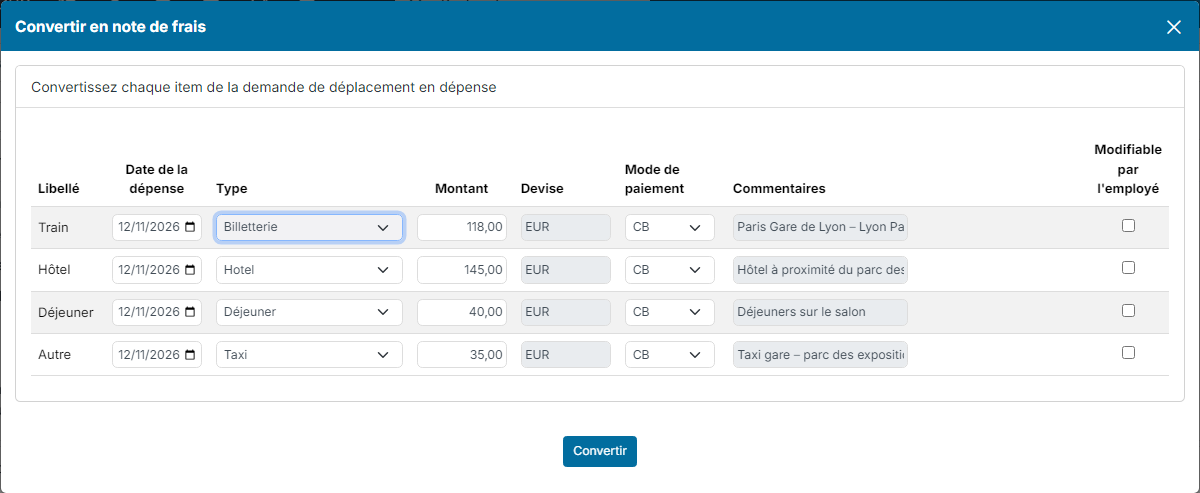
The expense claim is created with one expense per item; the request then shows a link to it. The request's attachments are not copied: add your receipts to the expense claim. See Expense Report - Nicoka HRMS.
From a request, Export to PDF produces a document based on the module's templates.
Set up the module (admins)
In Customizing, open Travel Request. The page gathers:
- Customizing Points: in particular the option that enables travel expense advances at the level of expense claims;
- Workflows: the approval workflow of requests, its steps and its approvers;
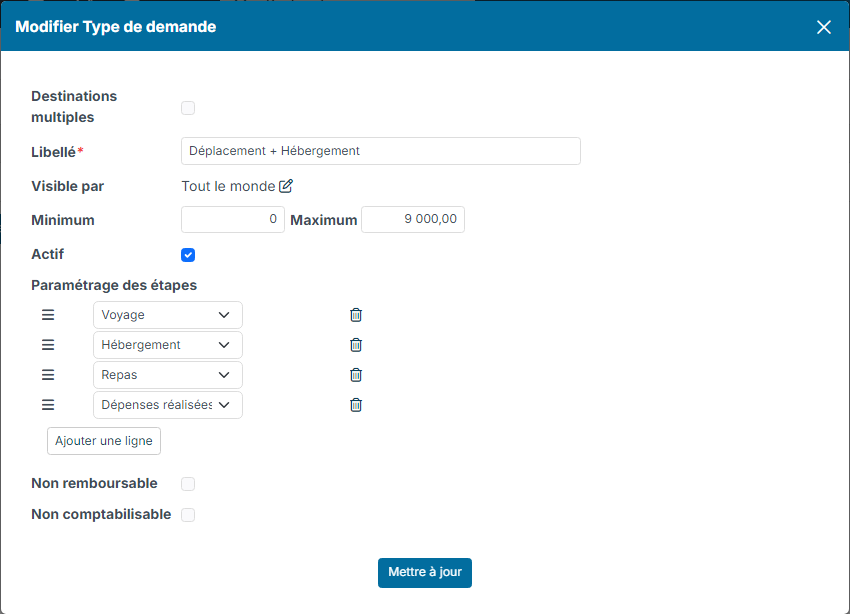
- Request types: two types are provided as examples, travel only and travel with accommodation. For each type, choose the steps in the steps setting (Travel, Accommodation, Meal, Other expenses), the minimum and maximum amounts, who can use it (Visible by) and whether it accepts Multiple destinations;
- Category of Expense: the items offered in each step (plane, train, hotel, lunch…), with their minimum and maximum amounts and the matching expense claim types;
- Document Templates: the templates used by Export to PDF;
- Travel request fields: additional fields on the request form.
The module is activated from Customizing > Store, like the other Nicoka modules.