Expense report payments
Once expense reports are validated, you can reimburse your employees with a payment cycle: Nicoka groups the expenses to reimburse, marks them as paid and, if you reimburse by bank transfer, produces the SEPA file to upload on your bank's website. If reimbursements go through payroll, the cycle simply marks the expenses as paid.
Before you start
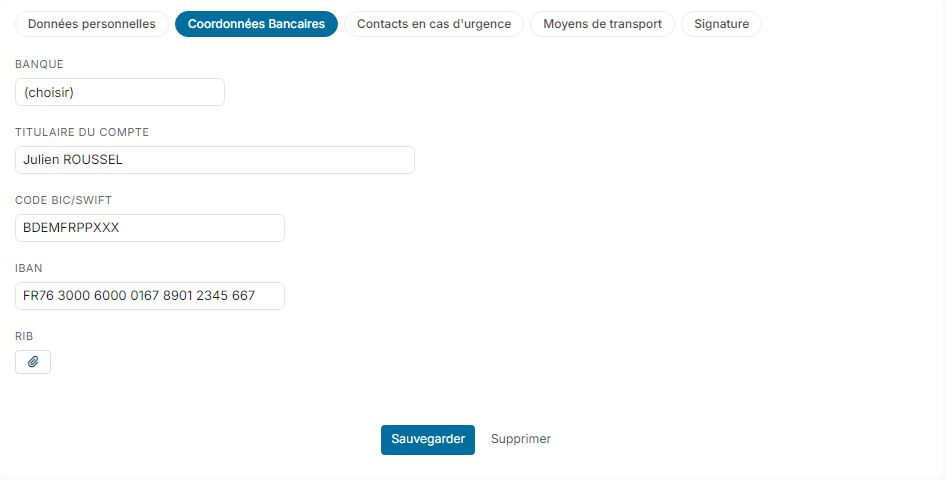
- To reimburse by transfer, enter the bank details of each employee: in the side menu, open Customizing > Resources, open the employee's record, click Personal Info., then the Bank Info. tab. Enter the Account Owner, the Swift code and the IBAN, then click Save.
- Your company's bank details (IBAN and Swift code) must also be filled in: see Direct debit cycle.
Create a payment cycle
- In the side menu, click My Team, then Expenses.
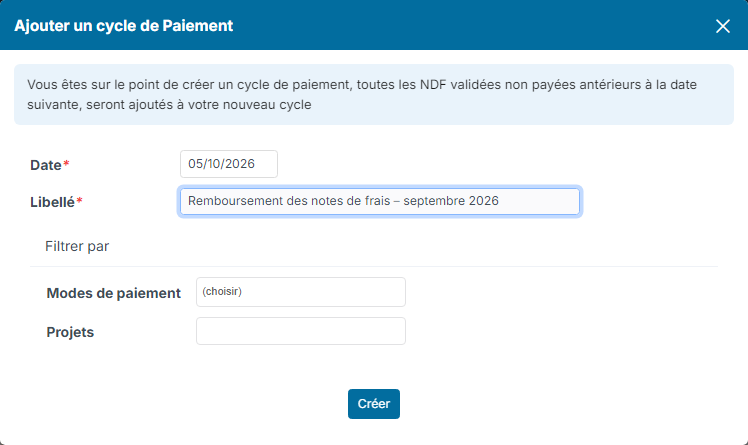
- Click Payment Cycles, then Create a new payment Cycle.

- Enter the Date of the cycle and a Label that will help you find it.
- If needed, narrow the cycle with Filter by: some expense Payment Modes or some Projects.
- Click Create.
Nicoka adds to the cycle the expenses validated on or before the cycle date and not yet fully paid. Expenses whose type or payment mode is marked Non refundable in the expense customizing are never included.
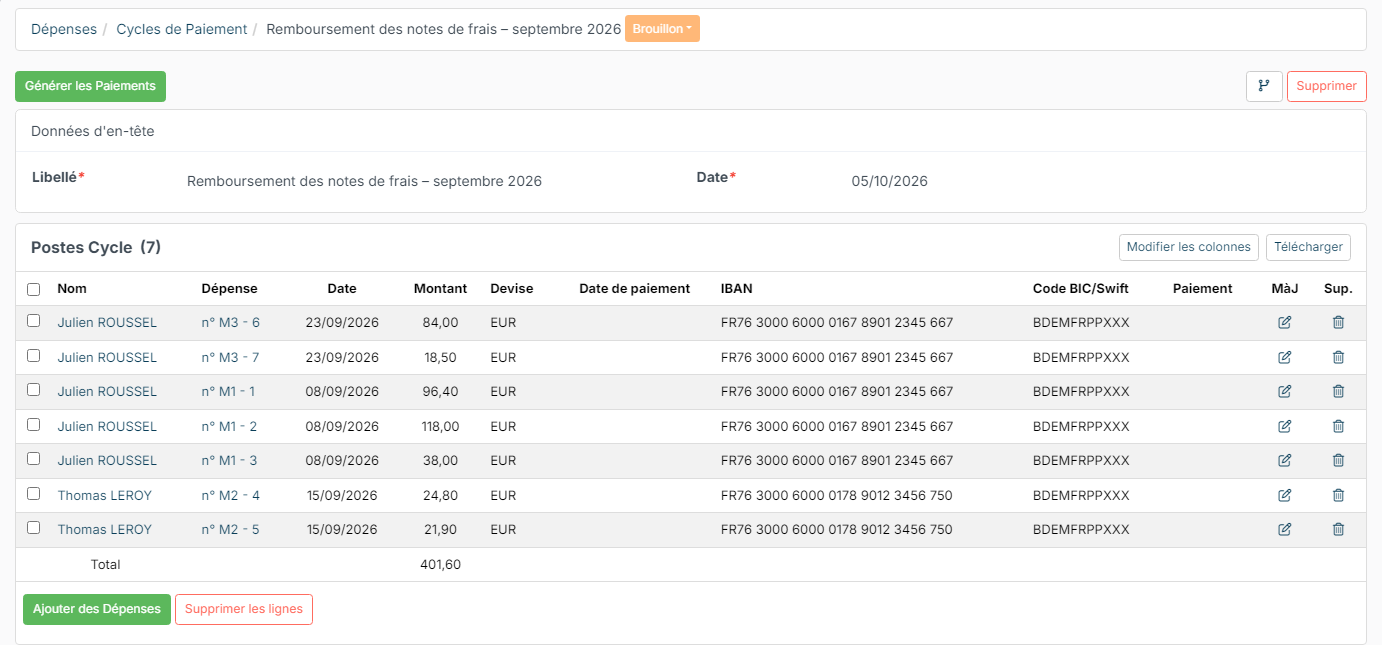
- The cycle opens in Draft status. Check the Items: employee, expense, date, amount, IBAN and Swift code.
- To add other expenses, click Add Expenses. To remove some, tick them and click Del rows.
To find your cycles, click Payment Cycles > Payment Cycles in the team expense list.
Generate the payments
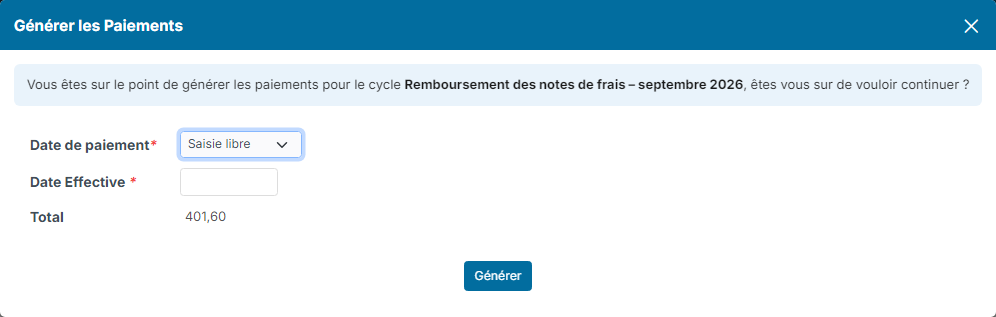
- On the cycle, click Generate Payments.
- In Payment on, choose On Cycle Date, or Free entry and enter the Effective Date, that is the actual reimbursement date.
- Click Generate.
The expenses of the cycle are now marked as paid. Nicoka records one payment per expense report.
Generate the transfer file
If you reimburse your employees by bank transfer, then click Generate SEPA Files, the button that replaces Generate Payments on the cycle. Nicoka downloads a transfer XML file, to import in your bank's interface. The date of each transfer is the payment date chosen in the previous step.
The file is only produced if the IBAN and the Swift code of your company and of each employee of the cycle are filled in; otherwise, Nicoka names the employee whose bank details are missing.
If expenses are reimbursed through payroll, you do not need this file: generating the payments is enough.
To remove an expense after the payments are generated, click its payment in the Payment column, then Delete: the cycle goes back to Draft. Tick the row and click Del rows; the cycle returns to the Payments generated status. Expenses of a deleted employee are never included in a cycle.