Share a candidate on Google Chat
Connect Google Chat to Nicoka to share candidates with your team: in a Google Chat space, or directly with a colleague as a private message. You can also mention a space in a note so that its content is posted there.
It works the same way as Slack (see Share a candidate on Slack), with one difference: Nicoka posts messages under the identity of the connected Google account, not under an app. The name of the person who shares is still written in the message.
Before you start
- Your company uses Google Workspace. A personal Gmail account cannot reach Google Chat from Nicoka.
- Your Nicoka space already uses your company's Google application, the one used to connect Google mailboxes and calendars. Google Chat connects through that same application: there is no project to create and no credential to send. If the Google Chat card does not appear in the integrations, that application is not set up on your space: write to support@nicoka.com.
- Your company's Google Cloud administrator has made the three settings below on the Google project of that application.
1. Prepare the Google project (Google Cloud administrator)
These settings are made once, in the Google Cloud Console, on the project of the Google application Nicoka uses. They do not disconnect any mailbox or calendar already connected.
- Redirect address: in APIs & Services > Credentials, open the OAuth client of type "Web application" and check that
https://master.nicoka.com/api/integrations/oauth/relayis among the authorized redirect URIs. Add it if it is missing. - Enable the API: in APIs & Services > Enable APIs and services, search for Google Chat API, then click Enable.
- Configure the Chat API: open Google Chat API, Configuration tab. Fill in the app name and avatar, uncheck "Enable interactive features", then save. Nicoka is not a bot: there is nothing to invite into your spaces.
If this Google project already hosts another, interactive Google Chat app, do not change it: write to support@nicoka.com and we will tell you how to use an application dedicated to Google Chat.
The Google Cloud Console screens belong to Google and may change. If in doubt, see Google's help.
2. Connect Google Chat
The connection is personal: each user can connect their own Google account. An administrator can also connect an account and open it to colleagues (step 4).
From your profile: click your initials at the top right, then Integrations. On the Google Chat row, click Connect Google Chat.
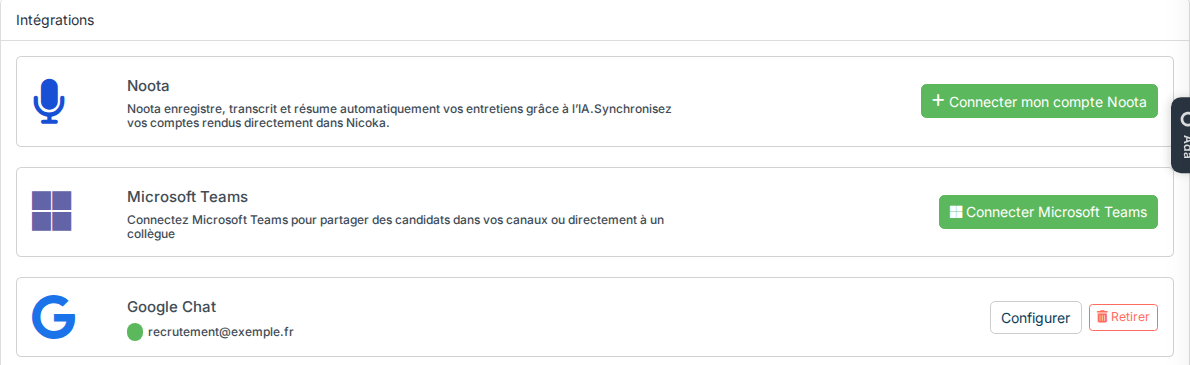
From the settings (administrator):
- In the side menu, open Customizing > Integrations.
- Click the Collaboration category, then the Google Chat card.
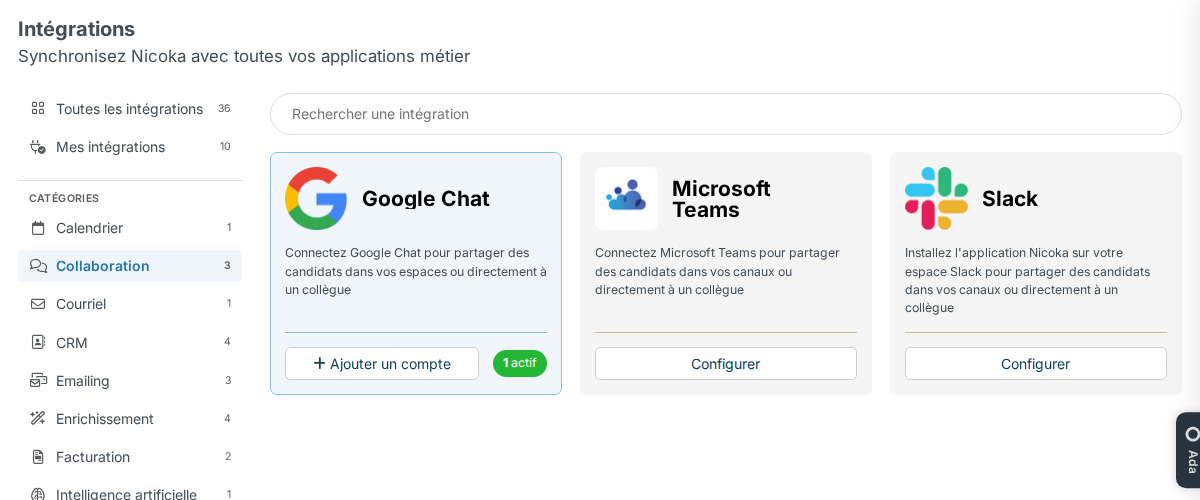
- Click Connect Google Chat.
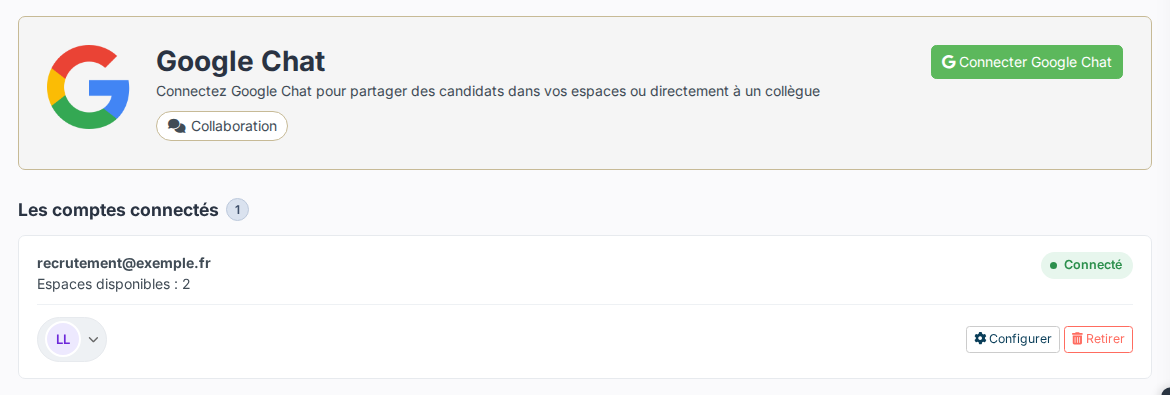
Google shows its consent screen: pick the Google Workspace account to connect and accept. Nicoka only asks to list your spaces, post messages in them and open a private conversation with a colleague. No message is read.
You return to Nicoka with the message "Google Chat is connected. Pick the spaces to expose." The account appears among the connected accounts with the Connected status, and its configuration opens.
3. Pick the spaces
- On the account card, click Configure.
- In Google Chat spaces, pick the spaces where candidates can be shared.
- Keep the Also send a direct message to colleagues mentioned in a note option checked if colleagues mentioned in a note should receive it as a private message.
- Click Save.
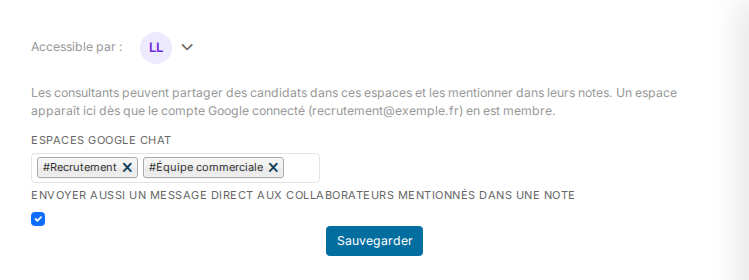
The list only offers the spaces the connected Google account is a member of. To offer another space, add that account to the space in Google Chat, then reopen the configuration.
4. Open the connection to your colleagues
At first, a connection can only be used by the person who made it. To let other users share through this account, open the menu under the account address (the initials), click Manage access, then choose in Accessible by:
- Me: only you (default);
- Only some people: the people or groups you choose;
- Everybody: every Nicoka user.
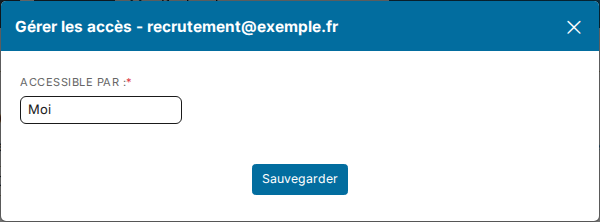
Messages shared by your colleagues are posted under the identity of the connected account, and private messages arrive in the conversation between that account and the recipient. For a shared connection, prefer connecting a dedicated Google account rather than a personal one.
Share a candidate
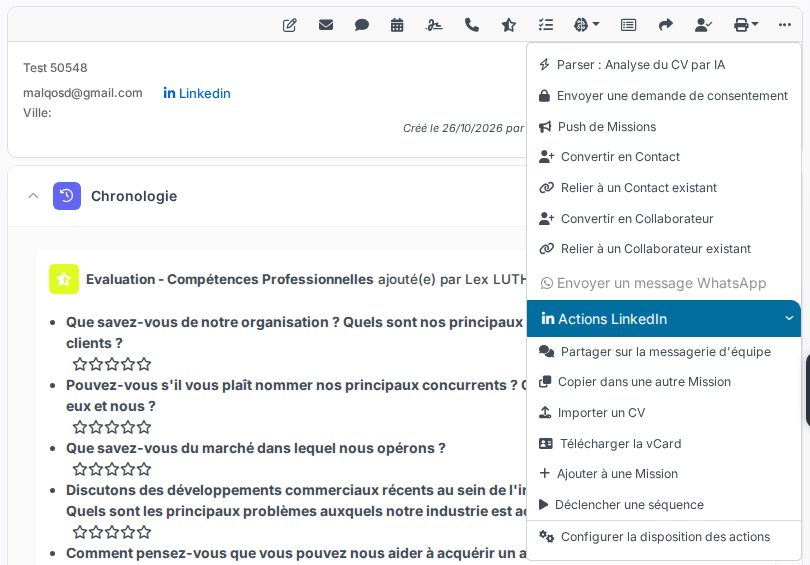
- On a candidate's profile, open the … menu, then click Share on team chat.
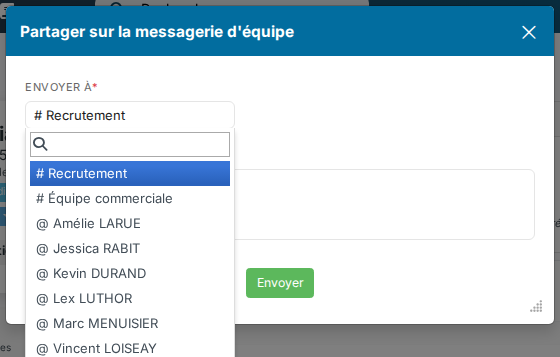
- In Send to, pick a space (prefixed with #) or a colleague (prefixed with @).
- Add a Comment if you wish, then click Send.
The message contains your name, the candidate's name as a link to their profile, the job concerned and your comment. Nicoka remembers the last destination used for each job and offers it to you the next time.
Mention a space or a colleague in a note
In a note (candidate, contact or employee), type @ followed by the first letters: the Google Chat spaces appear in the list, grouped under the domain name of the connected account. Save the note: its content is posted in the mentioned spaces, with the link to the record. Mentioned colleagues receive it as a private message if the option of step 3 is checked.
Troubleshooting
- The Google Chat card does not appear: your company's Google application is not set up on your Nicoka space. Write to support@nicoka.com.
- Google shows "Error 400: redirect_uri_mismatch": the redirect address is missing on the OAuth client (step 1).
- "Google Chat API is not enabled on the Google project of this instance": the API has not been enabled (step 1). Once it is, try again: no need to reconnect the account.
- "The Google Chat API configuration is incomplete on the Google project of this instance": the Configuration tab of Google Chat API has not been filled in, or interactive features are still enabled (step 1).
- "The Google Chat connection has expired" or "Google Chat refused the message": reconnect Google Chat with the Connect Google Chat button, using the same Google account. The selected spaces are kept.
- A space is missing from the list: the connected Google account is not a member of it. Add it to the space in Google Chat.
- A colleague cannot be reached by private message: Nicoka looks them up by email address. Their Google account must use the same address as their Nicoka profile.
- The Share on team chat action does not appear: no Google Chat, Slack or Microsoft Teams connection is available to you. Connect your account, or ask the person who connected it to open access to you (step 4).