Search for candidates by keywords
The candidate list has a keyword search bar. Nicoka looks for your words in all the candidate information: record, resume and other documents, experiences, skills, educations, notes… You can combine words with operators (AND, OR, exclusion, exact phrase…) to target profiles precisely.
Opening the search
- In the Recruitment menu, open All Candidates.
- Type your keywords in the Enter your keywords here box, then press Enter.

The number of candidates found is shown on the list tab. To go back to the full list, clear the search box and press Enter again.
Choosing where to search
The Everywhere button, to the left of the search box, shows where Nicoka looks for your words. By default, all areas are ticked: documents, candidate record, activities, experiences, skills, spoken languages, publications, certifications, educations and references. Untick the areas you do not need to narrow the search, for example to leave documents out. The button label then shows that the search is restricted.
Search operators
The Help on search syntax link, inside the search box, lists all the operators with examples.
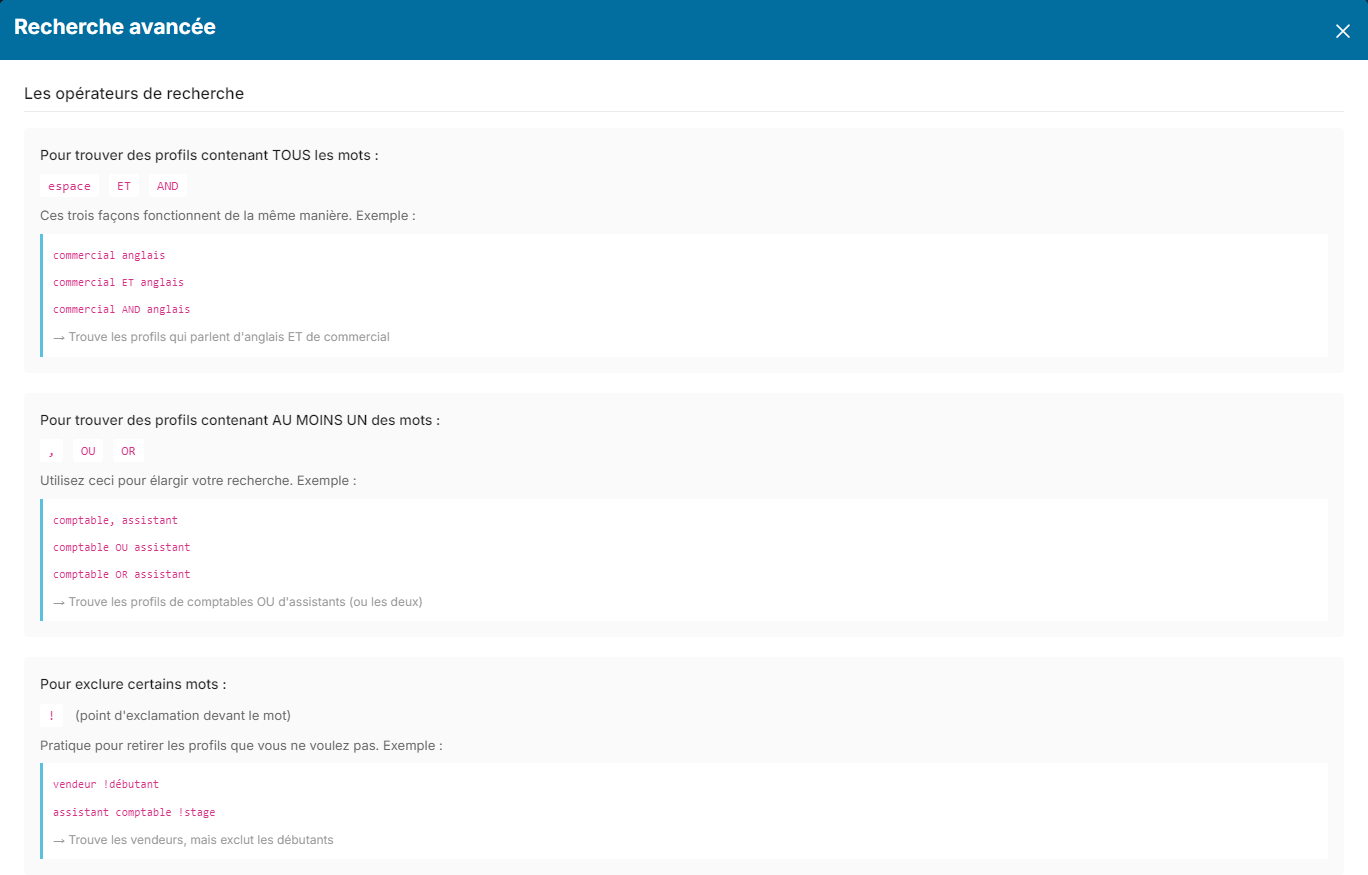
- All the words (AND): separate the words with a space, or with AND or ET. Example:
sales englishfinds the profiles that contain both words. - At least one of the words (OR): separate the words with a comma, or with OR or OU. Example:
accountant, assistantfinds accountant or assistant profiles. - Excluding a word: put an exclamation mark in front of the word, or the word NOT. Example:
salesman !beginnerfinds salespeople, except the profiles that contain "beginner". - Exact phrase: put the phrase between double quotes. Example:
"executive assistant"finds these words in this exact order. - Word variations: the asterisk replaces the end of the word. Example:
account*finds accountant, accounting, account… - Combining criteria: group words between brackets. Example:
sales (english, spanish)finds sales profiles who speak English or Spanish.
Examples
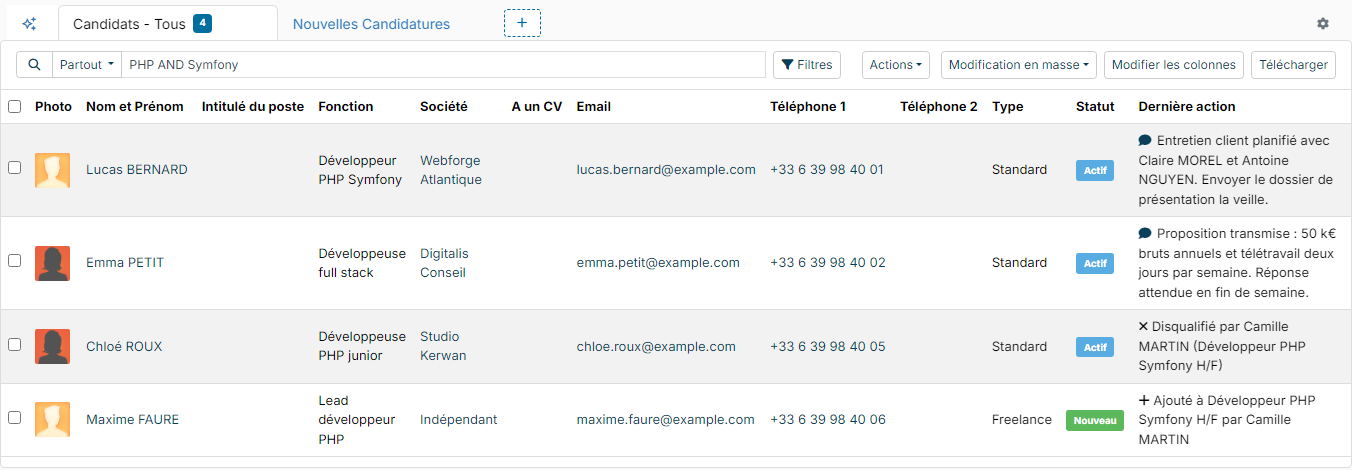
The search PHP AND Symfony finds the candidates whose profile contains both words:
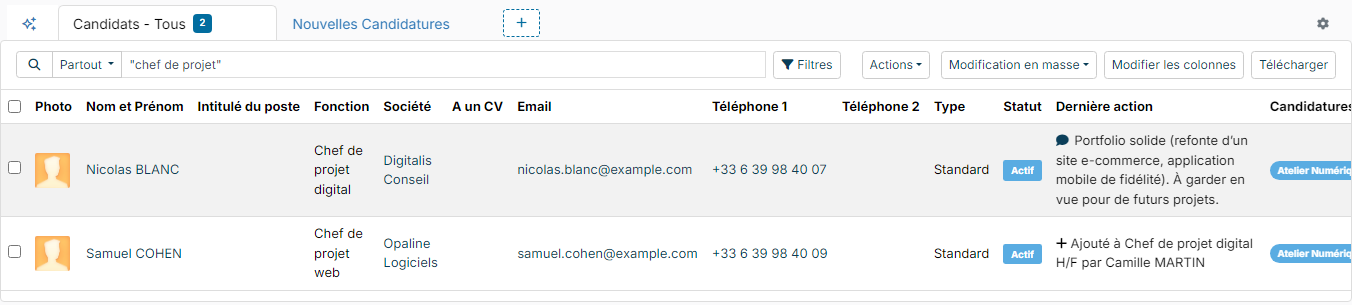
The search "chef de projet" only keeps the profiles that contain the exact phrase:
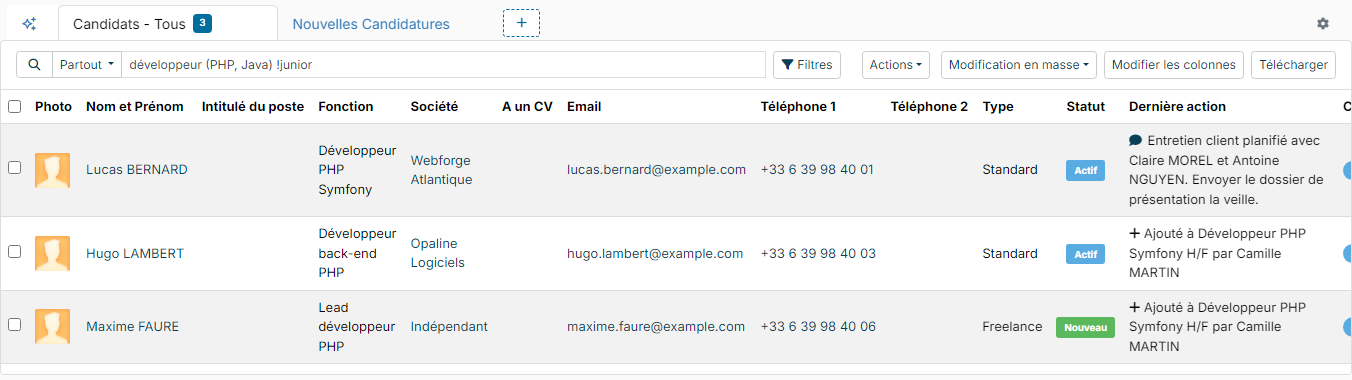
Operators can be combined. The search développeur (PHP, Java) !junior finds PHP or Java developers, except junior profiles:
Good to know
- Upper case and accents do not matter:
francaisalso finds "français". - The words AND, OR, NOT, ET and OU are always read as operators, even in lower case. To search for a phrase that contains one of them, put it between double quotes, for example
"research and development". - An unclosed bracket or double quote, or a search that starts or ends with AND, OR, ET or OU, shows a search syntax error: correct your entry and run the search again.
- To search for candidates by city or region, use the location filters instead: see Search for candidates by geographical location.
AI-assisted search
Nicoka also offers an AI search assistant, in beta. It lets you describe the profile you are looking for in plain language, without writing the query yourself.
- Click the sparkles icon, to the left of the list tabs (tooltip: (BETA) Describe the desired profile to launch a search in your resume database.). The AI Assistant tab opens.
- Describe your search in the input box, for example "Senior React developer in Nantes", then click the arrow.

The assistant turns your request into a Generated boolean query and Smart filters (experience, radius around a city, availability…), then shows the matching candidates. You can change or remove a suggested filter, or add one. To go back to the classic search, click the Candidates - All tab.
If the sparkles icon does not appear, the assistant is not enabled on your workspace: contact your administrator.
Best practices
- Start with simple keywords, then refine with operators.
- Think of synonyms with OR (
director, manager) and of variations with the asterisk. - Rule out the terms that skew the result with the exclusion (
!internship). - To find a search you use often, save it in a variant of the list: see What is a variant?