Search for candidates by geographical location
Looking for talent in a specific region or around a city? The candidate list offers two location filters: Geo Localization, to target a country, a region or a county, and Localization within radius, to find the candidates located less than a given distance from a city. The easiest way is to group them in a dedicated variant of the list.
1. Getting the city of candidates imported with the plugin
The geographical search relies on the candidates' address. When you import a profile with the Nicoka plugin, the city is picked up automatically if it appears on the profile. If a resume database does not provide it, you can add the City and Zip Code fields to the plugin form to enter them yourself:
- In the side menu, open Customizing > Store, then click Customize on the ATS card.
- In the left-hand menu, click Customizing Points, then expand the Nicoka Plugin section.
- In Nicoka plugin fields, click Add a new row and choose the City field, then do the same for Zip Code if needed.
- Click Save at the bottom of the page.
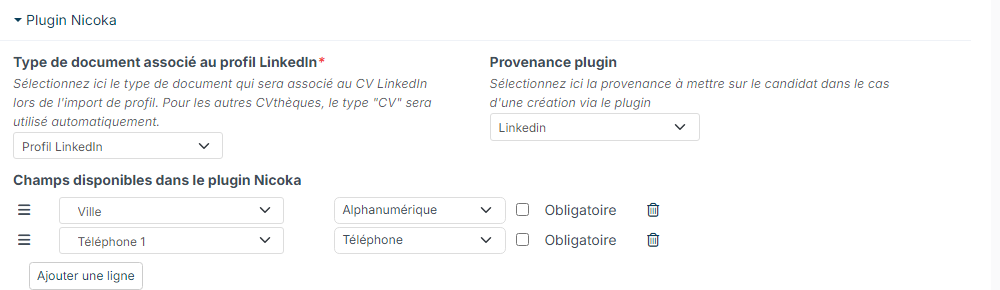
For the plugin to take this change into account, open it on a profile, click the menu at the top left of the plugin, then Refresh parameters.
Note: as soon as this list contains at least one field, the plugin keeps the first name, last name, function, email and company, but no longer shows its other default fields (civility, job title, phone numbers, tags…). Add to the list all the fields you need. To learn more about the plugin, see Nicoka plugin - Importing candidates and contacts.
2. Creating a variant for the geographical search
- In the Recruitment menu, open All Candidates.
- Click the + button to the right of the tabs, then Add a Variant.

The Create a new Variant window opens:
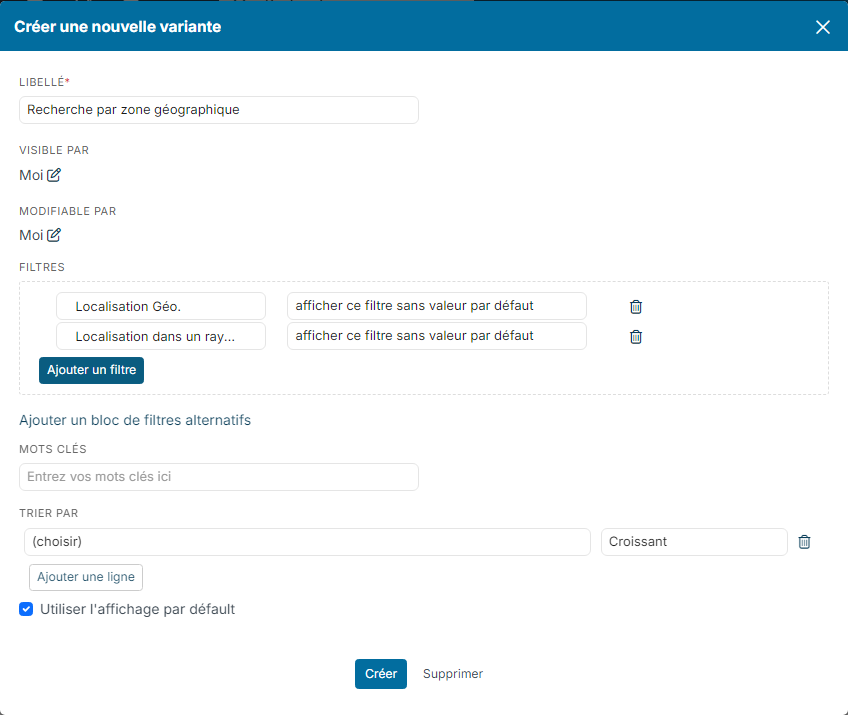
- In Label, name the variant, for example "Search by geographical area".
- If needed, set Visible by and Changeable by: only you, everyone or some colleagues.
- In Filters, choose Geo Localization in the left-hand list, then show filter without default value in the right-hand list.
- Click Add a filter and do the same with Localization within radius.
- Click Create.
The variant is added to the list tabs. Both filters are ready to be filled in for each search. To learn more about variants, see What is a variant?
3. Showing the city in the list
To see at a glance where the candidates found are located, add a location column to the variant:
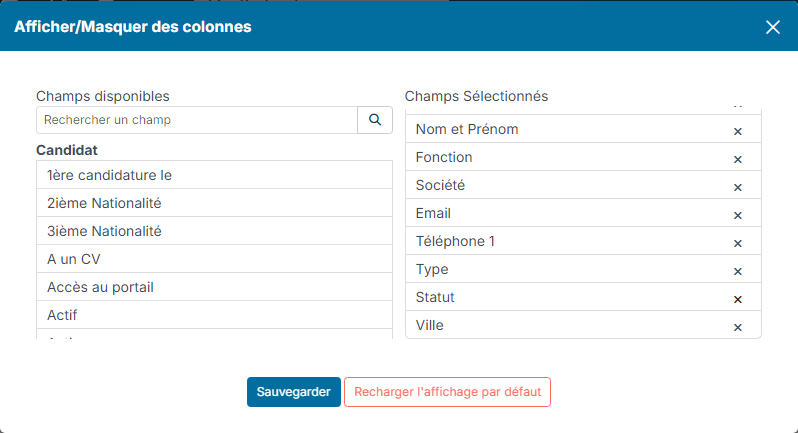
- Click Edit Columns.
- In Available fields, type the field name in the search box, for example City or Geo Localization, then click it. It moves to the Selected fields. The cross of a selected field removes it from the list.
- Click Save.
4. Running the search
- Open the tab of your variant and click the Filters button.
- Fill in the filter of your choice:
- Geo Localization: type a continent, a country, a region or a county, then pick it from the suggested list. You can add several.
- Localization within radius: type a city or a zip code and pick it from the list, then enter the distance in Within Radius, in KM or Miles.
- Click Apply Filters.
Example: the candidates located less than 30 km from Lyon.

The list now only shows the candidates of the area, with their city:
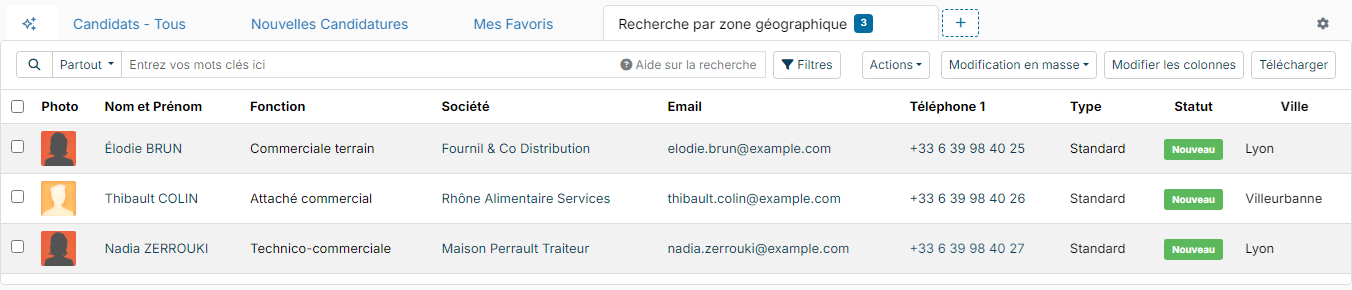
The radius search relies on the position of the candidate's address. A candidate whose address could not be located does not appear in the result.
You can change the filters and run the search again at any time, or switch from one variant to another with the tabs.