Reorganise my side menu
You can customise your side menu: change the order of the entries, move them to another section or hide the ones you do not need. These settings only apply to you.
The sections and entries available depend on your access rights and on the modules enabled: some entries shown here may not appear in your space. For an overview of the side menu, see Step 2: Your Nicoka space.
Open the customisation screen
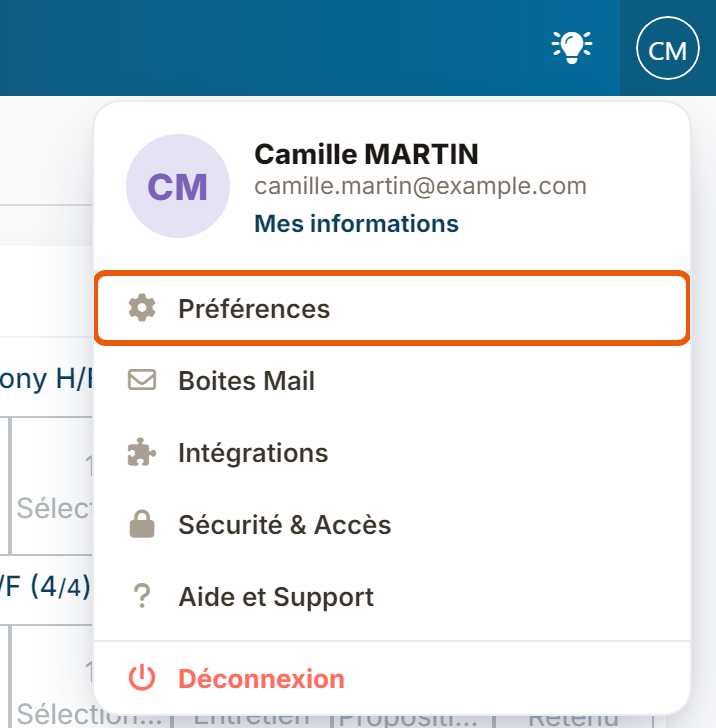
- At the top right, click your initials, then Preferences.
- In the left-hand menu of your profile, click Menu. The Customize menu layout screen opens.
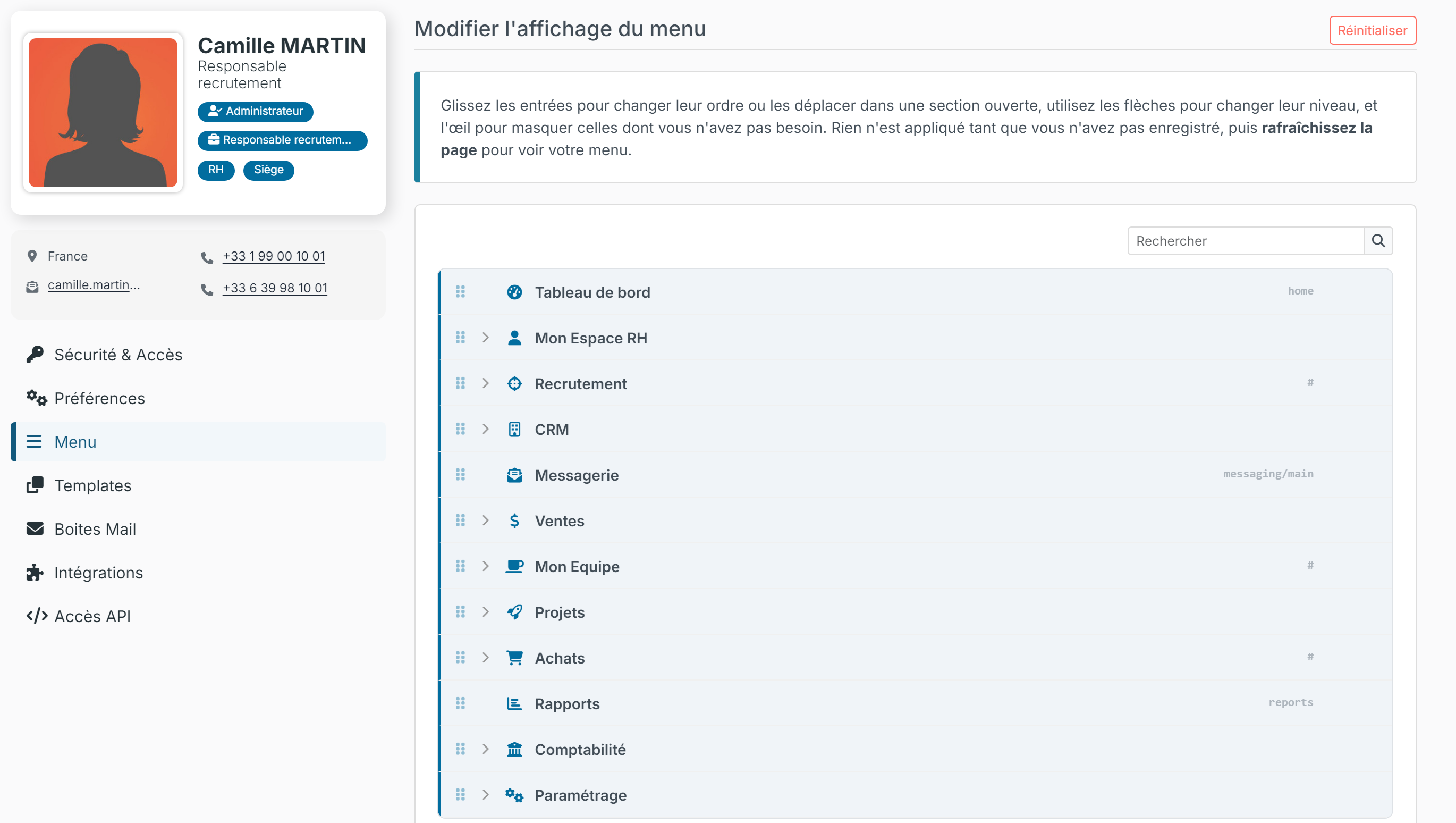
Customise the menu
- Click the arrow of a section (Recruitment, CRM…) to show its entries.
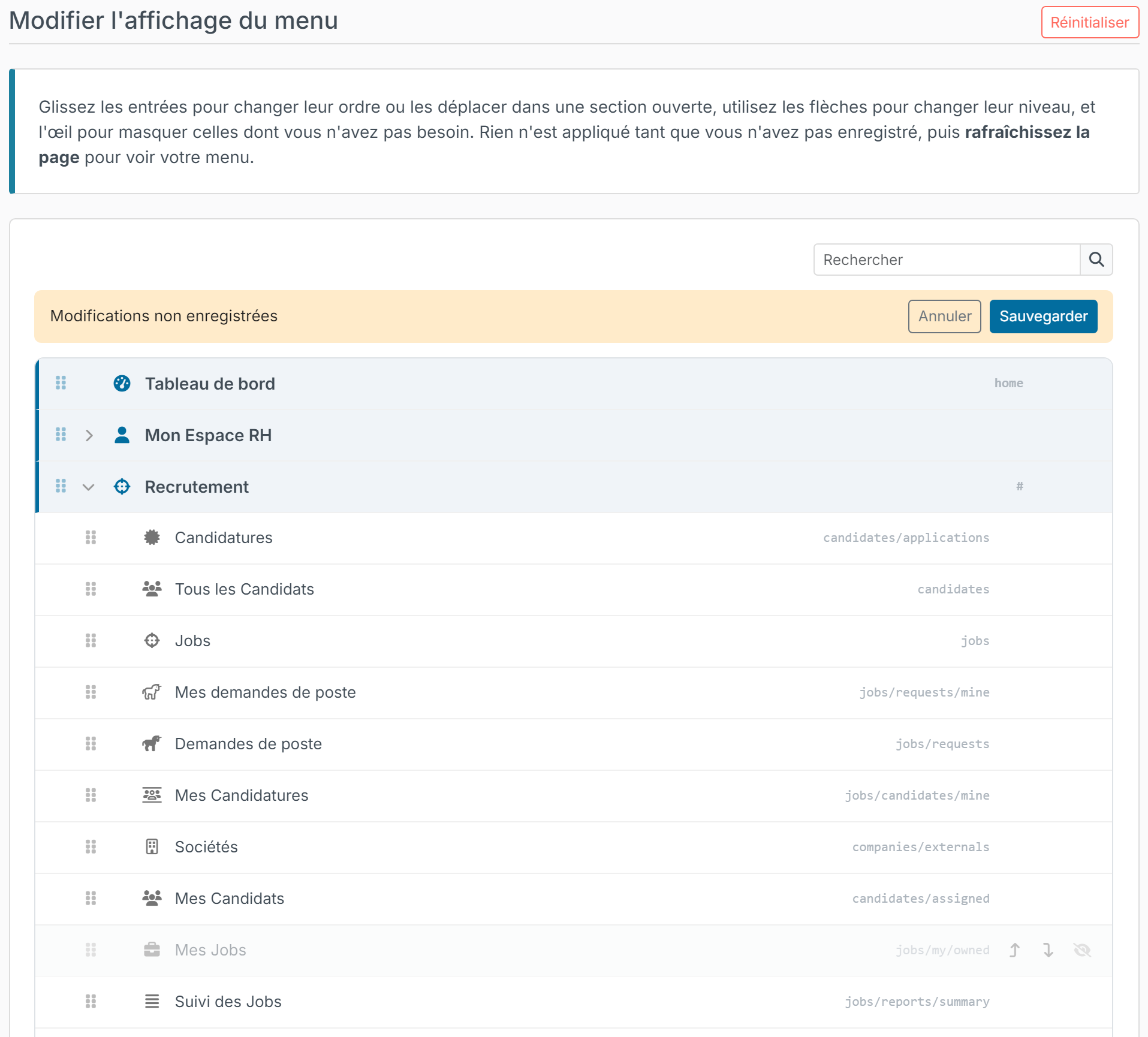
- To change the order, drag an entry by the handle on its left. You can also drop it into another open section.
- Hover over an entry to show its actions on the right: the Move up one level and Move into the item above arrows change its level, the eye hides it or shows it again. A hidden entry is greyed out.
- The Search field quickly finds an entry.
Save your changes
Nothing is applied until you save. As soon as you make a change, the Unsaved changes banner appears above the menu:
- Click Save (or Cancel to go back to the saved menu).
- Refresh the page (F5 key) to see your new menu.
Go back to the default menu
Click Reset to default, at the top right of the screen, then confirm: your menu returns to the default order and entries.
Were this information helpful?