Using FullEnrich with Nicoka
FullEnrich completes your candidate and contact records by looking up their email and phone number. Once FullEnrich is connected to Nicoka, you launch the enrichment from a record or from a list, and the information found is added to the record.
Before you start
- You have a FullEnrich account with credits.
- You are an administrator of your Nicoka workspace.
- The records to enrich have at least a first name, a last name and a company.
Step 1 — Get your FullEnrich API key
Log in to your FullEnrich space and copy your API key, available in the API section.
Step 2 — Create the service in Nicoka
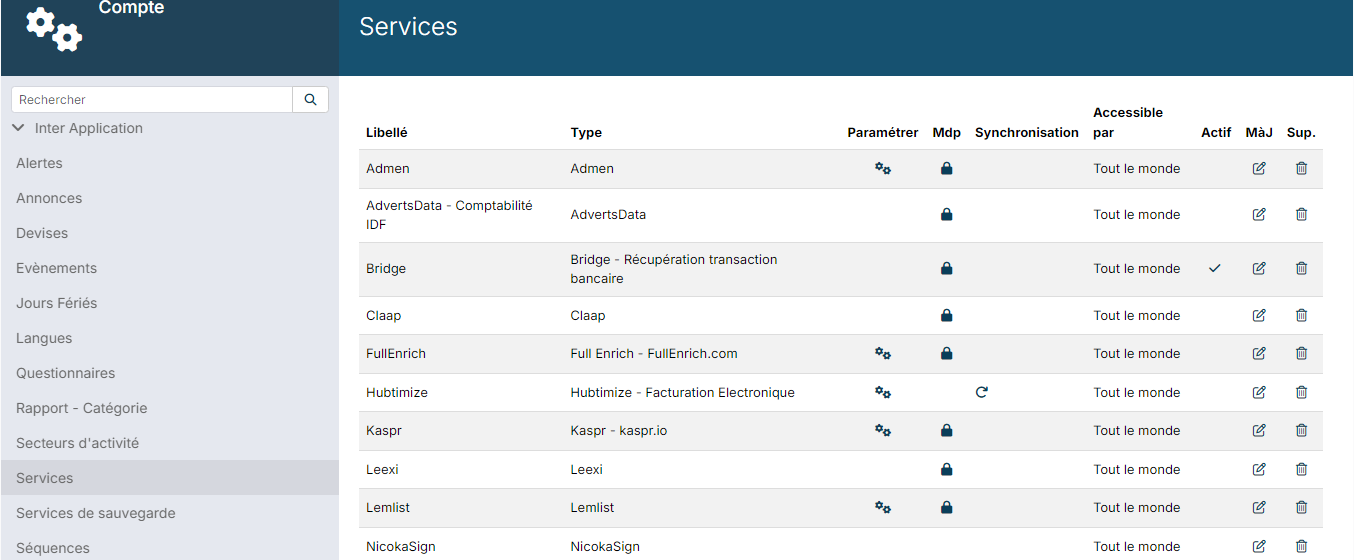
- In the side menu, open Customizing > Administration, then, under Cross Application, click Services.
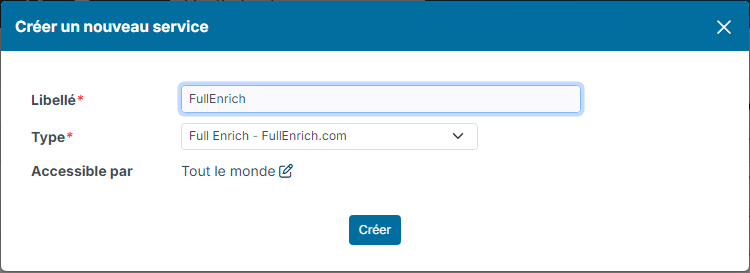
- Click Create a new service.
- Enter a Label, choose the Type Full Enrich - FullEnrich.com, then click Create.
Step 3 — Enter the key and choose the mode
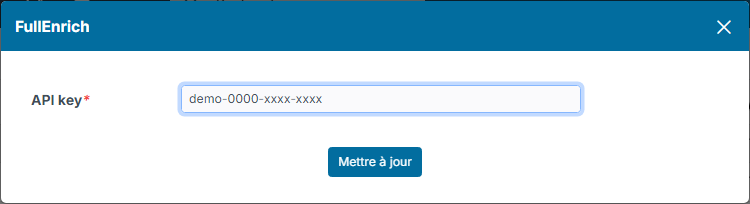
- On the FullEnrich row, click the padlock in the Pwd column, paste your key into API key, then click Update.
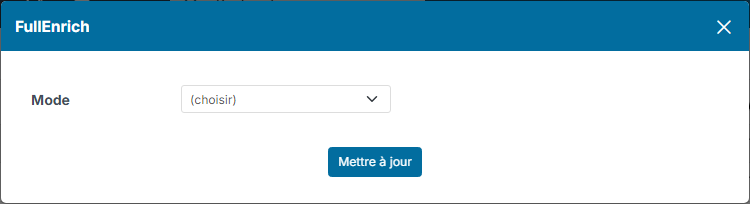
- Click the gear in the Customize column. In Mode, choose what FullEnrich should look for: phone and email, email only or phone only. Click Update.
- Click in the Active column. Nicoka checks the key with FullEnrich before activating the service: if it is rejected, the message Invalid Token appears.
Launching an enrichment
Once the service is active, the Enrich the data action is available:
- on a candidate or contact record;
- in the candidate and contact lists: tick the records, click Actions, then Enrich the data. You can enrich up to 100 records at a time.
Before sending, Nicoka shows the number of records to be enriched and your remaining FullEnrich credits. Records without a first name, last name or company are left out and listed.
Nicoka sends FullEnrich the person's first name, last name, company and, when filled in, LinkedIn link. FullEnrich does not look for this link by itself: when you know it, add it to the record, as it markedly improves the chances of a result.
Enrichment result
As soon as FullEnrich has finished its search, it sends the results back to Nicoka:
- the email found is added to the record's addresses;
- the phone number found goes into a phone field that is still empty;
- an activity is added to the record's history, with the information found, or stating that the service found nothing.
Enrichments launched from Nicoka also appear in your FullEnrich space.
See also
Nicoka also offers enrichment with Kaspr: see Using Kaspr with Nicoka.