Using Kaspr with Nicoka
Kaspr completes your candidate and contact records with an email address and a phone number, based on their LinkedIn profile. This article explains how to connect Kaspr to Nicoka, then how to run an enrichment.
Prerequisites
- An active Kaspr account with API access.
- Access to the Nicoka customizing (administrator profile).
- On each record to enrich: the first name, the last name and the LinkedIn profile link. Without a LinkedIn link, Nicoka cannot query Kaspr for this person.
1. Get your Kaspr API key
Sign in to your Kaspr account and generate an API key from your account settings. Copy it: you will paste it into Nicoka in the next step. If you cannot find this option, see Kaspr's help or your Kaspr contact.
This key is confidential: do not send it by email or in a ticket, and enter it into Nicoka yourself.
2. Create the Kaspr service in Nicoka
- In the side menu, open Customizing > Administration.
- Under Cross Application, click Services.
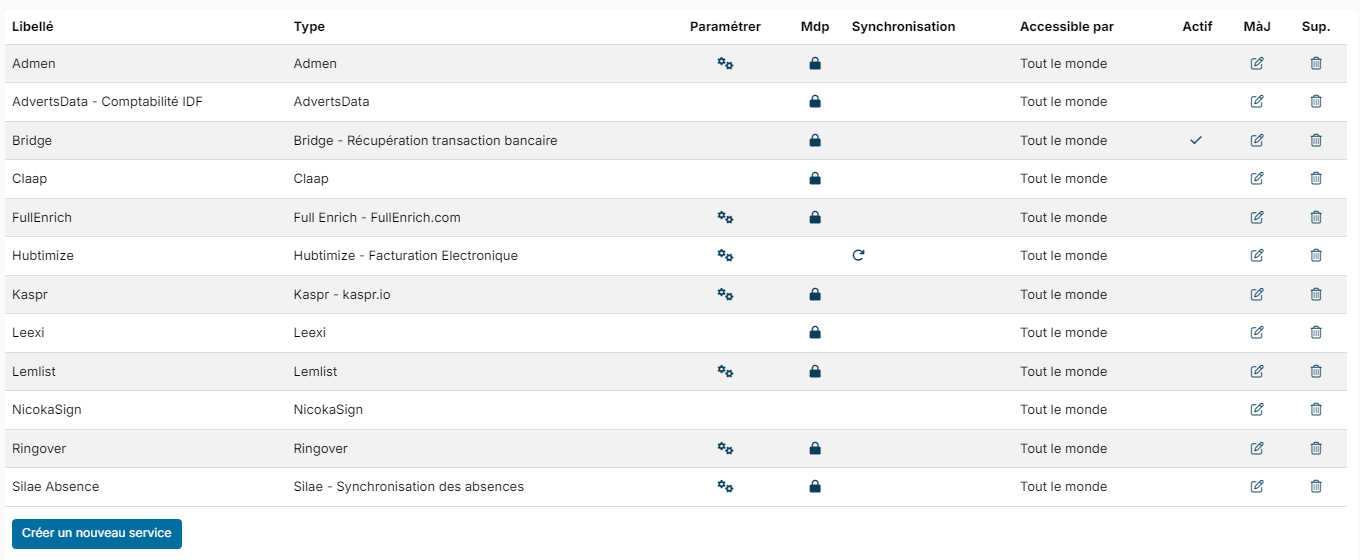
- If a line of type Kaspr - kaspr.io already exists, go to step 3. Otherwise, click Create a new service.
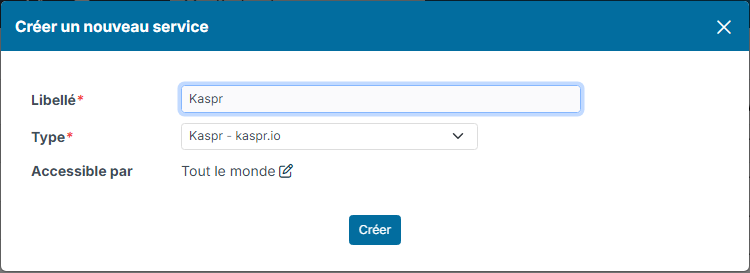
- Enter a Label (for example "Kaspr"), choose the Type Kaspr - kaspr.io and, if needed, restrict who can use the service with Available for.
- Click Create. The service is created disabled.
3. Enter the key and choose the data to retrieve
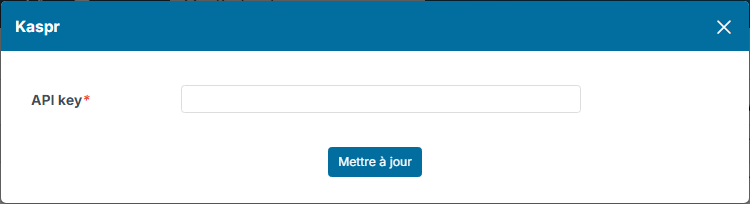
- On the line of the Kaspr service, click the padlock in the Pwd column.
- Paste your key into the API key field, then click Update.
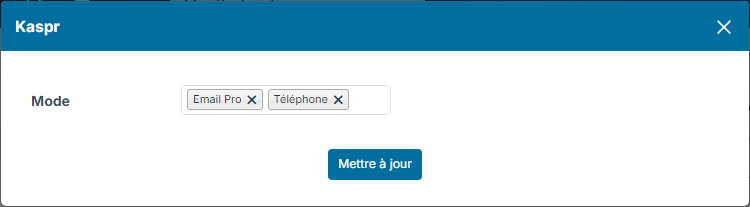
- Click the gear icon in the Customize column.
- In Mode, choose the data to retrieve: Personal Email, Office Email and/or Phone. If you choose nothing, all three are requested.
- Click Update.
4. Activate the service
In the services grid, click in the Active column of the Kaspr line. Nicoka then checks the key with Kaspr:
- if the key is accepted, the service is activated (check mark in the Active column);
- if there is no key, Nicoka asks you to click the padlock to add it;
- if Kaspr refuses the key, the message "Invalid Token" is displayed: check the key you copied.
5. Run an enrichment
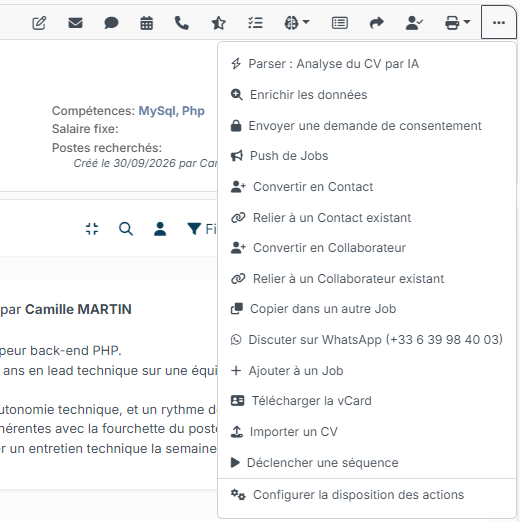
Once the service is active, the Enrich the data action appears:
- on a candidate record, in the … menu;
- on a contact record, in its actions menu;
- in the candidate and contact lists, and in the candidate lists of a job, to enrich several people at once (20 at most per run).
From a list, Nicoka shows how many records will be enriched and flags those missing a piece of information (first name, last name or LinkedIn link). Confirm to start the enrichment.
If several enrichment services are active (for example Kaspr and FullEnrich), the name of the service is shown next to each action.
What the enrichment does
- Nicoka sends Kaspr the person's first name, last name and LinkedIn profile, along with the data requested in Mode.
- The emails found are added to the record's addresses, and the phone number found fills a phone field that is still empty.
- An activity is added to the record's timeline with the data found, or to say that Kaspr found nothing.
- If Kaspr refuses new calls because your account's request limit is reached, Nicoka lists the profiles that were not enriched: run them again later.
Do you also use FullEnrich? See Using FullEnrich with Nicoka.
Need help?
If you would like help with the setup, contact Nicoka support.