Add a disqualification reason
When you turn down a candidate for a job, Nicoka asks you for a disqualification reason. These reasons keep a clear record of every rejection and let you analyse them in your reports. Nicoka provides a basic list, which you can extend with your own reasons.
Opening the list of reasons
- In the side menu, open Customizing > Store.
- On the ATS card, click Customize.
- In the left-hand menu, expand the section named after your jobs (Jobs in the screenshots), then click Disqualify Reasons.
For each reason, the list shows its colour, its email template, its target status, who can use it and whether it is active.
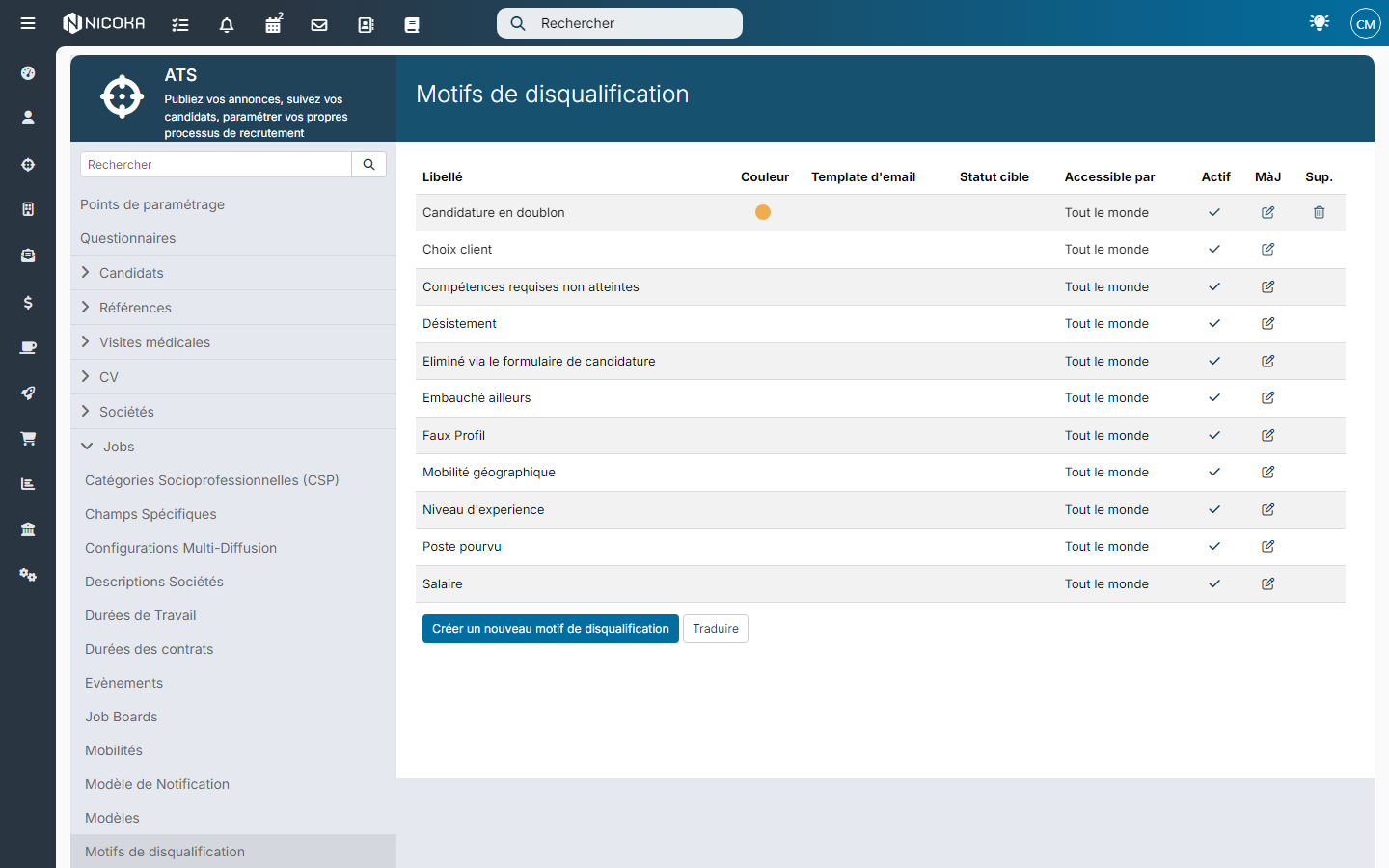
Creating a reason
- Below the list, click Create a new Disqualify Reason.
- Fill in the window, then click Create.
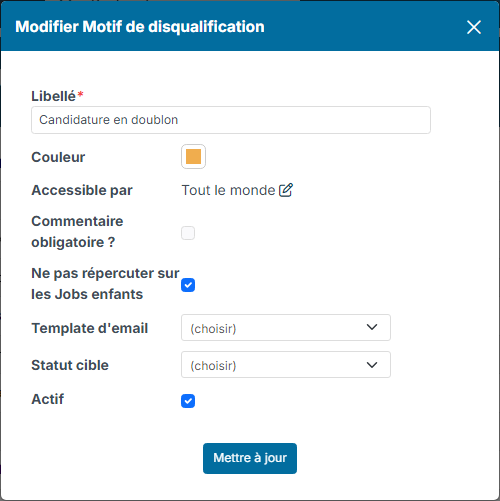
- Label (required): the name of the reason, as your recruiters will see it, for example "Salary expectations too high" or "Duplicate application".
- Color: the colour of the reason's tag, shown on disqualified applications.
- Available for: Everybody by default. Click the pencil icon to restrict the reason to some people or teams.
- Comments required: when ticked, a disqualification with this reason is refused as long as the Comments field is empty.
- Do not cascade to child Jobs: if your account passes the disqualification on a parent job down to its child jobs, a reason with this box ticked stays on the job where it was chosen. Useful for a reason that concerns one application rather than the candidate, such as a duplicate.
- Email Template: the rejection email template linked to the reason. When you pick this reason while disqualifying, this template replaces the one set for the step.
- Target Status: the status applied to the candidate when they are disqualified with this reason. It takes precedence over the status set on the step (Change candidate status after disqualify).
- Active: shown when you edit the reason. Untick it to stop offering the reason.
Is your account used in several languages? The Translate button below the list lets you enter the label of the reasons in each language.
Editing, deactivating or deleting a reason
- Edit: click the pencil icon in the Upd. column, change the fields, then click Update.
- Deactivate: untick Active in the reason's window. The reason is no longer offered for new disqualifications, but it stays on the applications already disqualified with it.
- Delete: only the reasons you created have a bin icon in the Del. column. The reasons provided by Nicoka cannot be deleted: deactivate them if you do not use them. For a reason that has already been used, deactivating is also the better choice, to keep a readable history.
Choosing the reasons offered at each step
A reason can be chosen at any step of the recruitment process. By default, every active reason is offered. You can shorten this list and choose a default reason, step by step:
- In the left-hand menu of the ATS customizing, in the Jobs section, click Workflows, then the name of the process.
- Click the pencil icon of the step.
- In the Disqualify section, choose the Defaut disqualify reason and, if needed, the Available disqualify reasons. Leave this list empty to offer every active reason.
- Click Update.
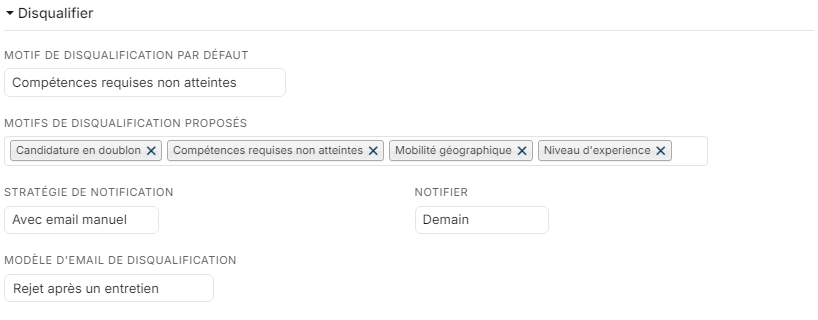
The same section sets the rejection email of the step: see Scheduling the rejection email. For the full step window, see Update the recruitment process.
Using a reason
- On a job page, open the step where the candidate is and tick them (you can tick several candidates).
- In the step's Actions menu, click Disqualify Candidates.
- Choose the Disqualify Reason, add a comment if needed, then click Disqualify.
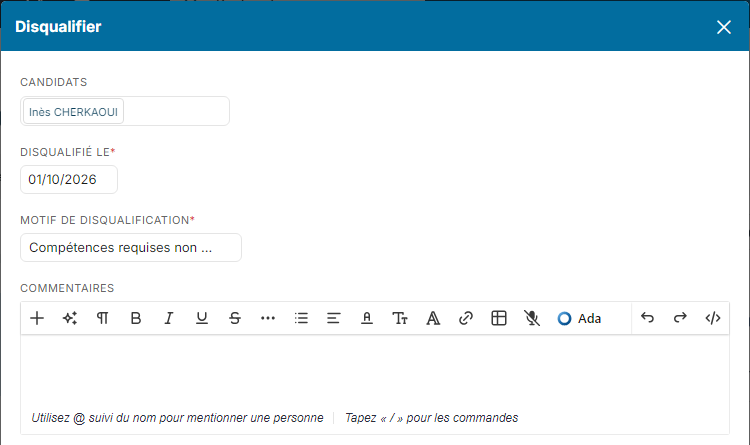
The candidate moves to the Disqualified tab of the step, with the tag of their reason.
Good practice
- Choose short, unambiguous labels, so that everyone picks the same reason in the same situation.
- Keep the list short: deactivate the reasons nobody uses.
- Make the comment required for reasons that need an explanation, for example "Customer Choice".