Scheduling the rejection email (candidate disqualification)
When you disqualify one or more candidates, Nicoka offers to send them a rejection email. This email does not have to leave straight away: you choose when it is sent. This article describes the disqualification window and explains how to set, step by step, the delay and the template offered by default.
The disqualification window
- On a job page, open the step where the candidates are and tick them.
- In the step's Actions menu, click Disqualify Candidates.
- Choose the Disqualify Reason and add Comments if needed. The Disqualify On date is today's date; you can change it.
- Tick Send a disqualification email, then choose when the email is sent: ASAP, Today, Tomorrow, In 2 days or In 5 days.
- Check the Email Template offered, then review or adjust the subject and the message.
- Click Disqualify.
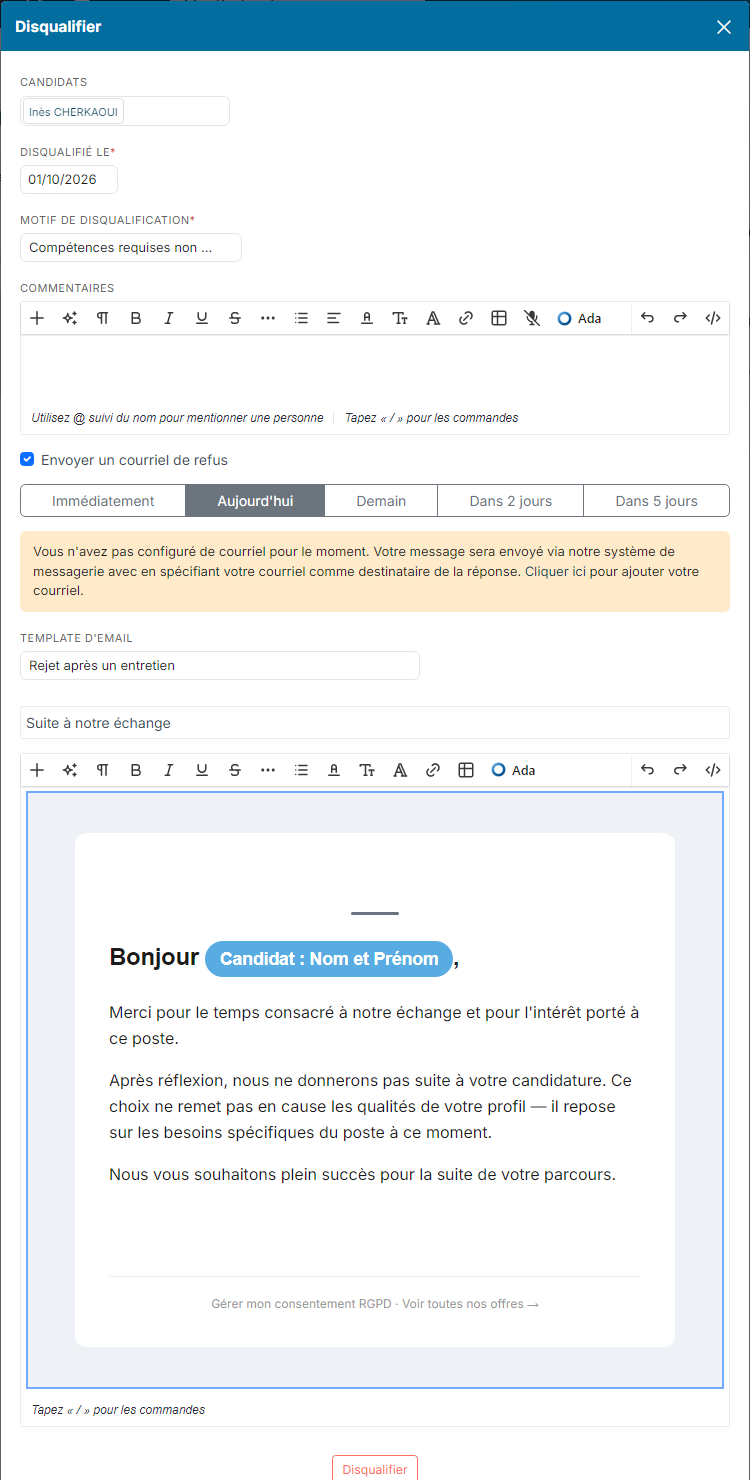
The email is scheduled: it is sent automatically at the chosen time. It leaves from the mailbox you connected to Nicoka. If you have none, the window tells you so: the message is then sent by Nicoka's mailing system, and the candidate's replies reach your address. To connect your mailbox, see Connect your email account.
When you disqualify a single candidate who has also applied to other open jobs, the window also offers Also disqualify for the following Jobs: the candidate is disqualified there with the same reason.
Sending delays
- ASAP: the email is sent within fifteen minutes.
- Today: the email is sent at 5 pm the same day. If you disqualify after 5 pm, it is sent the next day at 9 am.
- Tomorrow: the email is sent the next day at 9 am.
- In 2 days and In 5 days: the email is sent at 9 am, two or five days later.
Except for ASAP, an email that would be sent on a Saturday or a Sunday is postponed to the Monday.
The template offered
The window fills in the email with the first template found, in this order:
- the Email Template of the chosen reason (see Add a disqualification reason);
- the Disqualify email template of the step the candidate is in;
- the Default Disqualify Email, set in the ATS Customizing Points, in the section named after your jobs.
You can always pick another template in the window. To create or edit your templates, see Manage Email Templates.
Setting the default for a step
By default, Send a disqualification email is not ticked and the delay offered is Today. You can change these values for each step of your processes:
- In the side menu, open Customizing > Store, then click Customize on the ATS card.
- In the left-hand menu, expand the section named after your jobs (Jobs in the screenshots), click Workflows, then the name of the process.
- Click the pencil icon of the step from which you disqualify candidates.
- In the Disqualify section:
- Mailing Strategy: choose With Mailing. Send a disqualification email will then be ticked in advance; you can still untick it;
- Notify In: choose the delay offered by default, for example Tomorrow;
- Disqualify email template: choose the template to offer;
- if needed, also choose the Defaut disqualify reason and the Available disqualify reasons.
- Click Update.
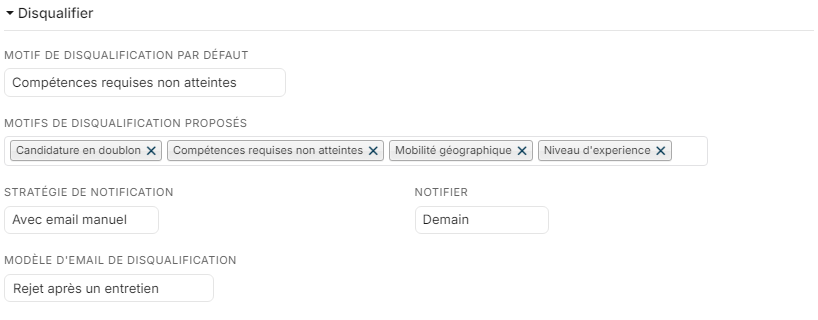
Repeat this for each step, and each process, from which you disqualify candidates. For the full step window, see Update the recruitment process.
Good to know
- A candidate without an email address cannot receive the rejection email. If your selection includes some, the Send only to those with email button disqualifies all the candidates and only writes to those who have an address.
- If the chosen reason has its own template, changing the reason in the window reloads the email with that template.