Update the recruitment process in Nicoka
The recruitment process defines the steps a job's candidates go through: the columns of the job page, the emails sent to the candidate, the automatic status changes and the figures in your reports. You can adapt the process provided by Nicoka and create as many as you need. In the English interface, a process is called a Workflow. This article describes the process sheet, then goes through every setting of a step and what it actually changes for the recruiter.
The Standard process
By default, Nicoka provides a Standard process with six steps:
- Sourced (Sourcing type): the candidates you find and add to the job;
- Phone Screen (Phone Screening type): the first phone call;
- Applied (Selecting type): the profiles kept after reviewing their application;
- Interview (Interview type);
- Offer (Proposal type): the offer made to the candidate;
- Hired (Hired type): the candidate accepted the offer.
This process has no Incoming applications step, so the applications you receive land on its first step, Sourced, mixed with the candidates you sourced yourself. The example below shows how to add a dedicated step.
Following a job's candidates
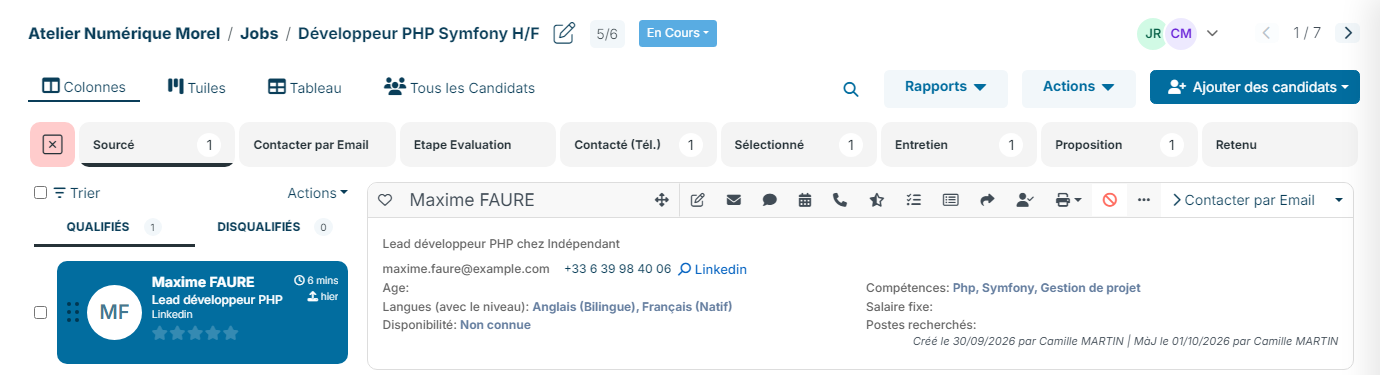
On a job page, each step of the process is a column showing its number of candidates. In the column view, the Qualified tab of a step lists the candidates in progress and the Disqualified tab those who were turned down at this step. The tile view shows the same steps side by side, with one tile per candidate that you drag from one step to the next. You move a candidate on to the next step, or disqualify them at their current step.
Opening the processes
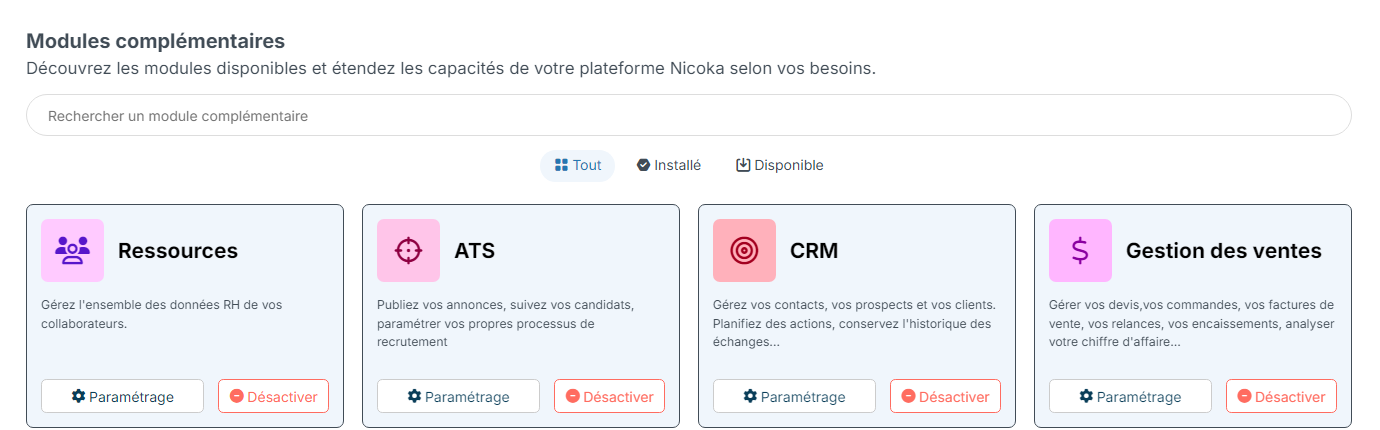
- In the side menu, open Customizing > Store.
- On the ATS card, click Customize.
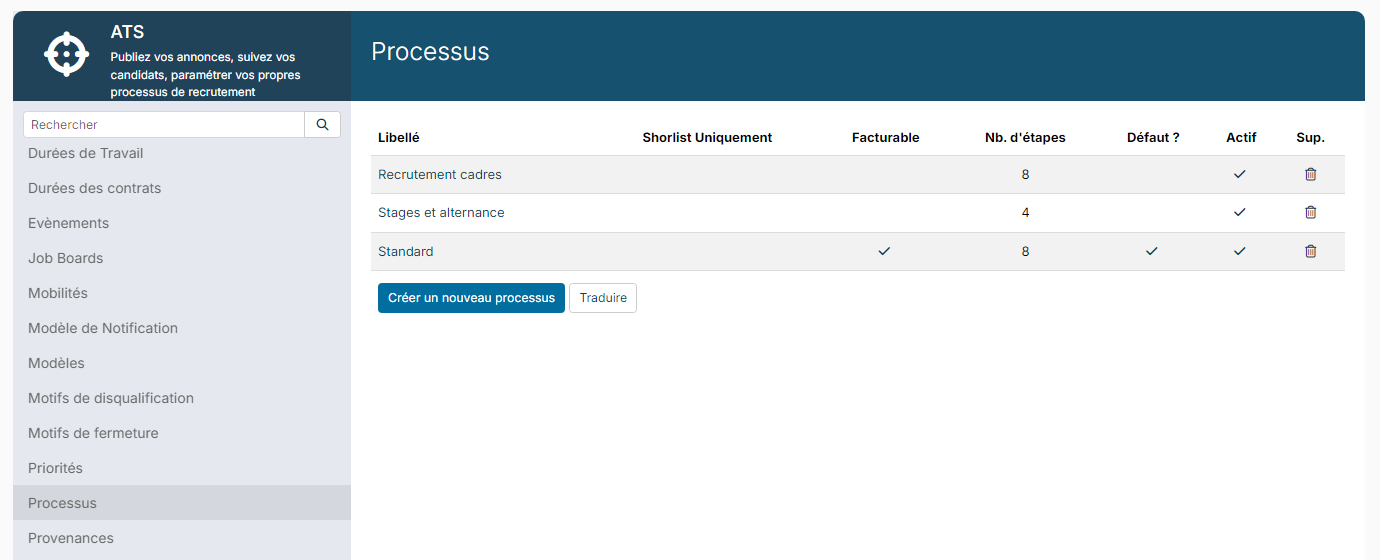
- In the left-hand menu, expand the section named after your jobs (Jobs in the screenshot), then click Workflows.
The list shows your processes and their number of steps (inactive steps included). The process ticked in Default ? is offered by default when a job is created.
Having several processes
You can create as many processes as you need, for example one for executives, one for internships and work-study, one for internal recruitment. When you create a job, you choose the process it will follow.
- In the list of processes, click Create a new workflow.
- Enter its Label, then save.
- Click its name in the list to open its sheet and add steps to it.
The process sheet
Click the name of a process to open its sheet. At the top, five tabs set up the process itself (see the next section). Below the tabs, the Steps block lists the steps in order, with their Stage Type, their colour and a summary of their main settings: visibility in the portals, status applied, default disqualify reason, evaluation form, candidate notification, sequence started.
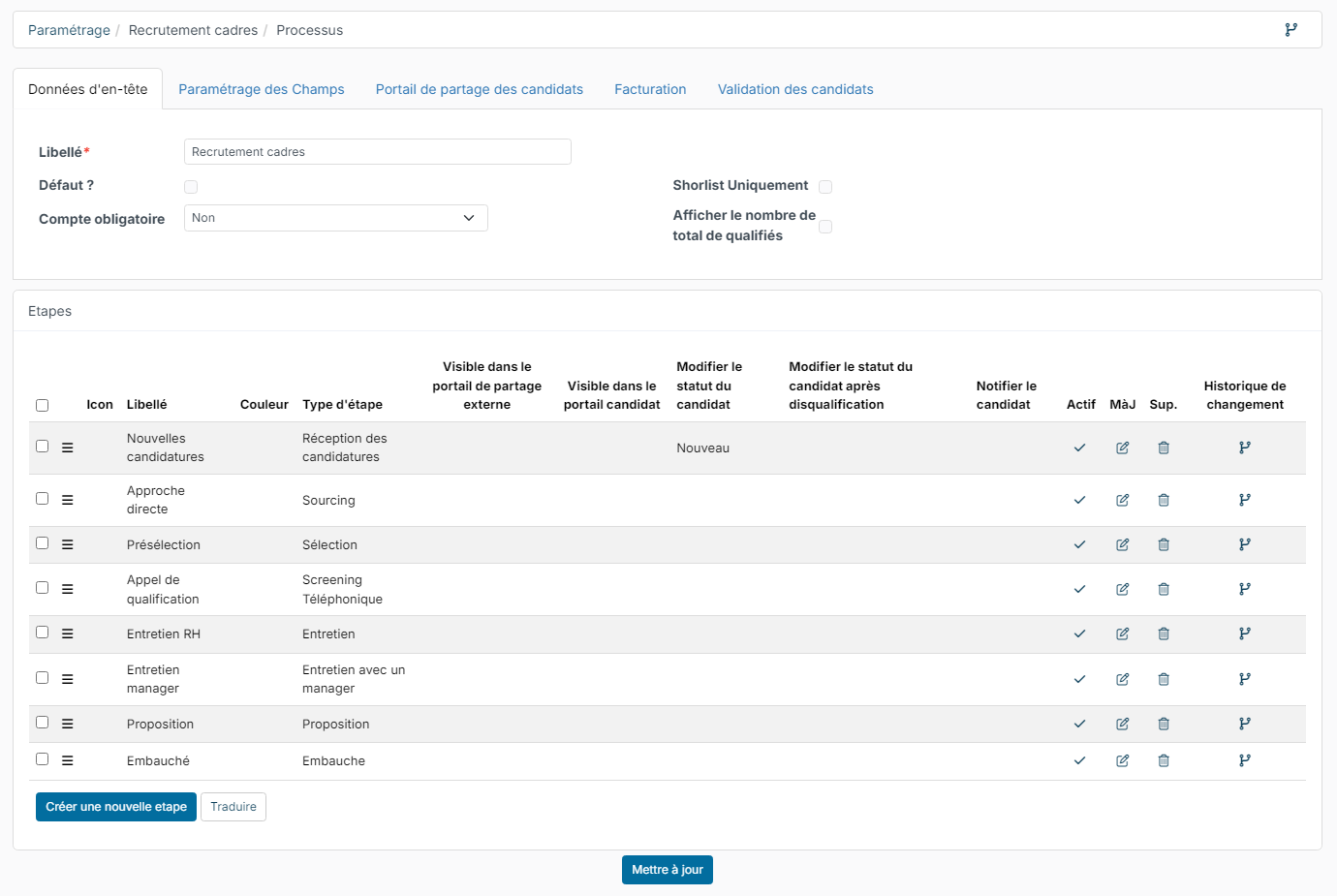
- Add a step: click Create a new step. The new step is placed at the end of the process.
- Edit a step: click the pencil icon of the step.
- Change the order: drag the step by its three-horizontal-lines icon.
- Delete a step: click the bin icon of the step. If candidates are still in it, Nicoka tells you how many and warns you that they will be removed.
The tabs of the sheet
Header Data: the Label of the process, the Default ? box (process offered when a job is created) and Account required, which requires the jobs of this process to be linked to an account (An account is required) or to an account other than a lead (A non-lead account is required). Display total number of qualified candidates adds, on each column of the job page, the total of qualified candidates next to the number of candidates in progress.
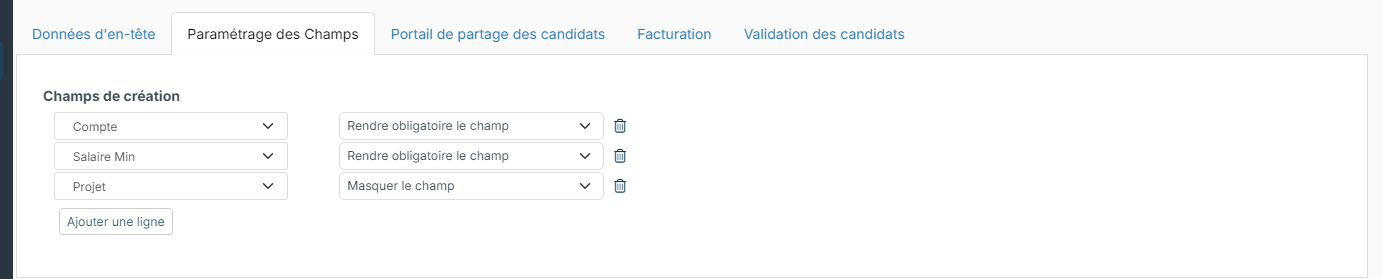
Fields customizing: the Creation Fields list the fields of the creation form of a job that uses this process, each with Hide field or Make field required. Handy to lighten the form of an internal recruitment process, or to require the account and the salary on a client process.
External Sharing Portal: Restrict notes to current Job means that only the notes entered from this job are visible to the people you share the candidates with, not the notes taken on other jobs. The portal itself is described in Candidate sharing portal.

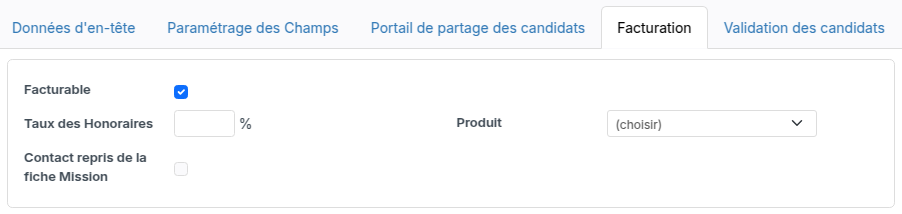
Invoicing: tick Invoiceable for the processes whose placements are invoiced, then enter the Placement Fees rate applied by default (when neither an order of the job nor the customer account carries one: the rate negotiated with a customer is entered on its account, Follow up tab) and the Material offered on the orders and invoices created from a job of this process. Tick Contact taken from the Job so that an order created from a job of this process takes the job's contact rather than the account's usual one (the contact of its last order, otherwise its invoicing or main contact); this contact then carries over to the invoice generated from the order, and when the job has no contact the account's rule applies. See Creating and sending an invoice.
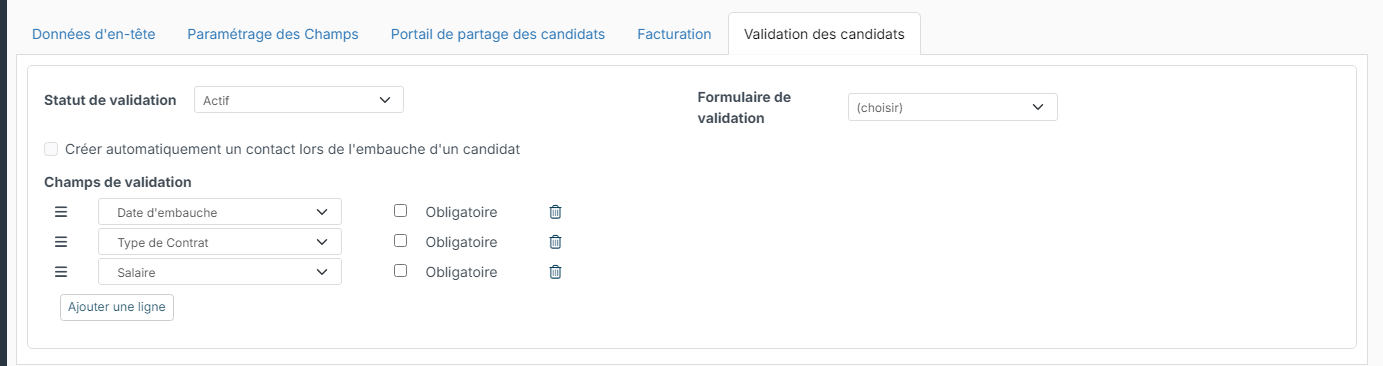
Candidate Validation: what Nicoka asks when you click Validate Candidate at the Hired step. Validation Status is the status applied to the validated candidate; Validation Form adds a questionnaire to fill in within the validation window; Automatically create a contact when a candidate is hired asks for the account and the contact type to create in the CRM; the Validation Fields (Hire Date, Contract Type, Salary, Contract End Date, Signed On, Trial Period End Date) are entered at that moment, ticking Required for those that cannot stay empty.
Setting up a step: the general settings
The step window opens both when you create and when you edit a step. Only the Label and the Stage Type are required; the other settings are grouped in collapsible sections, described one by one below. Any setting left empty does nothing in particular: the candidate simply changes column.
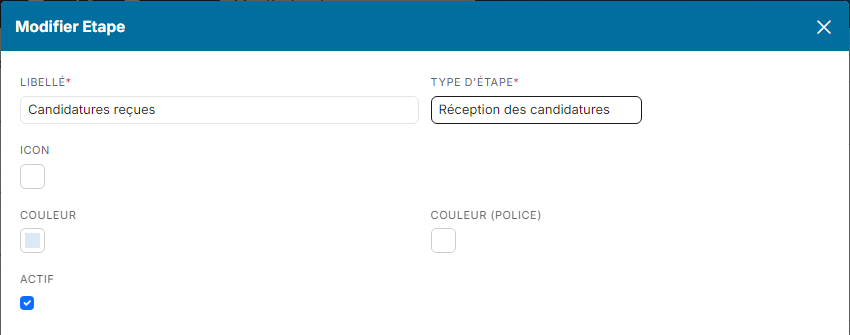
- Label: the name of the column on the job page. It is free.
- Stage Type: what the step is for, as far as Nicoka is concerned (see Stage types).
- Icon, Color and Font color: the icon and colours of the column header, in the column and tile views. Useful to tell screening, interview and closing steps apart at a glance.
- Active: untick it to remove the step from the job without deleting it. An inactive step no longer appears in the columns nor in the step change windows.
Candidate section
These settings act on the candidate's record, not only on their application.
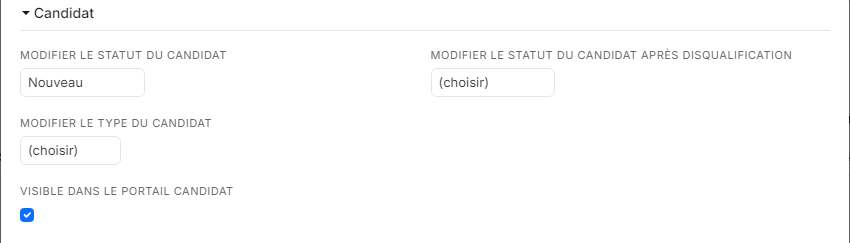
- Change candidate status: the status applied to the candidate when they reach the step, whether they are moved there by hand or arrive through an application. Example: New on the step receiving applications, Active from the first conversation. The Excluded statuses on step move customizing point (ATS customizing points) protects some statuses: a candidate holding one of them keeps it.
- Change candidate status after disqualify: the status applied if they are disqualified at this step, for example Inactive.
- Change candidate type: only offered when your account uses several candidate types (for example Standard and Freelance); the candidate takes this type when reaching the step.
- Visible in candidat portal: a candidate who reaches this step sees the job, and their progress, in their candidate space. Unticked, the application stays invisible to them.
Candidate Application section: the step transition action
Step transition action decides what happens when a recruiter moves a candidate to this step:
- No action: the candidate changes column without any window (unless a manual notification is set up below).
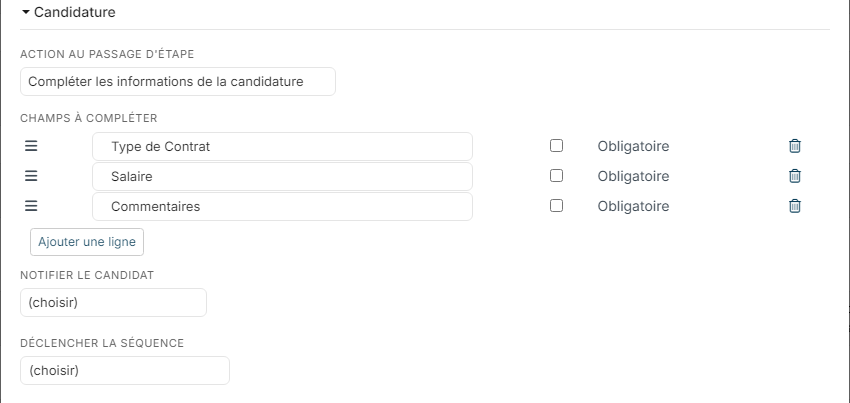
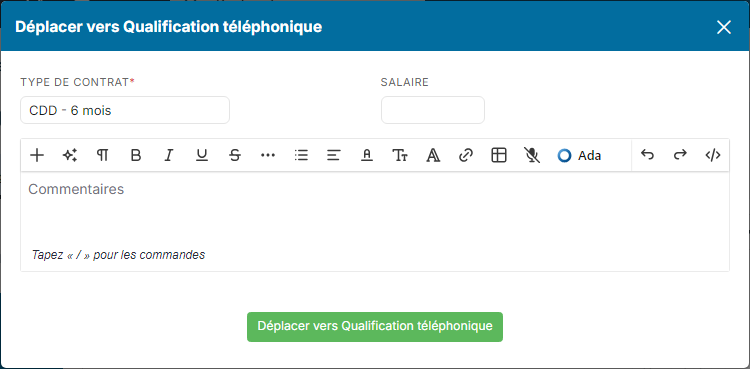
- Complete the application information: a window asks the recruiter to enter the Fields to complete you list here: Interview Date, Manager Interview Date, Customer Interview Date, Other Interview Date, Contract Type, Salary, ADR, Placement Fees, Placement Fees rate, state of mind and Comments. Tick Required to block the move while the field is empty. The values are saved on the application. With this action, the window does not offer to send a message to the candidate: to notify them at this step, choose an automatic email (see below).
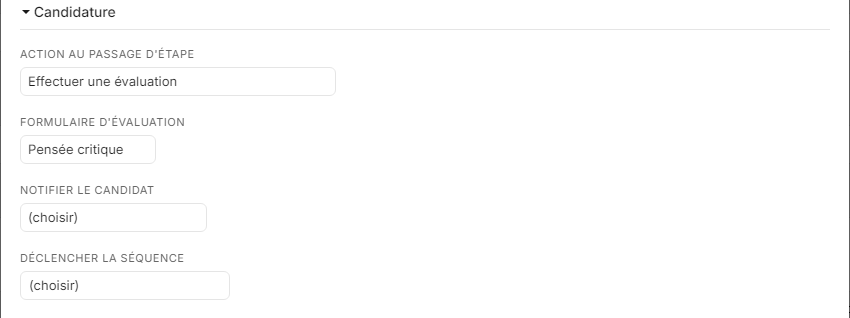
- Perform an evaluation: instead of the move window, Nicoka opens the Evaluation Form chosen here, and the candidate changes step once the evaluation is saved. The form is a questionnaire of the Evaluation type (see Creating and managing candidate questionnaires); the list only appears once you have created one. The evaluation is filled in one candidate at a time.
Candidate Application section: notifying the candidate
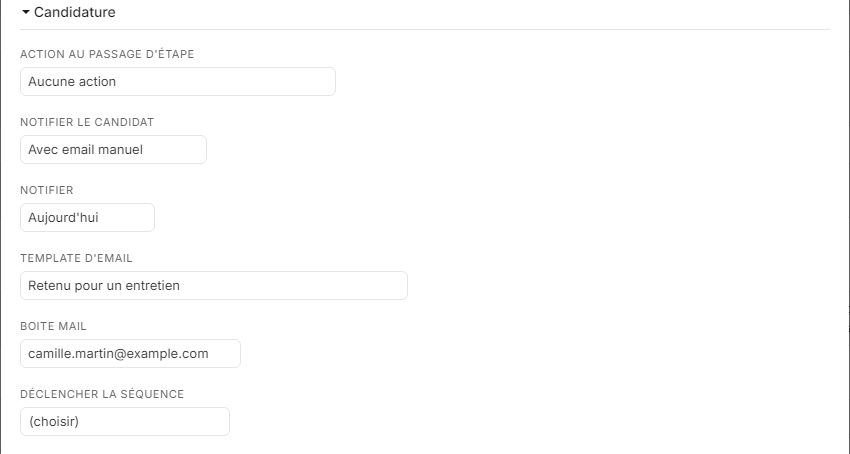
Notify candidate sets the message sent to the candidate when they enter the step:
- With Mailing or With SMS: the step change window offers the message, pre-filled with the Email Template chosen here, and the recruiter decides whether to send it, after reading or editing it. SMS require an SMS service configured on your account.
- With Auto Mailing or With Auto SMS: the message is sent without any action and without a window, as soon as the candidate enters the step, whatever the path (move, addition to the job, incoming application). An automatic email requires an Email Template and a sending Mail Box; Nicoka refuses to save the step without them.
- Notify In sets when it is sent: ASAP, Today, Tomorrow, In 2 days or In 5 days. This moment is offered by default in the window of a manual sending, where the recruiter can change it.
- Allowed notification channels and Messaging template: offered when a messaging service (WhatsApp, LinkedIn…) is connected to your account. They add these channels to the recruiter's choice in the step change window, without removing email. See Chat with your candidates on WhatsApp.
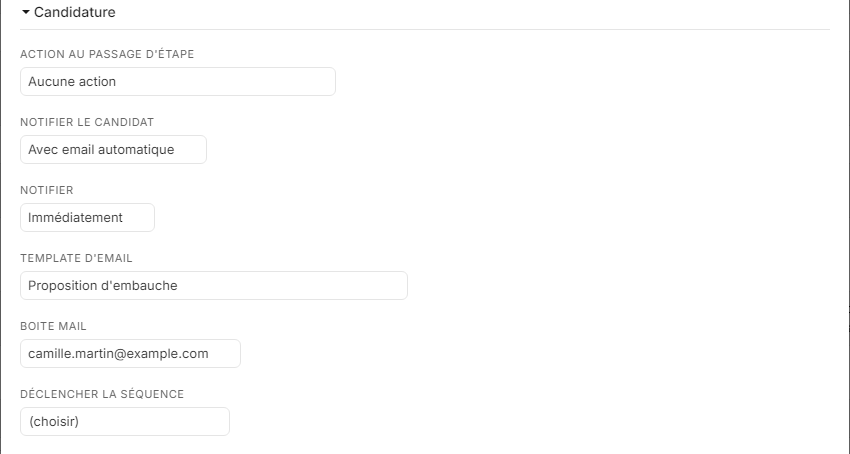
For the acknowledgement sent when an application is received, see Sending an acknowledgement email to a candidate: it is not sent if the first step of the process already triggers its own automatic email.
Candidate Application section: starting a sequence
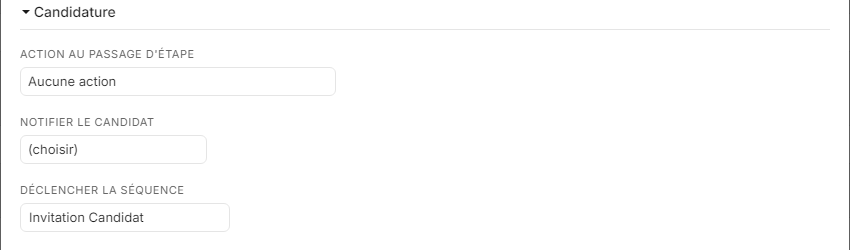
Start the sequence automatically starts the chosen candidate sequence when a candidate enters the step, whatever the path. A candidate already running a sequence is not enrolled a second time. The field only appears if your account has at least one candidate sequence. This setting is independent from the notification above: a step can send an automatic email and start a sequence.
Show in the agenda section
This section publishes the interview entered at this step into an agenda.
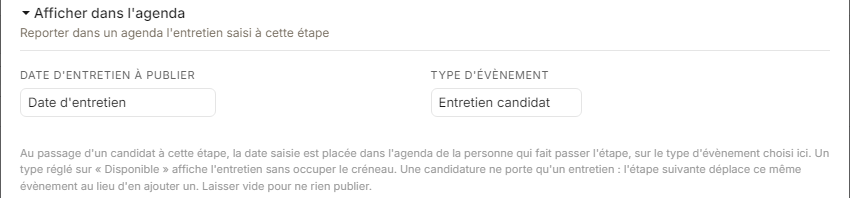
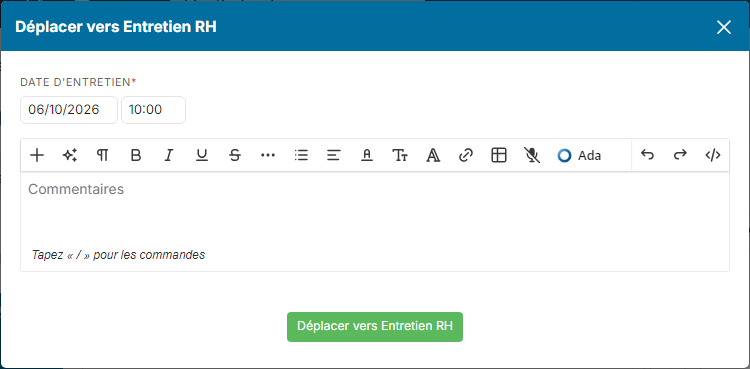
- Interview date to publish: which of the application's interview dates (Interview Date, Manager Interview Date, Customer Interview Date, Other Interview Date) is published. To have it filled in at the right time, ask for it in the Fields to complete of the same step; a date entered at an earlier step works too.
- Event type: the agenda event type, for example a candidate interview type. A type set to "available" shows the interview without taking the slot.
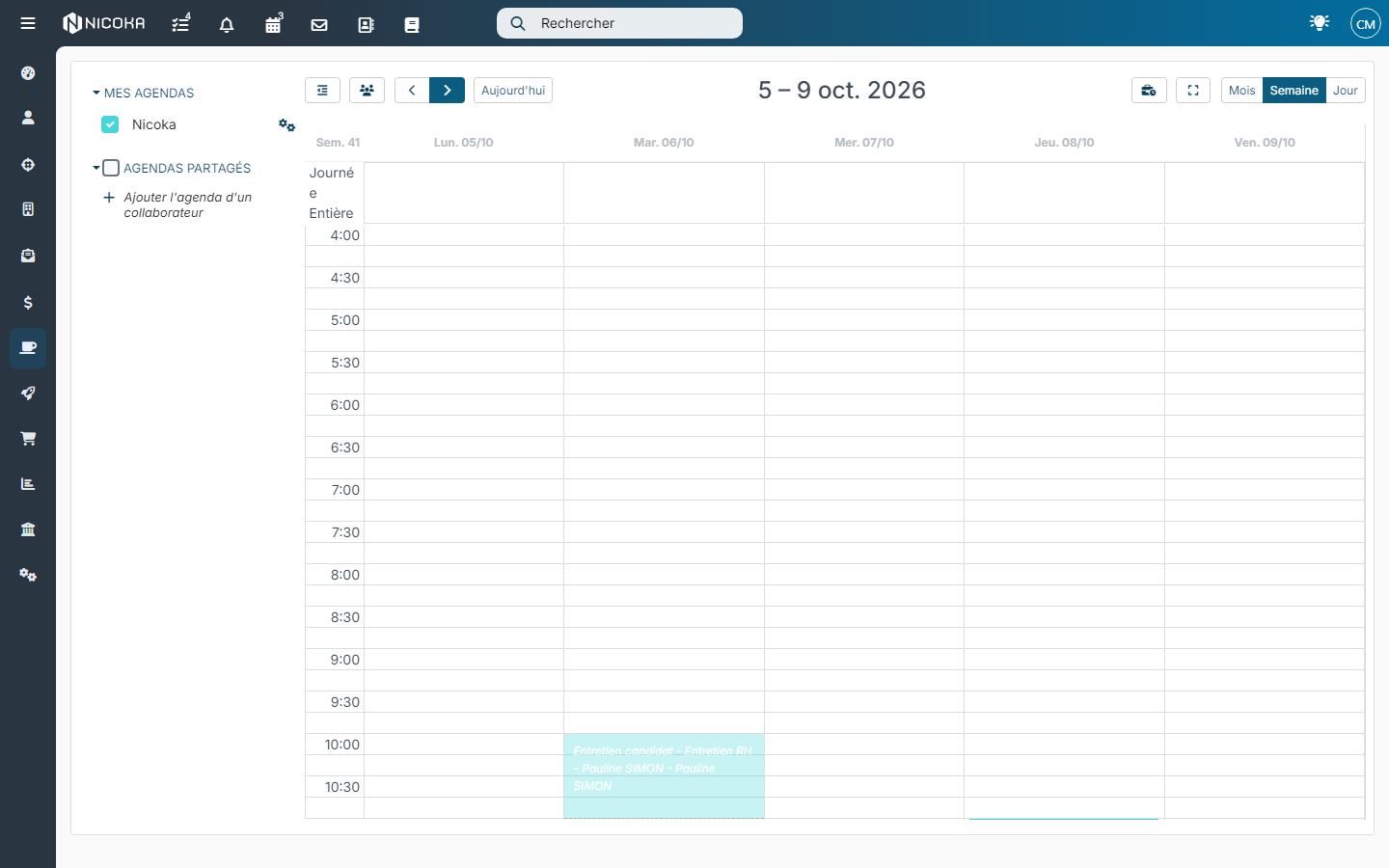
When the candidate moves, the event is created in the agenda of the person making the move, with the type, the step and the candidate's name. An application carries a single interview event: a later step publishing another date moves that same event rather than adding one. Leave both fields empty to publish nothing.
Disqualify section
These settings prepare the Disqualify window opened from this step.
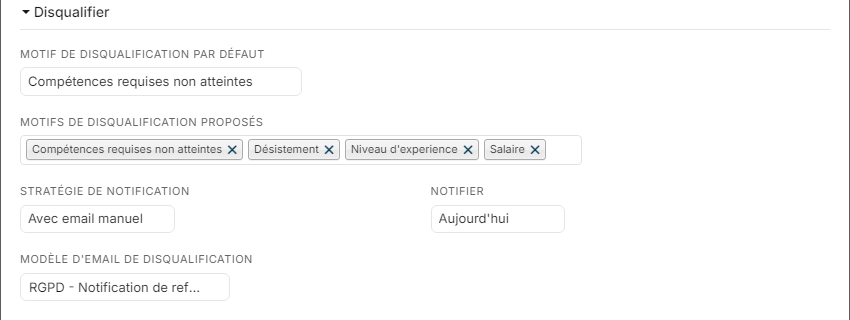
- Defaut disqualify reason: the reason preselected in the window.
- Available disqualify reasons: narrows the list of reasons to those that make sense at this step, for example salary or experience level after an interview. Leave empty to offer every active reason. See Adding a disqualification reason.
- Mailing Strategy (With Mailing), Notify In and Disqualify email template: the window then offers Send a disqualification email, pre-filled with this template and this sending moment, which the recruiter can untick. If the chosen reason has its own email template, that one is offered instead. See Scheduling the rejection email.
Manager/Client portal section
These settings concern the sharing portal, where managers or clients without Nicoka access give their opinion on candidates (see Candidate sharing portal).
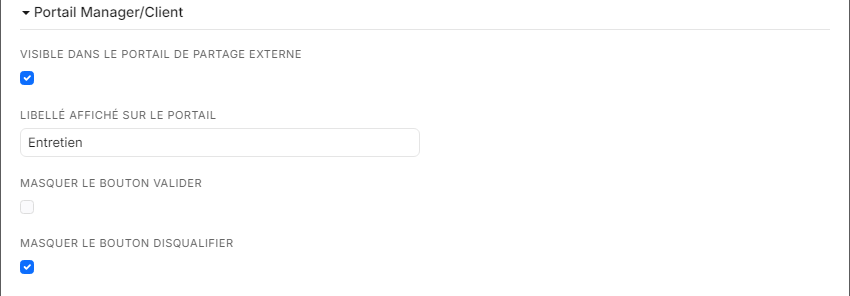
- Visible in sharing portal: the candidates of this step can be shared. You can also tick the column of the same name directly in the list of steps.
- Label shown on the portal: a clearer name for your contacts, for example "Interview" instead of "HR interview". Empty, the step label is shown.
- Hide the Validate button and Hide the Disqualify button: remove these buttons from the portal for this step, when you only want to collect comments.
Notifications section
This section notifies your team when a candidate reaches the step. Click Add an action, then choose the action type (Send a notification for a Nicoka notification, Send an email for an email), the recipients (a role on the job, for example Role : Owner, or Current Assign to) and the template to use. You can add several actions.

What the recruiter sees when changing step
Depending on the settings of the target step, moving a candidate opens a window or not. The examples below are taken on a demonstration process.
Step with fields to complete: the Move to window asks for the listed fields, the required ones being marked with an asterisk. The bottom button confirms the move.
Step with an interview to publish: the interview date asked in the window is published, once the move is done, in the recruiter's agenda.
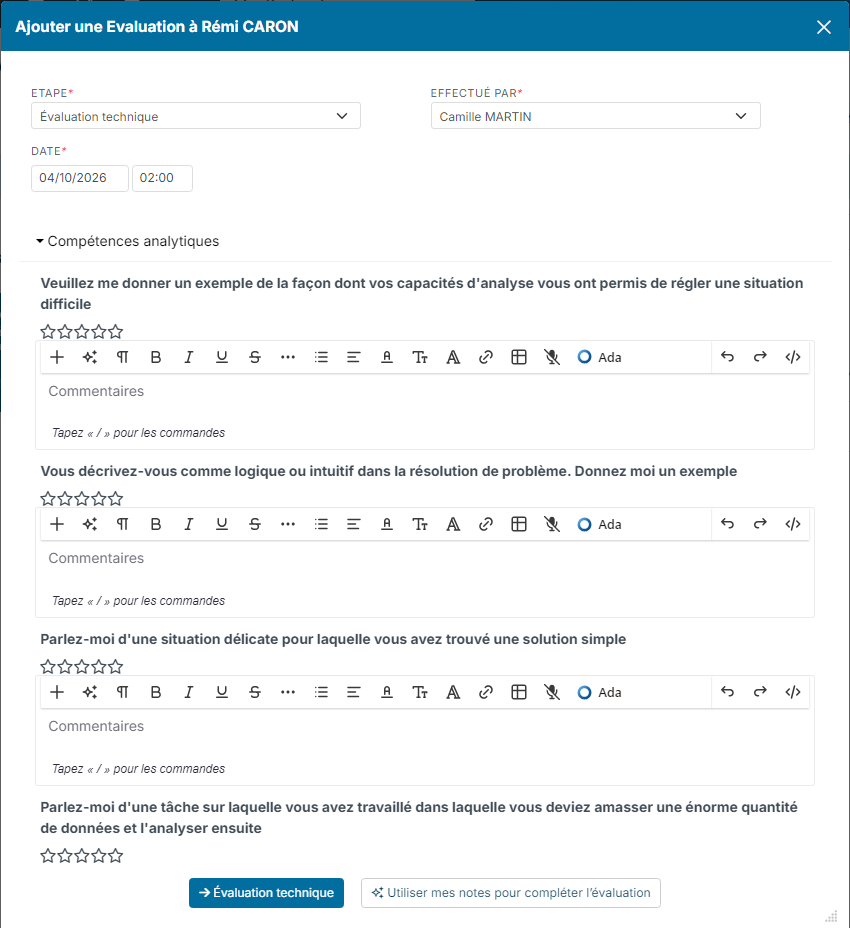
Step with an evaluation: the Add an Evaluation to window, followed by the candidate's name, replaces the move window. The recruiter indicates who performed the evaluation and when, rates each question, then clicks the button bearing the name of the step to save the evaluation and move the candidate.
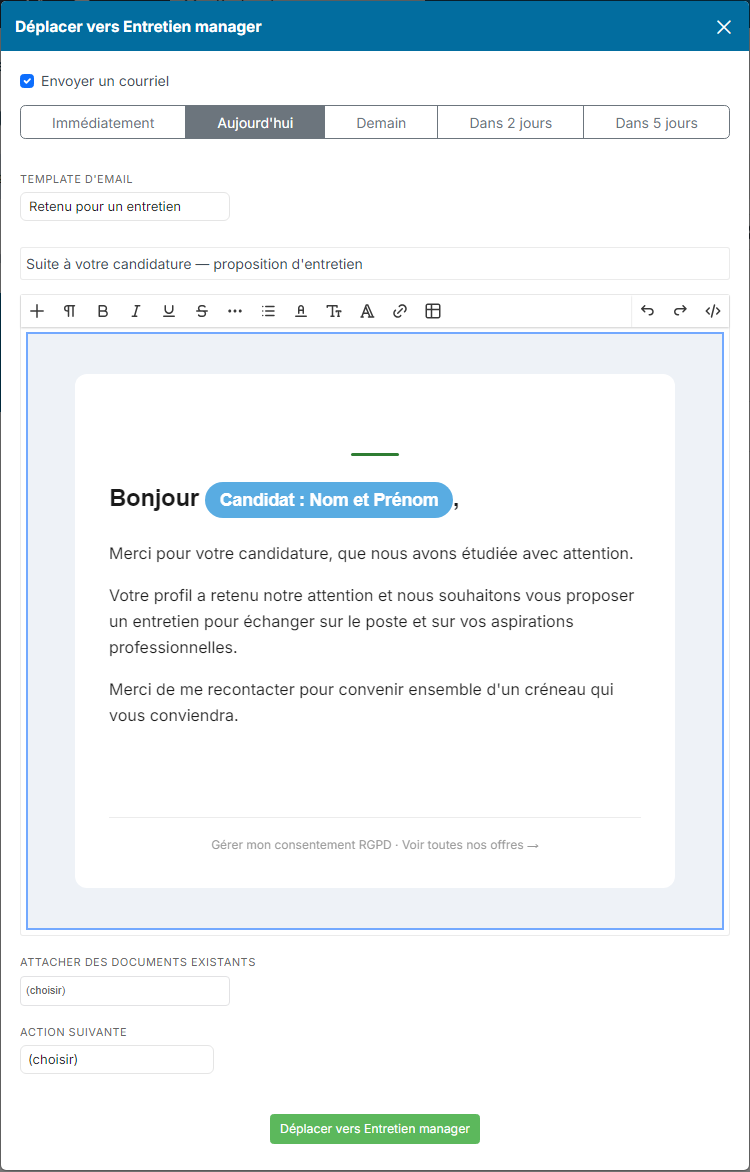
Step with a manual email: the window offers Send an email already ticked, the sending moment, the step's Email Template, then the subject and body of the message, which the recruiter can edit before sending. They can also attach files (Attach existing documents) and plan a Next action.
The information displayed on the tiles
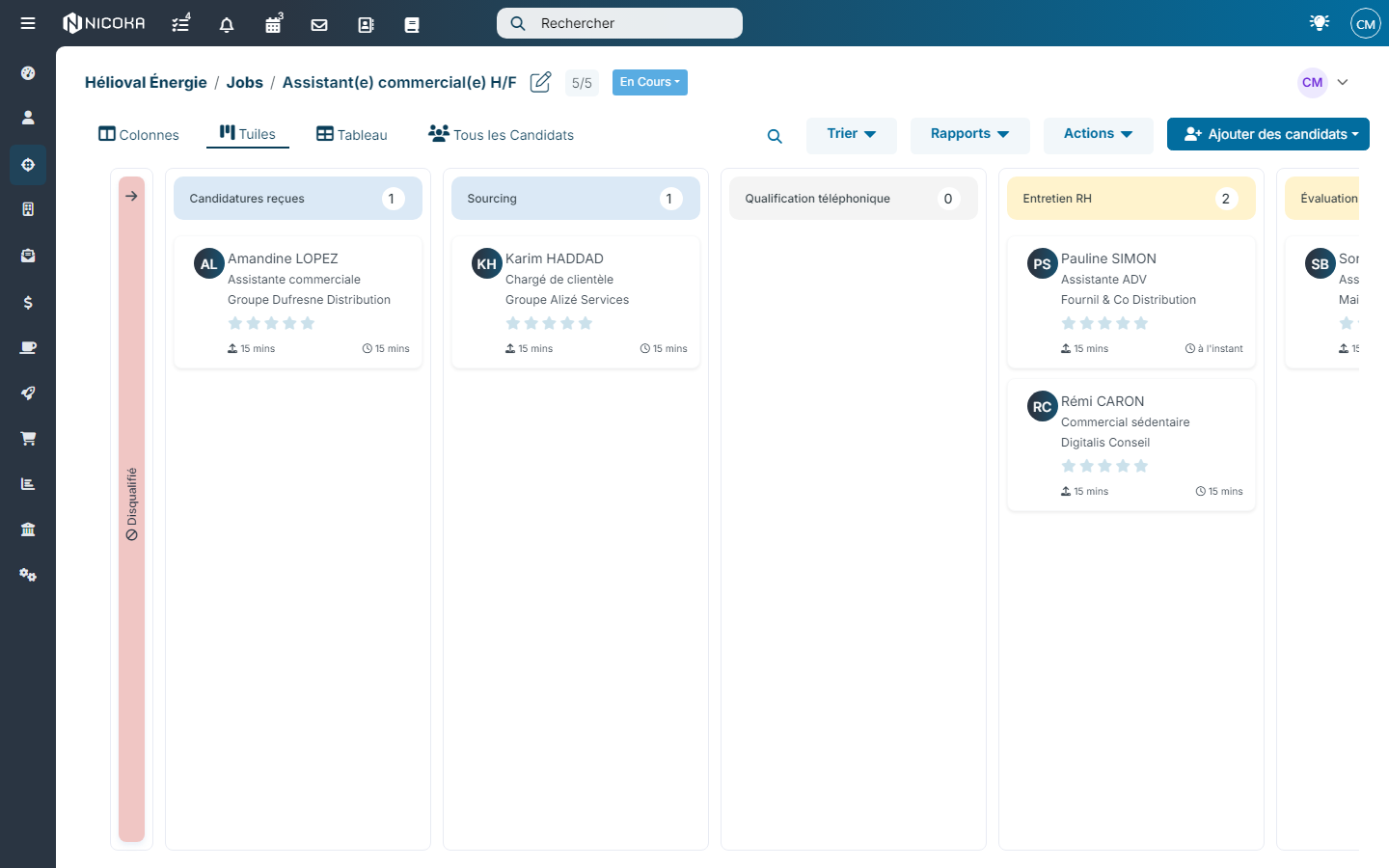
In the tile view of a job page, each tile shows the candidate's name, their rating, the date they were added and the date of their last update. You can add up to four pieces of information from the candidate record, for example their current job title and company, their city or their source.
- Open Customizing > Store, then Customize on the ATS card: the customizing points screen opens.
- Expand the Pipeline section, towards the bottom of the page.
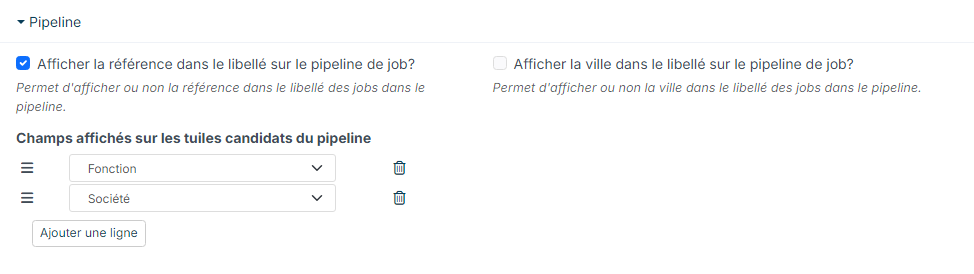
- Under Fields displayed on the candidate tiles of the pipeline, click the add row button and choose a field. The order of the rows is the display order; drag them to change it.
- Save the page.
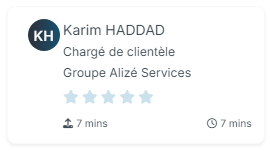
Only the fields of the candidate record are offered. The information entered when changing step (interview date, salary, contract type…) belongs to the application: it is saved on it and can be viewed from the candidate's sheet, but is not shown on the tile.
Example: keeping new applications apart
So that the applications you receive do not get mixed with sourced candidates, add a receiving step at the top of the process:
- Open the process sheet and click Create a new step.
- Enter a Label, for example "New applications", and choose the Stage Type Incoming applications.
- If you wish, choose New in Change candidate status.
- Save, then drag the step to the first position.
Applications coming from job boards, your career site or by email now land in this step.
Stage types
A step's label is free; its Stage Type tells Nicoka what the step is for. It triggers some automatic behaviours and classifies the step in the job counters and in reports (number of candidates selected, interviewed, who received an offer…). Eleven types are available:
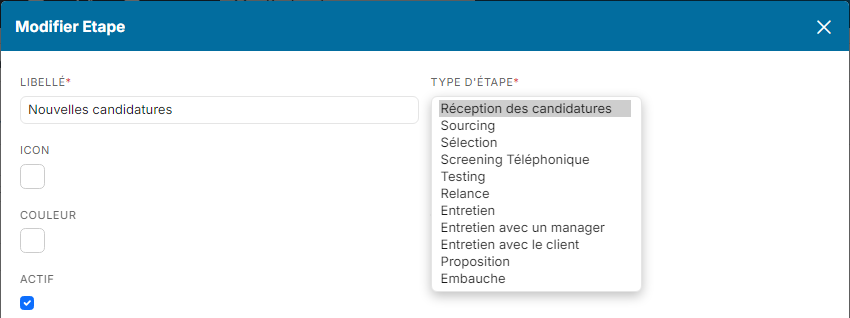
- Incoming applications: the step where new applications arrive (job boards, career site, email). Without a step of this type, they arrive on the first step of the process.
- Sourcing: the step where the candidates you add to the job yourself, from the candidate database or by importing CVs, arrive by default. Without a step of this type, they arrive on the first step of the process.
- Selecting: reviewing applications and shortlisting.
- Phone Screening: the first conversation with the candidate, often by phone.
- Testing: technical or personality tests.
- Dunning: candidates to follow up.
- Interview, Manager Interview and Customer Interview: interviews, counted as such in reports.
- Proposal: the offer made to the candidate.
- Hired: the candidate accepted the offer. At this step, the Validate Candidate button records the hire, with the information requested in the process's Candidate Validation tab. If you close a job while candidates at this step are not validated, Nicoka warns you.
A process can only have one active step of the Sourcing type and one of the Incoming applications type, because Nicoka must know where to place these candidates. If you choose one of these types while another active step already uses it, Nicoka refuses to save and names the step concerned.