Candidates Activities Analysis report
The Candidates Activities Analysis report counts, period by period, the actions your employees carried out on candidates: calls, emails, additions to a job, step changes, disqualifications, interview minutes… Use it to monitor recruiter activity, compare practices within the team and understand where the time spent on candidates goes.
Opening the report
- Open the candidate list: Recruitment menu > All Candidates.
- Click Reports, then Candidates Activities Analysis.
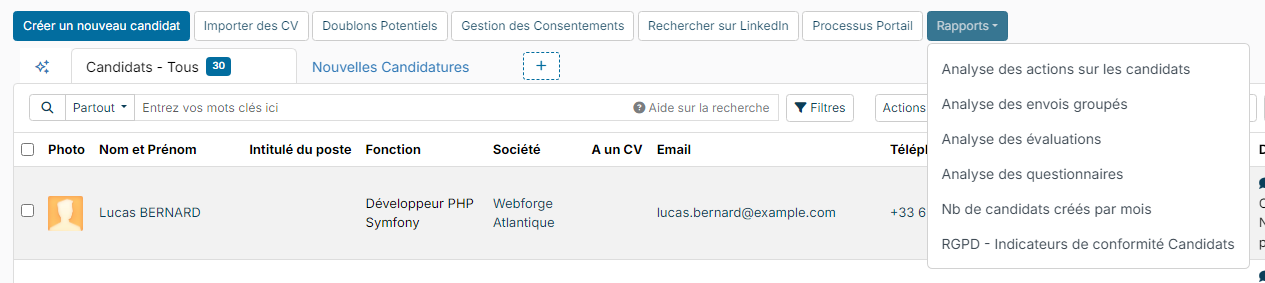
The same report is also available as a widget for your dashboard, named Candidates actions analysis (see Dashboard - Customization).
Choosing the period and the filters
Click the filter button (the funnel) at the top right of the report:
- Employees: Everybody, or only the employees you choose;
- Period: start and end dates of the analysis. By default, the current month;
- Periodicity: By Days, By Weeks, By Months or By Years. The report shows one column per day, week, month or year;
- Display Mode: Users / Actions (broken down by employee, then by action) or Actions / Users (broken down by action, then by employee);
- Type of action: to count only some actions, for example calls and emails;
- Evaluation: to count only the evaluations made with some questionnaires.
Click Apply Filters.
Only actions whose author is an employee are counted: actions recorded on behalf of a candidate, a contact or Nicoka itself do not appear. An action is counted on the date it was recorded in Nicoka.
Reading the report
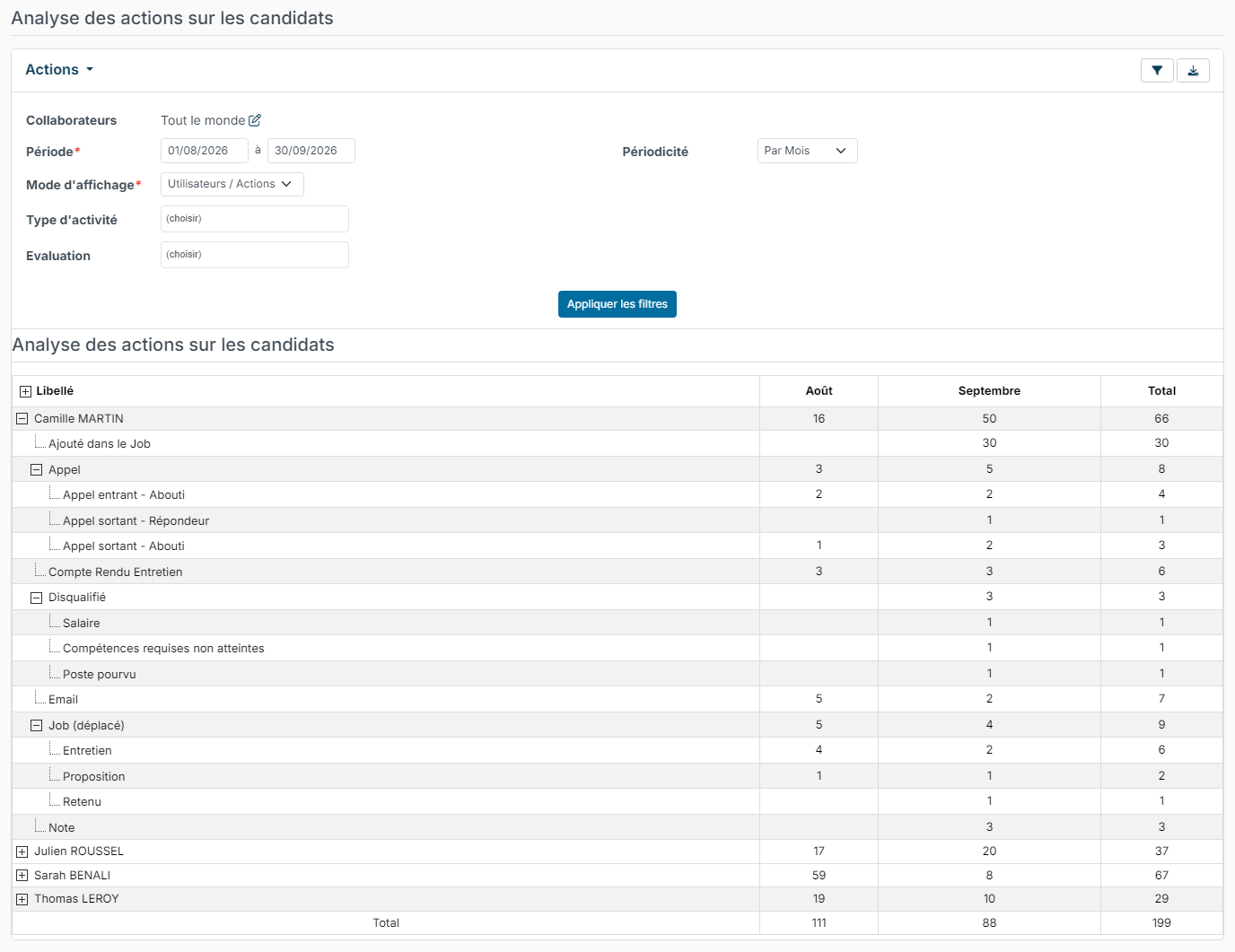
The table shows a Label column, one column per period (here August and September) and a Total column. The last row adds up all the actions of the period.
Rows can be expanded: click the + in front of a row to show its details. In Users / Actions mode:
- first level: the employee, with the total of their actions;
- second level: the type of action (Call, Email, Added to a Job, Move to (Job), Disqualified, Meeting Minute…);
- third level, depending on the action: the direction and outcome of the call (for example Outgoing - Success or Outgoing - Answering machine), the step the candidate was moved to, the disqualification reason, the event type or the evaluation questionnaire.
Examples of analyses
- Each recruiter's activity: compare the total number of actions from one employee to another and from one period to the next.
- The nature of the actions: how much time goes into contacting candidates (calls, emails) and how much into screening (additions to a job, disqualifications)?
- Call efficiency: compare successful calls with calls that reached an answering machine or got no reply, to adjust your call times or the quality of your candidate database.
- Disqualification reasons: spot the most frequent reasons to adjust your search criteria, your job ads or the brief with your clients.
Exporting to Excel
The download button, next to the filter button, exports the report to Excel with the filters you chose. The file contains all the rows, already expanded, and a column giving each row's level (1 for the employee, 2 for the type of action, 3 for the details), which makes filtering easier. You can then build your own tracking tables: pivot tables, comparisons across several months or teams, internal activity KPIs.
For the other recruitment reports, see Reports on jobs (assignments, job offers).