Creating and managing a credit note
A credit note is an accounting document that cancels or corrects all or part of an invoice already issued. It has the same legal value as an invoice and reduces the revenue and the amount the customer owes. This article explains how to create a credit note in Nicoka, link it to its invoice and settle both documents.
When should you issue a credit note?
- Mistake on the invoice: a full credit note, then a new, correct invoice; or a partial credit note for the excess amount.
- Commercial gesture: a partial credit note that reduces the price of the service.
- Cancelled sale: a full credit note.
An issued invoice cannot be changed: the credit note does the correcting. Enter the credit note amounts as positive figures.
Create a credit note from the invoice
This is the recommended method: the credit note stays linked to its original invoice.
- In the side menu, click Sales, then Invoices, and open the invoice to correct.
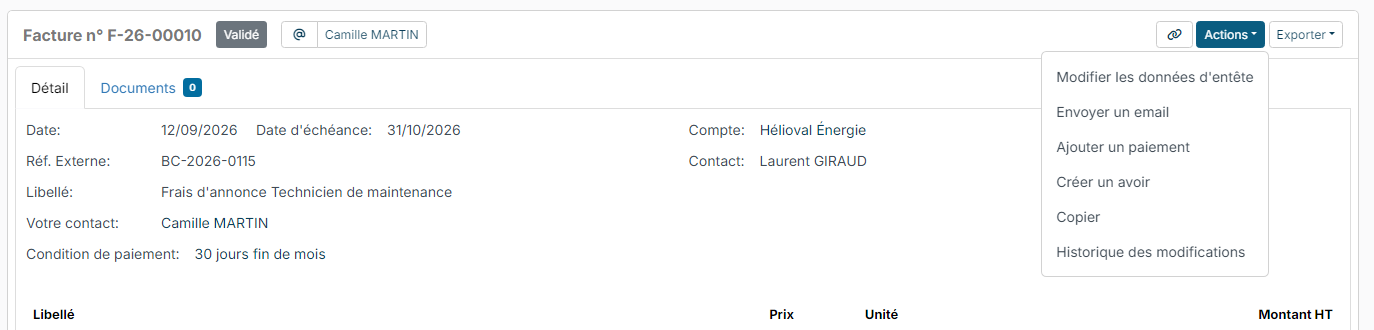
- Click Actions, then Create a debit note (this is how the credit note entry is labelled in the English interface).
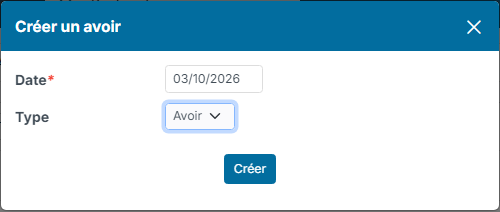
- Check the credit note Date and Type (Billing credit), then click Create.
Nicoka creates the credit note with its own number and copies all the invoice lines into it: by default, the credit note therefore covers the full amount. For a partial credit note, edit or delete the lines with their icons, and adjust the label if needed.
The link is visible everywhere: the credit note title shows the number of the original invoice (clickable), which also appears in the breadcrumb.
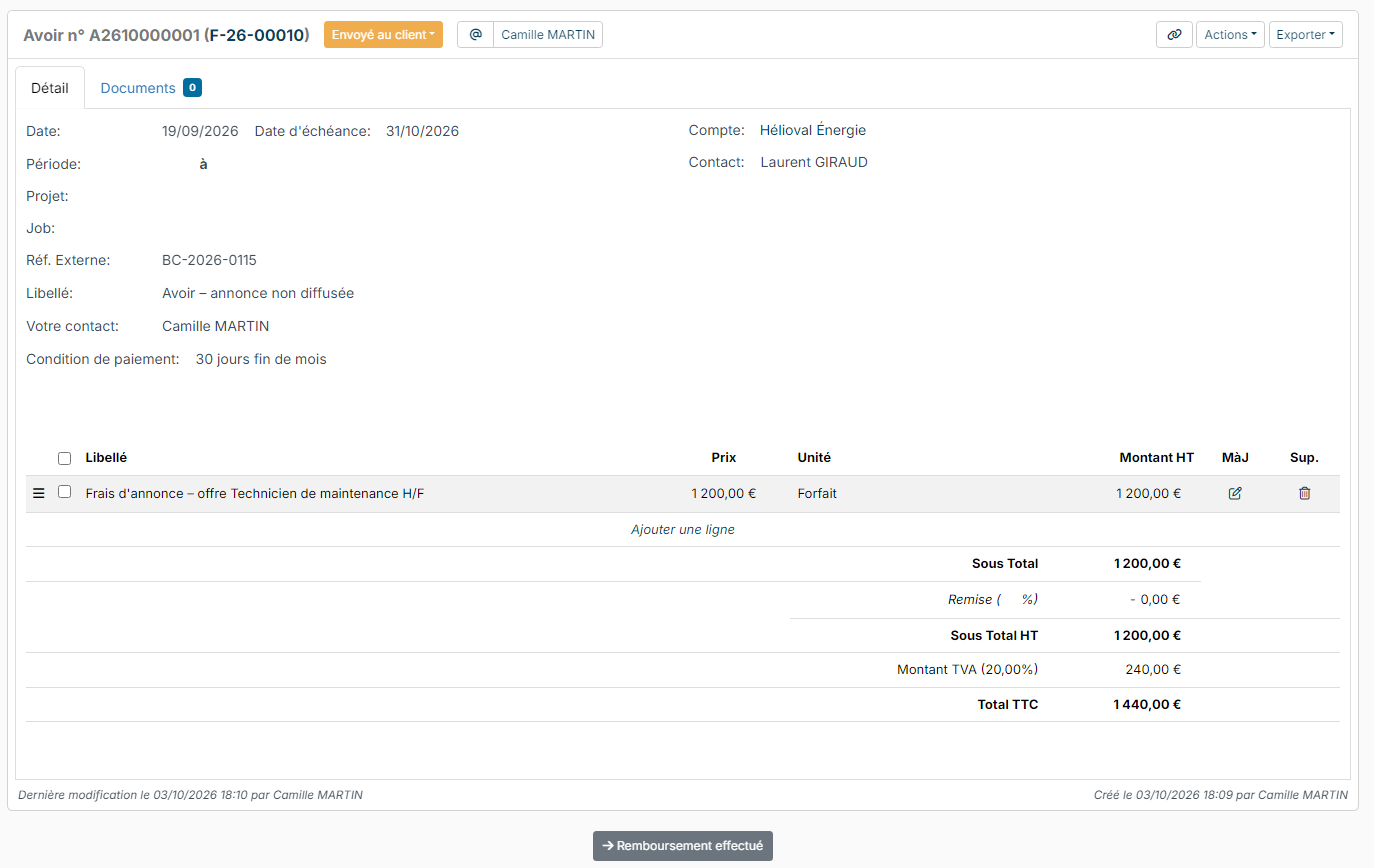
The credit note follows its own workflow, for example from Sent to Reimbursement done. To send it to your customer, use Actions > Send a message, as for an invoice, for example with the Credit Note (Invoice Cancelation) template. For the PDF, use Export.
Create a credit note without an original invoice
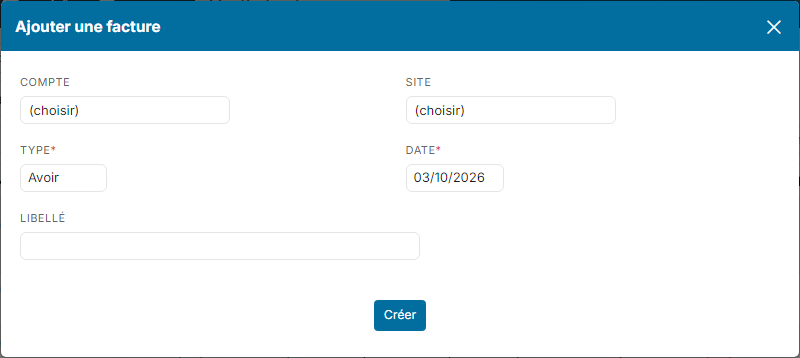
- In Sales > Invoices, click Create a new invoice.
- Choose the Customer, select the Billing credit Type, check the Date, then click Create.
- Add the lines with Add a new row.
Electronic invoicing warning: a credit note must be linked to its original invoice (number and date). A credit note created this way therefore cannot be sent through the certified platform. For a customer subject to electronic invoicing, always create the credit note from the invoice. See Electronic invoicing: how it works in Nicoka.
Find your credit notes
Credit notes appear in the invoice list, with the Billing credit type in the Type column. To isolate them, create a view filtered on this type: see Display and variants.
Settle the credit note and the invoice
Nicoka settles the original invoice as soon as the credit note leaves the Draft status, whether through the next step of its process, through its status or by sending it by email. Two "virtual" payments of the same amount are then created: Virtual Credit (Credit Note) on the credit note, Virtual Refund (Credit Note) on the invoice. The amount is what the invoice still owes, up to the credit note amount. The credit note moves to Paid, the invoice to Paid, or to Partially Paid for a partial credit note.
Both payments show under the total of each document and in the list of payments. They are not collections: they are not reported to the certified e-invoicing platform.
The settlement is not automatic in the following cases:
- The invoice is already paid: the credit note is still to be refunded to your customer. Record the refund on the credit note with Actions > Add a payment.
- The invoice is part of a direct debit cycle, or it is not in the same currency as the credit note.
- The credit note or the invoice has not been deposited on the certified e-invoicing platform yet.
- The credit note goes through a validation step before it is issued.
- Your profile does not allow you to add a payment.
In these cases, record both payments yourself:
- On the credit note, click Actions > Add a payment, choose the Virtual Credit (Credit Note) Payment Mode, check the Amount and click Create.
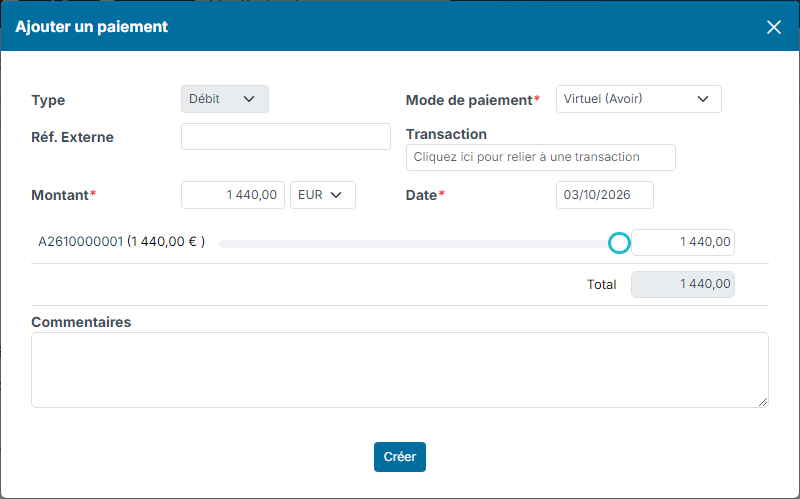
- On the original invoice, click Actions > Add a payment, choose the Virtual Refund (Credit Note) Payment Mode, enter the credit note amount and click Create.
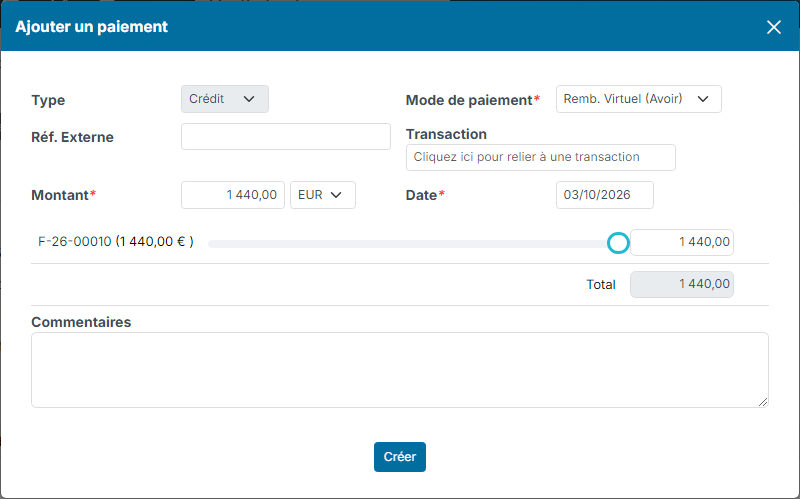
This second step is essential: without it, the invoice stays unpaid and keeps showing in your overdue invoices and reminders. For a partial credit note, the invoice moves to Partially Paid and the rest is still due. To find out more about payments: Tracking invoices and payments.
Frequently asked questions
Can I change an invoice that has already been validated?
No. A validated invoice is locked: create a credit note to correct or cancel it.
Can I issue a credit note for only part of the invoice?
Yes: after creating the credit note, edit the copied lines to keep only the amount to refund.