Connect Nicoka in Dust
The Nicoka MCP connector lets Dust agents query your Nicoka data (candidates, employees, jobs, opportunities, resumes…) and, when the account's rights allow it, create items such as a note. This page explains how to add Nicoka to Dust, and how to prepare a technical account when Dust must use a single access for your whole team.
Before you start
- On the Dust side: only an administrator of your Dust workspace can add an MCP server. If in doubt, see the Dust help.
- On the Nicoka side: the profile of the account used must allow connecting an application. If the connection is refused, ask your company's Nicoka administrator.
- Your MCP server address:
https://YOUR-INSTANCE.nicoka.com/api/mcp. Replace YOUR-INSTANCE with the subdomain of your Nicoka space, the one you see in your browser's address bar. If in doubt, ask Nicoka support.
Choose the connection mode
When you add the server, Dust offers two modes:
- Personal credentials: each Dust user signs in with their own Nicoka account, and Dust only sees what that person sees in Nicoka. This is the recommended mode.
- Shared credentials: a single connection serves every Dust user. Use a dedicated technical account, with a profile limited to the data needed (section 1). Everyone who uses Dust then sees the data of that profile, whatever their own rights in Nicoka.
In personal mode, go straight to section 2.
1. Prepare a technical account (shared mode)
These settings are made in Nicoka by an administrator. Profiles are described in detail in Define access profiles in Nicoka.
Create the profile
- Open Customizing > Admin > Users > Profiles and create a new profile. Name it for example "Dust AI (read only)", with Employee as related entity.
- In Restrictions, tick the boxes that remove the restrictions on accounts and jobs if Dust must see every record, and leave the subordinates restriction unticked. Click Update.
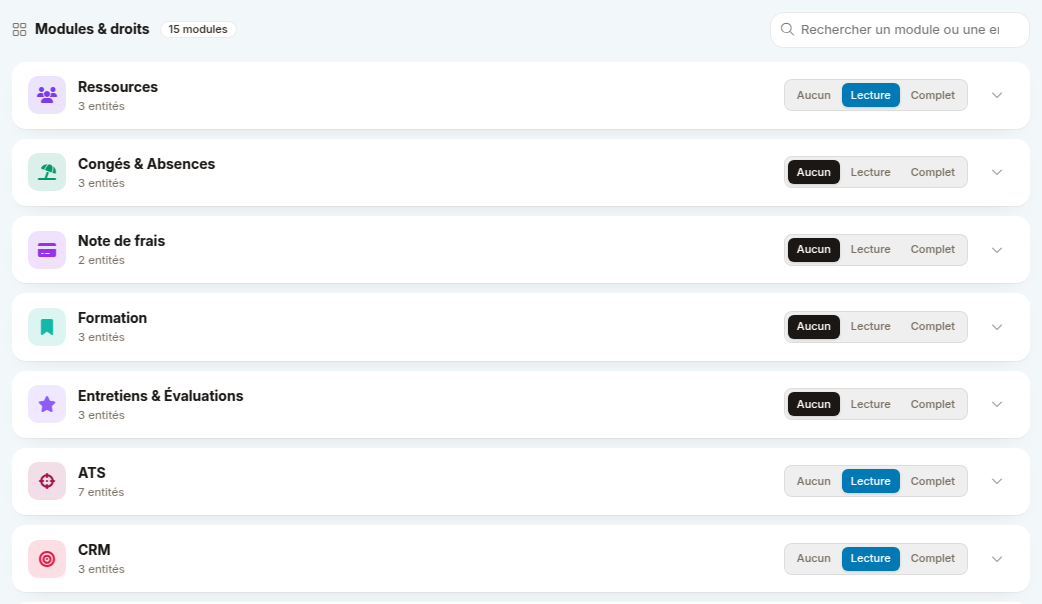
- In Modules, choose read only (Lecture) for the modules Dust needs (for example ATS, CRM and Resources) and none (Aucun) for the others.
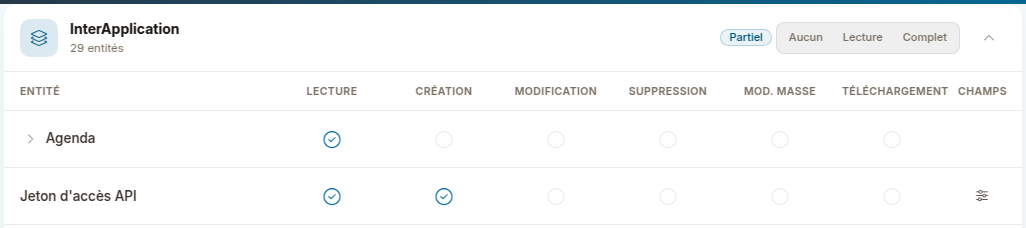
- Set the InterApplication module to read only, expand it and tick Create on the API Access Token row: this right is what allows Dust to connect. Without it, Nicoka refuses access.
- Click Save in the bar shown at the top of the section.
With a read-only profile, Dust can neither create nor change anything in Nicoka, even though the authorization screen mentions creating and modifying your Nicoka data: that screen lists what Dust asks for, the profile decides what it gets.
Nicoka never sends employees' salaries, payslips, bank details or contracts to an AI assistant, whatever the profile. For other personal data (social security number, date of birth…), remove read access on the fields concerned:
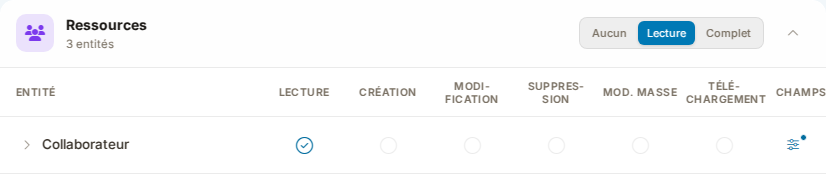
- In Modules, expand the Resources module.
- At the end of the Employee row, in the Fields column (Champs), click the settings icon (three sliders).
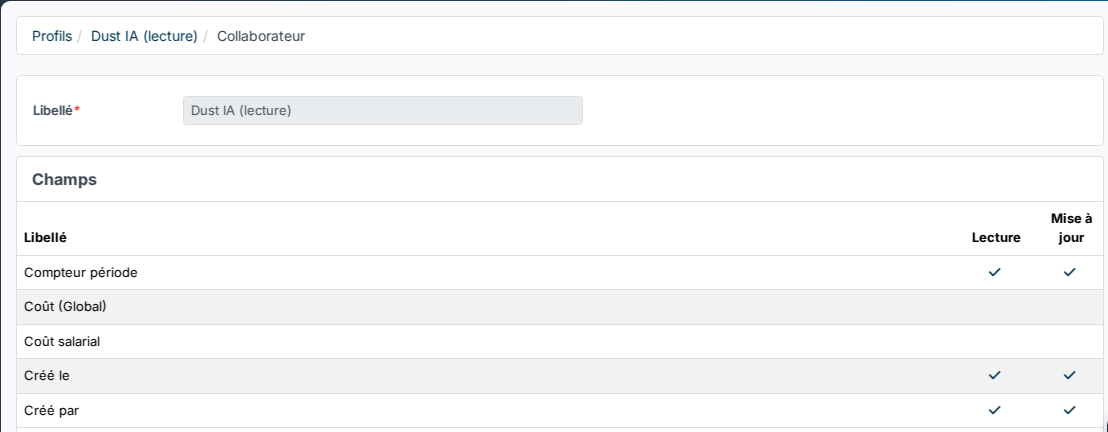
- A page lists every employee field in alphabetical order, with two columns: read (Lecture) and update (Mise à jour). Click the tick in the read column for each field to hide, for example SSN, Birth date, Place of Birth, Country of Birth, Birth Name or Cost (Global). The change is saved at once and also removes update access. The list is long: your browser's search (Ctrl+F) finds each field.
- Back on the profile, the icon of the Employee row turns blue with a dot: field restrictions are active.
Create the account
- Open Customizing > Admin > Users > API Users and click Create a new user.
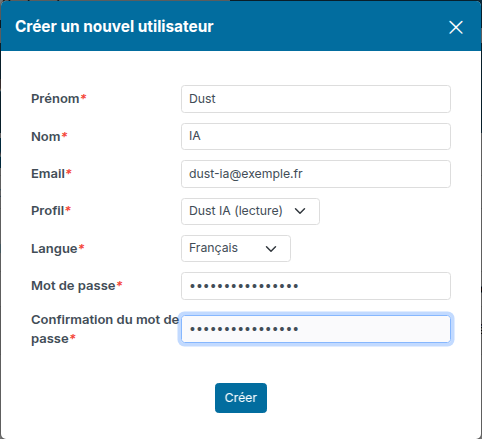
- Enter a first and last name (for example Dust AI), a dedicated email address your team reads, the profile created above, the language and a password, then click Create. This account is linked to no employee.
2. Add the Nicoka MCP server in Dust
- In Dust, open your workspace's tools management (Tools), click Add Tools, then Add MCP Server. Their location may vary with your Dust version.
- Enter the address
https://YOUR-INSTANCE.nicoka.com/api/mcpand keep the Automatic authentication: Dust discovers the Nicoka sign-in configuration on its own. - Choose Personal credentials or Shared credentials, depending on the mode you picked.
3. Authorize access in Nicoka
- In shared mode, first sign out of Nicoka in that browser: access is granted to the account signed in at that moment, and the authorization screen does not let you switch account.
- Dust redirects you to Nicoka. Sign in with your usual account in personal mode, with the technical account in shared mode.
- The Authorize access screen shows the application and, in brackets, the Nicoka account concerned. Check it, then click Allow.
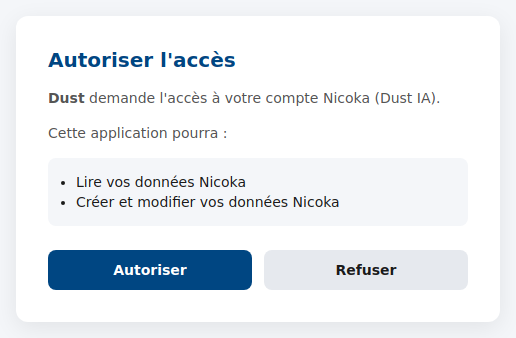
You are taken back to Dust, server connected. Dust never has access to the Nicoka password. In shared mode, sign back in to Nicoka with your usual account afterwards.
In personal mode, the Dust administrator grants this authorization once, then each user grants it with their own Nicoka account the first time they use the tool in Dust.
4. Use Nicoka in a Dust agent
- In the agent configuration, add the Nicoka tool to its tools.
- Ask a first question, for example: "List the 5 latest candidates added in Nicoka".
The tools are described in What your AI assistant can do in Nicoka (MCP).
5. Troubleshooting
- Nicoka refuses access: the account's profile lacks the Create right on API Access Token (InterApplication module). Fix the profile, then restart the connection in Dust.
- The wrong account is connected: in personal mode, the user disconnects the tool from their Dust menu (Tools & Triggers, Disconnect), then uses it again to reconnect. In shared mode, the Dust administrator signs out of Nicoka, then restarts the server authentication.
- Dust cannot find some data: check that the connected account's profile can read the module concerned, and that no restriction (accounts, jobs, subordinates) hides it.
- The authorization has expired or new tools do not show: reconnect the server, as explained in Refresh your AI connection with Nicoka (MCP).
Need help? Contact Nicoka support.