Manage contract types
In Nicoka HRIS, you create the contract types your company needs: permanent contract, fixed-term contract, internship, work-study… The contract type is then used as a filter in your lists and reports, and can be used to grant rights.
Set up contract types
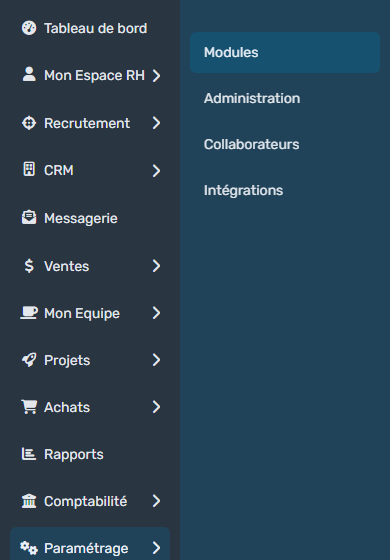
- In the side menu, open Customizing > Store, then click Customize on the Resources card.
- In the Professional Info. section, click Contract Types.
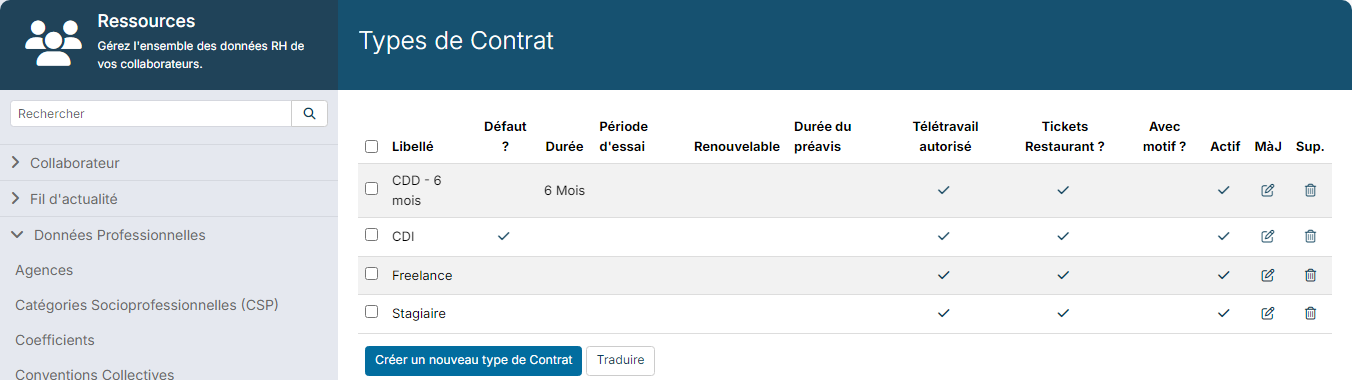
- Click Create a new contract Type, or the pencil icon of an existing type.
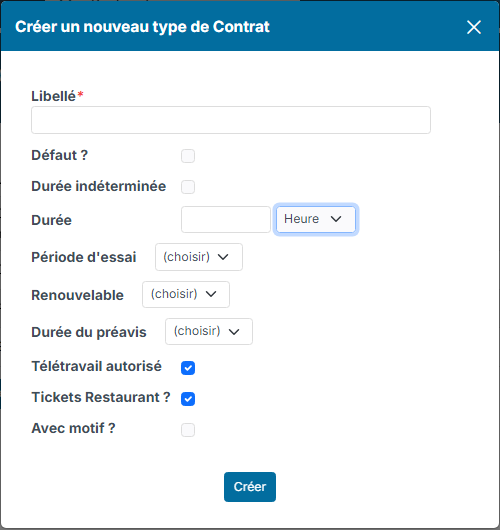
- Fill in the fields. Only the Label is required:
- Label: a name everyone understands;
- Default ?: this type is offered by default when creating an employee;
- Is Permanent: tick it for a contract with no end date, such as a permanent contract;
- Duration: the usual length of the contract, with its unit, for example 6 months for a fixed-term contract. If you do not enter an end date on an employee's contract, this duration applies;
- Trial Period: the trial period offered by default. You can always adjust the trial period end on the employee's contract;
- Renewable Trial Period: how long the trial period can be renewed for;
- Notice Period: according to labour law or your collective agreement. It can still be changed when the employee leaves;
- Teleworking allowed?: tick it if this contract type allows remote work. This option is linked to the Work Location module;
- Has rights to lunch vouchers: tick it if this contract type gives the right to meal vouchers;
- With reason: tick it if a reason must be given for this contract type, for example the reason for using a fixed-term contract.
- Click Create.
Contract type reasons
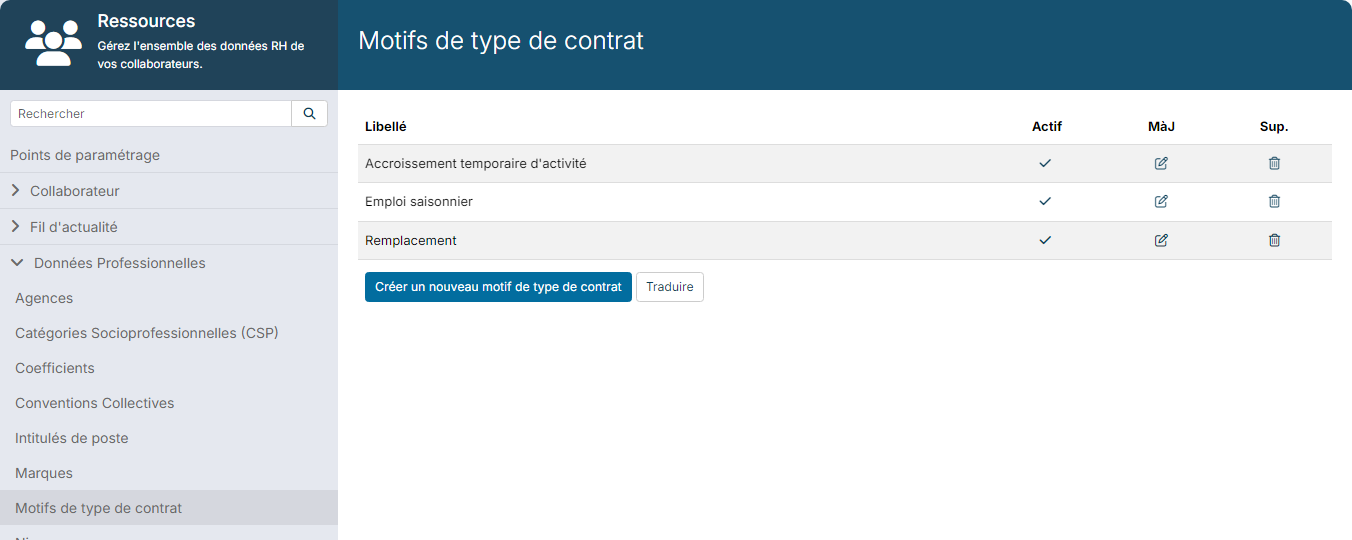
The reasons offered for the contract types With reason are managed in the Professional Info. section, Contract Type Reasons: temporary increase in activity, replacement, seasonal work… Click Create a new contract Type Reason to add one.
Give a contract type to an employee
The contract type is chosen when creating the employee, Contract Type field of the form. The employee's contracts then appear on their sheet, Professional Info. section, Contracts block.

Change an employee's contract
When an employee changes contract, for example from a fixed-term to a permanent contract, add a new contract rather than changing the current one: this way you keep the history.
- On the employee's sheet, click Professional Info.
- In the Contracts block, click Add a contract change.
- Enter the Effective Date and the new Contract Type. If this type is With reason, a required field appears on the right to choose the reason. If needed, fill in End On (for a fixed-term contract), Working Hours and Trial Period. The paperclip lets you attach the employment contract.
- Click Create.
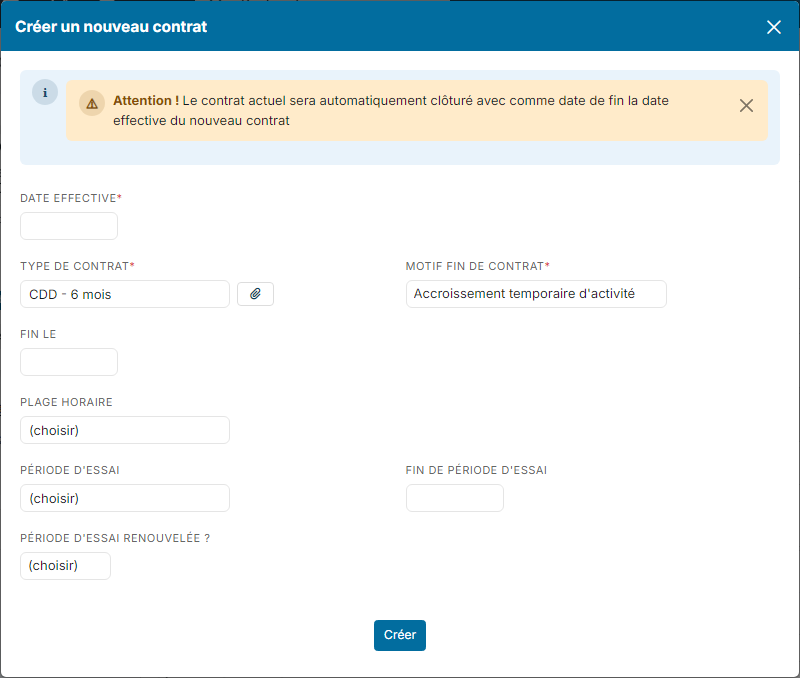
There is no need to terminate the current contract first: it is closed automatically, with the effective date of the new contract as its end date. The Terminate Contract button is used when the employee leaves (see Managing an employee's departure).
A contract change may affect leave counters: check the employee's accrual dates after the change.