Manage working hours
In Nicoka HRIS, working hours describe an employee's theoretical working time as set out in their contract: employment rate, hours per week, working days. They are used in particular to calculate leave entitlements and the days counted for an absence, and they also carry the teleworking and clocking rules. Each employee gets working hours with their contract.
Open the working hours
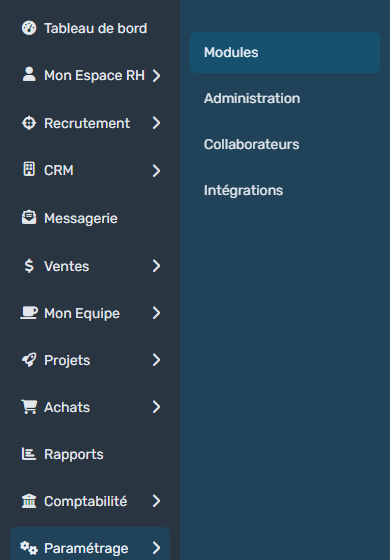
- In the side menu, open Customizing > Store, then click Customize on the Resources card.
- In the Professional Info. section, click Working Hours. To get there faster, type "Hour" in the search field at the top of the menu.
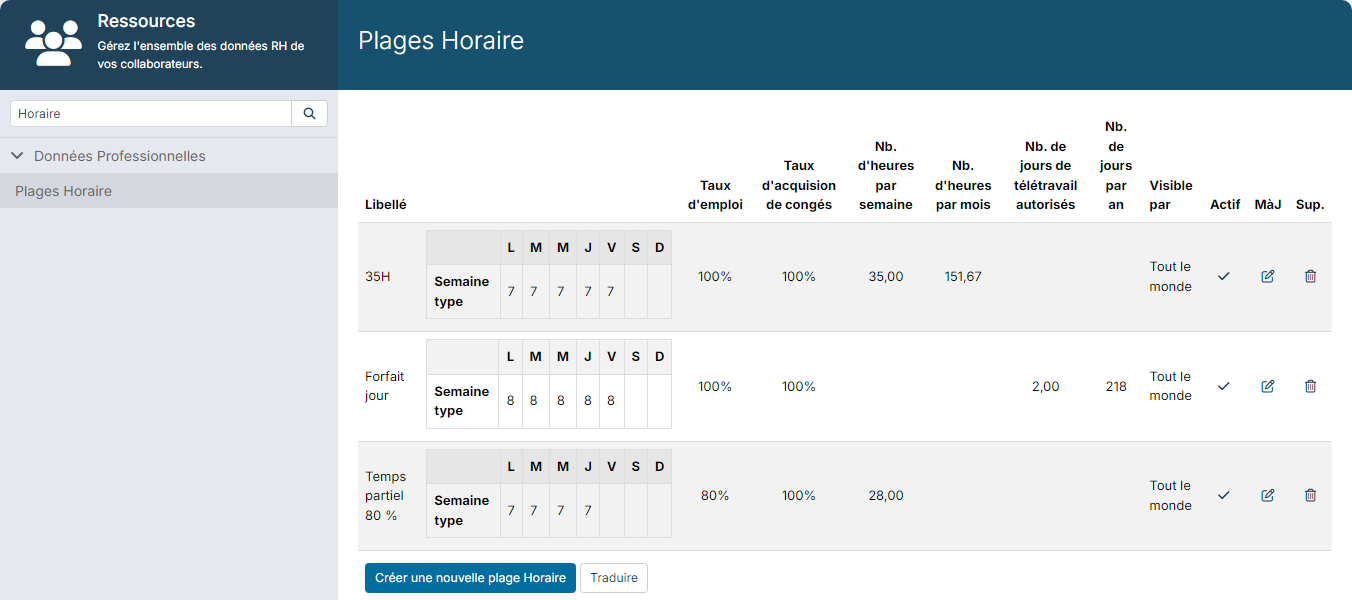
For each set of working hours, the list shows the typical week, employment rate, leave acquisition rate, hours per week and per month, allowed teleworking days, days per year and visibility.
Create or edit working hours
Click the create button below the list, or the pencil icon of existing working hours. The window is split into cards.
Working Hours
- Label: a name everyone understands, for instance "35H", "Forfait jour" (yearly days package) or "Part-time 80%".
- Employment Rate: the percentage of working time (100% for full time).
- TimeOff Acquisition Rate: the percentage applied to the leave days acquired. Below 100%, the acquisition is reduced accordingly.
- Nb of hours per week and Nb of hours per month.
- Nb of days per year: for a yearly days package (for instance 218).
- Typical Week: the number of hours worked each day, from Monday to Sunday. If the schedule alternates from one week to the next, also fill in Next Week if different.
- Overtime authorised: tick this box if you record overtime in the time management module.
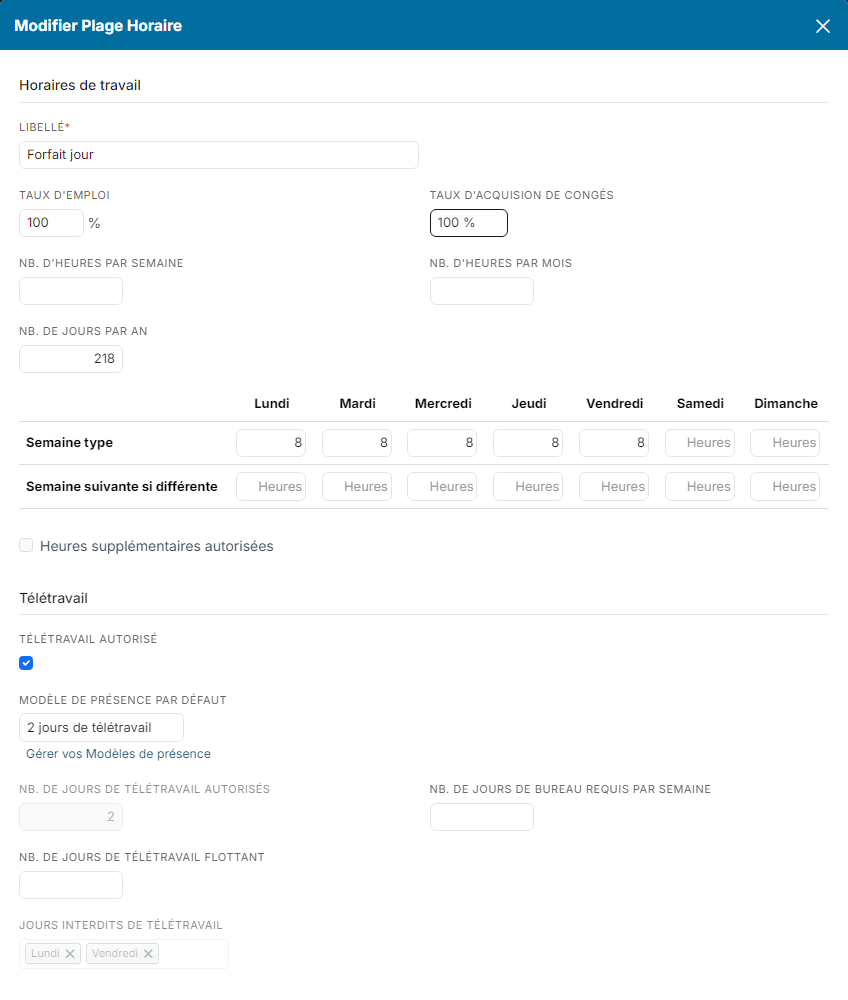
Teleworking: these fields are used by the Work Location module.
- Teleworking allowed?: tick the box to show the rules.
- Default attendance model: the model applied to employees with these working hours, for instance "2 days of teleworking". The link below the field opens the list of attendance models. When a model is selected, the number of allowed days and the forbidden days follow its rules and can no longer be changed here.
- Nb of allowed teleworking days per week and Required Office day per week.
- Nb of floating teleworking days: days per year that can be used at any time, even beyond the weekly maximum.
- Teleworking Forbidden Days.
Visible by: everyone by default. Click the edit icon to restrict these working hours to some populations. The Active box removes them from the lists without deleting them.
Clock: if you use the clocking module, enter the working hours, the lunch time range, the minimum and maximum lunch breaks and the early and late tolerances.
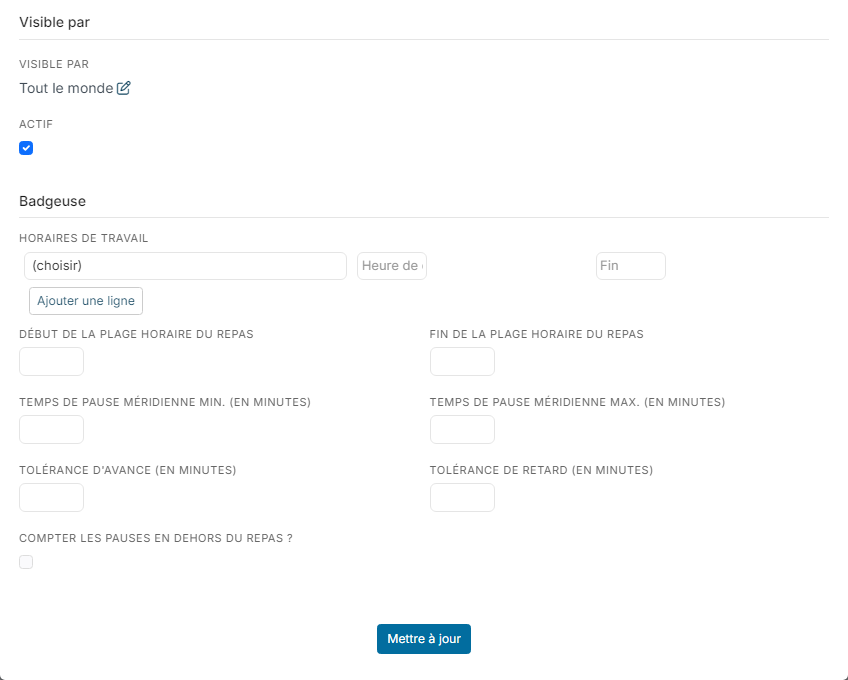
Finally, click Create (or Update).
Part-time work
For a part-time employee, create dedicated working hours, for instance "Part-time 80%": Employment Rate at 80%, 28 hours per week, and a typical week without the day off. Leave the TimeOff Acquisition Rate at 100%: in France, a part-time employee acquires paid leave like a full-time employee. The number of days counted when they take leave depends on their typical week.
Assign working hours to an employee
Working hours are chosen with the contract:
- when the employee is created, in the working hours field of the form;
- later, on the employee's sheet, Professional Info. section, Contracts block: click the pencil icon of the contract, choose the working hours, then save.

Change an employee's working hours
To keep track of the previous working hours, do not edit the current contract: add a contract change.
- In the Contracts block, click Add a contract change.
- Enter the Effective Date, the Contract Type and the new working hours.
- Click Create.
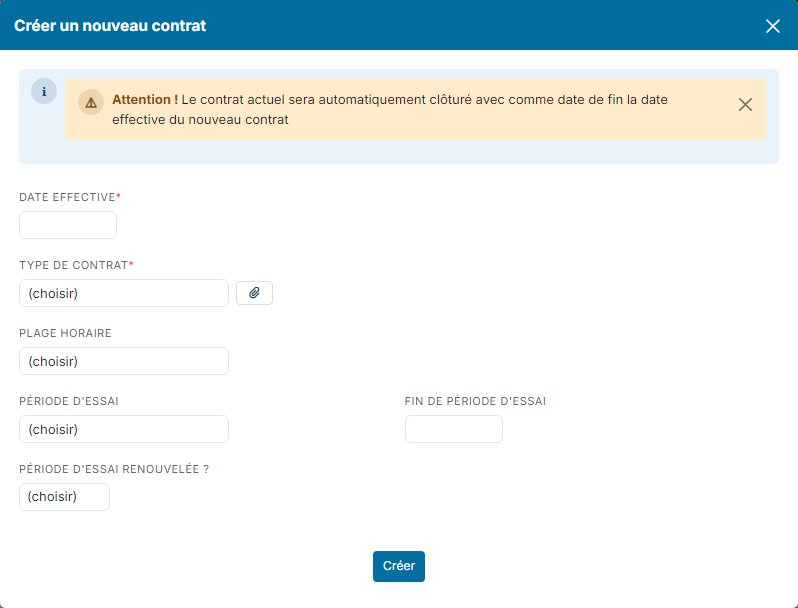
The current contract is automatically closed on the effective date of the new one. Both contracts remain visible in the Contracts block.