Display and Variants
What is a variant?
In Nicoka, lists (candidates, contacts, accounts, employees…) are shown as a table: one row per record, one column per piece of information. A variant is a saved way of displaying that list: which records are kept (the filters), which columns are shown and how the list is sorted.
Each list comes with ready-made variants, for example Candidates - All or New Applications. You can create your own, for yourself or for your colleagues. Variants are shown as tabs above the list: click a tab to display the matching list, with the number of records it contains.
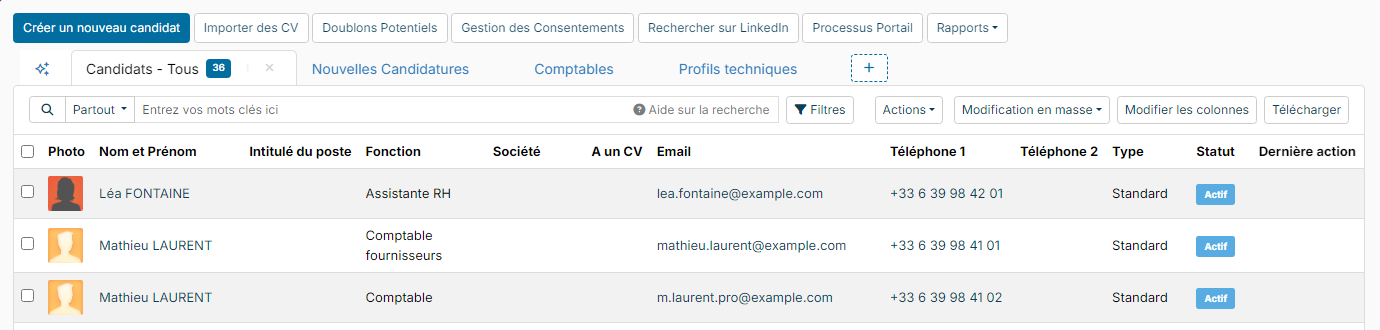
The list buttons
Above the table, you will find:
- the keyword search box, pre-filled with the variant's keywords when it has some;
- Filters: shows the variant's filters, so you can adjust them before running the search;
- Actions and Bulk Updates: actions on the checked records (depending on the screen and your rights);
- Edit Columns: chooses the columns displayed;
- Download: downloads the displayed list as an Excel file.
To sort the list, click a column heading. Click again to reverse the order. Hold down the Ctrl key while clicking other headings to sort on several columns at once.
Choosing the columns displayed
- Click Edit Columns. The Show/Hide columns window opens.
- Under Available fields, type the name of a field in Search a property, then click it: it moves to the Selected fields.
- Drag the selected fields to change their order: the first one in the list is the first column on the left. The cross next to a field removes it from the table.
- Click Save.
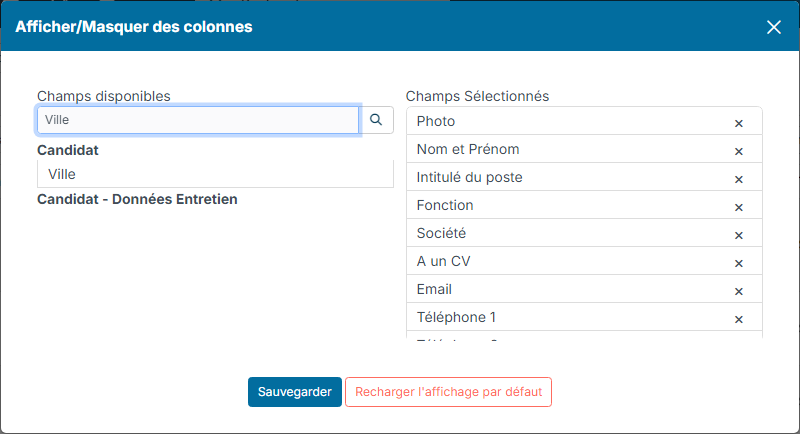
This choice of columns only applies to you and to the open tab. The Reset to default button goes back to the columns set for the variant.
Each list also offers a Link to column followed by the record name, for example Link to Ticket or Link to Candidate. On screen, its icon opens the record; in the file you get with Download, the column holds the full address of each record, ready to paste into an email or another tool.
Adding or removing a tab
The + button, to the right of the tabs, lists the variants you can access that are not in your tabs yet. Click one of them to add it to your tabs.

To remove a tab, hover over it and click the Remove from tabs cross. The variant is not deleted: you can add it again later with the + button.
Creating a variant
Example: a "Comptables" (accountants) variant that only keeps candidates whose job title contains "comptable", with a city filter to fill in at each search.
- Click the + button to the right of the tabs, then Add a variant.
- In Label, name the variant. This will be the name of the tab.
- Under Filters, choose a field in the first list (you can type its name to find it), then a condition in the second one, and enter the value. Here: Job title, contains, "comptable".
- Click Add a filter to add another condition. Here: City, show filter without default value. All the filters of a block apply at the same time.
- If needed, enter Keywords: they are added to the filters. When you open the tab, they appear in the search box, where you can change or clear them before running the search again, without reopening the variant.
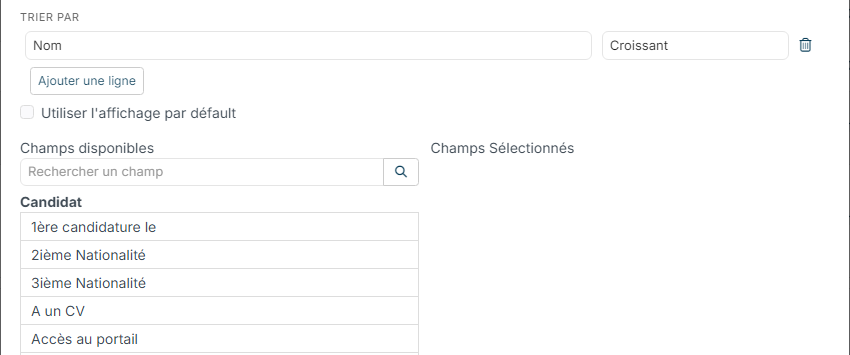
- Under Order by, choose the sort field and the order (Ascending or Descending). Add a new row adds a second sort criterion.
- Click Create.
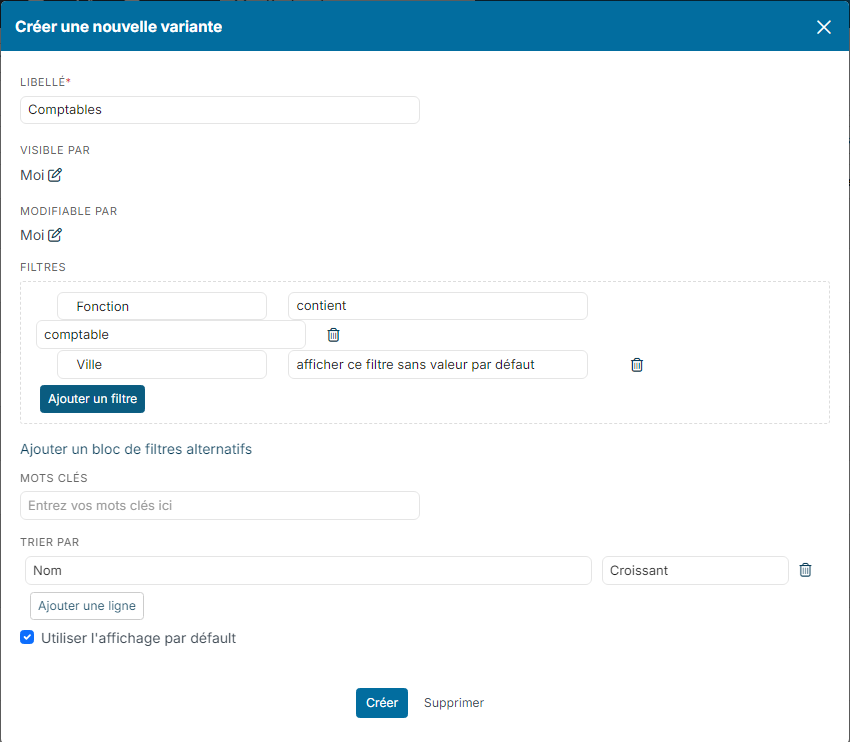
The variant opens straight away in a new tab, with the number of records found. The bin to the right of a filter deletes it.
The conditions offered depend on the type of field. For example:
- text field: contains, begin with, does not contain, equal to, is empty, not empty;
- list of values (tags, skills…): include, include all the following values, exclude, with or without keeping empty values;
- date: period, between, equal to, greater than, lower than, anniversary on, until;
- number: equal to, between, greater than, lower than…;
- person (for example Assign To): connected user, my subordinates, my subordinates and me…
For keyword search and its operators (AND, OR, double quotes…), see Searching for candidates in the CV database.
Filling in a filter at search time
With the show filter without default value condition, the variant does not filter on that field as long as you leave it empty: you choose the value at each search.
- Open the variant's tab and click Filters.
- Fill in the filter, here the city "Paris". You can also change the value of the other filters.
- Click Apply Filters.

The list now only shows the records that meet all the filters:
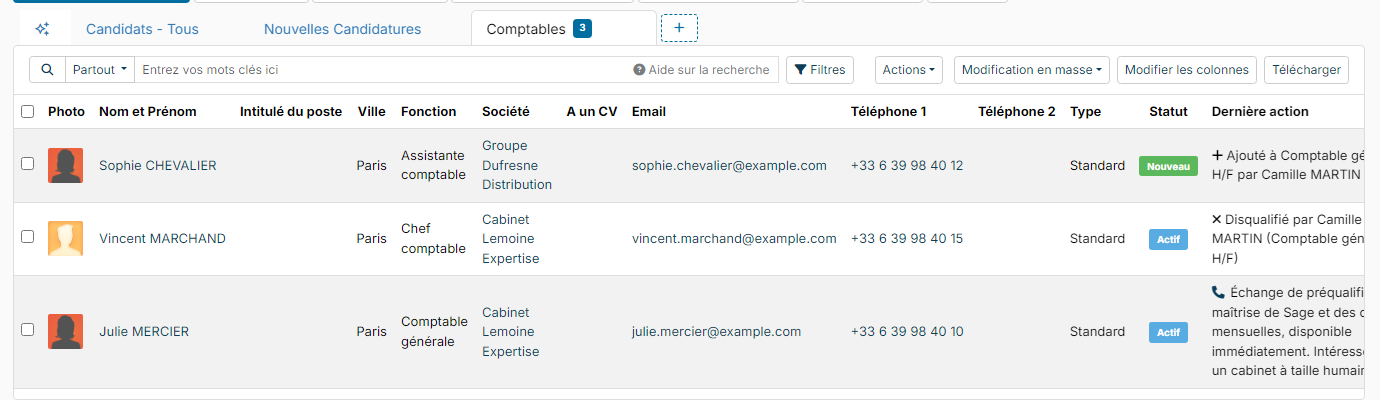
The values you enter are used for the current search and do not change the variant. To keep this setting, click Save as a new Variant. Update the Variant opens the variant window.
Combining conditions with "Or"
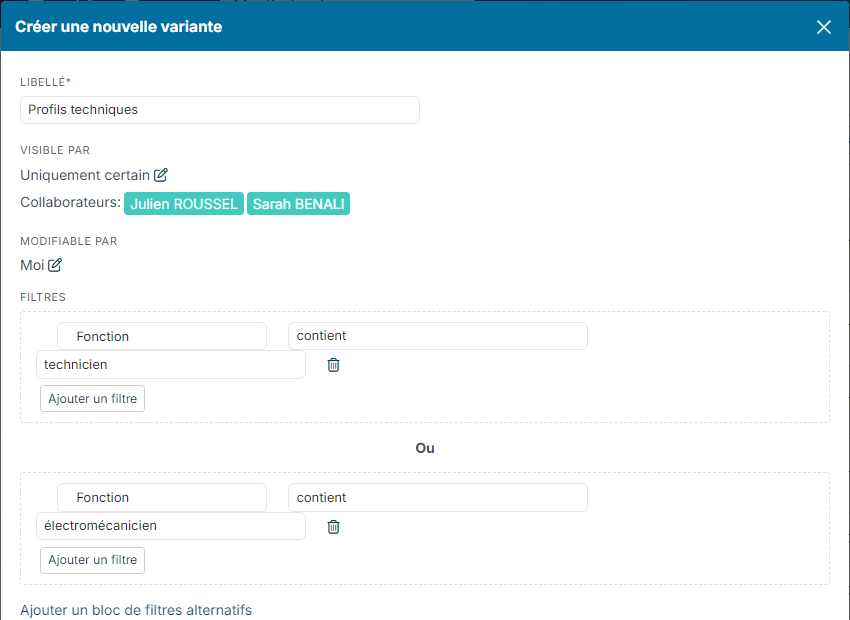
By default, all the filters must be met. To accept one condition or another, click Add an alternative block of filters: a second block appears, separated from the first one by Or. A record is kept if it meets all the filters of at least one block. You can add several blocks.
Example: candidates whose job title contains "technicien" or "électromécanicien".
Sharing a variant
A new variant can only be seen and changed by you. To share it, set these two options in the variant window:
- Visible by: who can use the variant;
- Changeable by: who can change it.
- Click the pencil icon next to Visible by (or Changeable by).
- Choose Me, Everybody or Only some people.
- With Only some people, expand a category (Departments, Employees, Profiles…) and check the people or groups concerned.
- Click Update.
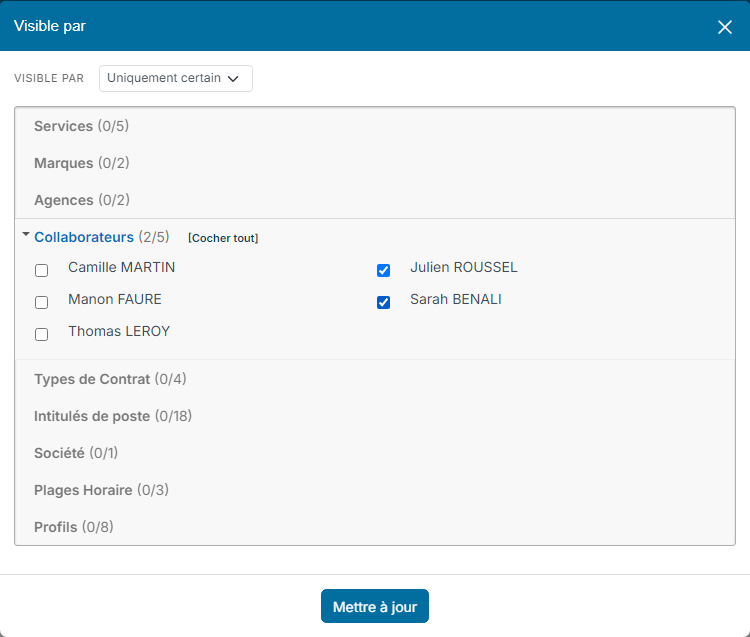
The chosen colleagues find the variant in the menu of the list's + button and can add it to their tabs. Depending on your rights, some choices may not be available.
Changing, copying or deleting a variant
Hover over the variant's tab and click the ⋮ icon:
- Change opens the variant window. Make your changes, then click Update.
- Copy opens a new variant pre-filled from this one, with "(1)" at the end of the label: adapt it, then click Create.
- Delete deletes the variant, for you and for the colleagues who use it.
The Update the Variant link, below the list's filters, opens the same window with, under Keywords, what the search box contains at that moment: Update saves it in the variant. Save as a new Variant does the same in a copy.

In the Update Variant window, the Use default layout box uses the columns set by default for the list. Uncheck it to choose this variant's columns under Available fields and Selected fields: these columns apply to everyone who uses the variant, unless they have chosen their own columns with Edit Columns.
The Delete link next to Update also deletes the variant. If you are not allowed to change the variant, its window opens in read-only mode.
The variants provided by Nicoka, such as Candidates - All, cannot be changed or deleted: use Copy to make your own version.
See also: Managing your favorite candidates.