Delete a leave
A leave that has already been validated sometimes has to be removed: the leave was postponed, entered twice, or entered with the wrong dates. This article explains who can delete a leave, how to do it from the employee's sheet and how to find deleted leaves afterwards. It also shows what employees can do themselves.
Who can delete a leave?
- A request not sent yet: the employee can delete it.
- A validated leave: only the people allowed to modify employees' leaves, according to the rights of their profile, can delete it from the employee's sheet. The person who validated the request can also delete it from their team's leave planning.
- The employee cannot delete a validated leave. They can, however, request its cancellation (see below).
Delete a leave from the employee's sheet
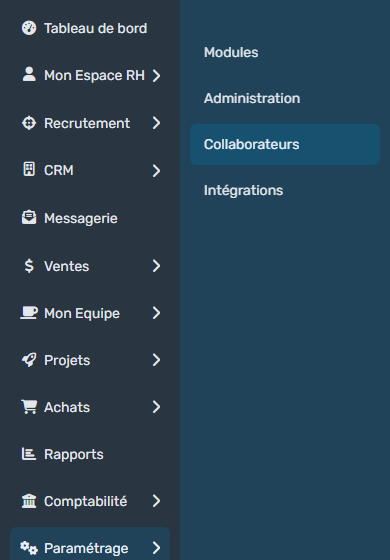
- In the side menu, open Customizing > Resources, then click the employee's name. You can also find the employee with the search bar.
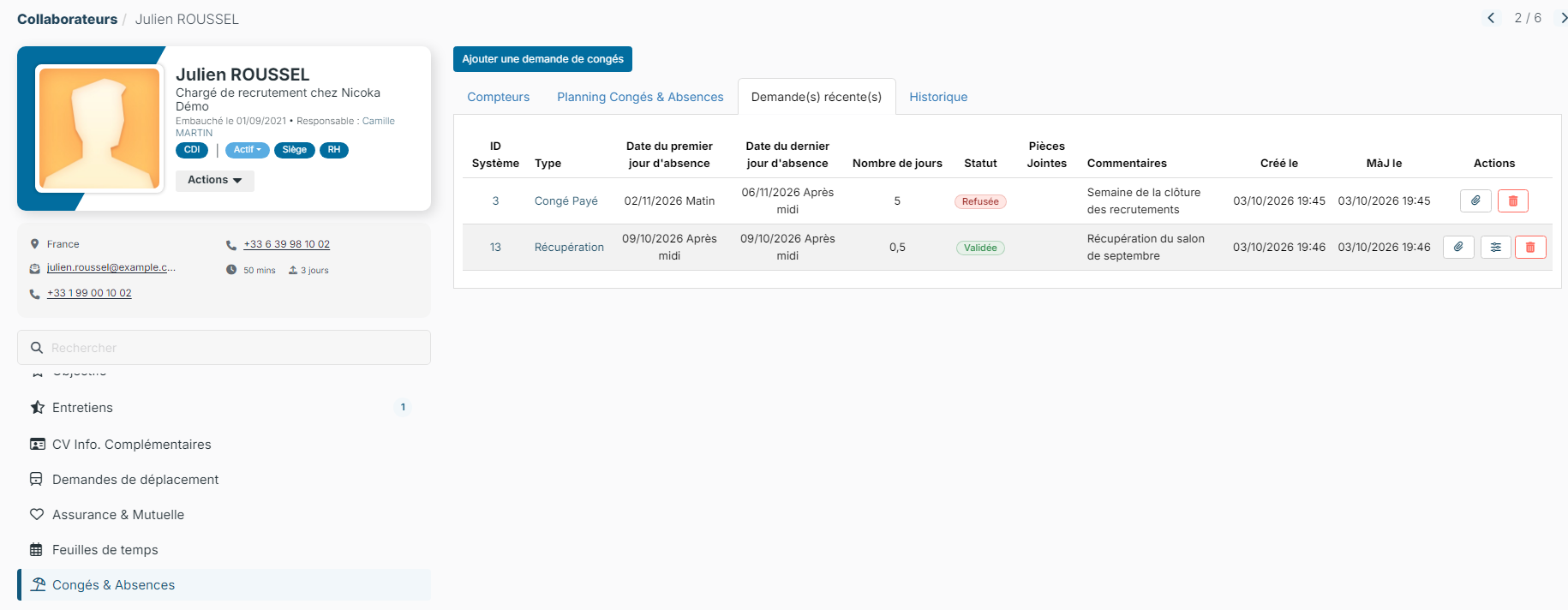
- In the sheet menu, click Time Off, then the On going request tab. It lists the pending requests, the upcoming leaves and those that ended less than a month ago.
- On the leave's row, click the red bin in the Actions column.
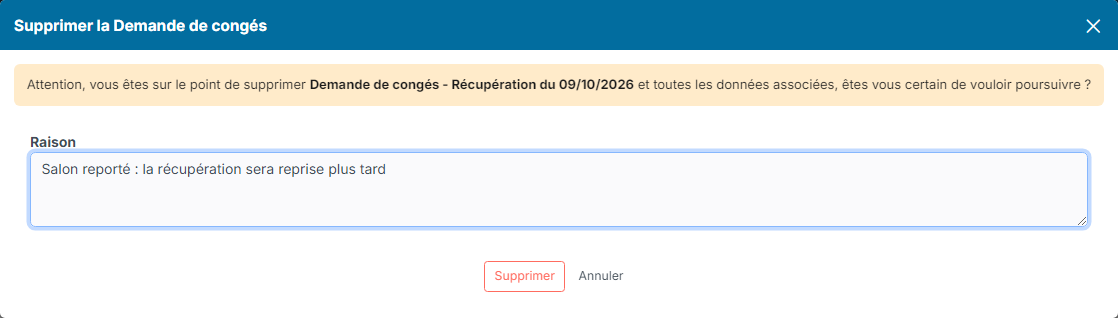
- A confirmation window opens. For an employee's validated leave, it offers a Reason field: explain why you delete the leave if needed. This reason stays visible in the history.
- Click Delete.
The leave disappears from the On going request tab and from the planning. The days are credited back to the employee's counters. If the leave appeared on a timesheet or in the calendar, it is removed from them too.
If an email template is selected in the Notify on delete email template setting of the TimeOff module, the employee is notified by email when someone else deletes their leave.
Find deleted leaves
A deleted leave is not erased: it stays in the employee's history.
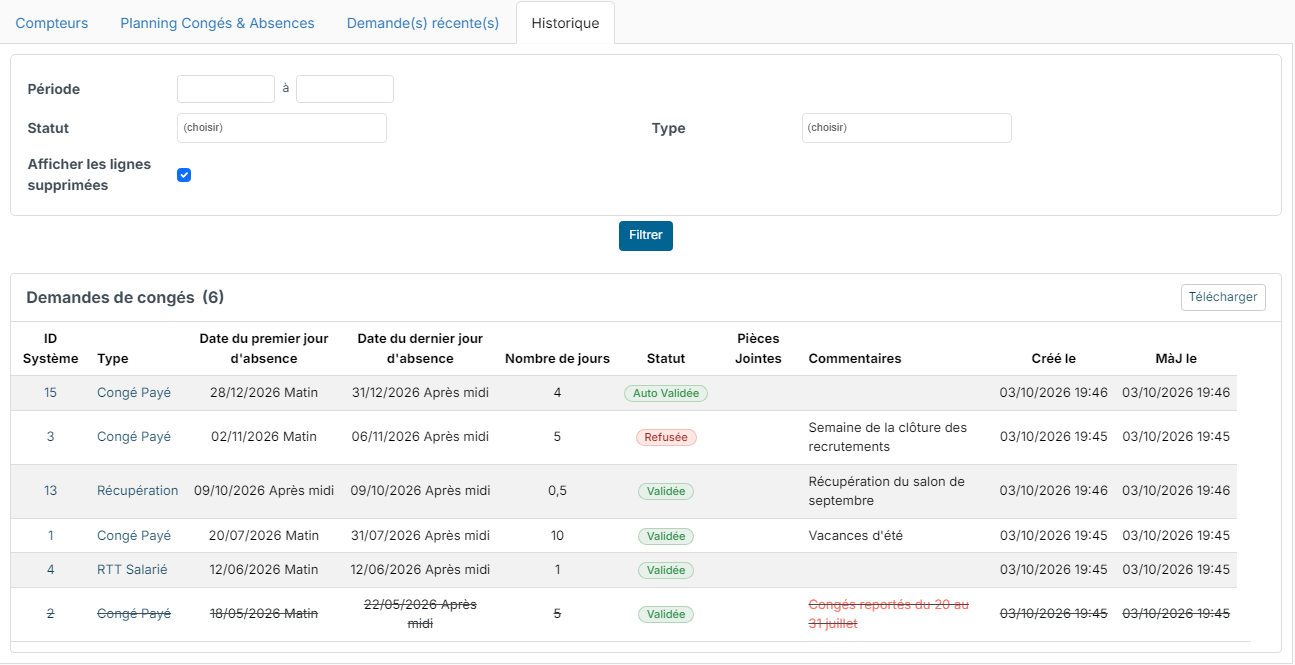
- On the employee's sheet, Time Off section, open the History tab.
- Tick Show deleted rows, then click Filter.
Deleted leaves appear struck through, with the deletion reason in red in the Comments column.
From My Team
The My Team > TimeOff menu lists all your employees' requests, with filters and views. Clicking a request number opens it for viewing. From this list, only requests not sent yet can be deleted: for a validated leave, use the employee's sheet.
In My Team > TimeOff - Planning, the person who validated a leave can click it to open it, then delete it with the Delete button.
Employee side: request the cancellation of a validated leave
Employees find their requests in My HR Space > My Vacations: in the recent requests tab, or with the History button for all their requests. They cannot delete a validated leave, but they can request its cancellation:
- In My Vacations, leave planning tab, the employee clicks the leave.
- They click Request cancellation, enter the Cancellation reason, then confirm with Request cancellation.
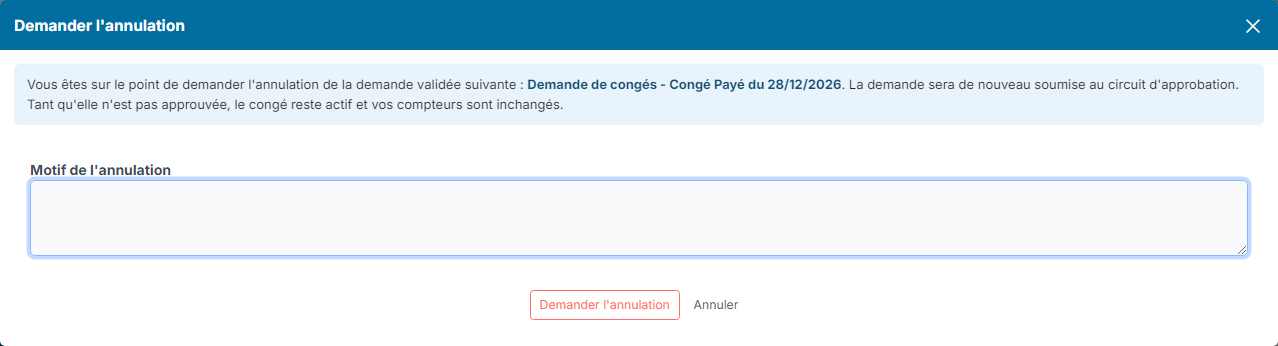
The cancellation request goes back through the leave's approval workflow. Until it is approved, the leave stays booked and the counters do not change. Once the cancellation is approved, the request gets the Cancellation accepted status and the days are credited back. If the leave had been validated automatically, without an approval workflow, the cancellation is immediate.
The button only appears for an upcoming leave or one that ended less than 7 days ago.