Let candidates unsubscribe from the portal
A candidate who no longer wants to use your candidate portal can unsubscribe on their own, from their profile. Their record takes the status you chose for this case and their portal access is closed. You keep their record, and an event on this status can notify you.
Enable unsubscribing
- If needed, first create the status to give to unsubscribed candidates, for example "Unsubscribed", in the candidate statuses of the ATS settings.
- In the side menu, open Settings > Modules, then click Settings on the ATS card.
- In the Candidate Portal section, open the settings points, then the Candidate portal access section.
- In Status After Unsubscribing from the Portal, choose the status, then click Save.
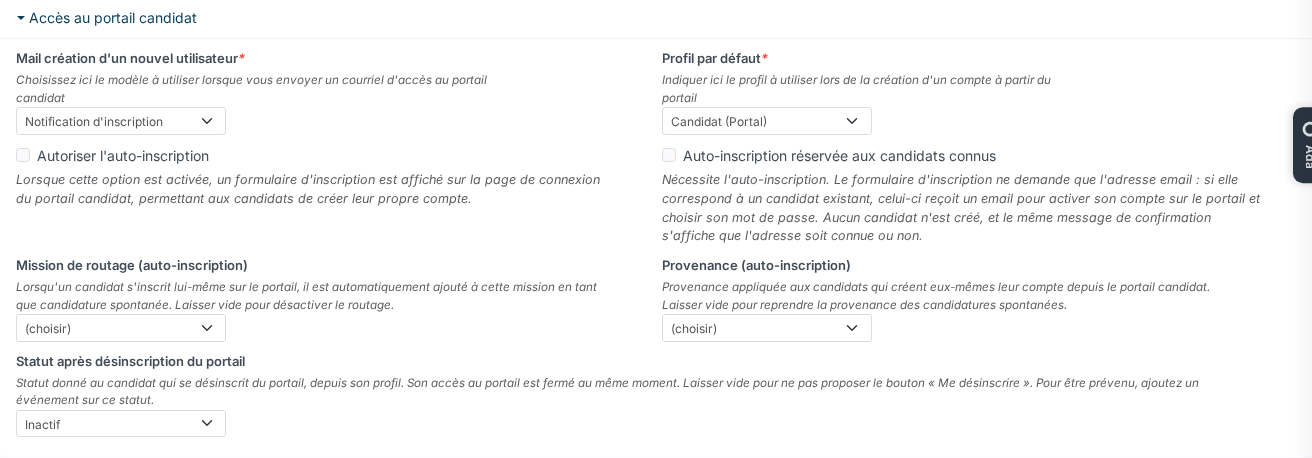
As long as this setting is empty, candidates are not offered the unsubscribe button.
What the candidate sees
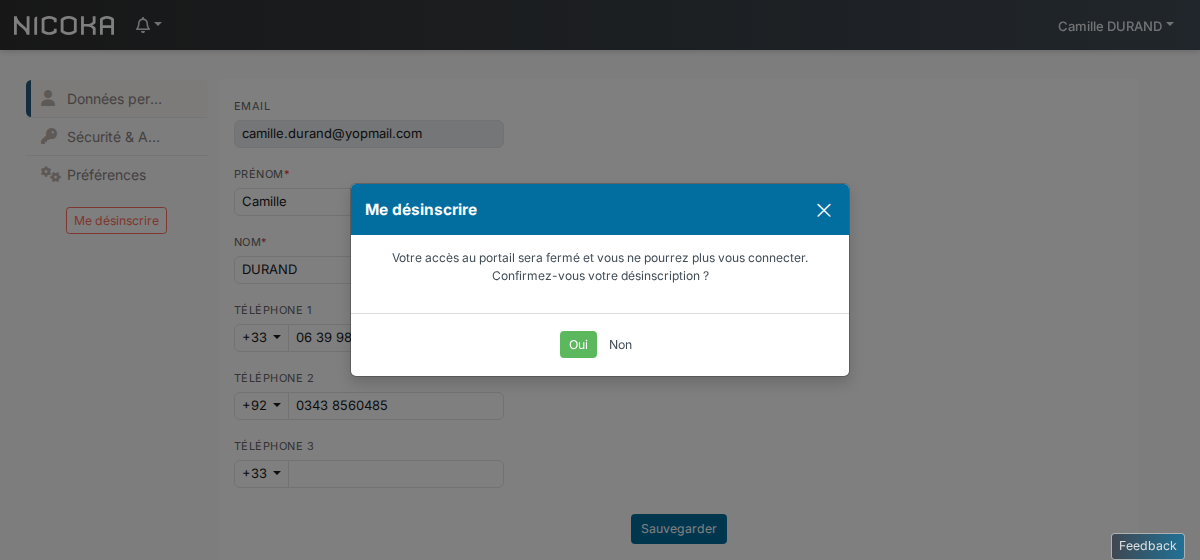
In the portal, the candidate opens their name at the top right, then Profile. Under the left menu, the Unsubscribe button asks for confirmation. If they click Yes:
- their record takes the chosen status, and the change appears in the record history;
- their portal access is closed and they are logged out: they can no longer log in;
- if the same account also gives them access to Nicoka, for example as an employee, only the candidate portal access is removed.
Get notified of an unsubscription
Create an event on the Candidate entity, triggered on update only if the following fields change with the Status field, and a rule on the chosen status. Its action sends the email or the notification to the person of your choice. To learn more, see Reminders and events.
Good to know
- Unsubscribing is not a withdrawal of GDPR consent: the record and its consent are kept. An erasure request follows the consent process, see Managing candidate consents.
- To reopen the access of an unsubscribed candidate, send them a new invitation from the Portal Access tab of their record.