Posting your jobs with Talentplug
Talentplug is a multiposting solution: Nicoka sends it your jobs, and Talentplug publishes them on the jobboards of your subscription. Applications come back into Nicoka by email, with the original jobboard as source.
Before you start
- You have a Talentplug subscription, with the login and password provided by Talentplug.
- A mailbox connected to Nicoka to receive applications (see "Receive applications").
- You are an administrator of your Nicoka workspace.
Step 1: Create the Talentplug configuration
- In the side menu, open Customizing > Store. On the ATS card, click Customize.
- In the left menu, open the jobs section, then click MultiPosting Configs.
- Click Create a new MultiPosting Config.
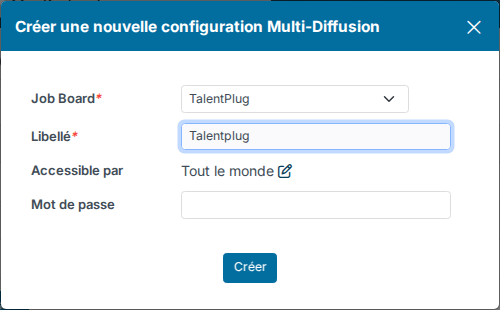
- In Job Board, choose TalentPlug. Enter a Label (your recruiters will see it when they post a job), then click Create.
For Talentplug, the window also shows the Password: enter it now or at the next step.
Step 2: Complete the configuration
In the list, click the Customize cogs icon of the configuration. A wizard opens.
- Required identifier: the Talentplug Login and Password, and the Pattern of republishing offers. The latter describes the suffix Talentplug adds to the reference of a reposted job, as a regular expression (for example
-[0-9]{1,2}): it lets Nicoka attach the applications of a reposted job to the right job. Ask Talentplug or Nicoka support for it. - Configuration options: the Email for receiving applications, the Skills field (the job field that holds the skills to send) and the box that concatenates the requirements and the description.
- Mapping management: map your Nicoka values to Talentplug's for education levels, job titles, industries and job status.
- Access settings: the label, an optional posting limit and the people who can use Talentplug.
Move from one step to the next with Next, then click Send. Each step and the mapping are detailed in Multiposting configuration.
Step 3: Activate the configuration
Click in the Active column of the configuration: a tick appears. Nicoka refuses the activation while required information is missing, and tells you which.
Post a job on Talentplug
- On the job, click Publish.
- Click Multi Posting, then Post my job.
- Tick your Talentplug configuration, then click Submit.
Talentplug limits the job description to 2,500 characters and the benefits to 50 characters, unless the concatenation box is ticked. If something is missing, Nicoka tells you when you post.
Receive applications
Talentplug sends each application by email to the Email for receiving applications of the configuration (otherwise to the job owner). If that mailbox is connected to Nicoka, Nicoka reads the email, creates the candidate and adds them to the job's applications, with the jobboard they applied on (Indeed, HelloWork, LinkedIn…) as source. See Connect your mailbox.
Follow, update or withdraw the ad
The job's Posting Log tab shows where the Talentplug ad stands. A change to the job is sent to Talentplug from this tab, and withdrawing the ad deletes it at Talentplug. The ad expires after 25 days by default and can be reposted: see Renewing job postings. See Multiposting configuration for details.
Need help?
If you would like help with the setup, contact Nicoka support.