Company record
Your company record is one of the first things to set up in Nicoka. If you manage several companies, each one has its own record. The information you enter there (business name, identification number, VAT number, address, bank details, logo…) is used in your document and email templates, for example on your invoices, which must carry some mandatory details.
Open your company record
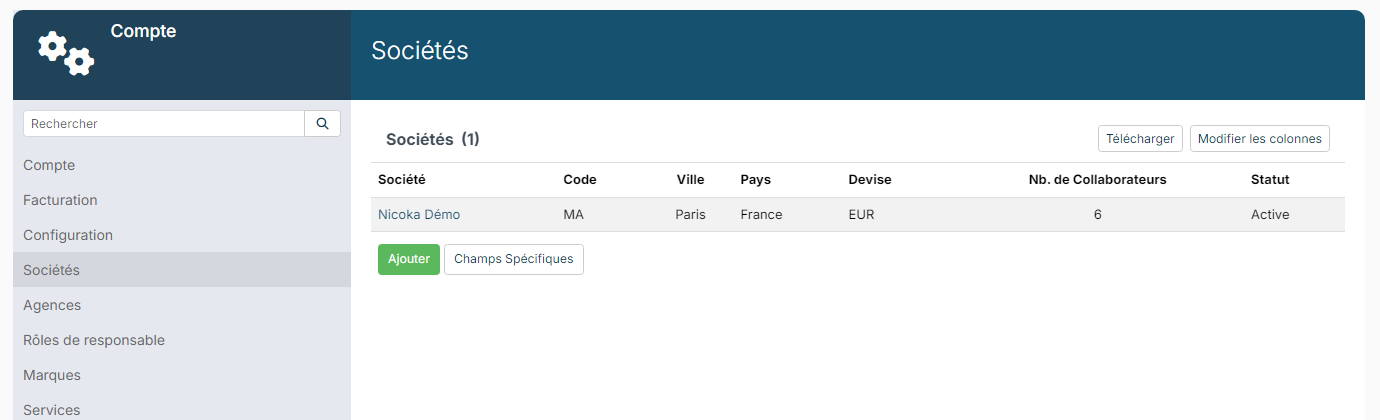
- In the side menu, open Customizing > Admin.
- In the Account section, click Companies.
- Click the company name to open its record. The Add button creates a new company.
Add the logo
At the top left of the record, click the company's picture (or initials), then choose your file (png, jpg or gif format). The arrows that appear on hover let you rotate the image.
This logo is used in your PDF and Word document templates through the Application Logo tag: it is the logo of the company of the document's author.
The Info page
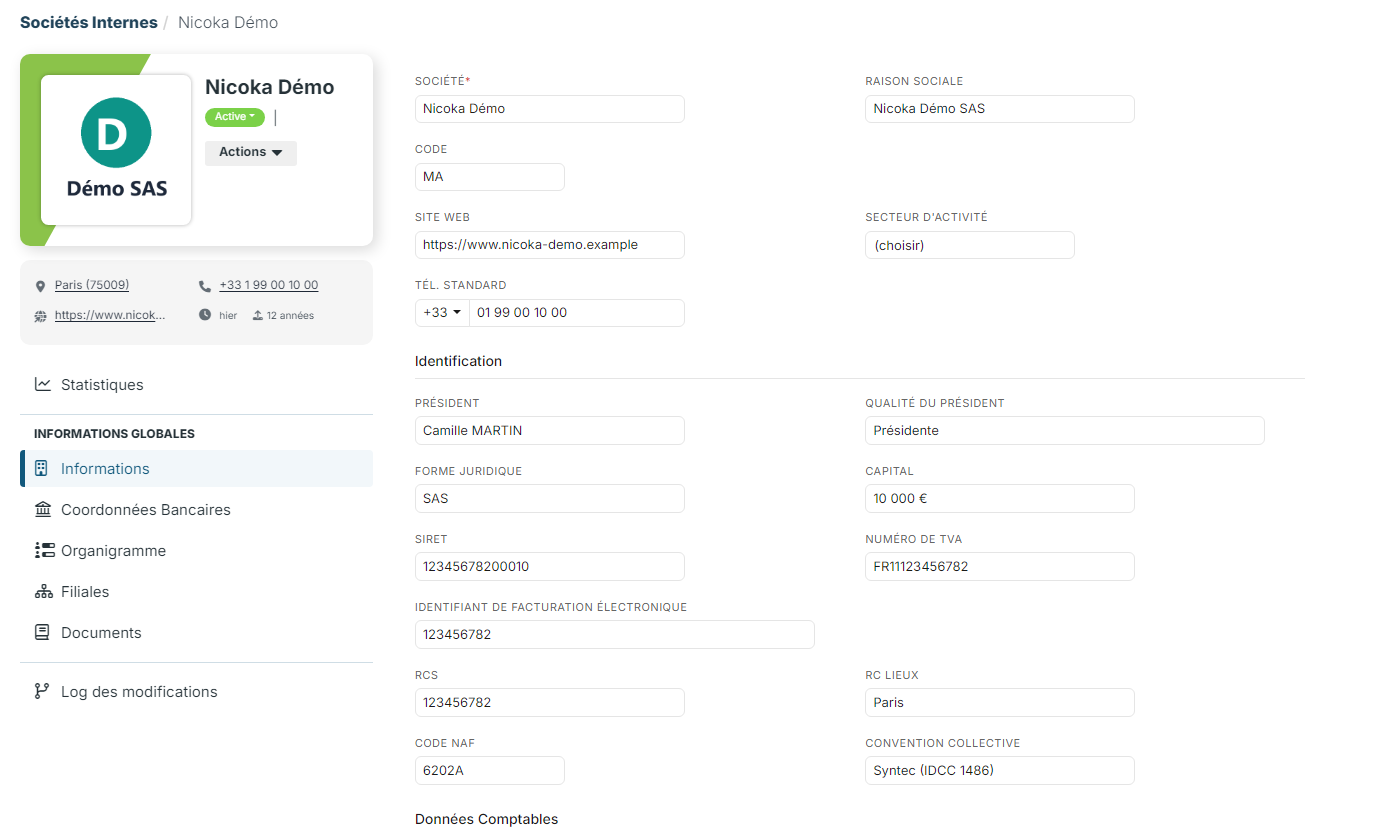
The Info page gathers the company's identity. Fill in at least:
- at the top: the company name, Business Name, Code, Website and Office Phone;
- Identification: Director and Director JobTitle, Legal Form, Capital, Identification Number (SIRET in France), VAT Reg. Number, Electronic invoicing identifier, Trade Reg. number and Trade Reg. Location, Business Activity Code and Collective bargaining agreement.
Further down the same page:
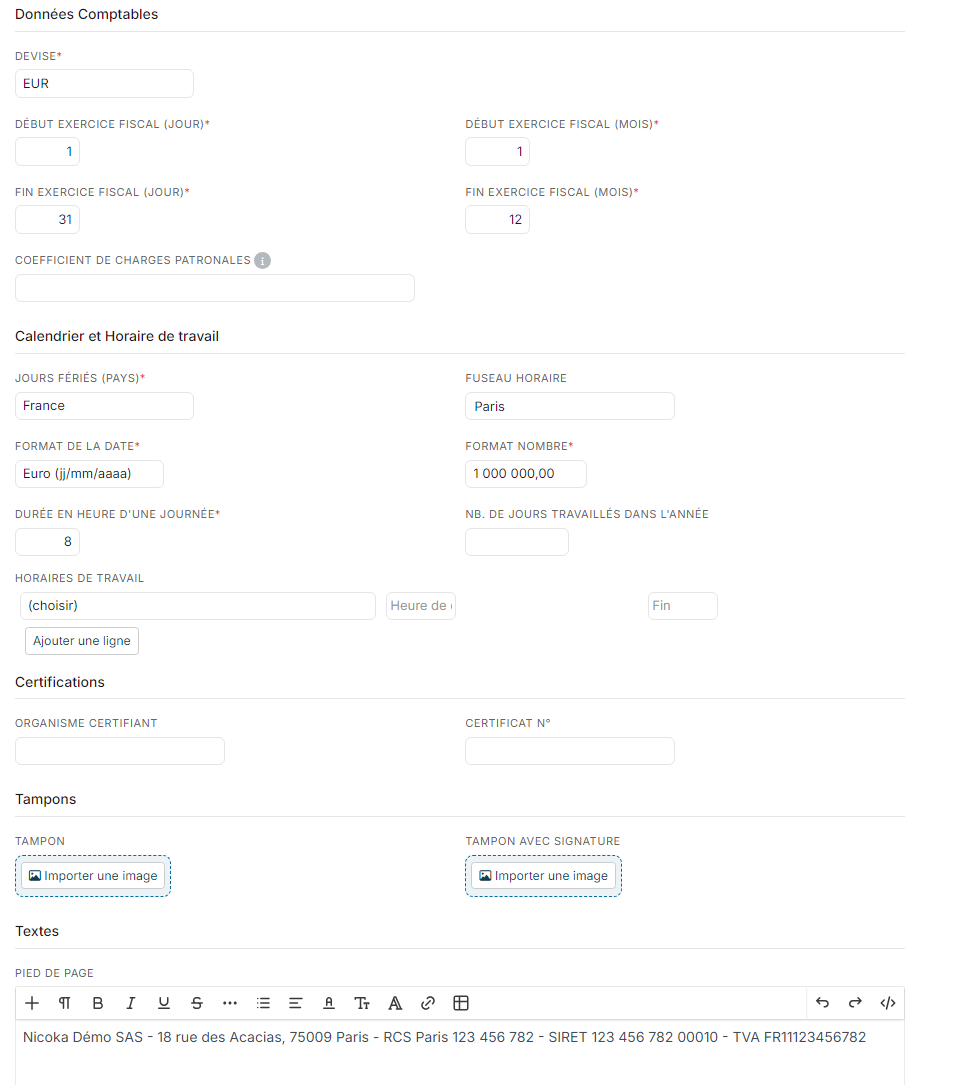
- the accounting block: the Currency, the start and end dates of the fiscal year, and the Employer charges multiplier, applied to the gross salary to estimate the loaded cost of an employee (1.45 if you leave it empty);
- Calendar and working hours: the Holidays Country, the TimeZone, the date and number formats, the Day duration in hours and the working hours;
- Certificates and Stamps: the certifying company, and the images of the company stamp, with or without signature;
- Texts: the Footer of your documents, for example the business name, the address, the trade register, the identification number and the VAT number;
- the main address: the address of the head office.
Click Save, at the bottom of the page.
The bank details
Open the Account Information page and fill in the Account Owner, the Bank Name, the Swift code, the IBAN and, if you collect payments by direct debit, the Creditor ID (For Direct Debit). Click Save.
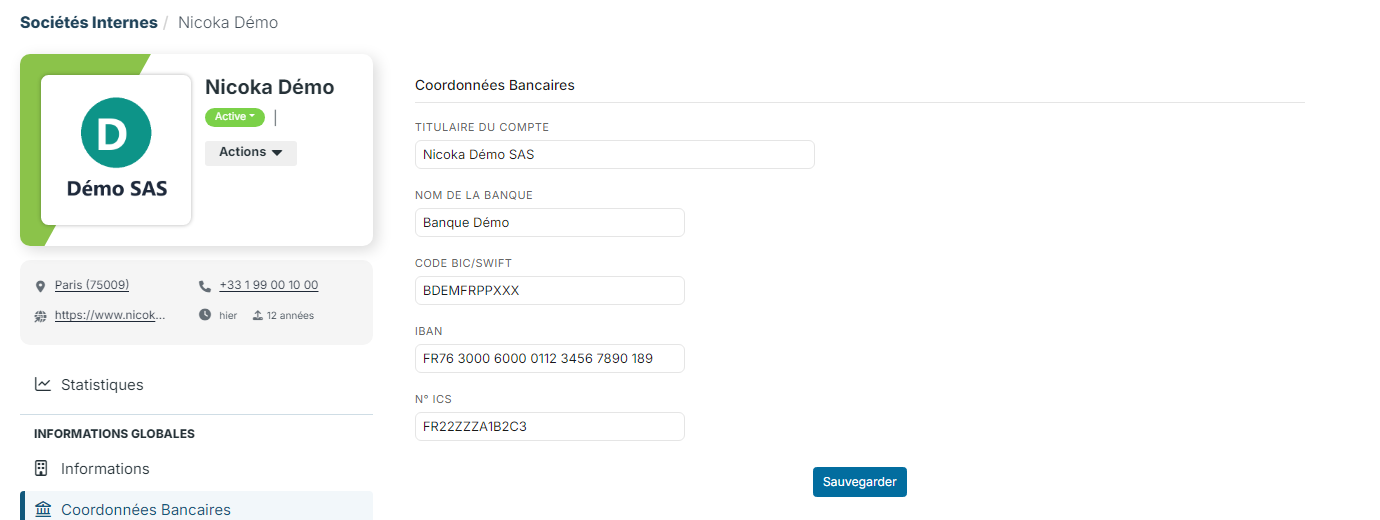
Each company has a single bank account. It is used to show your IBAN on your invoices and in your electronic invoices, as well as for your transfers and direct debits.
What is this information used for?
The fields of the company record are available as variables in your email and document templates (invoices, contracts, certificates…): when the email is sent or the document generated, each variable is replaced by the value of the company concerned. In PDF and Word document templates, the Application Logo and Company Footer tags directly insert the logo and the footer.
To go further: