Manage a group and its establishments: parent account, affiliates and sites
A client is often a group present in several places: a parent company and its subsidiaries, or a company with several establishments, branches or warehouses. Nicoka offers two ways to represent it in the CRM, which can be combined:
- one account per establishment, linked to the group's account through the Parent customer field;
- a single account with several sites, in the Sites section of the sheet.
Which organisation to choose?
One account per establishment fits when each establishment is managed as a client in its own right: its contacts, jobs, opportunities, invoices, owner, status and its own SIRET number. The group's account gives the overall view.
One account with sites fits a single client, with one sheet and one SIRET number, present at several addresses. You record which site each contact works at and where each job takes place. A site has a label, an address and phone numbers, but no SIRET number.
Link an establishment to its group
- Create the group's account, or open it if it already exists.
- Open the establishment's sheet, Information section.
- In the Header Data block, choose the group in the Parent customer field, then save.

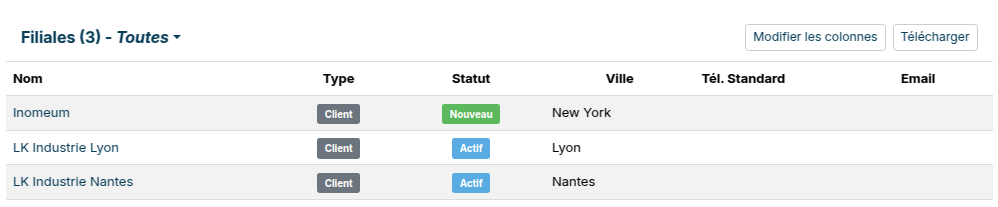
On the group's sheet, the Affiliates section lists its establishments. Its Add button opens the creation of an account whose Parent customer is already filled in. The group's Jobs section also shows the jobs of its establishments.
The SIRET number of each establishment
The establishments of a French company share its SIREN number (9 digits), but each has its own SIRET number (14 digits: the SIREN followed by the establishment number). To fill in an establishment's sheet, enter its SIRET in the magnifier of the Identification Number field, Identification block: Nicoka imports that establishment's address (see Fill in an account's or supplier's identification from its SIRET). The SIRET numbers of all of a company's establishments are listed on annuaire-entreprises.data.gouv.fr.
Conversely, a SIREN number, or searching for the company by name when creating the account, imports the SIRET number and address of the head office.
When an account is created, Nicoka rejects duplicates: an account that repeats the Name, the Identification Number, the Email or the Website of an existing account is not saved, and the message names the duplicate account. For the establishments of one group:
- give each one a distinct Name. The magnifier fills in the Name with the company's legal name, the same for all its establishments: complete it before saving, for example Dupont Conseil - Lyon;
- enter the establishment's SIRET, not the head office's. A rejection on the identification number often means the head office's SIRET was imported;
- keep the shared website on the group's account.
The SIRET number is not mandatory: the link to the group only depends on the Parent customer field.
Enable the Sites section
If the Sites section does not appear on your sheets, an administrator enables it for all accounts:
- In the side menu, open Customizing > Store, then click Customize on the CRM card.
- Expand Customers and click Sections.
- On the Sites row, click in the Active column: the tick appears and the section shows on the sheets.
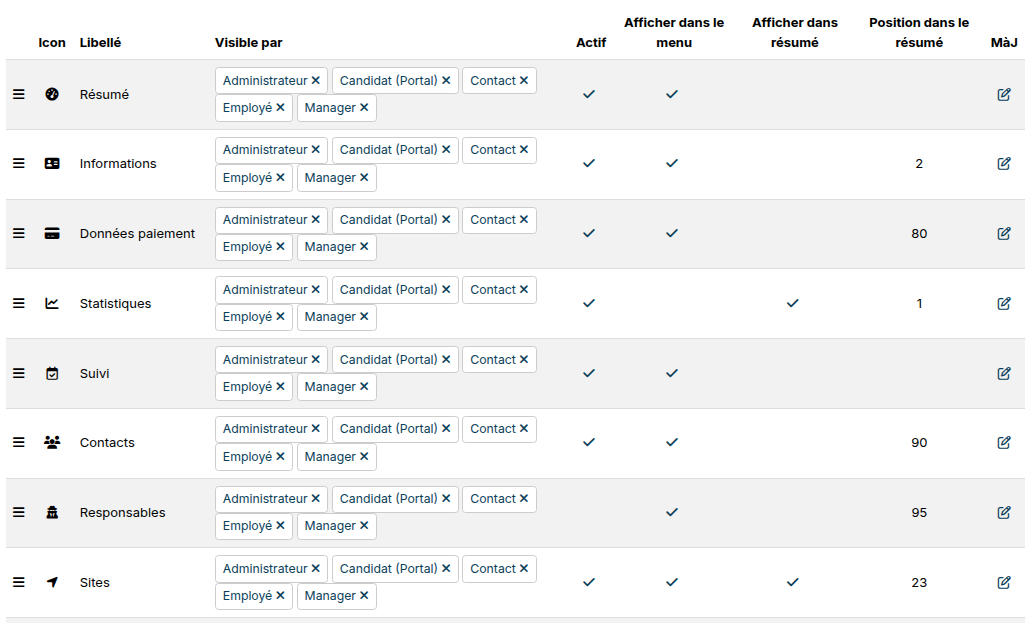
The Show in Menu and Show in Summary columns place the section in the sheet's menu and on its summary. Visible by chooses the profiles that see it.
Add sites to an account
Each address entered on the account automatically creates a site, named after its type (for example Main address), which follows its changes. To add another site:
- On the account's sheet, open the Sites section and click Add.
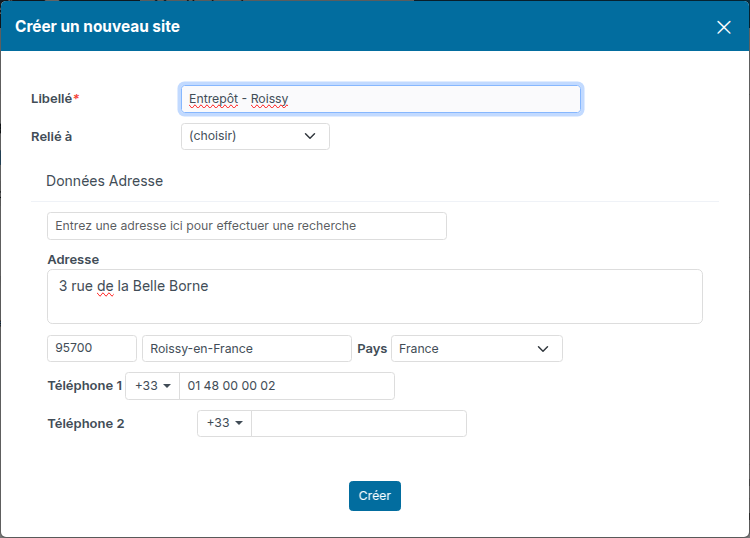
- Enter the site's Label, for example Warehouse - Roissy, then its address and, if needed, its phone numbers.
- Click Create.
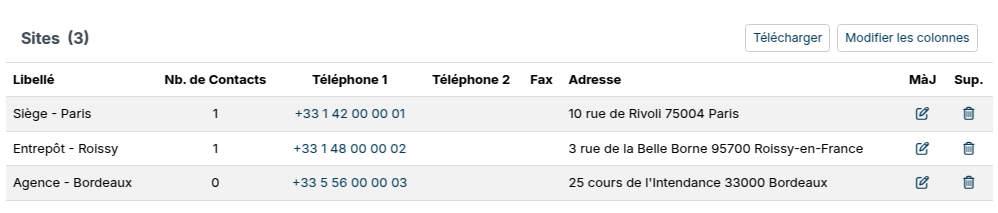
The section lists the account's sites and the number of contacts linked to each one.
Link a contact or a job to a site
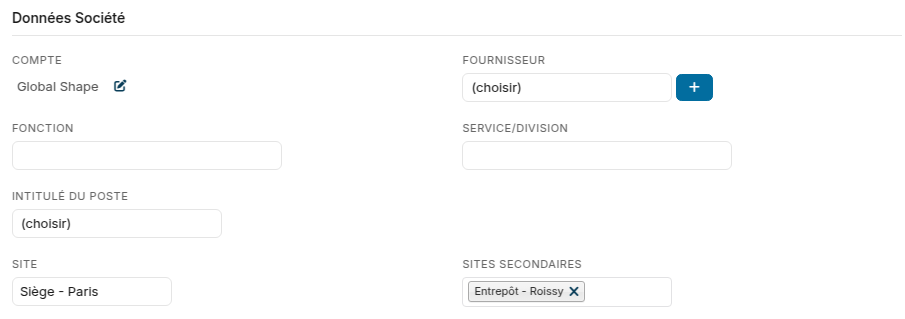
Contact: on the contact's sheet, Information section, Account Information block, choose their main Site and, if they also work elsewhere, their Secondary Sites. A contact created on the account gets the main address's site by default, otherwise the first site.
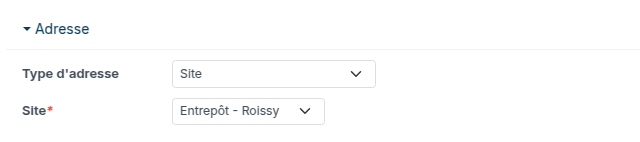
Job: in the job's Address block, choose Site in Type of Address, then the account's site where the job takes place.