Import contacts or accounts into Nicoka CRM
To bring your contacts or accounts over from another tool, import them from an Excel or CSV file. A four-step wizard guides you: file upload, options, column mapping, then review before the import.
Prepare the file
- Accepted formats: .xls, .xlsx and .csv, with a single type of data per file: one file for accounts, another for contacts.
- A single sheet and a single piece of information per column; the first row contains the column labels.
- No merged cells, formatting or formulas, no empty row or column in the middle of the data.
- A cell without information stays empty (no 0, N/A or ?).
The prerequisites are described in detail in Prerequisites for importing data into Nicoka. Before a large import, run a test with a few rows.
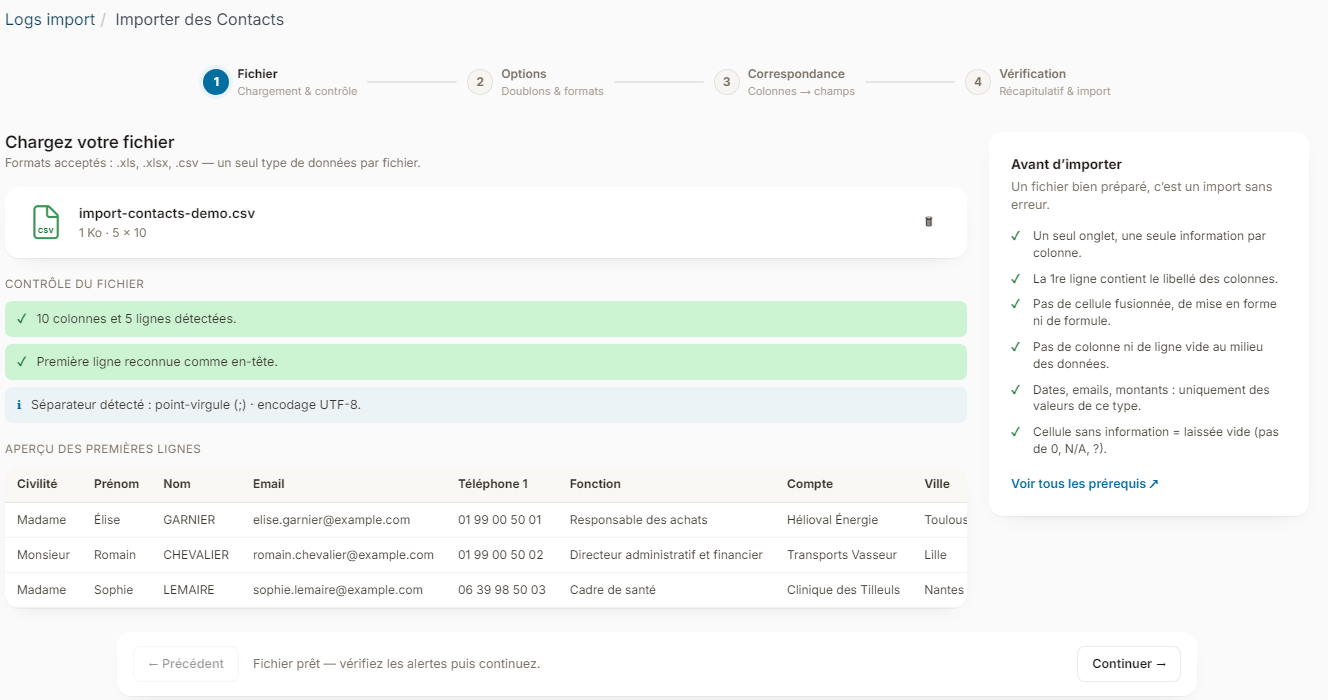
Step 1: upload the file
- In the side menu, click CRM, then Contacts (or Accounts to import accounts).
- Click Upload.
- Drop your file in the dedicated area, or click browse your computer.
Nicoka checks the file: number of columns and rows, header row, separator and encoding of a CSV file, columns with empty cells. The Preview of the first rows lets you check that the file is read correctly. Click Continue.
Step 2: choose the options
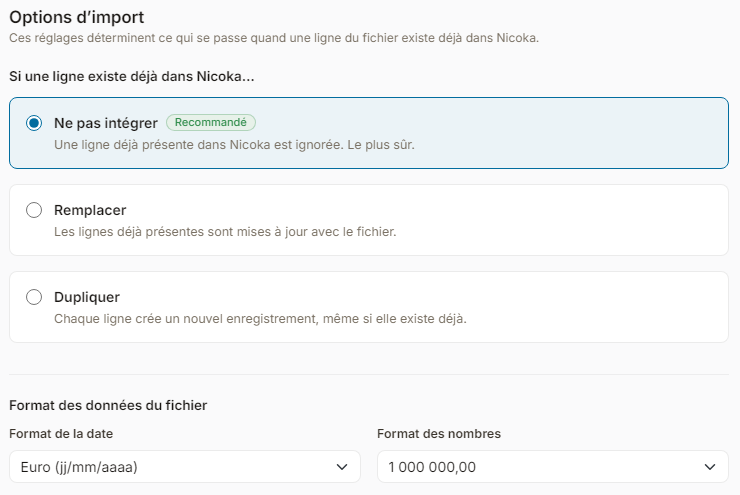
Under If a row already exists in Nicoka…, choose what happens with duplicates:
- Skip (recommended): the row is ignored;
- Overwrite: the existing record is updated with the file. An update rule then sets whether an empty cell in the file can erase data, or whether only empty data in Nicoka is filled in;
- Clone: each row creates a new record, even if it already exists.
Also check the Date format and the Number format of your file, then click Continue.
Step 3: map the columns
Link each column of your file to a Nicoka field. Nicoka pre-fills the obvious matches and shows how reliable they are: Sure, To check or Not recognized. Choose — Do not import — to ignore a column.
- The default value column applies when the file cell is empty.
- Under Required fields without a match, enter a value for the required fields missing from your file, for example a contact's type or communication language.
- Default values for the other fields lets you fill in a field missing from the file for all rows.
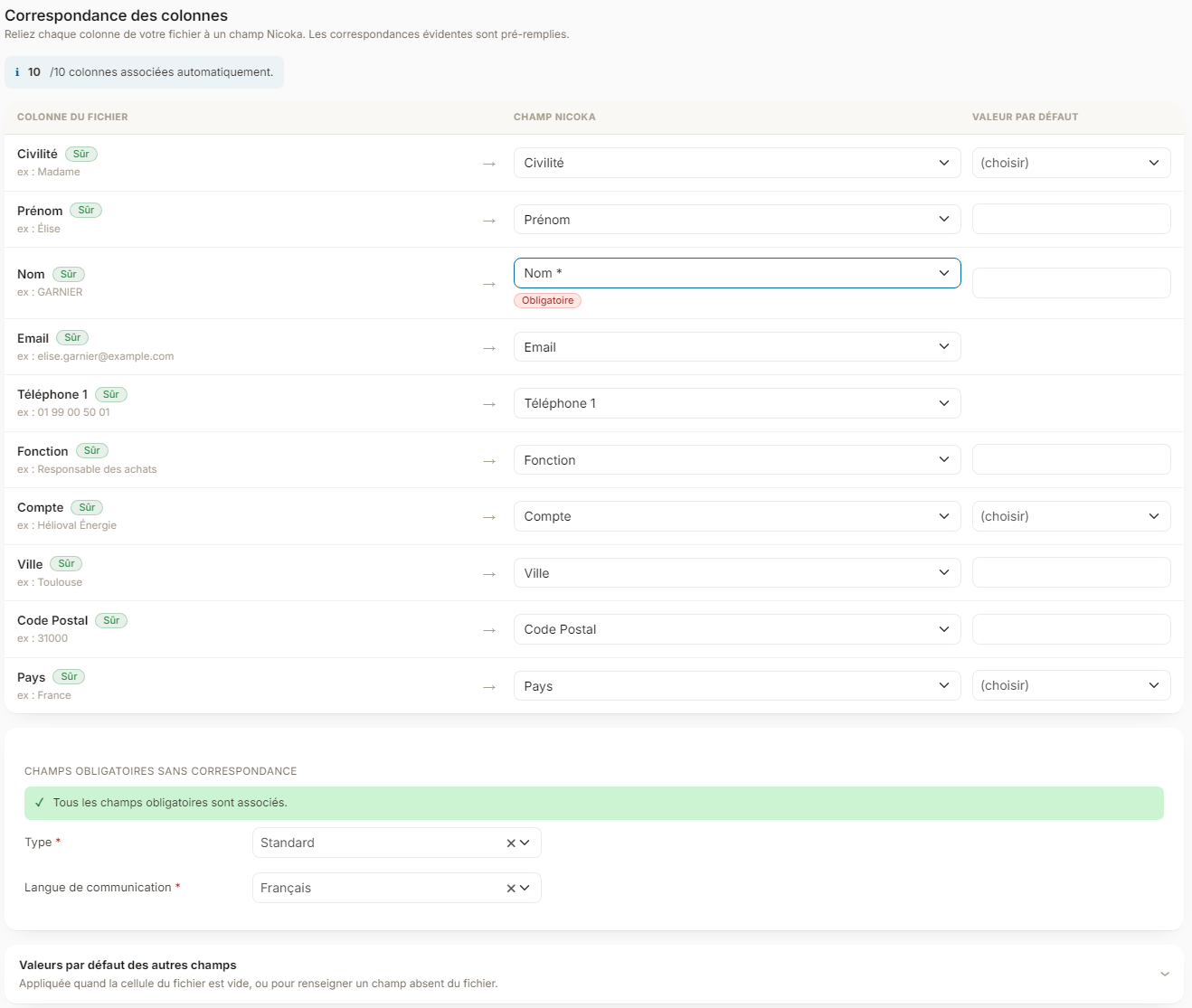
The Continue button becomes active once all required fields are mapped.
Step 4: review and start the import
The summary shows the number of rows detected, the number of mapped columns and the chosen settings. Check it, then click Start the import.
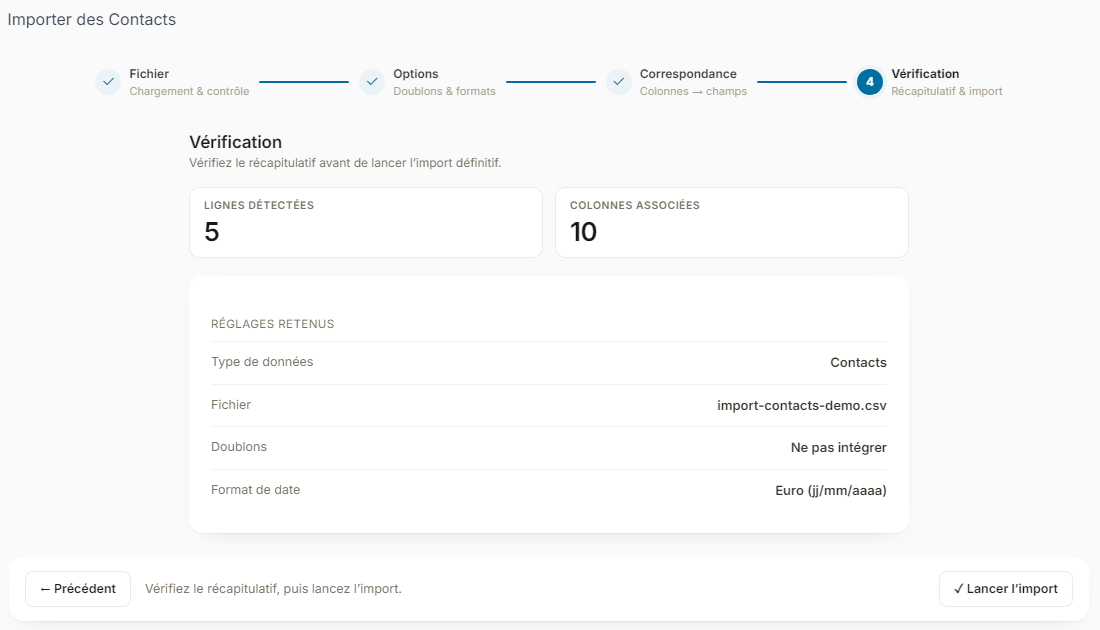
The import runs in the background: you can close the window, an email notifies you as soon as the processing is done. The result shows the number of rows created, updated, skipped and in error, with a detailed report.
After the import
- Open a few records to check the data, and that each contact is linked to the right account.
- If duplicates appeared, merge them: see Merge Contacts.
- To fix rows in error, correct your file and run the import again with those rows only.