Customize your career site
The Website editor lets you adapt your career site to your brand guidelines: colors, texts, images and pages. You see the result live in a preview, then publish your changes in one click.
1. Open the editor
Access to the editor is reserved for the administrators of your Nicoka workspace.
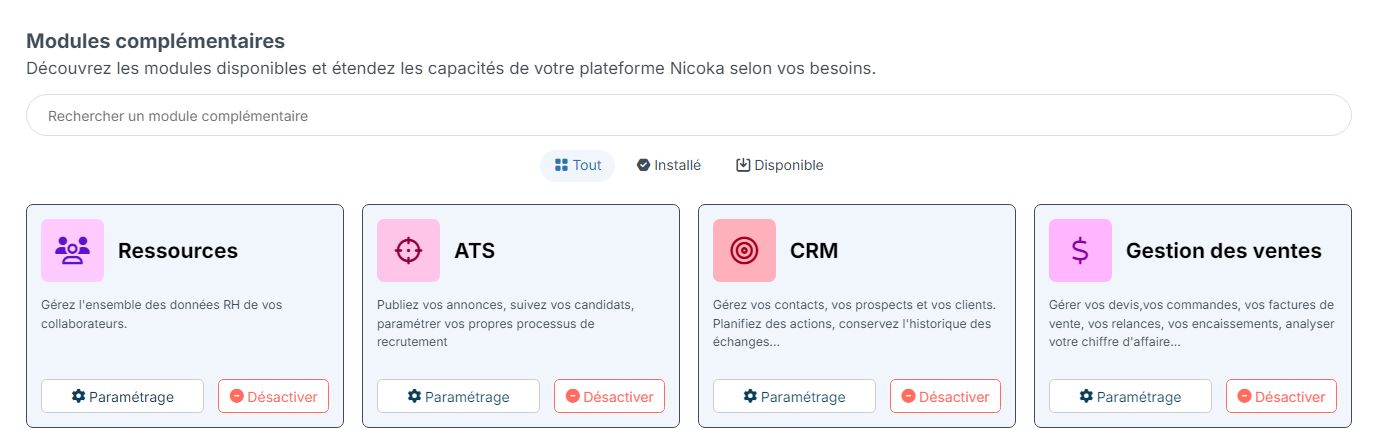
- In the side menu, open Customizing > Store.
- On the ATS card, click Customize.
- In the left menu, open the Carreer Site section, then click Design.
- The WebSites list shows your career site. Click its label to open the editor.
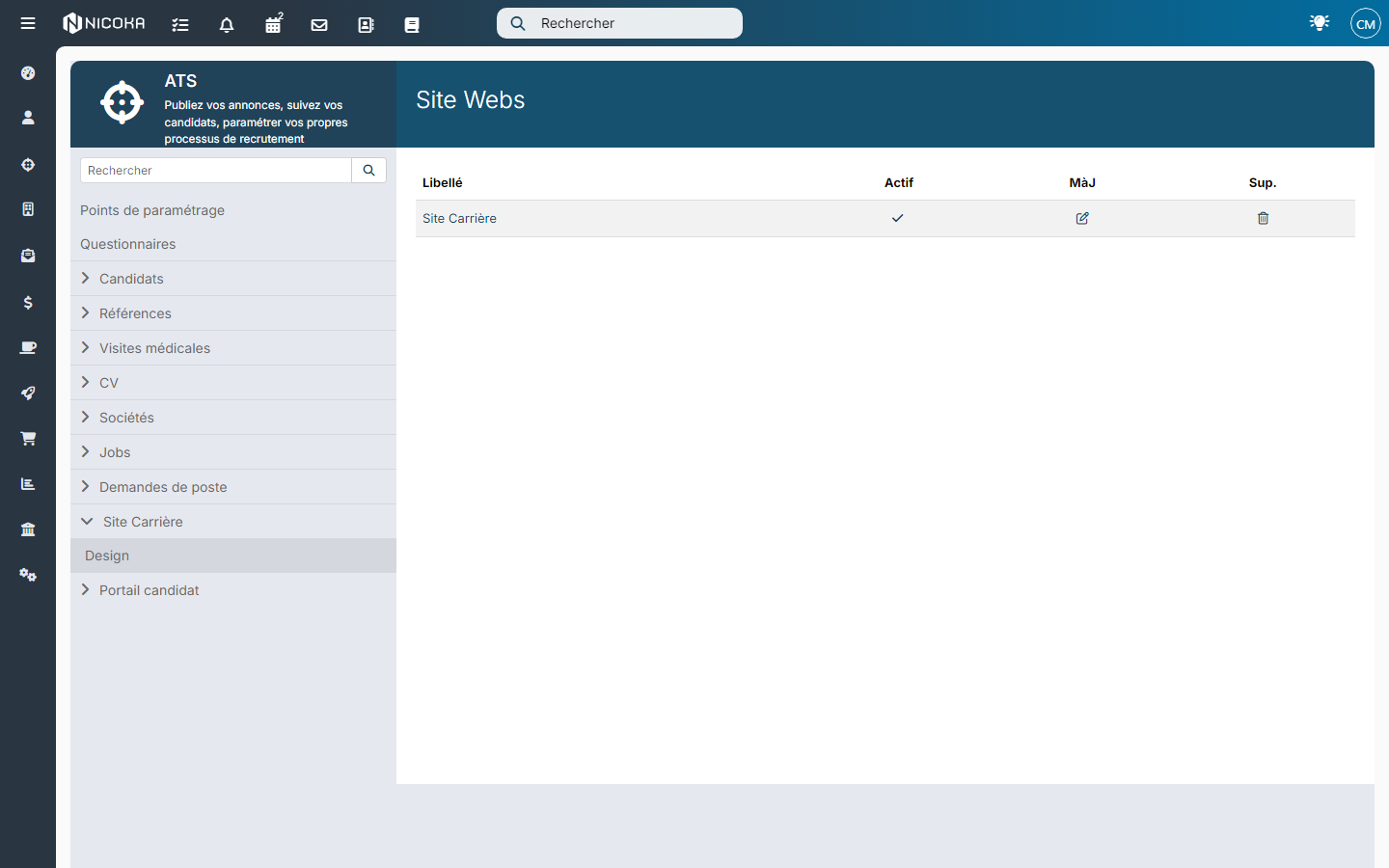
If your company has several career sites, each one has its own row in the list.
2. Get to know the editor
The editor opens full screen. The center of the screen shows a preview of your career site. The settings panels open on the right.
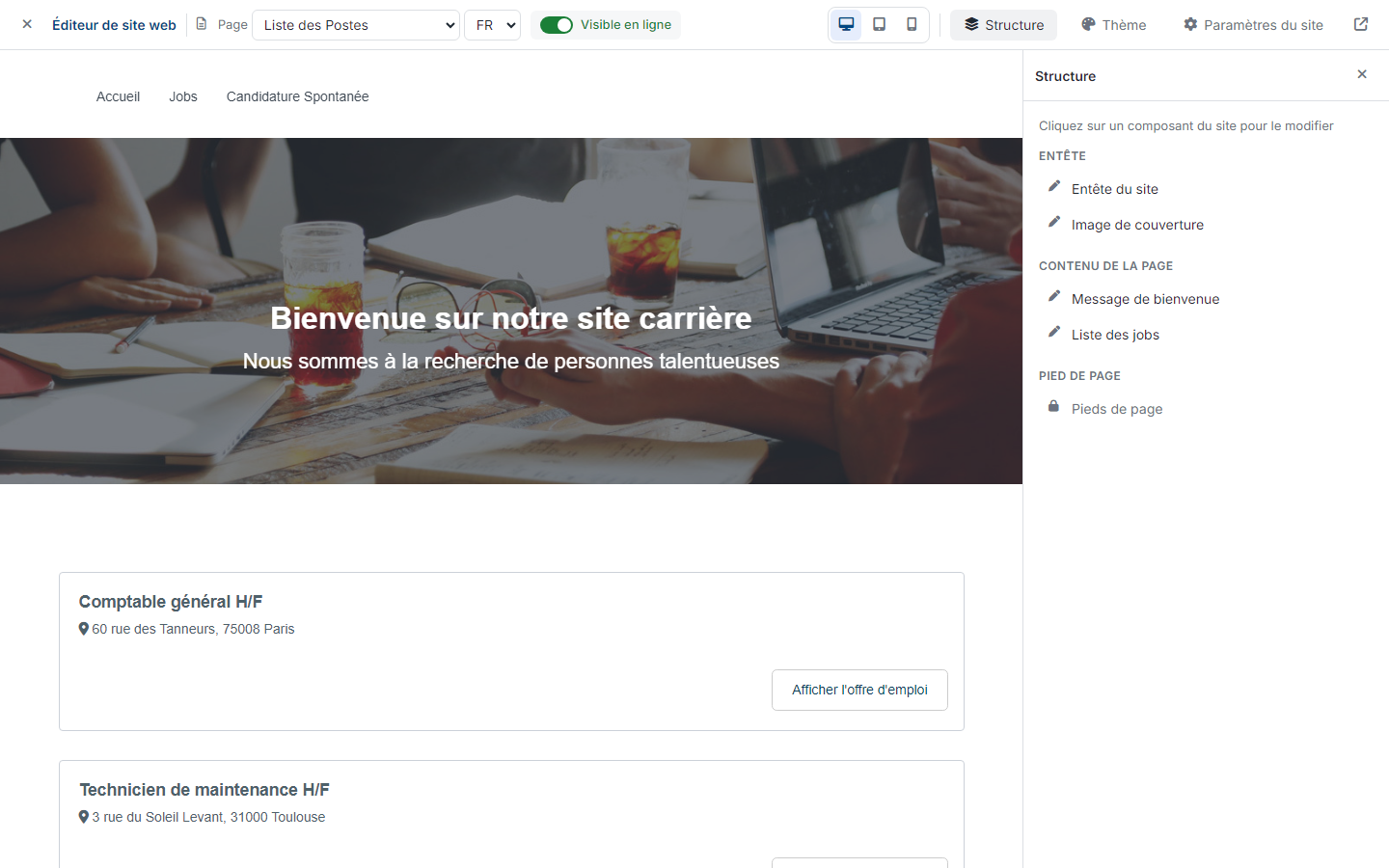
From left to right, the top bar contains:
- the Quit cross, which closes the editor;
- the Page list, to choose the page to edit (list of offers, offer page, open application…), and the list of the languages of your site;
- the Live on the site / Hidden from the site switch of the displayed page (see below);
- the Desktop preview, Tablet preview and Mobile preview buttons, to check the rendering on each screen;
- the Structure, Theme and Site settings buttons, which open the settings panels;
- the Open website in a new tab icon, to see your site as candidates see it.
3. Edit an element of the page
Each page is made of components: the site header, the cover image, the welcome message, the list of offers, the footer…
- Click a component directly in the preview. You can also click Structure, which lists the components of the page in three groups: Header, Page content and Footer, then click the component you want.
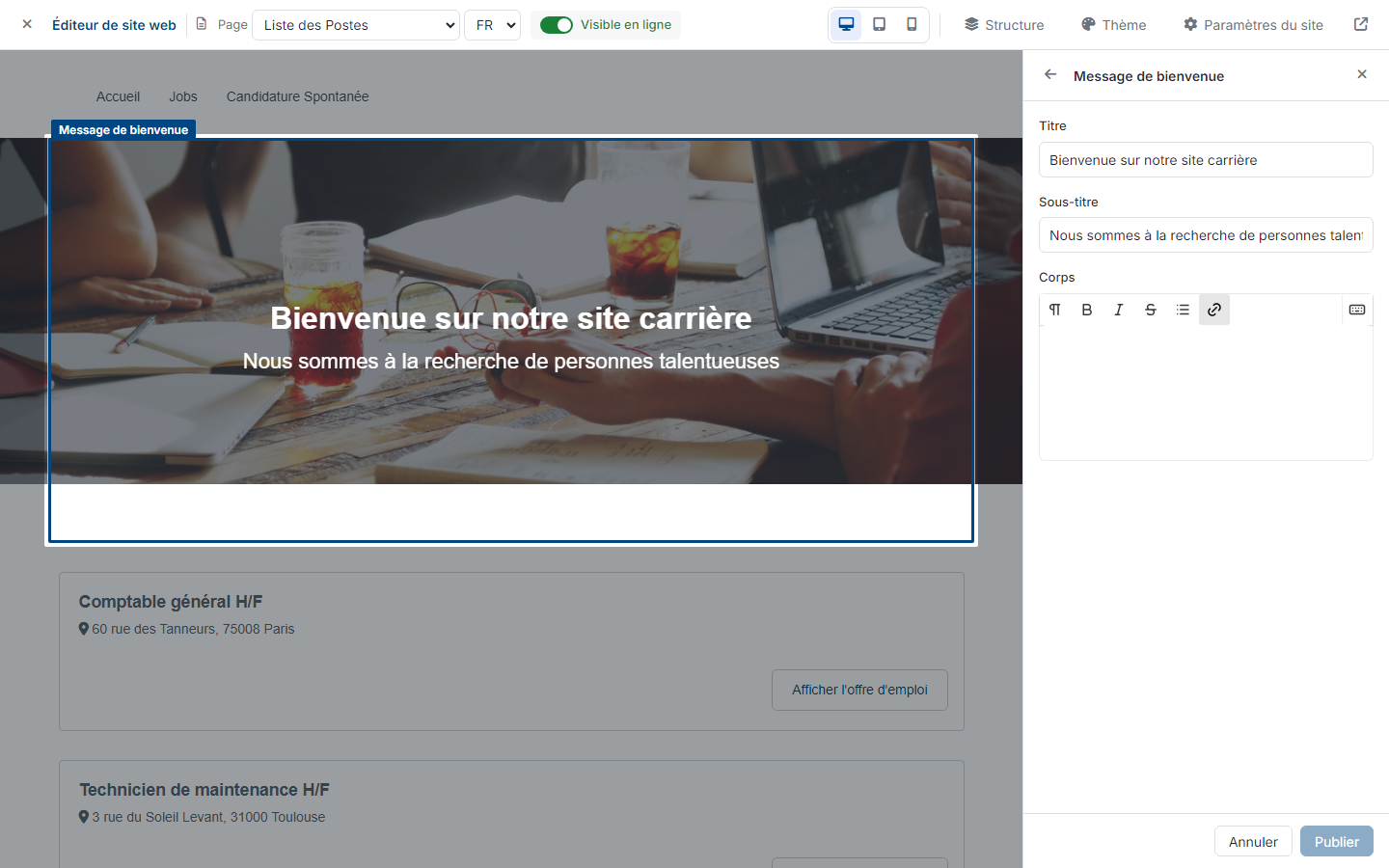
- The component is outlined in the preview and its settings are displayed on the right: titles, texts, images, filters of the list of offers… Depending on the component, the settings are grouped in sections that you expand with one click.
- Make your changes, then click Publish. The button stays greyed out as long as nothing has changed. Cancel discards the unpublished changes.
The components of the Header and Footer groups are shared by all the pages of the site: a change applies everywhere. In Structure, a padlock marks a component that has no settings.
Your changes are online as soon as you click Publish. The preview reloads to show you the result.
4. Change the theme colors
Click Theme. The 7 theme colors apply to all the pages of the site. Click a swatch to choose a color: the preview updates instantly, and the panel shows the number of pending changes.
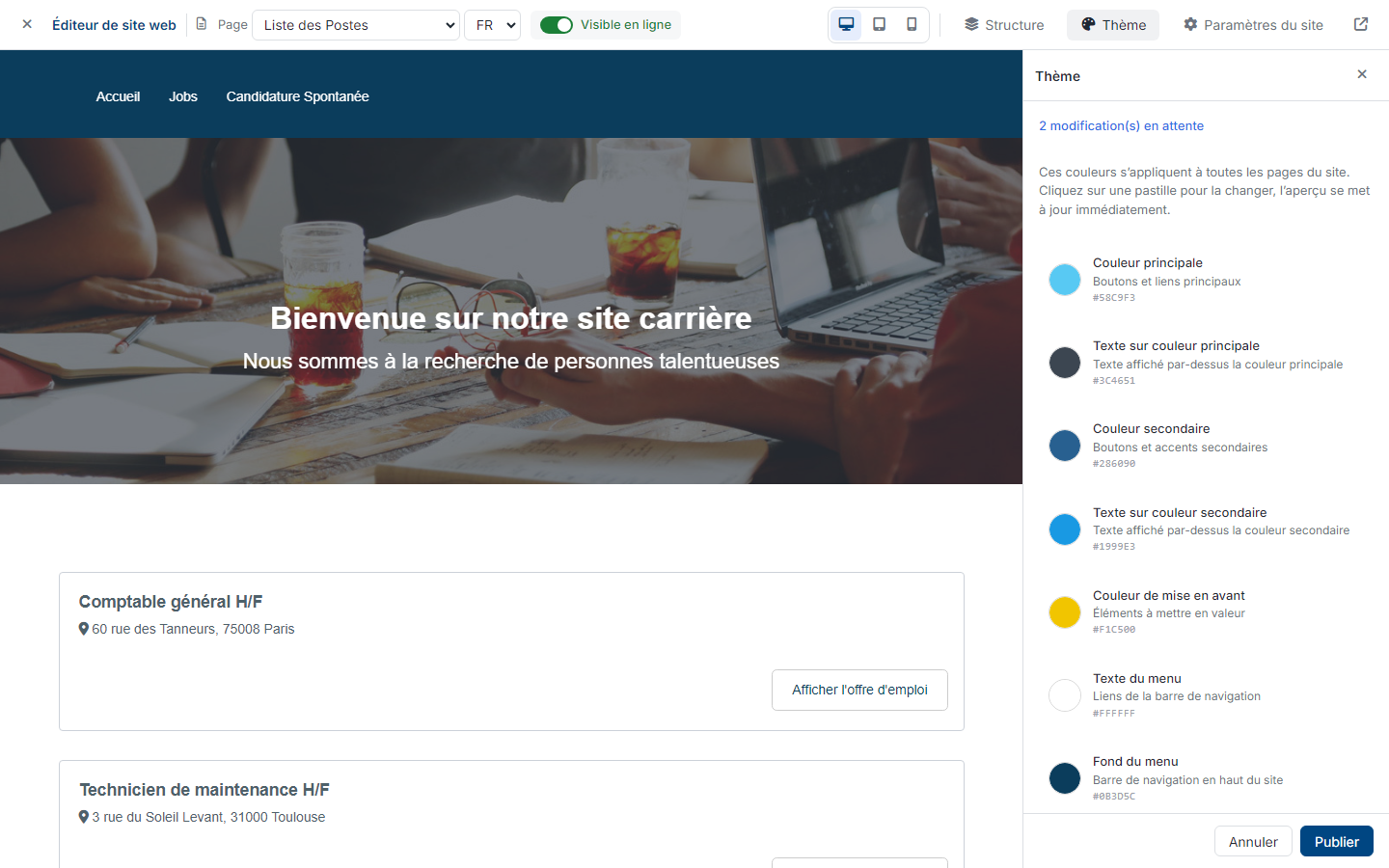
- Primary color: the background of the main buttons of the theme;
- Text on primary color: the links of the breadcrumb, the path shown at the top of an offer page (for example "Jobs > Accountant");
- Secondary color: the background of the buttons on mouse hover, for example the button of the open application block;
- Text on secondary color: the current page in the breadcrumb, and the links of the menu and of the breadcrumb on mouse hover;
- Highlight color: the background of the button of the open application block, when this block is enabled in the settings of the list of offers;
- Menu background: the background of the navigation bar at the top of the site and of the breadcrumb band;
- Menu text: the links of the navigation bar.
Depending on the layout of your site, a color may apply to only a few elements: rely on the preview to judge the result.
When you are happy with the colors, click Publish to put them online. Cancel goes back to the current colors.
5. Adjust the site settings
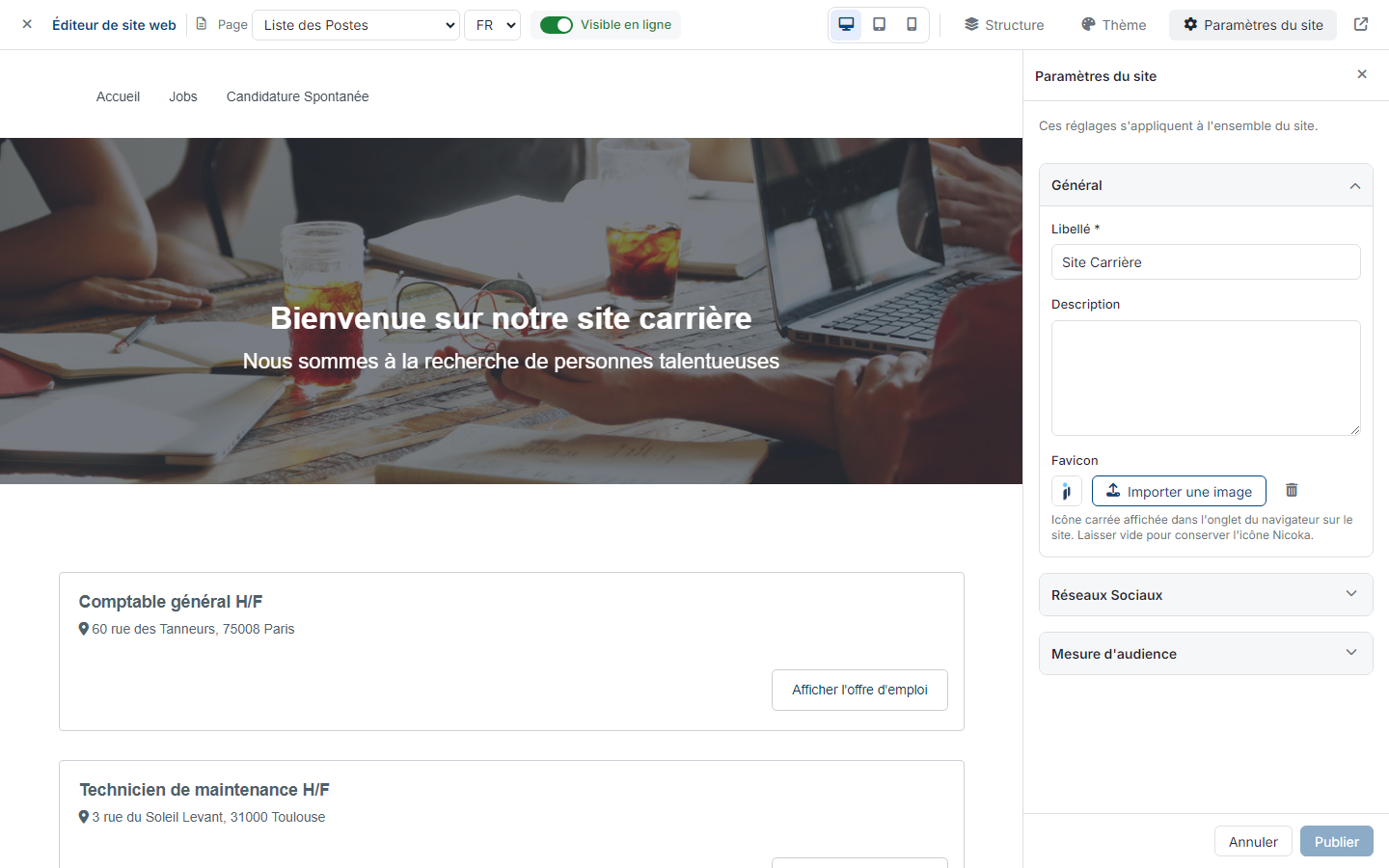
Click Site settings. These settings apply to the whole site:
- General: the Label and Description of the site, and the Favicon, the square icon shown in the browser tab. Leave it empty to keep the Nicoka icon;
- Social Info: the identifiers of your LinkedIn, Facebook and Twitter pages;
- Audience measurement: your Google identifiers (Google Tracker: Google Analytics, Tag Manager or Ads, several identifiers separated by commas) and your Facebook pixel (Facebook Pixel Tracker). When the cookie consent banner is enabled on your site, these tools only load after the visitor's consent.
Click Publish to save.
6. Show or hide a page
Choose the page in the Page list, then click the switch in the top bar. A page that is Live on the site is available to visitors; a page that is Hidden from the site is not. Nicoka asks you to confirm the change.
7. Manage languages
If your career site exists in several languages, choose the language in the list next to the page. Texts are edited language by language: remember to repeat your changes in each language. The theme colors, however, are shared by all languages.
Quit the editor
Click the Quit cross, at the top left. If some changes have not been published, Nicoka asks you to confirm: these changes will be lost.
Learn more
- Setting up the subdomain for your career site
- Connecting your website to Nicoka
- Step 5: Create a position or assignment: publish a job on your career site.