Job progress report: build a document template
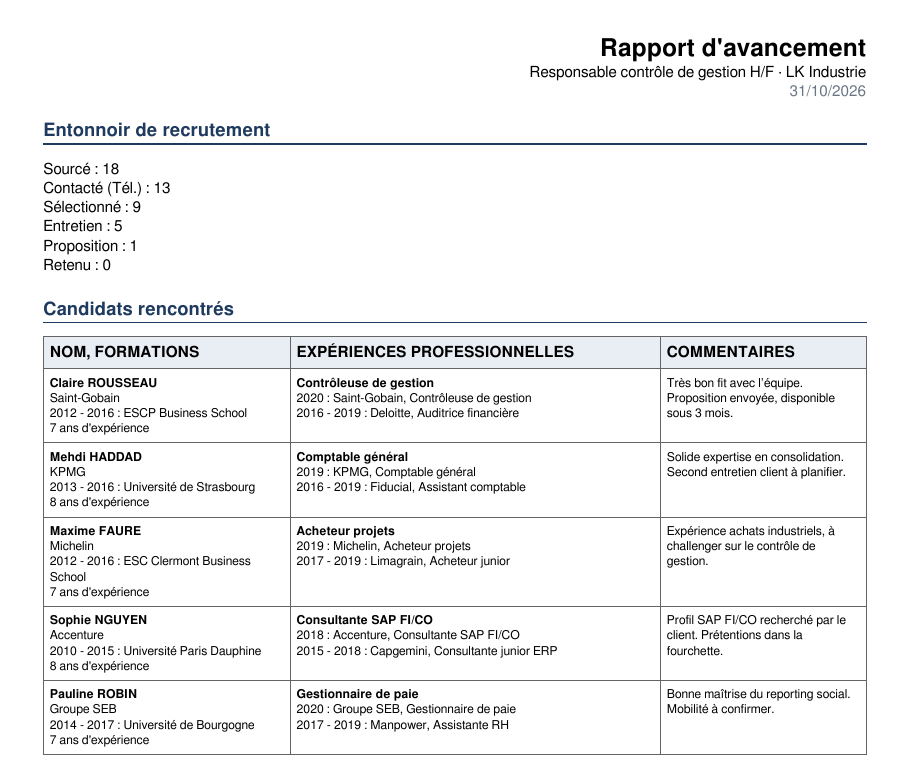
A progress report shows your client how their search is going: how many candidates were identified, contacted and met, and who the ones you are presenting are. Nicoka generates it from the job, as a PDF or Word document, from a document template you build once.
This article covers what is specific to this report. For how the editor works (rows, formatting, tables, display rules), see Document templates (PDF, DOCX). Depending on your settings, the object is called Job, Assignment or Position, and the steps carry your own names. The screenshots show the French interface.
Create the template on the job
- In the side menu, open Customizing > Store, then click Customize on the ATS card.
- In the left menu, expand Jobs, then click Document Templates.
- Click Create a new document template, enter a label such as "Progress report", check that the entity is Job, then click Create.

In the template settings, the Type field picks a PDF or a Word document: a Word document can be touched up before it goes to the client.
Show the recruitment funnel
The Funnel field, in the Job group of the right-hand panel, prints one line per step of your process, with the number of candidates who reached that step or went past it. Drag it into a row of the body. These are the figures of the Conversion Rate Report, described in Reports on jobs.
The job fields that count the candidates of a step do not replace the funnel: they count the candidates who went through that step, and a candidate moved straight to a later step is not counted in the steps they skipped. In the example above, 9 candidates reached the "Sélectionné" (shortlisted) step, but only 7 went through it: two were moved straight from "Contacté (Tél.)" to "Entretien".
List the candidates and their background
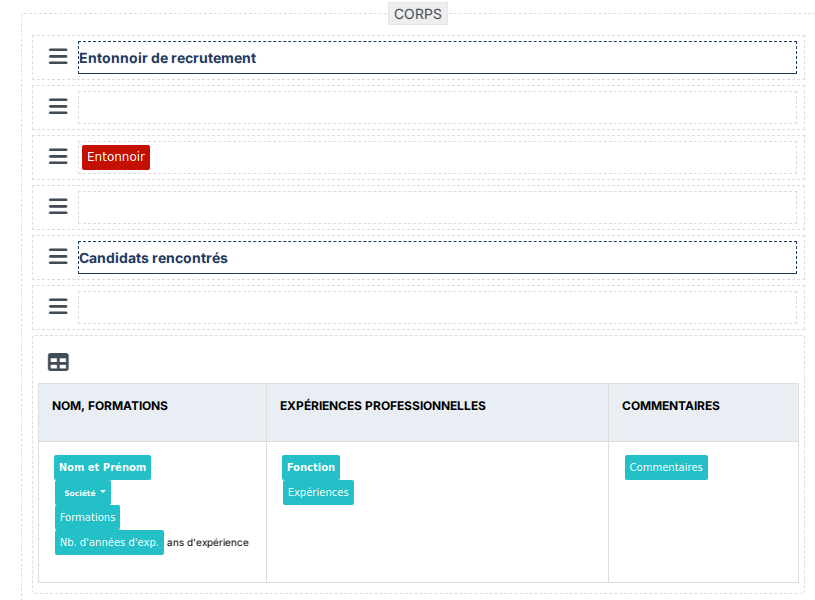
- Add a table: the + button between two rows, then Add a table, and pick the Candidate Application sub-item. The table prints one line per application of the job.
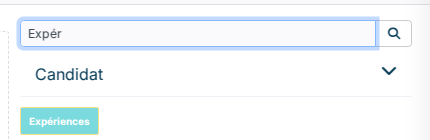
- Drag fields of the application and of the candidate into its columns: name, current company, job title, years of experience, LinkedIn profile… The Search box of the right-hand panel finds them.
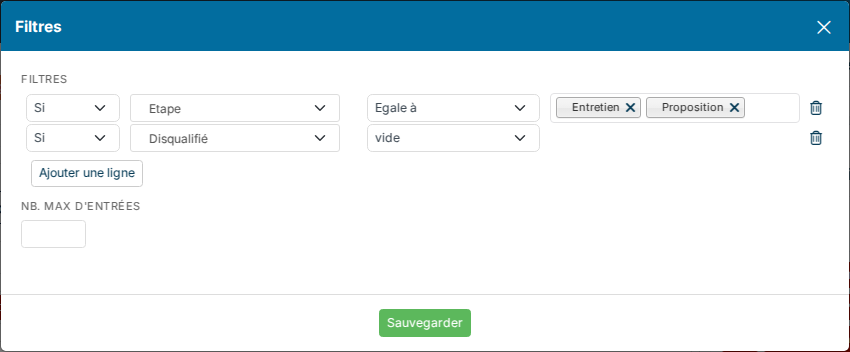
- To keep only some candidates, for example the ones you met, click the table icon on its left, then Filters (the funnel icon). Choose for example Step equal to "Interview" and "Offer", and Disqualified empty, then click Save.
A table cannot hold another table. For each candidate's background, two candidate fields gather their lines in a single cell:
- Education: one line per degree, for example "2012 - 2016 : ESCP Business School";
- Experiences: the work history, one line per position, most recent first, for example "2016 - 2019 : Deloitte, Financial Auditor". A current position shows only its start year.
Generate the report
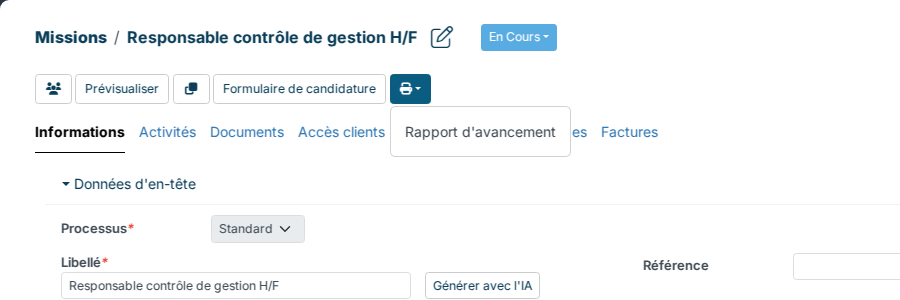
Open the job record, click the printer icon in the action bar, then your template: the document is generated with the job's data. From the editor, Preview generates the report of the most recently created job.