Linking a contact to several accounts
A single contact may work with several of your accounts: an accountant who follows several customers, a manager of several companies, a consultant who works for a customer and for a supplier… Rather than creating one record per account, link the contact to all the accounts concerned. You keep a single record and its whole history.
Link a contact to another account
- Open the contact's record, then click the Linked accounts tab. The list shows the contact's main account and the other accounts already linked.
- Click Add a Customer, or Add a Supplier to link the contact to a supplier.
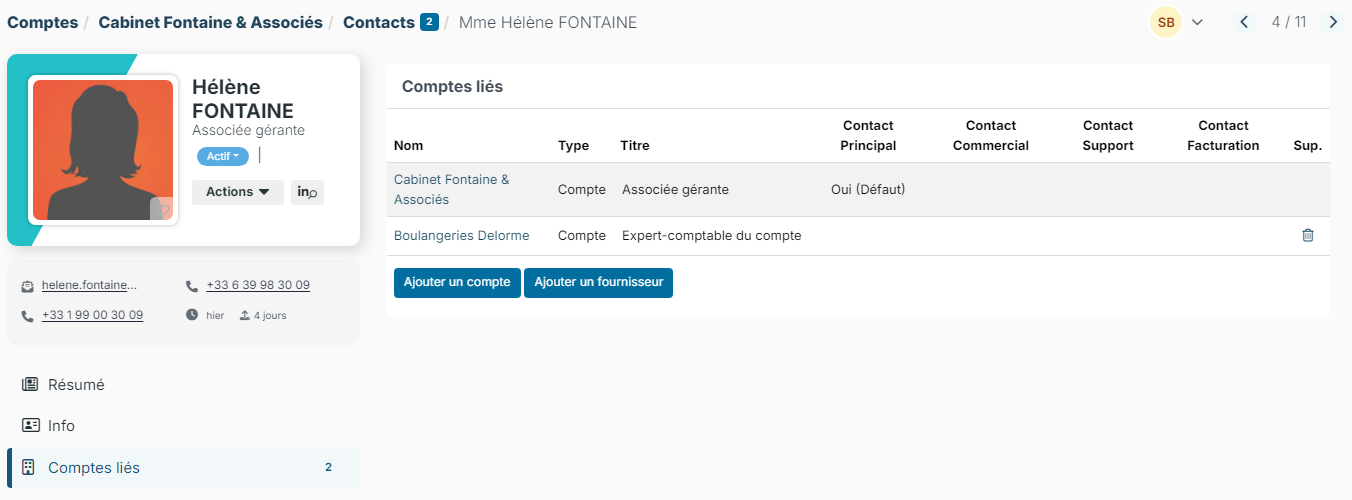
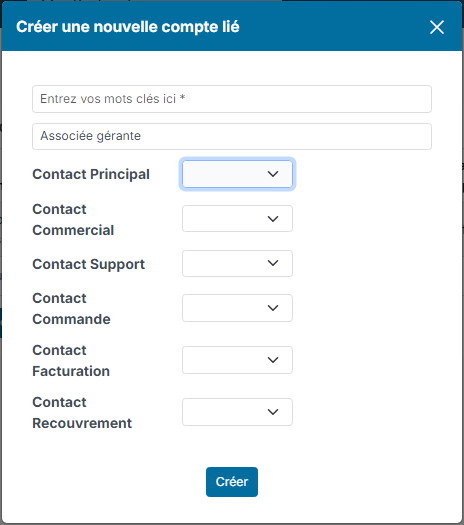
- Search for the account by typing the first letters of its name.
- Check the contact's title in this account: it is prefilled with their current job title, and you can change it, for example "Accountant for the account".
- Specify whether the contact is the main, sales, support, ordering, invoicing or collection contact of this account.
- Click Create.
The contact then also appears in the Contacts tab of the added account. Conversely, from an account's record, Contacts tab, the Add existing Contacts button links contacts already in Nicoka to this account.
Remove a linked account
In the Linked accounts tab, click the delete icon of the account to remove. Only the link is deleted: the account and the contact are kept. The contact's main account cannot be removed from this tab.
Good to know
When you merge two records of the same contact attached to different accounts, the duplicate's accounts are added to the linked accounts of the record you keep. See Merge Contacts.