Using Claap with Nicoka
Claap records your meetings and writes their minutes with artificial intelligence. Once Claap is connected to Nicoka, the report of a meeting with a candidate, a contact or an employee is automatically added to their record.
Before you start
- You have a Claap account with access to the API and webhooks (see your Claap plan).
- You are an administrator of your Nicoka workspace.
- Your candidates, contacts and employees have their email address filled in in Nicoka: this is how meeting participants are recognized.
Step 1 — Create an API key in Claap
In Claap's settings, API section, create an API key, name it for example "Nicoka", then copy it and keep it safe.
Step 2 — Declare the webhook in Claap
The webhook lets Claap notify Nicoka as soon as a report is ready.
- In Claap's settings, create a webhook and give it a name, for example "Nicoka".
- Select the events offered for recordings.
- Enter the address
https://<your-workspace>.nicoka.com/api/application/services/claap/notification, replacing <your-workspace> with the address of your Nicoka workspace.
Step 3 — Create the service in Nicoka
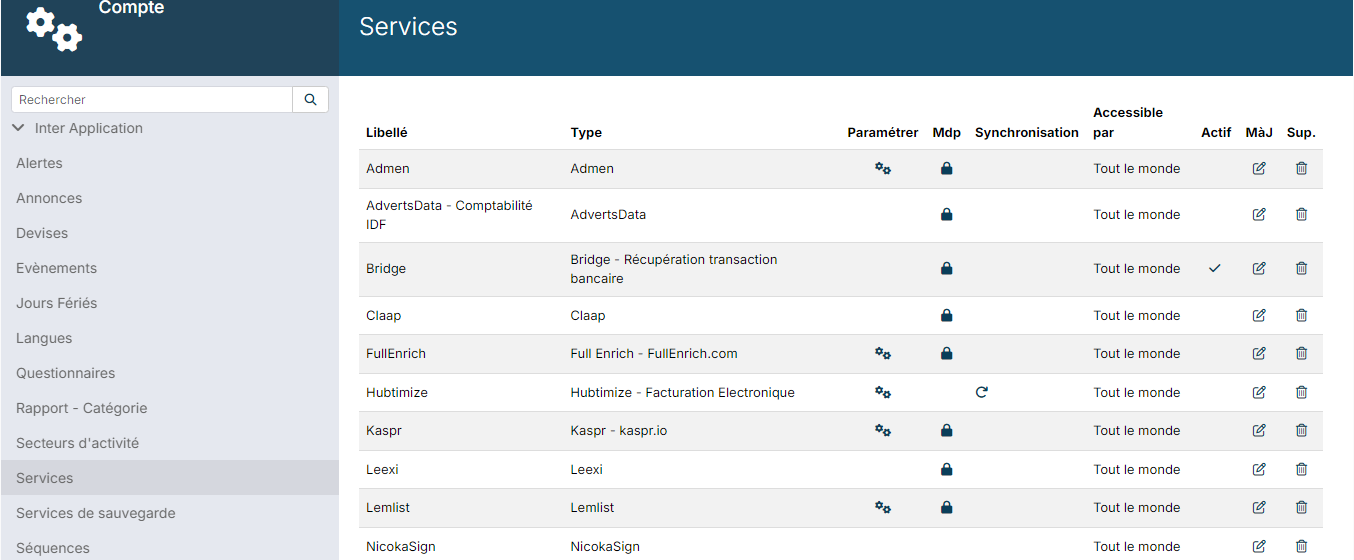
- In the side menu, open Customizing > Administration, then, under Cross Application, click Services.
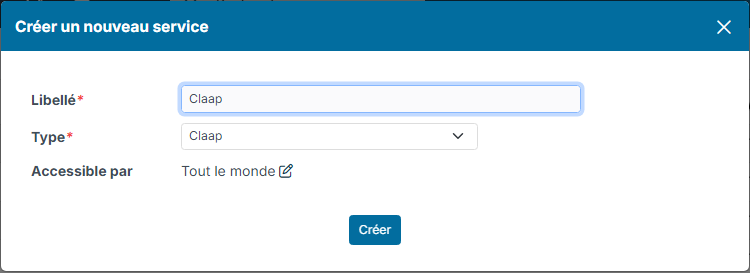
- Click Create a new service.
- Enter a Label, choose the Type Claap, then click Create.
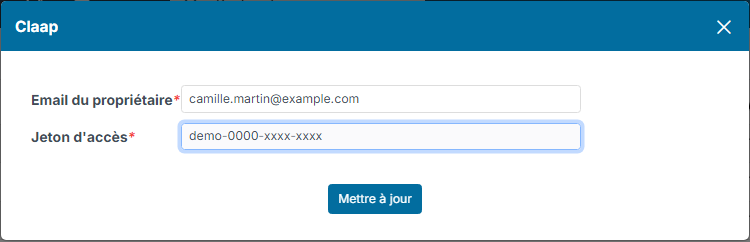
- On the Claap row, click the padlock in the Pwd column, then fill in:
- Owner email: the email address of the Claap account that records the meetings, written exactly as in Claap;
- Access Token: the API key copied in step 1.
- Click Update, then click in the Active column of the row: the tick appears.
Nicoka links each meeting to the service whose Owner email matches the Claap account that recorded it. If several people in your team record their meetings with Claap, create one Claap service per person, each with their own email address and key.
Claap reports in Nicoka
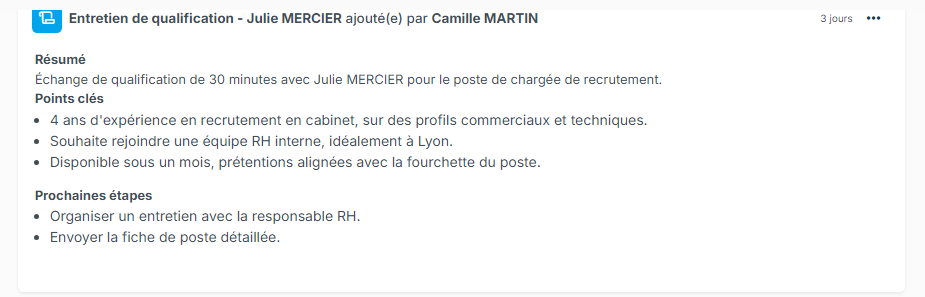
At the end of a meeting recorded by Claap, Nicoka receives the report and adds it as an AI report activity (AI Interview Report on a candidate) to the record of the participants it recognizes by their email address: the candidate first, otherwise the contact, as well as employees. The Nicoka user with the same email address as the Claap account receives a notification.
If no participant is recognized, this user receives a notification saying that the AI report could not be associated. Click it to choose yourself the record the report should be attached to.
See also
- Using Leexi with Nicoka
- Using Noota with Nicoka: Noota is connected from Customizing > Integrations, whereas Leexi and Claap are set up in the Services.