Candidate: status, type and state of mind
To keep your candidate database usable, every candidate must be properly qualified. Nicoka offers three pieces of information for this, which should not be confused:
- the status: where the candidate stands with you (new, active, excluded…). Each status is linked to a model that triggers certain Nicoka behaviours;
- the type: the candidate's category (for example Standard or Freelance). It is used to sort and filter, without any automation;
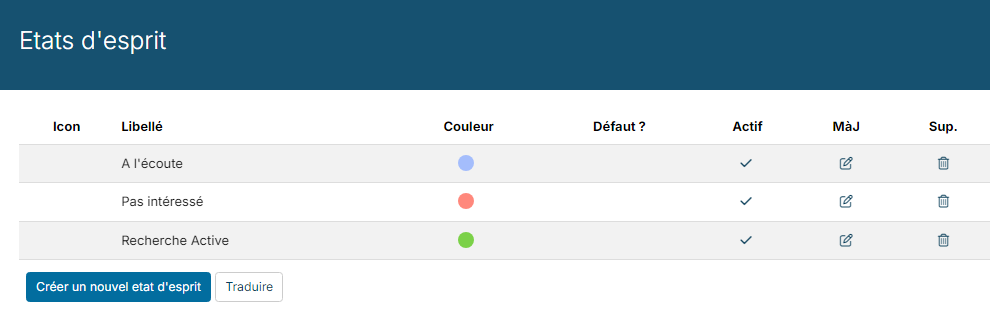
- the state of mind: how open the candidate is to a new position (listening, interested…).
All three are available as columns and filters in your variants of the candidate list.
Status and type on the candidate record
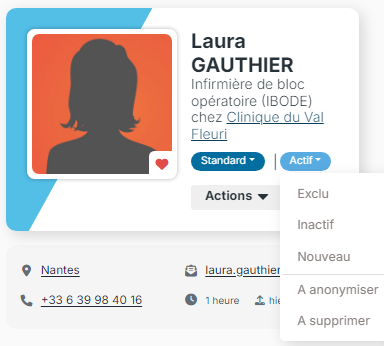
On a candidate record, the type and the status are the two tags shown under the name, in the photo card: the type on the left (for example Standard), the status on the right (for example Active). To change them, click the tag and choose another value from the list.
A candidate's status
The status shows where the candidate stands with you. Each status is linked to a Model, which tells Nicoka the expected behaviour. Nicoka provides seven statuses:
- New (New model): the candidate has just entered your database and has not been processed yet.
- Active (WIP model): the status given by default to every new candidate.
- Disable (On Hold model): the candidate has not been in touch for some time.
- Excluded (Excluded model): you keep the candidate in your database without approaching them, for example because they are outside your usual criteria or work for one of your clients.
- Three statuses for consent management (GDPR), detailed below: the status with the To be anonymized model, Anonymized, and the status with the To be deleted model. In the English interface, the first and the last are both labelled To be deleted: tell them apart by their model.
Do not confuse the candidate's status with the step they are at in a job's recruitment process: these are two different pieces of information.
Setting up statuses
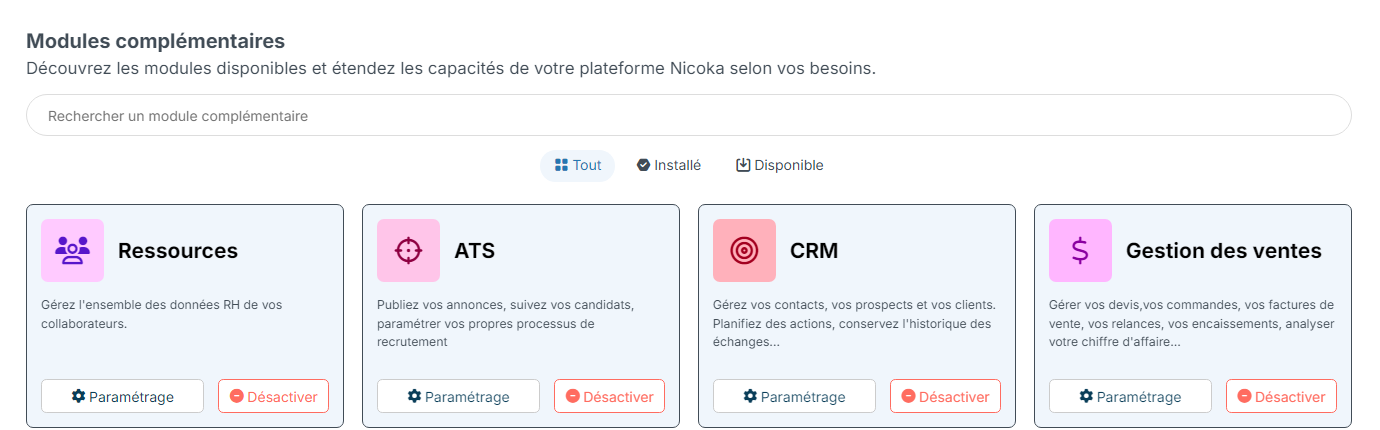
- In the side menu, open Customizing > Store.
- On the ATS card, click Customize.
- In the left-hand menu, expand the Candidates section, then click Statuses.
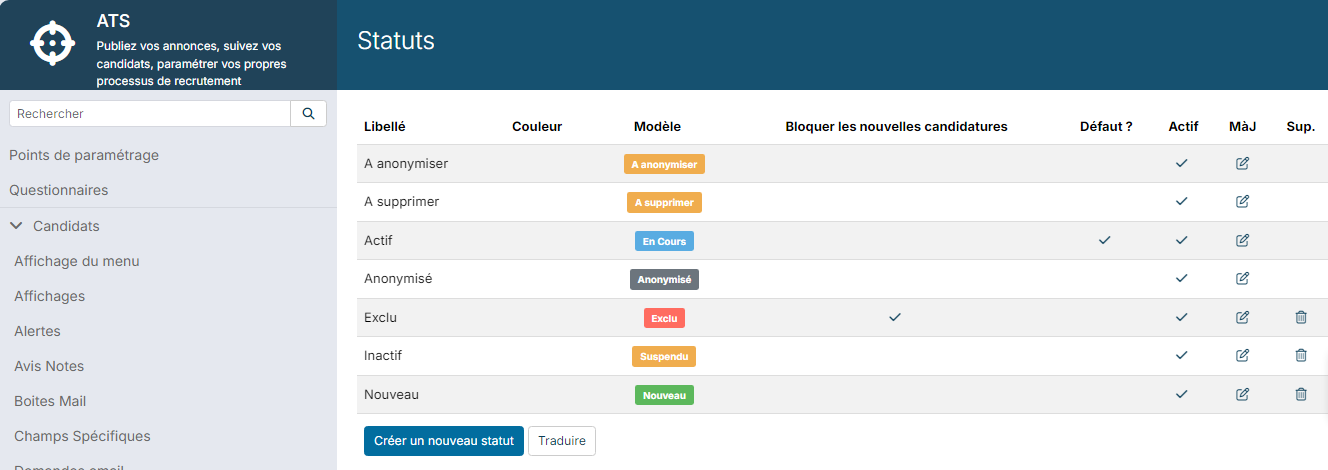
There you can create your own statuses, edit the existing ones, or untick Active to stop offering a status. Four statuses cannot be deleted: Active and the three GDPR statuses.
To add a status, click Create a new status:
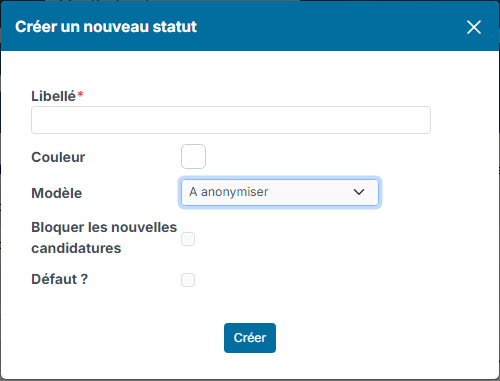
- Label: a name that is clear to every user. You can start it with a number to order the list, for example "00 New", "01 Active".
- Color: the colour of the tag.
- Model: the expected behaviour in Nicoka. Choose a model consistent with the label: the list first offers To be anonymized, do not leave it by mistake.
- Block new applications: when a candidate is in this status, a new application from them is no longer recorded.
- Default ?: tick this box to give this status to every new candidate.
A few examples of statuses created by our users:
- To qualify: the profile needs a closer look (resume review, phone call, tests…);
- Talent pool: the candidate was approved but not chosen by the client, and can be put forward for another assignment;
- Hired: the candidate has been recruited.
Changing a candidate's status
The status can be changed manually or automatically:
- Manually: on the record, click the status tag and choose the new status.
- Through the recruitment process: in a step's settings, Change candidate status applies a status when the candidate reaches the step, and Change candidate status after disqualify when they are disqualified there. For example, a step that receives applications can set the candidate to New, and the first phone call step can set them to Active. See Updating the recruitment process.
- Through a reminder: a reminder (alert) can change the status of the candidates that match your criteria, for example set to Disable the Active candidates whose record has not been updated for a year. Candidate reminders are set up under Candidates > Reminders in the ATS customizing. See Alerts and events.
GDPR statuses
Depending on your consent management settings, a candidate who has not given consent automatically moves to the status with the To be anonymized model or the one with the To be deleted model. Once a delay has passed, an automatic process:
- anonymizes the candidates with the To be anonymized model status, who then move to Anonymized;
- permanently deletes the candidates with the To be deleted model status.
This delay is 7 days by default. It is set in the ATS Customizing Points, Opt in consent requests (GDPR) section, Delay before effective removal (in days) field.
Warning: the status with the To be deleted model triggers a permanent deletion, even when you choose it manually. Once the delay has passed, the record is deleted and cannot be recovered. Only use it for candidates you really want to erase. To find out more, see Managing candidate consents.
A candidate's type
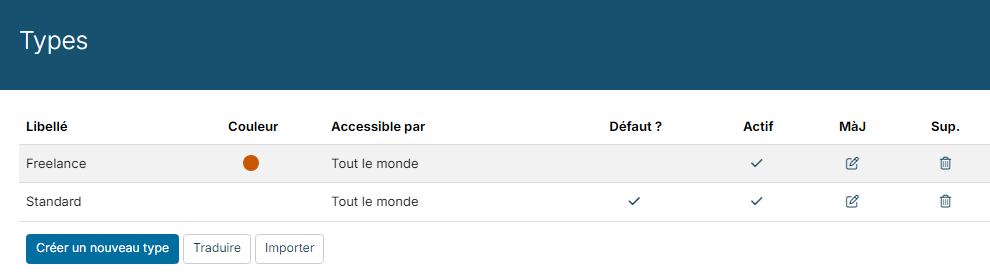
Unlike the status, the type does not trigger any Nicoka behaviour. It is used to sort your candidates and filter them more easily. Nicoka gives the Standard type to every new candidate. For example, some recruiters use the types Student, Freelance and Standard.
The colour chosen for a type colours the record card of the candidates of that type. A recruitment process step can also change the candidate's type (Change candidate type) when your account uses several types.
Types are set up in the ATS customizing, under Candidates > Types. Click Create a new type to add one.
A candidate's state of mind
The state of mind describes how open the candidate is to a new position. Nicoka provides three states of mind: Not interested, Listening and Interested. It is filled in on the Edit Info tab of the record, in the State of mind field.
States of mind are set up in the ATS customizing, under Candidates > States of mind. You can create others and choose the colour of each one.