Pre-boarding configuration
Pre-boarding prepares a new employee's arrival before their first day: administrative formalities, documents to provide, practical information. With Nicoka, you open a secure space for your future employee, the candidate portal, where they follow a path made of several steps and send you the documents needed for their hiring (bank details, diplomas…).
Pre-boarding relies on three elements:
- an account creation email sent to the future employee;
- the candidate portal settings;
- a workflow: the steps the future employee must follow on the portal.
Good to know: this feature is an option, not included in the basic ATS offer.
Opening the ATS settings
All the settings described below are in the ATS settings:
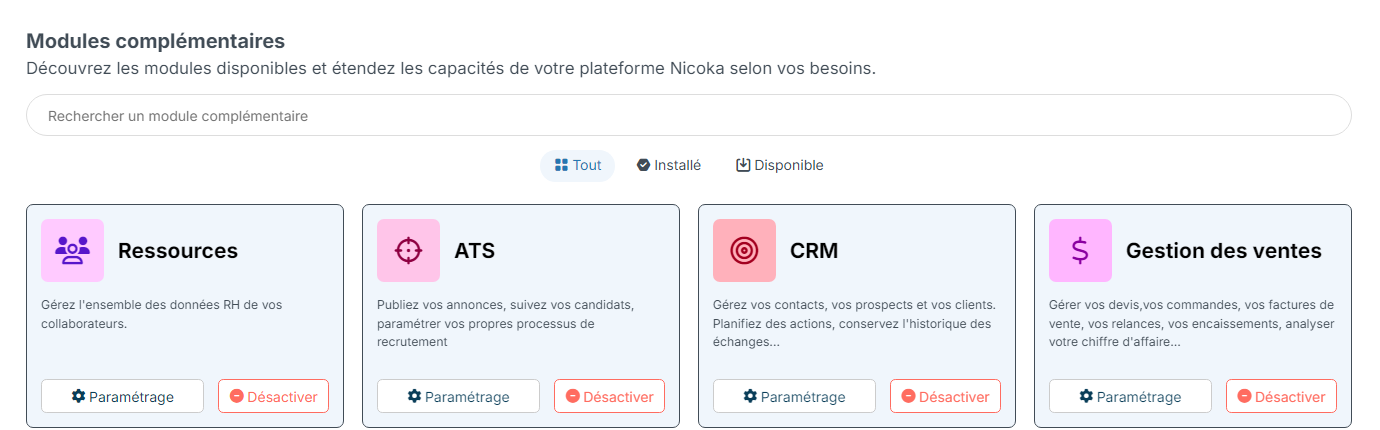
- In the side menu, open Customizing > Store.
- On the ATS card, click Customize.
1. Customize the account creation email
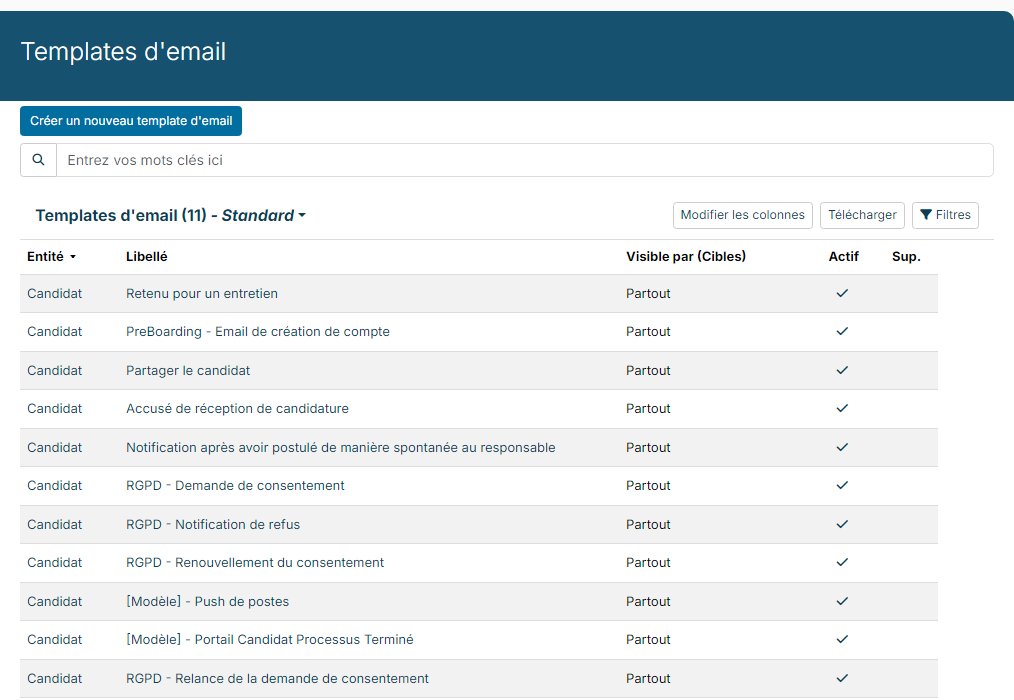
When you open portal access, the future employee receives an email with a unique link to create their password. Nicoka provides a standard template, PreBoarding - Candidate Portal account creation.
- In the left menu of the settings, expand the Candidates section, then click Email Templates.
- Click PreBoarding - Candidate Portal account creation to open it.
- To adapt it, click Copy: you get a copy that you can edit freely. Give it a meaningful name, you will choose it in the next step.
To find out more about the editor, see Manage Email Templates.
2. Set up the candidate portal
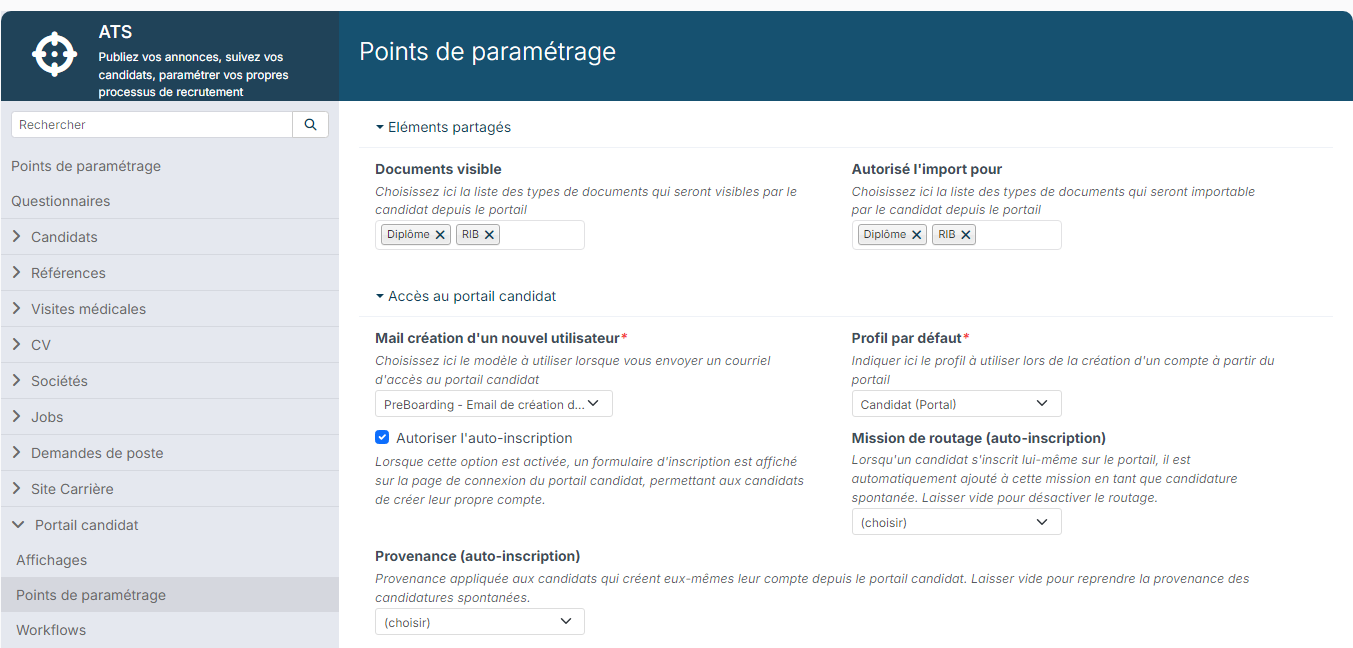
In the left menu of the settings, expand the Candidate Portal section. It contains three entries: Layouts, Customizing Points and Workflows.
Customizing Points
Shared Elements section:
- Visible Documents: the document types the future employee can view on the portal.
- Upload Allowed Documents: the document types they can upload themselves.
Candidate Portal Access section:
- Portal Access Notification Email: the template sent when access is opened (your copy of the PreBoarding template, for example).
- Default Profile: the profile given to portal accounts, for example Candidat (Portal). It is a limited and secure access, reserved for external people. Once they have arrived, the employee will receive access to Nicoka as an employee of the company.
- Allow Self-Registration: adds an account creation tab on the portal login page, so that candidates can create their own account. For a portal used only for pre-boarding, leave this box unticked.
- Default Job for Self-Registration: the job to which a candidate who registers on their own is automatically added, as an unsolicited application. Leave empty so they are not added to a job.
- Application Source for Self-Registration: the source given to these candidates. When empty, the unsolicited application source is used.
Customizing section:
- Welcome Title: the title shown at the top of the login page. When empty, the default message is shown.
- Welcome Subtitle: a text shown at the bottom of the login screen.
- Logo: your logo, shown in the portal header.
- Do not prompt for consent on the candidate portal: the GDPR consent message is no longer shown on the portal. Useful for pre-boarding, when the person has already been hired.
- Display the extended profile fields on the candidate portal: the portal information screen also shows the profile description, the contract types sought, the years of experience, the salary currency and unit, and the daily rates.
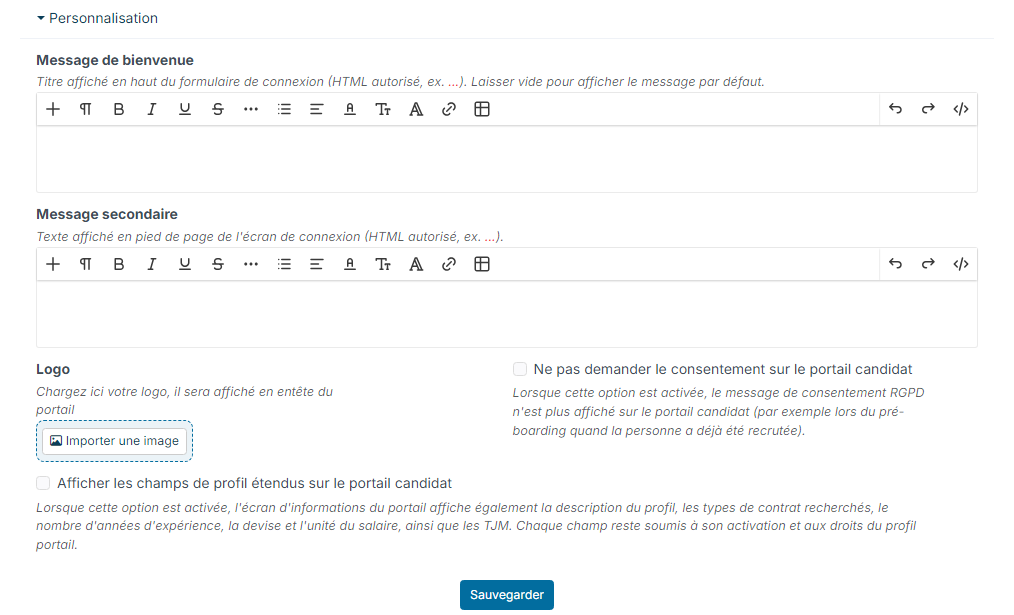
Click Save.
Layouts
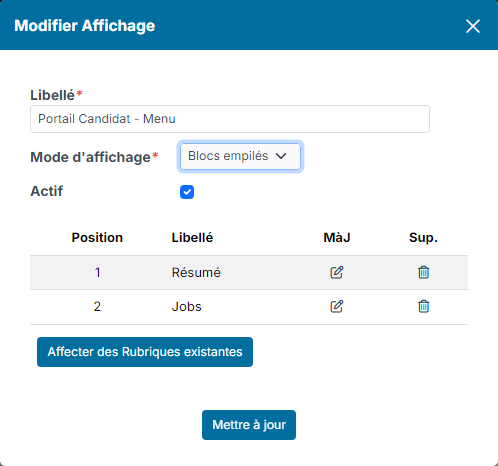
Layouts define the sections of the portal. Open Portal Candidate - Menu with its edit icon: the list shows the sections offered to the candidate. To add one, for example their documents, use the button to assign existing sections, then click Update. Check that the layout is Active.
3. Create the pre-boarding workflow
The workflow describes the steps the future employee follows on the portal.
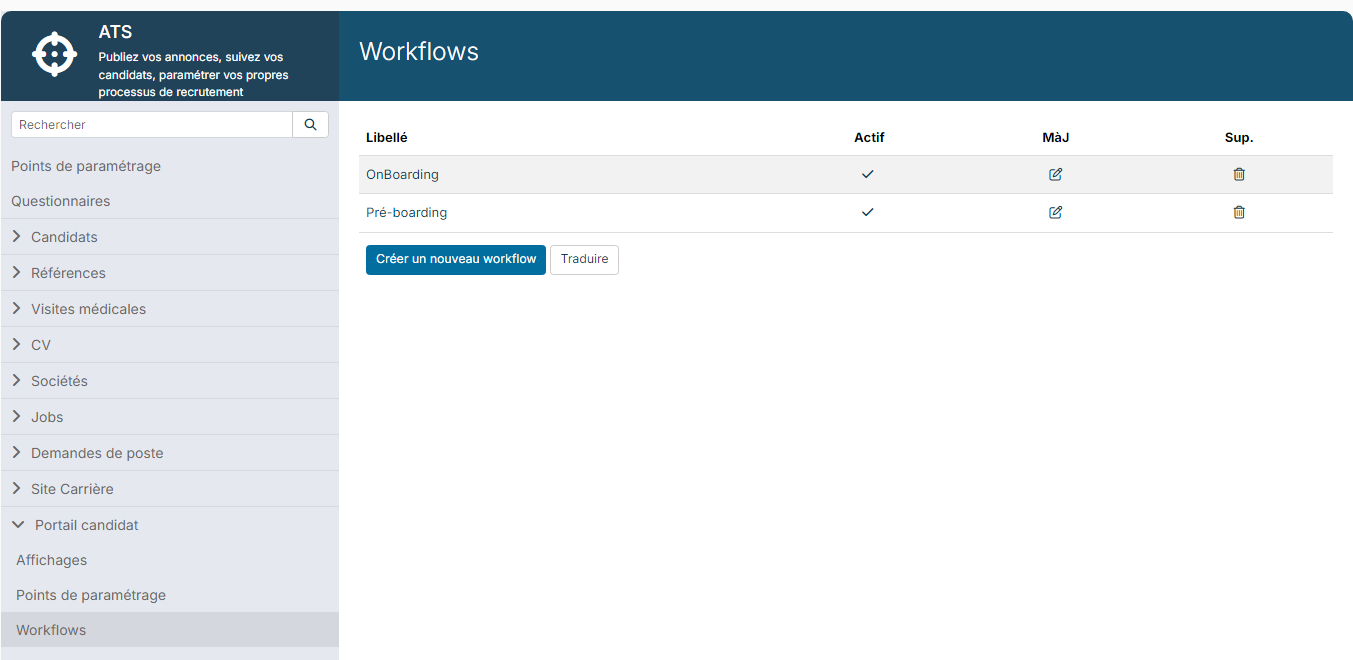
- In the Candidate Portal section, click Workflows.
- Create a new workflow, enter its label, for example "Pre-boarding", then open it with its edit icon.
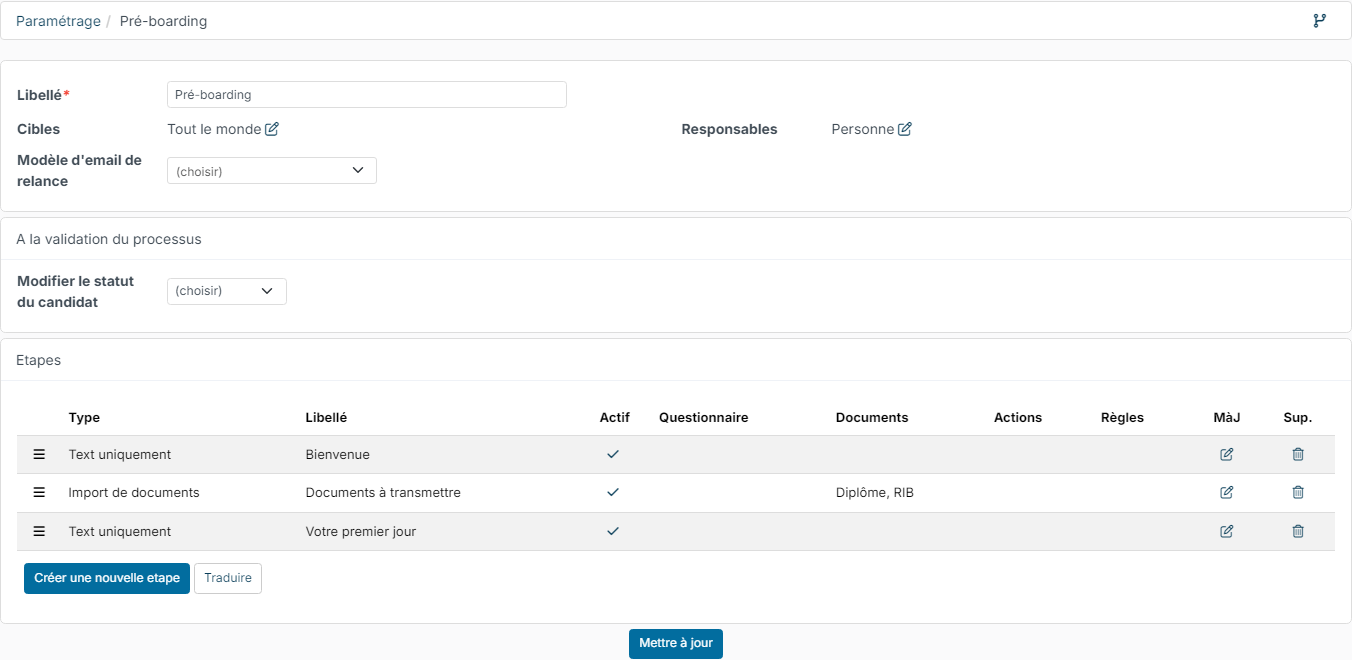
In the workflow record:
- Targets: the candidates concerned (Everybody, or only some candidate types or statuses).
- Responsibles: the people in charge of the workflow. They can for example be notified at the end of a step.
- Reminder email template: the email sent when you send a reminder to a future employee from the process follow-up.
- On process completed > Change candidate status: the status applied to the candidate once they have completed the workflow.
The Steps block lists the steps in order. Create a new step to add one; drag the steps by the three-line icon to change their order.
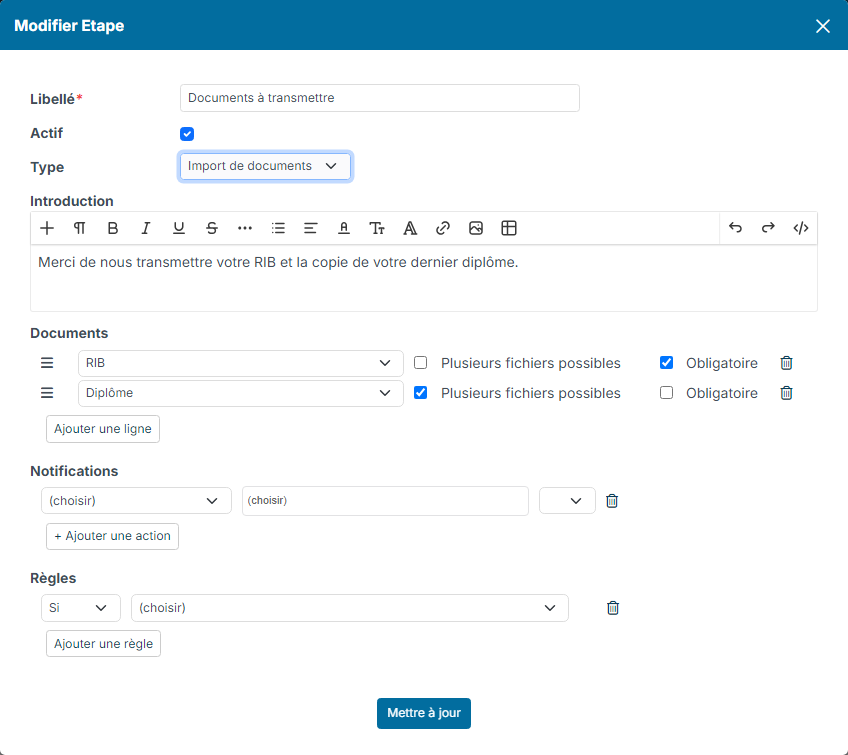
Each step has a label, an Introduction (text, links, images) and a Type:
- Information only: an information page, for example a welcome message or the first-day schedule.
- Form: the future employee answers a questionnaire, for example an administrative information sheet. The questionnaire is created beforehand in the questionnaires linked to candidates.
- Upload Documents: list the expected document types. For each one, tick Multiple files allowed and Required if needed.
- Electronic signature: the future employee signs a document online, for example their contract. The document comes from a Report template, a Document uploaded in the step or a Document from the candidate sheet (by type). This step requires an electronic signature service configured on your account: see Document Signing.
In the notifications section, click Add an action to be alerted when the future employee completes the step, especially for a document upload step. The Rules section lets you show the step only to some candidates.
Your settings are complete. Before using them, run a test with your own email address to check the path.
4. Open portal access
- Open the hired candidate's profile and click Portal Access.
- Tick Give access, check the Profile, the Email and the language (Communication in).
- Leave Send activation email ticked.
- Click Save.
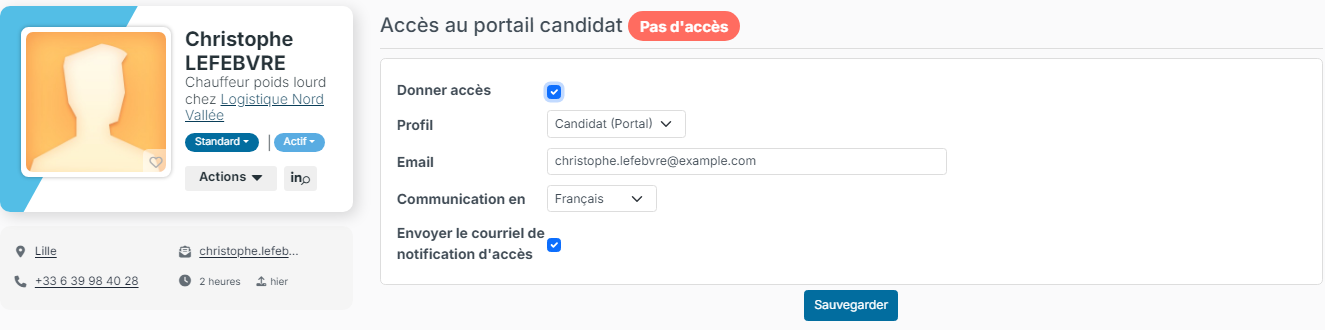
The future employee receives the email you chose in Portal Access Notification Email, with a unique link to choose their password.
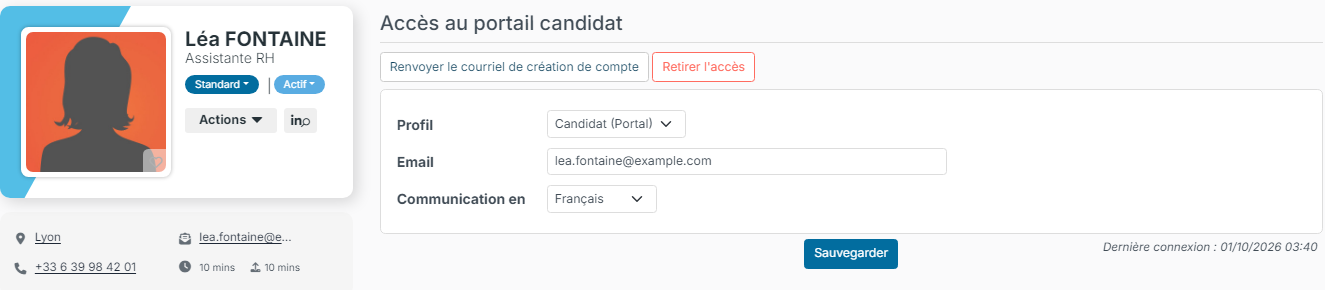
Once access is open, the same page offers Resend account creation email, if the person did not receive or lost the email, and Remove access.
5. What the future employee sees
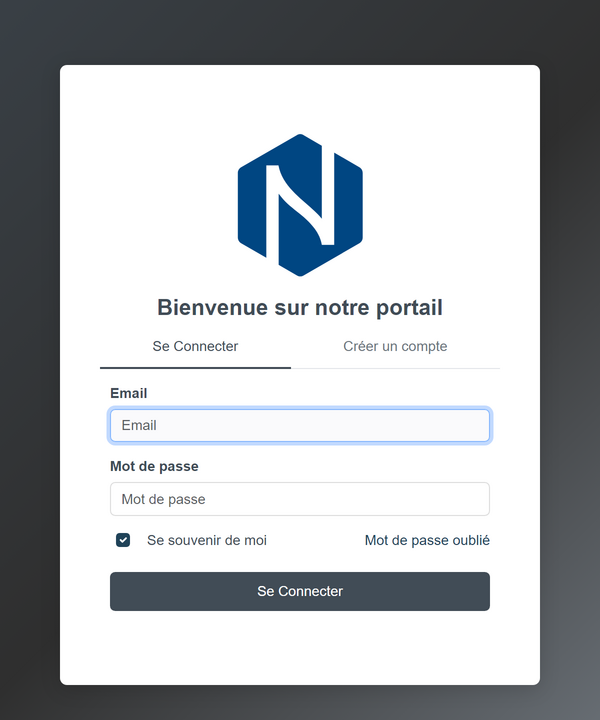
The future employee logs in to the portal with their email and password.
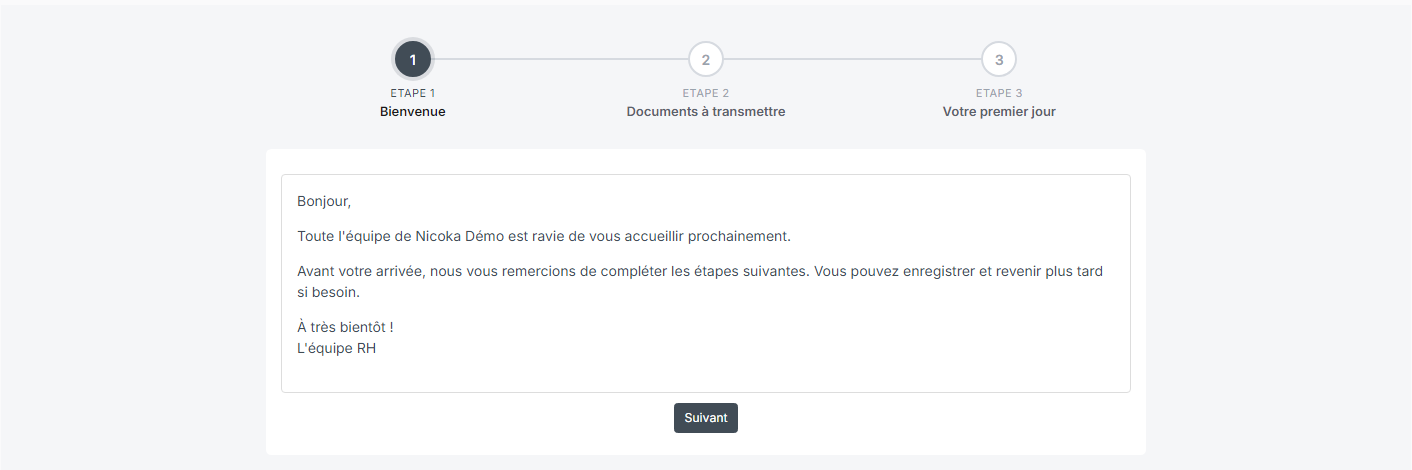
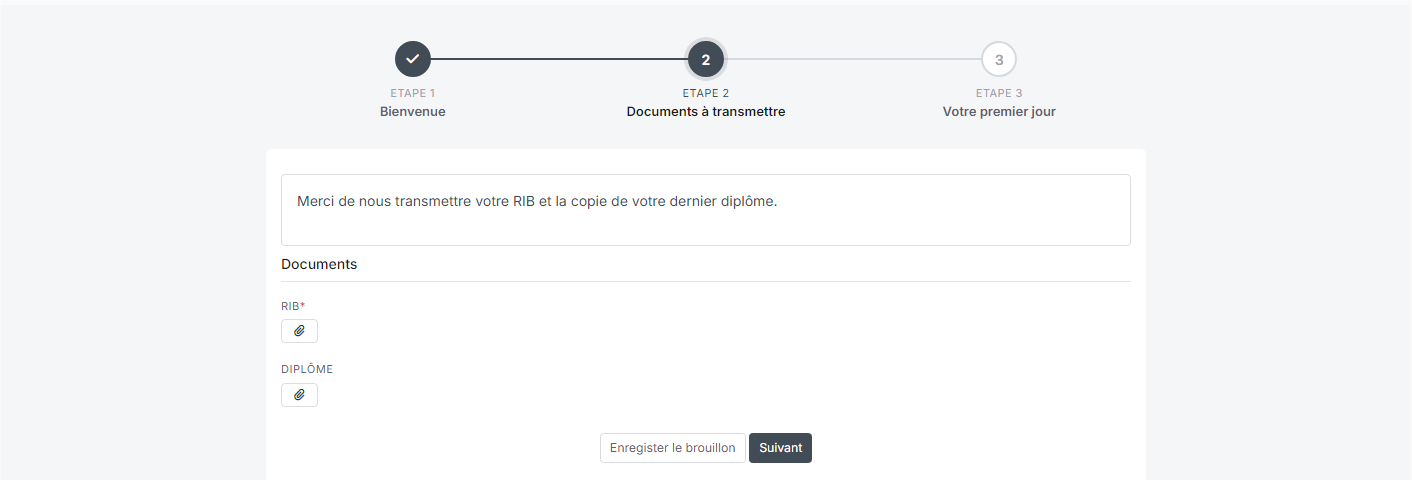
They see the steps of their workflow at the top of the screen and complete them one by one with the Next button.
On a document upload step, they upload their files; they can save a draft and come back later.
6. Follow progress
In the candidate list, click the Portal Processes button. For each future employee, the list shows the workflow, the candidate, the current step, the Portal Workflow Status and the last update date.

Tick rows, then open the Actions menu to Send reminder email or Rewind portal workflow.
7. Retrieve the documents
The documents uploaded by the future employee arrive in the Documents section of their candidate profile. At this stage, they are still a candidate in Nicoka.
When the time comes, convert them into an employee: see Convert a candidate into an employee. Their documents are then copied to their employee file, filed according to the category of their document type.
You can then start your usual onboarding process: see Create a new employee onboarding checklist.