Define access profiles in Nicoka
In Nicoka, what each user can see and do depends on their profile. A profile defines:
- the modules and records available, and for each one the rights to read, create, modify, delete, bulk update and download;
- the data access restrictions (company, locations, departments, subordinates…);
- the side menu entries that are shown;
- the widgets the user can add to their dashboard.
The rights on the employee sheet sections (Salary, Documents, Personal data…) are not set in the profile but section by section: see Employee sheet sections: View and Edit rights per profile.
Profiles are managed in the Admin area: only users who have access to it, usually administrators, can create or change a profile. Not all your employees necessarily have access to Nicoka, and therefore a profile.
Opening the list of profiles
- In the side menu, open Customizing > Admin.
- In the left-hand menu, expand Users and click Profiles.
For each profile, the list shows its Label, its Related Sub Entity (employee, contact or candidate), the Modules (full access) and Modules (read only), the number of Users and API Users, and whether it is Active. Click the number of users to see who has this profile.
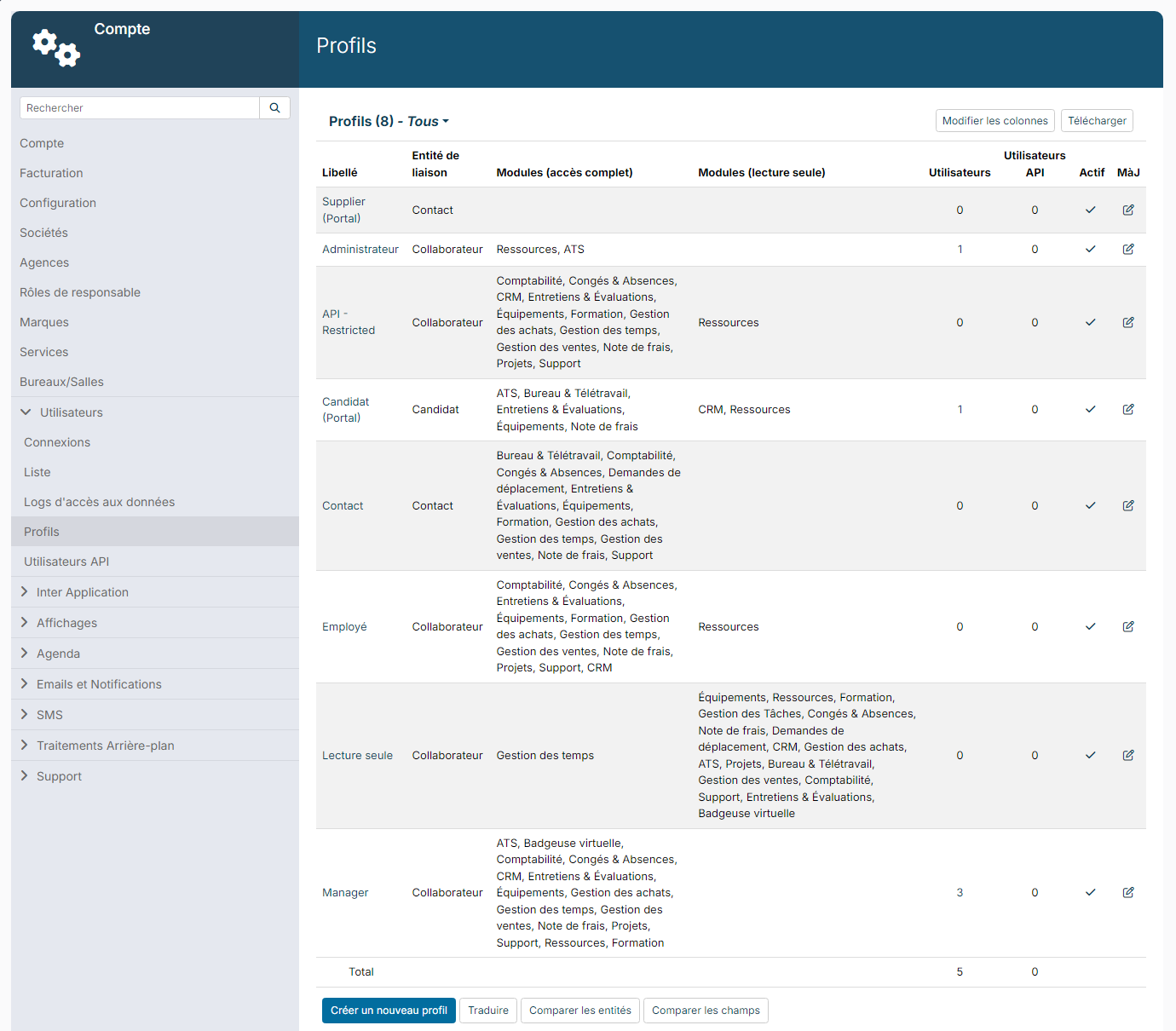
Nicoka provides five profiles by default:
- Administrator: the people who administer your Nicoka space (settings, modules…);
- Manager: employees who manage a team;
- Employee: employees who use Nicoka without managing a team;
- Contact: contacts outside your company who have access to your space;
- Candidate (Portal): candidates who use the candidate portal.
Your list may contain other profiles, created for your company. Below the list:
- Create a new profile;
- Translate: enters the profile labels in the other languages;
- Compare profiles entites and Compare profiles fields: compare the rights of the profiles.
The profile record
Click a profile's label to open it. The record has five tabs. In the current version they are shown in French in every language: Général (General), Restrictions, Modules, Menu and Widgets. At the top right:
- the number of users who have this profile (click it to see the list);
- Change log;
- Copier (Copy): creates a copy of the profile, handy to start from a similar profile;
- Supprimer (Delete).
Général tab
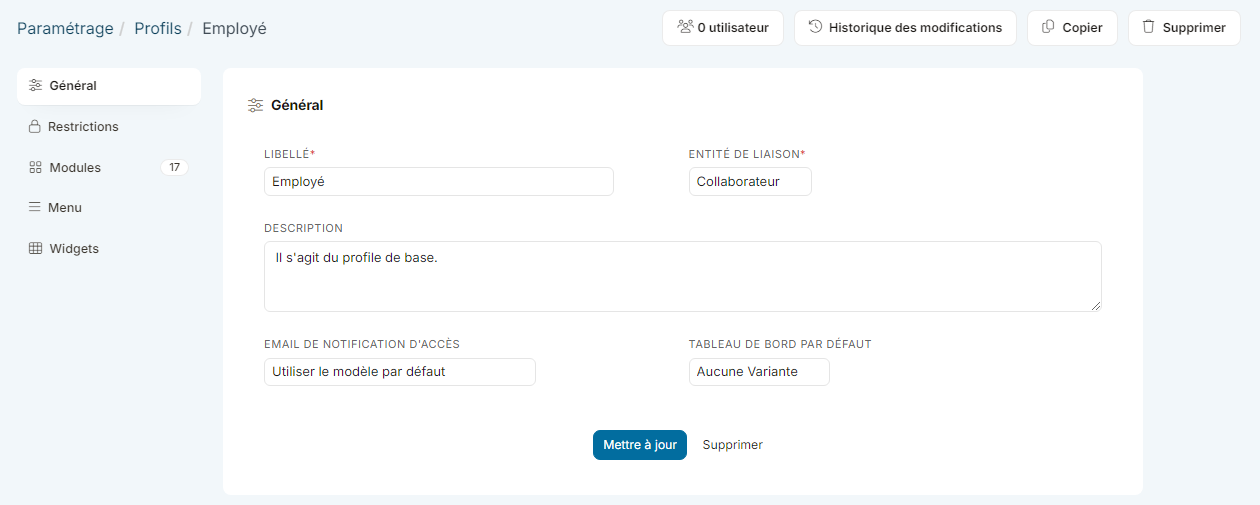
- Label and Description of the profile.
- Related Sub Entity: the type of person who receives this profile (employee, contact or candidate). It can no longer be changed once the profile has been assigned.
- Access email template: the email template sent to the user when their access is created. By default: Use default template.
- Default dashboard: the dashboard shown to users of this profile as long as they have not customized their own.
Click Update to save.
Restrictions tab
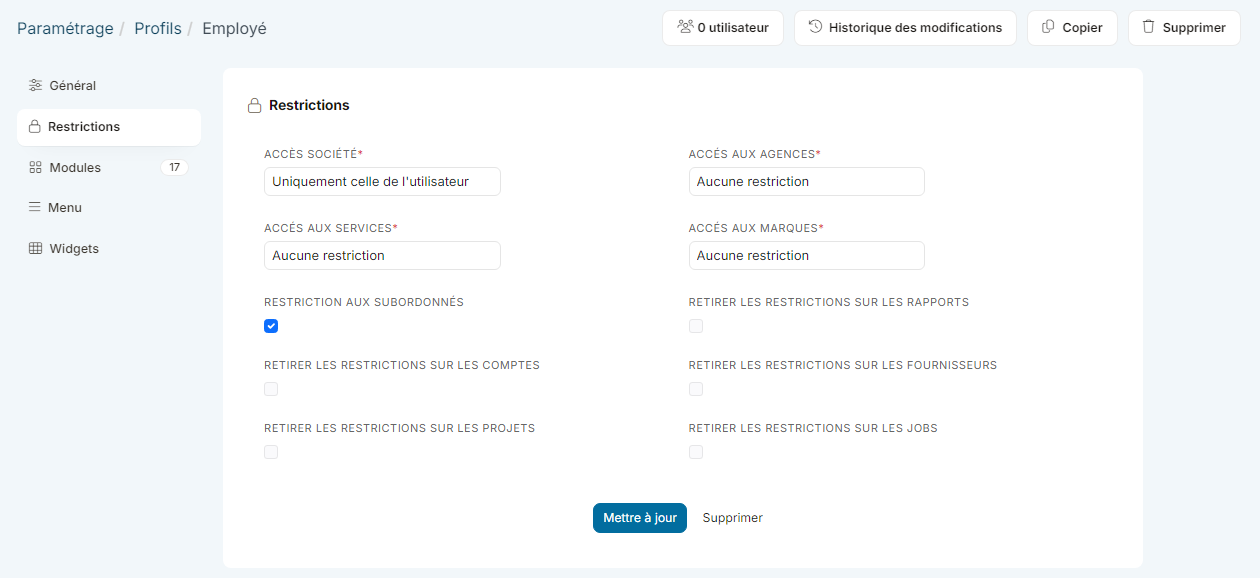
This tab limits the data that users of the profile can access:
- Company access: No restriction, Only mine or Only the following (then choose the companies).
- Access to locations, departments and divisions: the same choices, if your company has several of them.
- Hierarchy Restriction: the profile only has access to the data of the employees the user manages.
- Withdraw access restriction on reports, customers, suppliers, projects or jobs: when the box is checked, the user has access to all the items concerned. These boxes depend on the modules activated.
For a profile related to contacts, the tab also offers Access to employees and the choice of companies. Save with Update, as for the Général tab.
Modules tab
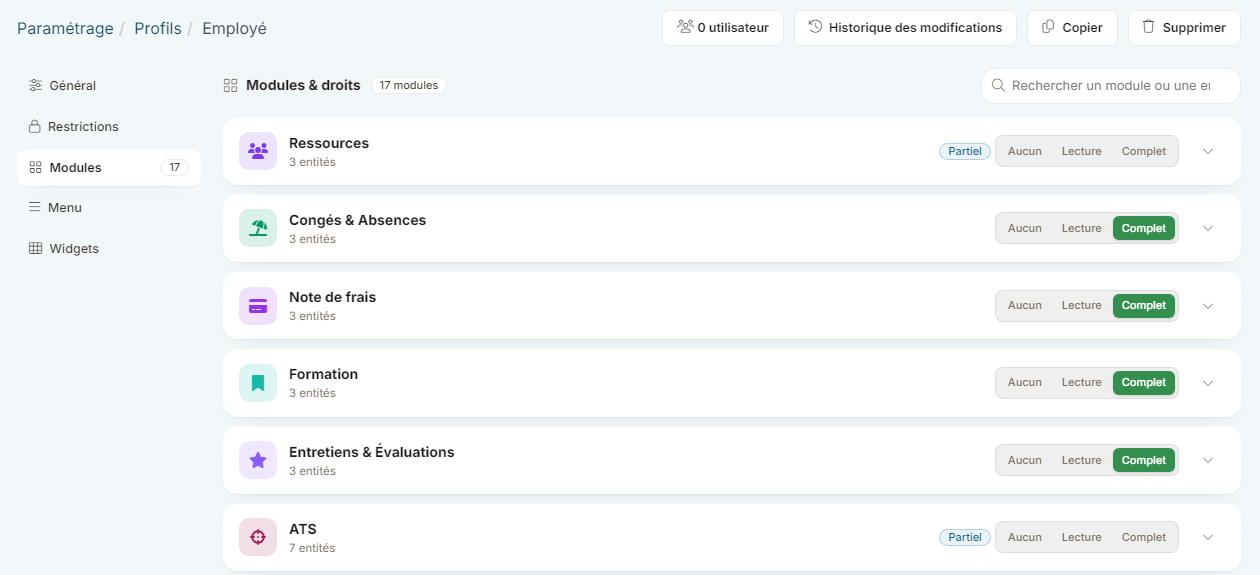
The Modules tab lists the modules of your space. For each one, choose the access level: Aucun (none), Lecture (read) or Complet (full). Partiel (partial) means that the rights are set case by case. The search box at the top finds a module or a record type.
Click a module's arrow to set the rights record type by record type: Lecture (read), Création (create), Modification (modify), Suppression (delete), Mod. masse (bulk update) and Téléchargement (download). The Champs (fields) column restricts access to some fields.
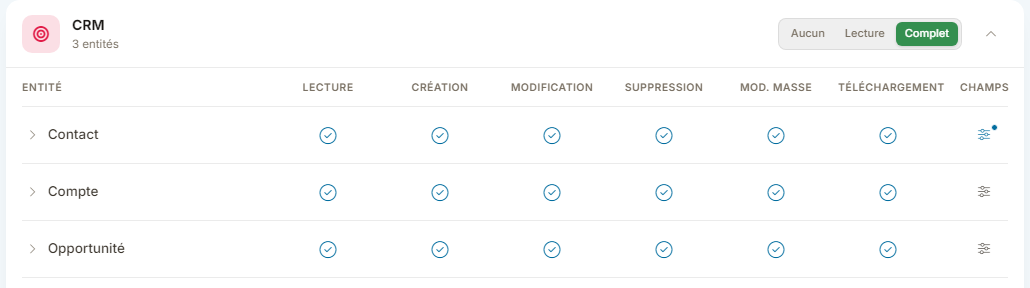
Your changes are shown in a bar at the top of the tab, with the number of pending changes: click Sauvegarder (save) to save them, or Annuler (cancel).
Menu and Widgets tabs
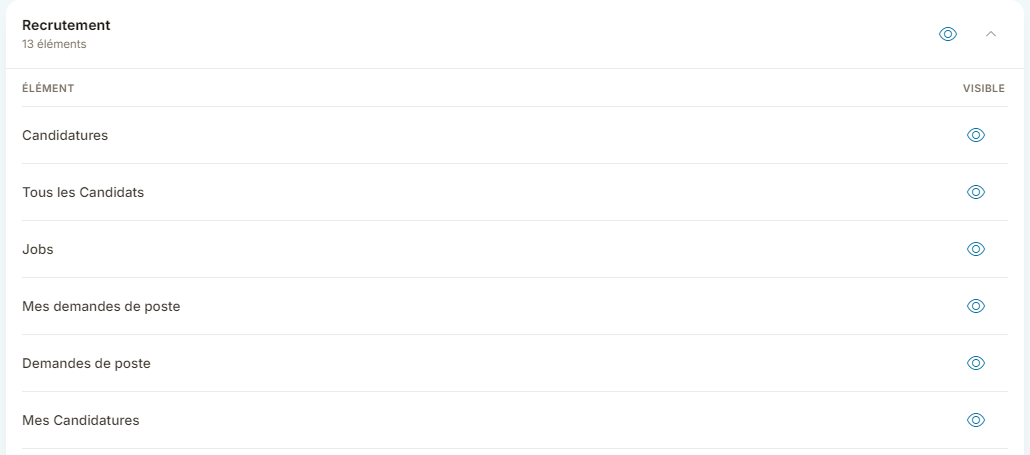
The Menu tab lists the sections of the side menu. Expand a section and click the eye of an entry to show or hide it for this profile. The eye of the section applies to the whole section.
The Widgets tab groups widgets by category. In the same way, the eye shows whether the widget is offered to users of the profile for their dashboard.
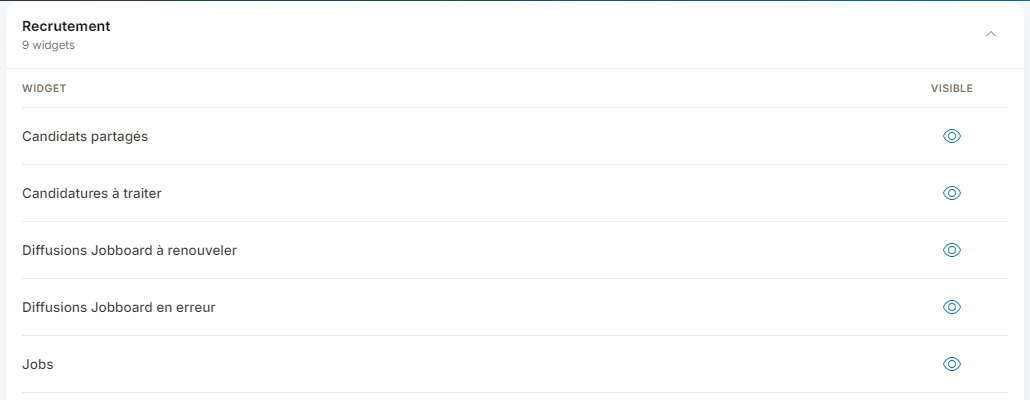
As for modules, click Sauvegarder (save) in the bar that appears to save your changes.
Assigning a profile
The profile is chosen on each user's access: see Edit the access profile of an employee / user. To organize the widgets of a dashboard, see Dashboard - Customization.